World Override
Render a job with another world from the same .blend file, for lighting variations, without changing the scene.
Last updated By the RenderGod Team
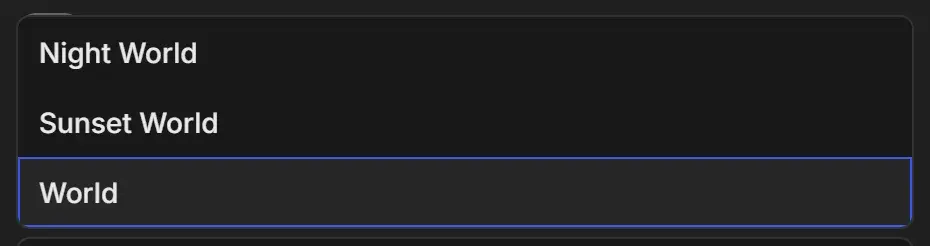
World Override swaps the scene's world, meaning its lighting and background, for another world from the same .blend file. Use it for lighting variations of one shot, such as a studio HDRI, a sunset and a night version. The .blend file is not changed.
World Override is included in FREE and PRO.
Choose a world
- Select the job.
- On the Scene card, open the dropdown under World Override and choose a world. The switch turns on.
- To go back to the scene's own world, turn the switch off.
The job card then shows a World badge with the world's name, if that badge is turned on in Job Badges.
Render several lighting versions
- Duplicate the job once per world. See Managing Jobs.
- Choose a different world on each copy.
- Use an output template with Version or Date + time, so the renders do not overwrite each other. See Output Templates.
- Click Start.
Keep your worlds in the file
Blender deletes data that nothing uses when it saves, so a world that no scene uses disappears from the file and cannot be picked here. In Blender, turn on Fake User (the shield icon) for each world before you save. The Blender Add-on does this for you on every save.
Good to know
- Changing Scene turns World Override off, because worlds are chosen per scene.
- If the file has no world, the dropdown says "This .blend has no World, so there is nothing to override".
- If you add a world in Blender after importing, save the file and use Reload from .blend on the job.