Render Queue
Read job cards and statuses, start and stop the queue, and see what happens when every job is finished.
Last updated By the RenderGod Team
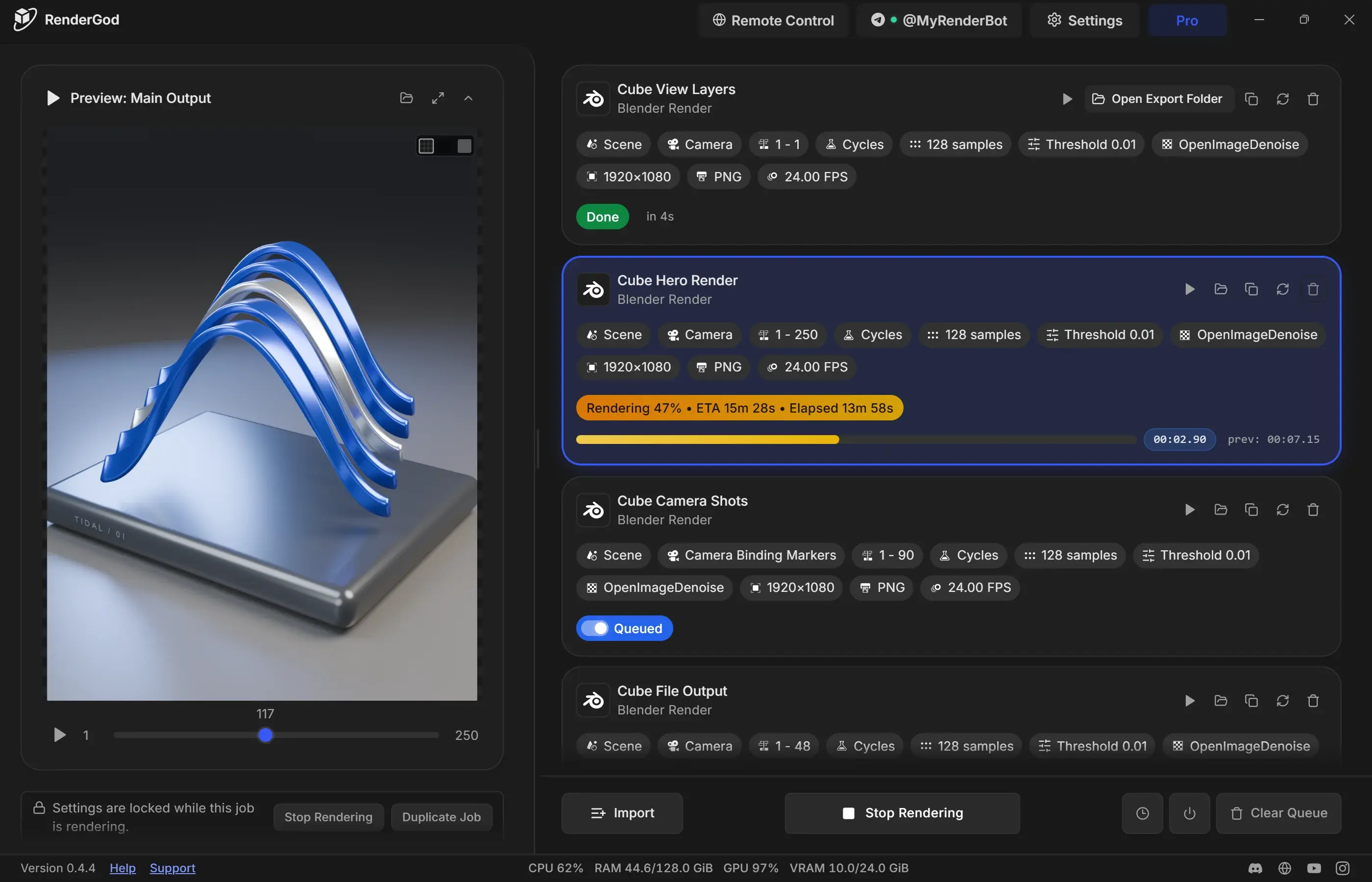
The render queue is the list of jobs RenderGod works through from the top down. A job is one .blend render or one media conversion. Fill the queue, click Start, and RenderGod renders each queued job in turn.
The queue layout
- In a wide window the queue sits on the right and the settings of the selected job on the left.
- In a narrow window the queue fills the window. Click a job to open its settings, then use Back to queue to return.
- RenderGod saves the queue automatically, so it is still there the next time you open the app.
- Jobs render in order. RenderGod passes over jobs that are Done, Failed or Skipped. If a job fails, the queue moves on to the next one.
The toolbar at the bottom appears once the queue has a job.
| Button | What it does |
|---|---|
| Import | Adds files. You can also drop files anywhere on the window. See Adding Jobs. |
| Start / Stop Rendering | Starts the queue, or ends the running render. |
| Schedule | Opens Render Schedule. See Render Schedule. |
| Shutdown/Sleep | Chooses what the computer does when the queue finishes. See Auto Shutdown / Sleep. |
| Clear Queue | Removes every job except one that is rendering. See Managing Jobs. |
Hover over and to see their names. In a narrow window or on a touch screen they move into the More queue actions menu.
Click a job card to select it. The render panel switches to that job. Right-click a card for more actions. See Managing Jobs.
Job cards
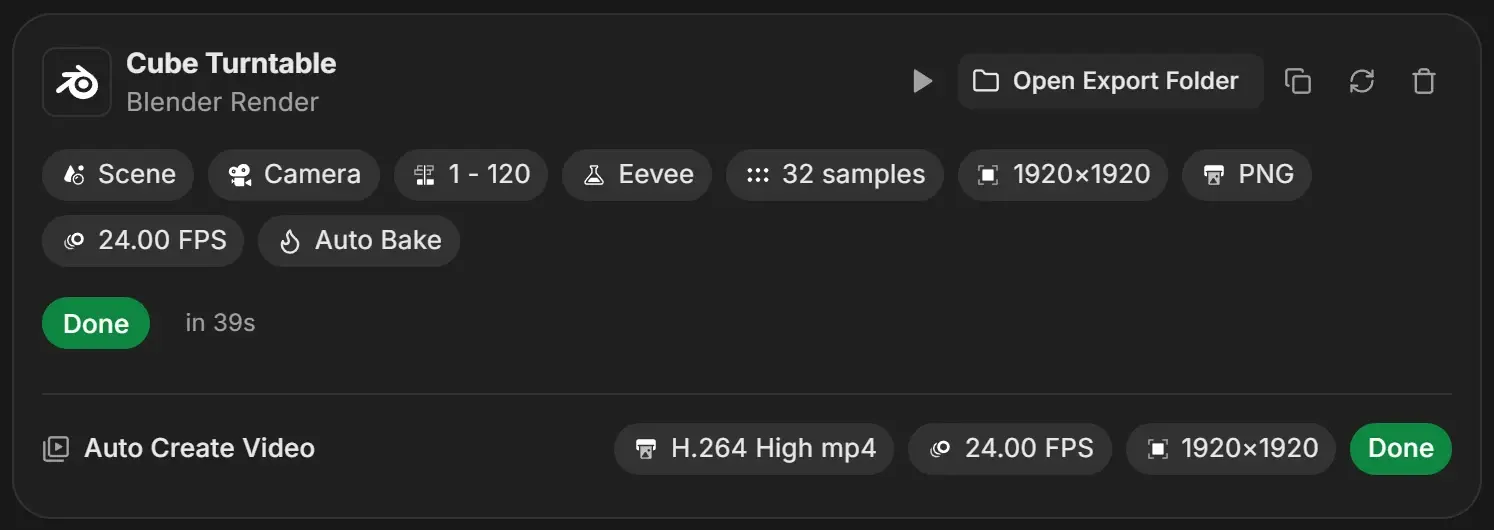
Each card shows what the job renders and where it stands.
- Title and type: the job name, with Blender Render, Video, Image Sequence or Audio under it.
- Badges: the job's key settings. See Job Badges.
- Status: a colored label. See Job statuses.
- Progress: while a job renders, a status line, a progress bar and a frame timer. See Time Remaining Estimate.
- Auto Create Video row: the video made when the render ends, with its own status. See Auto Create Video.
The buttons at the top right show their name when you hover over them:
- Preview opens the previews window. It appears once the job has frames to show. See Live Preview.
- Open Export Folder opens the output folder.
- Duplicate copies the job. See Managing Jobs.
- Reload reads the .blend file again (render jobs only).
- Remove removes the job after a second click on Click to Confirm.
A finished job keeps Open Export Folder visible with its label. When the queue is narrow, the buttons collapse into one More actions menu.
Notices on a card
Job statuses
| Status | Meaning | Renders on Start |
|---|---|---|
| Loading data... | RenderGod is reading the file. Buttons are disabled. | No |
| Queued | Waiting its turn. | Yes |
| Baking Physics... | Baking simulations before the render. Click Skip Baking to start rendering. See Auto Bake Physics. | Running |
| Rendering | Rendering now. | Running |
| Paused at frame N | The queue was stopped during this job. It continues from that frame. | Yes |
| Done | Every frame is rendered. The time beside it is the total render time. | No |
| Failed | The job could not render. The label often adds the reason, such as Failed: No camera in the scene. | No |
| Skipped | You turned off the small switch in the job's status label. | No |
If a job is Paused at frame N, click Click to Reset next to the status to render it from the first frame instead. See Retry and reset.
Start and stop the queue
- Click Start. RenderGod renders the first queued job, then the next, until none are left.
- Click Stop Rendering to end the running render. The button reads Stopping... until it finishes.
- Click Start again to continue.
When you stop, the frame in progress is lost and the job shows Paused at frame N. Frames already saved are kept, and Start picks the job up again from the frame that was in progress. A conversion job always starts over from the beginning.
You need to be signed in to start the queue. While it runs, the RenderGod taskbar button (Windows) or Dock icon (macOS) shows the current job's progress.
If there is nothing to render, you see Nothing to render with the reason:
| Reason | What to do |
|---|---|
| The queue is empty | Import a file |
| Every job is already finished | Duplicate a finished job to render it again |
| Every job is skipped | Turn a job's switch back on |
| Every job has failed | Click Retry on a failed job |
To start later or at a set time, use Render Schedule.
When the queue finishes
When every job is done, RenderGod shows a notification and plays a completion sound. You can turn both off in Notifications.
To shut down or sleep the computer after the last job, click Shutdown/Sleep in the toolbar. See Auto Shutdown / Sleep.