Conversion Defaults
Choose the video format, frame rate, image format and audio format that new conversion jobs start with.
Last updated By the RenderGod Team
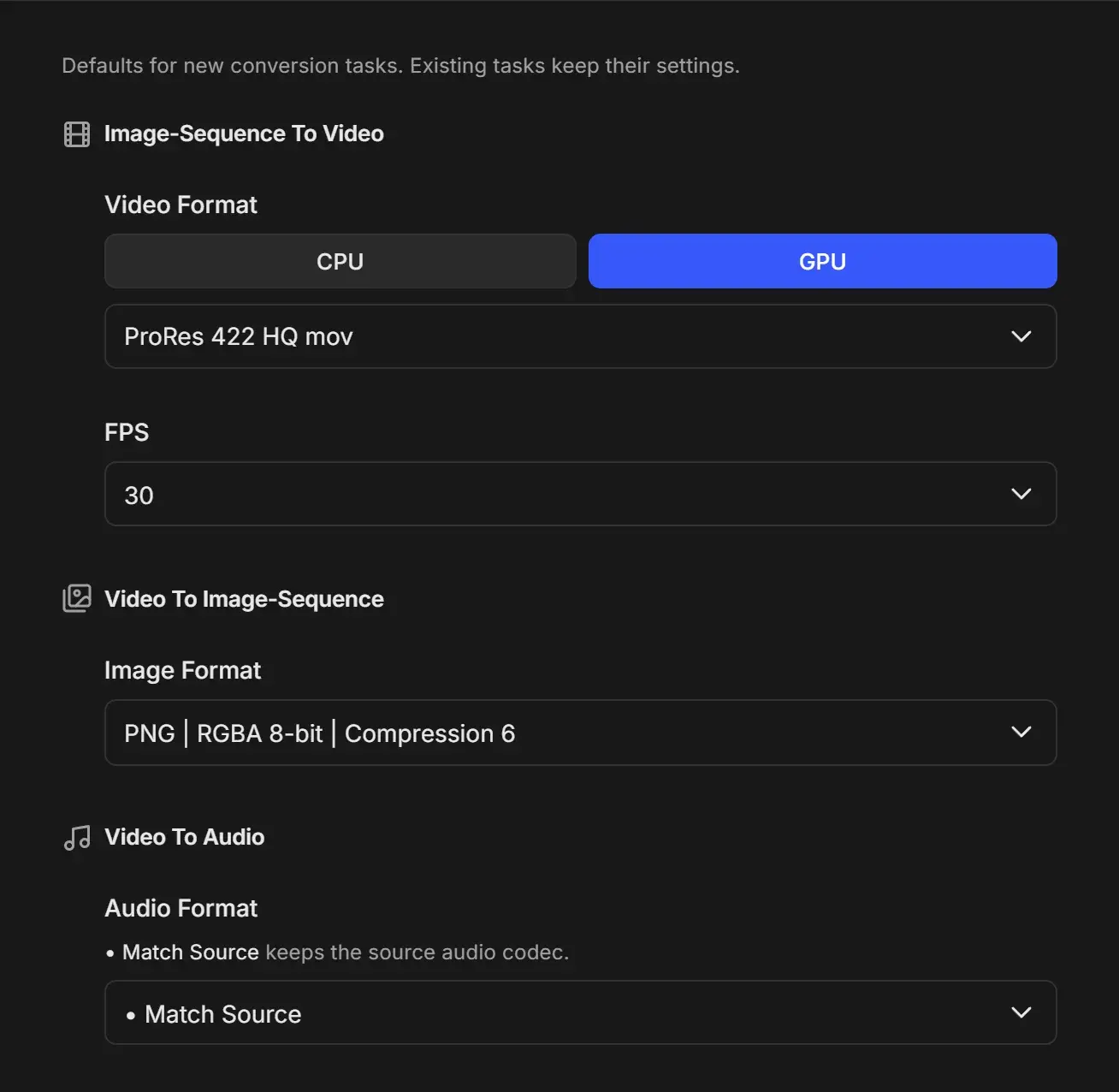
Conversion Defaults decide what a new conversion job starts with, so you do not pick the same format on every job. Set your usual delivery format and project frame rate once, and every image sequence, video or audio file you import is ready to convert. Existing jobs keep their own settings.
Conversion Defaults are included in FREE and PRO.
Set the defaults
- Open Settings, then Conversion Defaults under Formats. You can also choose Setup Defaults at the end of any video format list.
- Pick a format and frame rate for each kind of conversion.
- Close Settings. The next job you import uses them.
| Default | Used by | Factory value |
|---|---|---|
| Image-Sequence To Video: Video Format and FPS | New image sequence jobs | ProRes 422 HQ mov, 30 |
| Video To Image-Sequence: Image Format | Videos switched to image output | PNG with alpha |
| Video To Audio: Audio Format | New audio jobs | Match Source |
The lists come from your format libraries, so a format you add in Video Formats, Image Formats or Audio Formats can be a default too. To use a frame rate that is not in the list, choose CUSTOM ADD. See Video Formats.
Match Source
Match Source picks the audio format closest to the original file's audio, such as AAC for a video with AAC sound. The audio is still re-encoded. Choose a fixed format, such as WAV, when every file must come out the same.
Tip
For client reviews, set Image-Sequence To Video to H.264 High mp4 and your project frame rate. Every turntable or animation you import then converts to a small, easy-to-share video with one click.