Interface
A tour of the RenderGod window, with the header, job settings, render queue, queue buttons, keyboard shortcuts and narrow windows.
Last updated By the RenderGod Team
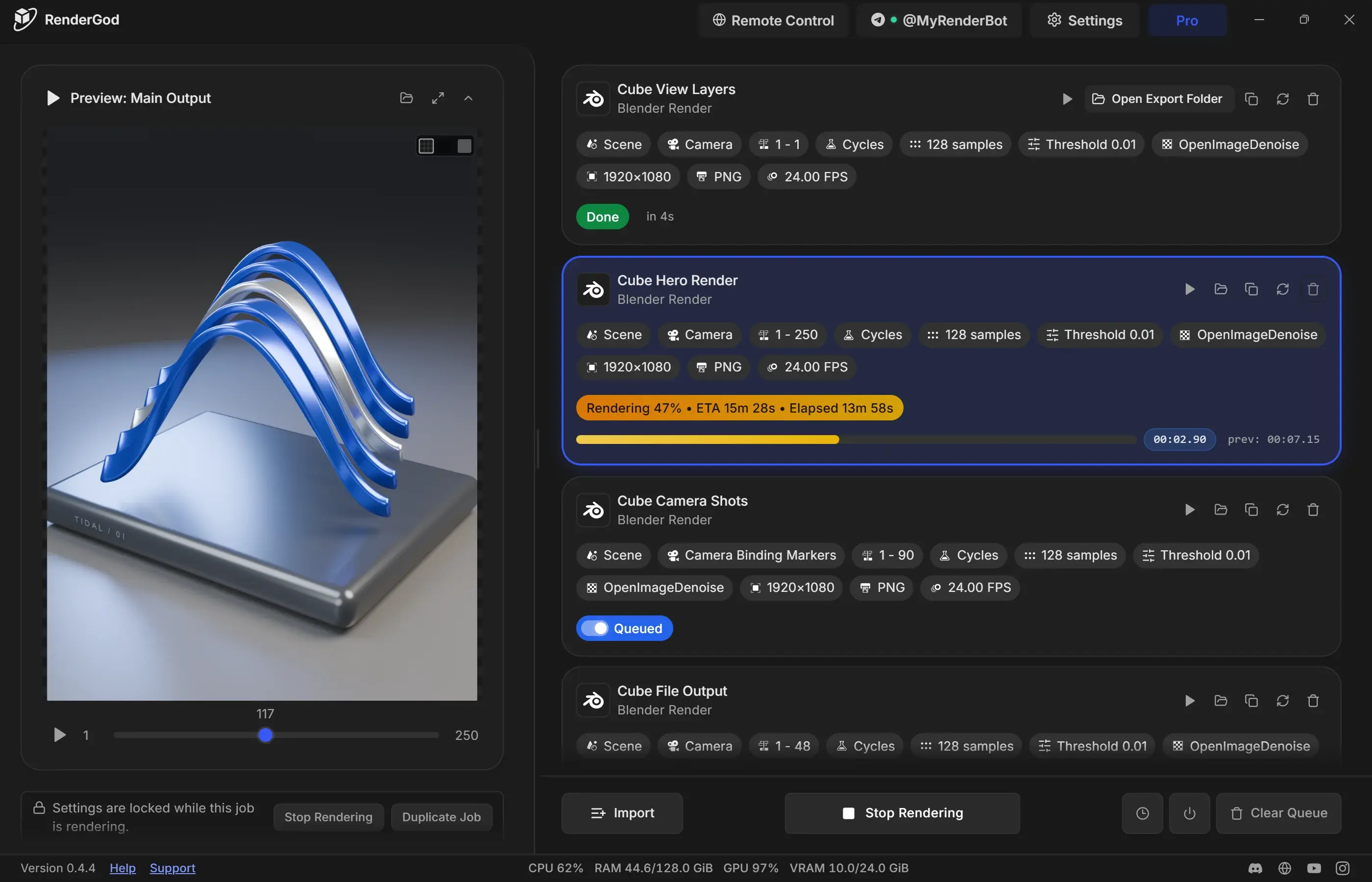
The RenderGod window has four areas: the header on top, the job settings and preview on the left, the render queue on the right, and the footer at the bottom. Drag the divider between the left panel and the queue to resize them. Double-click it to restore the default split.
Header

| Control | What it does |
|---|---|
| Logo | Reloads the window. Your queue and running renders are not affected. |
| Remote Control | Opens the Remote Control settings. A green dot means it is on. It reads Session Connected while a browser controls this computer. |
| Link Telegram Bot or the bot name | Opens the Telegram Bot settings. A green dot means connected. |
| Settings | Opens Settings. |
| Plan button | Shows your plan, and Trial active with the time left during a trial. See FREE vs PRO. |
| Sign In | Shown when you are signed out. |
The close button hides RenderGod to the system tray and renders keep running. In a narrow window, the Telegram and Remote Control buttons step aside to save room.
Render queue and job settings
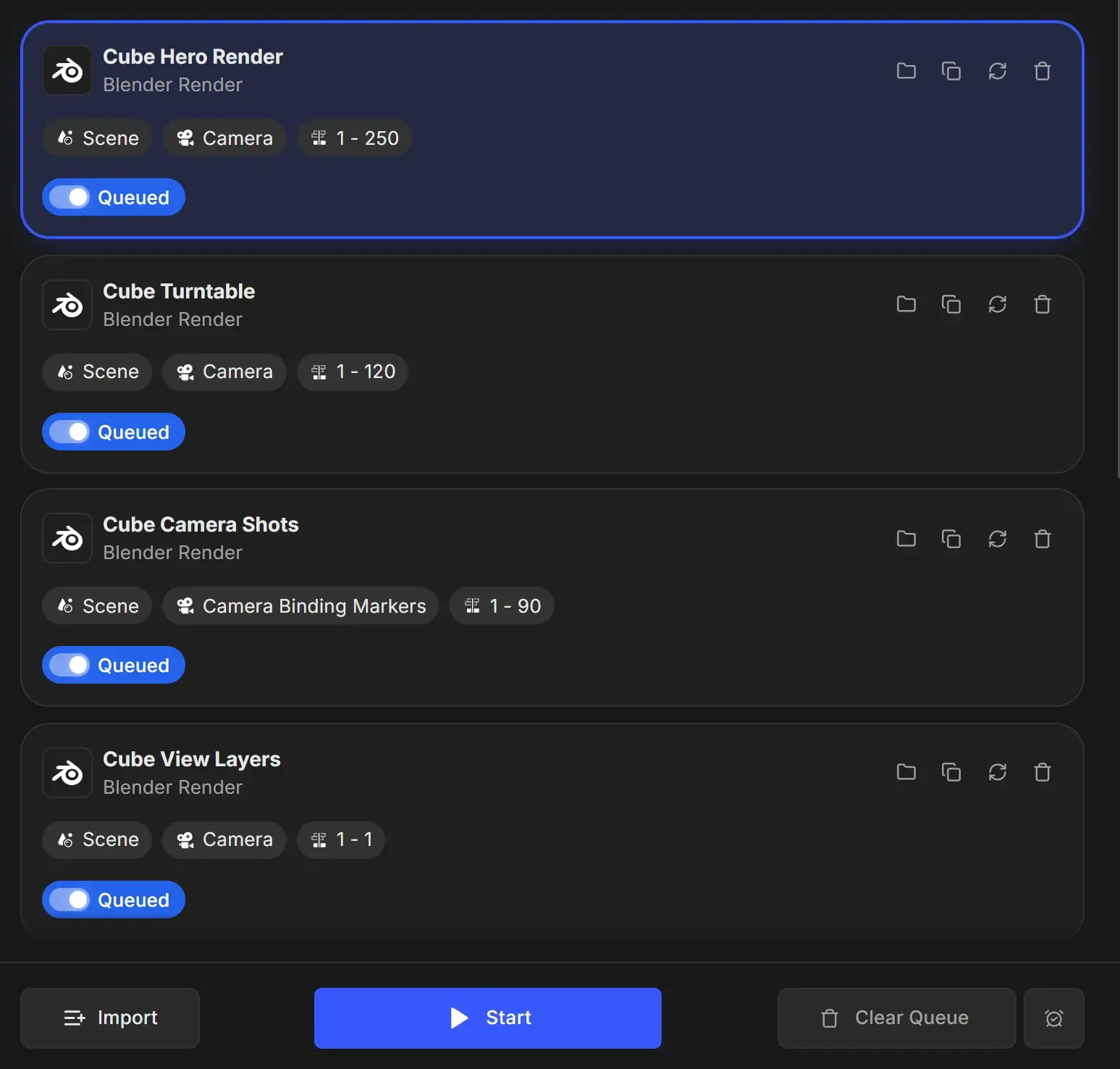
The queue lists your jobs from top to bottom in the order they render. Each card shows the job name, type, badges such as scene, camera and frame range, its status and quick buttons. Click a card to select it.
The left panel shows the settings of the selected job. For a Blender render it holds the preview, output, scene, frame range, engine and format. Conversion jobs show their own settings. Changes save as you make them. See Render Settings and Render Queue.
Queue buttons

| Button | What it does |
|---|---|
| Import | Adds .blend files, video, audio, image sequences and job files. It also installs the Blender add-on. You can also drag files onto the window. See Adding Jobs. |
| Start | Starts the queue. While it runs, the button reads Stop Rendering. |
| Schedule | Opens the Render Schedule settings. See Render Schedule. |
| Shutdown/Sleep | Chooses what the computer does when the queue finishes. See Auto Shutdown / Sleep. |
| Clear Queue | Removes every job except one that is rendering. Click twice to confirm. |
The Schedule and Shutdown/Sleep buttons show an icon and open their words when you point at them.
Stop Rendering is not a pause
It ends the running render right away. The frame in progress is lost, and Start continues from that frame. Finished frames are kept.
Footer
The footer has Version (click it to check for updates), Help (opens the documentation), Support, and links to Discord, the website, YouTube and Instagram. In the middle is the CPU, RAM, GPU and VRAM readout. See Performance Monitor and Automatic Updates.
Keyboard shortcuts
On macOS, use Cmd where the table shows Ctrl.
| Keys | Action |
|---|---|
| F6 | Switch between light and dark theme |
| Ctrl++ and Ctrl+- | Make the interface larger or smaller |
| Ctrl+0 | Reset the interface size to 100% |
| Ctrl+Shift+V | Check for updates (see Automatic Updates) |
| Esc | Close the open window or dialog |
| Cmd+, | Open Settings (macOS) |
| Cmd+R and Cmd+. | Start and stop the queue (macOS, from the Render menu) |
These work while the pointer is over a preview, and in the separate preview window:
| Keys | Action |
|---|---|
| Space | Play or pause |
| Right and Left | Next or previous frame |
| + and - | Zoom in (up to 32x) or out |
| 0 or double-click | Reset zoom and position |
Shortcuts do not fire while you type in a text field. Click the divider and use the arrow keys, Page Up, Page Down, Home and End to resize the panels, or Enter to restore the default split.
Appearance
Theme, color palette, font and UI scale are in Settings > Appearance. See Appearance.
Narrow windows and closing
Below about 800 pixels wide, RenderGod shows one pane at a time. Click a job to open its settings, then use Back to queue or swipe right to return.
RenderGod keeps an icon in the system tray, or the menu bar on macOS, with Show RenderGod, Hide RenderGod and Quit RenderGod. Closing from the taskbar or with Alt+F4 quits RenderGod. Quitting while a render runs stops Blender.