Python Handlers
Run your own Python scripts before or after a render, and control the handlers a .blend file or an add-on registers.
Last updated By the RenderGod Team
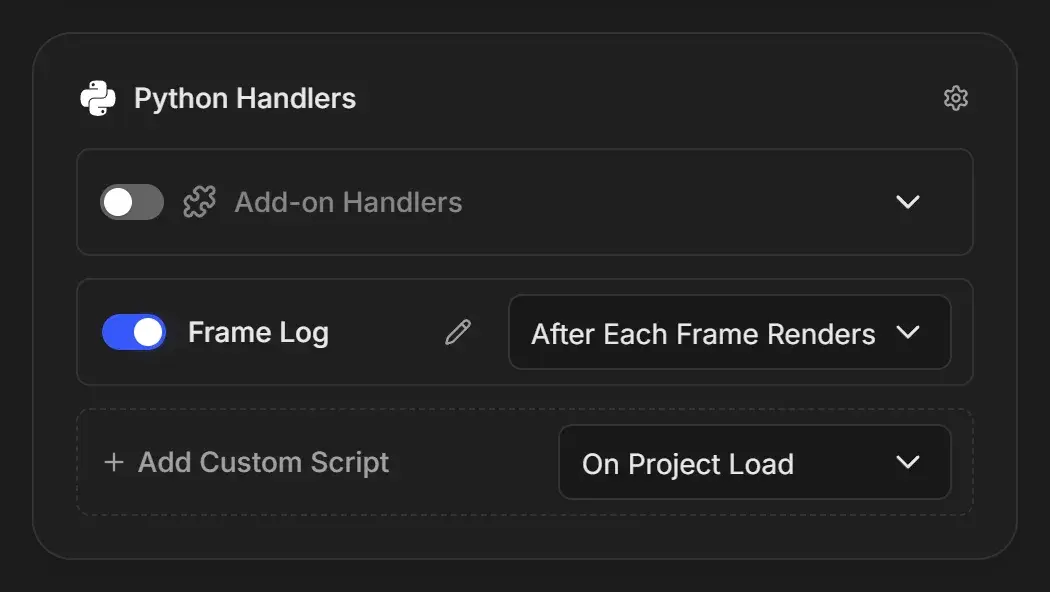
Python Handlers control the Python that runs while a job renders. You can switch off a handler a project or add-on registers, move it to a different moment, or add your own script, for example one that runs after every frame is saved.
What the card lists
Select a Blender job to see the card in the render panel. Each row has its own switch, a name and a Trigger dropdown that says when it runs.
- Project handlers: functions the .blend file registers through its own scripts.
- Add-on Handlers: one grouped row for handlers your installed Blender add-ons register. See Add-on handlers.
- Custom scripts: scripts you add yourself. Click on a row to edit one.
The .blend file itself is never changed. Everything you set here applies to the render only.
Turn a handler off or move it
- Turn a row off to stop that function from running during the render.
- Pick a different Trigger to run it at another moment. The row then shows Rerouted, and the original trigger is marked (project) in the list. Pick it again to undo the change.
Test after changing handlers
Switching off or moving a handler can break scenes that depend on it. Render a test frame after any change.
Add-on handlers
Click the Add-on Handlers row to expand it and control each handler, including its trigger. The row's switch turns the whole group on or off.
Add-on handlers only run when add-ons load for the render. If Disable add-ons during render is on in Optimization Overrides, the group stays off. Switching a handler on then shows a warning with Enable add-ons for render, which turns that override off. Render startup can take a few seconds longer.
If the list is empty, click Scan for add-on handlers to read the file again with add-ons loaded.
Add a custom script
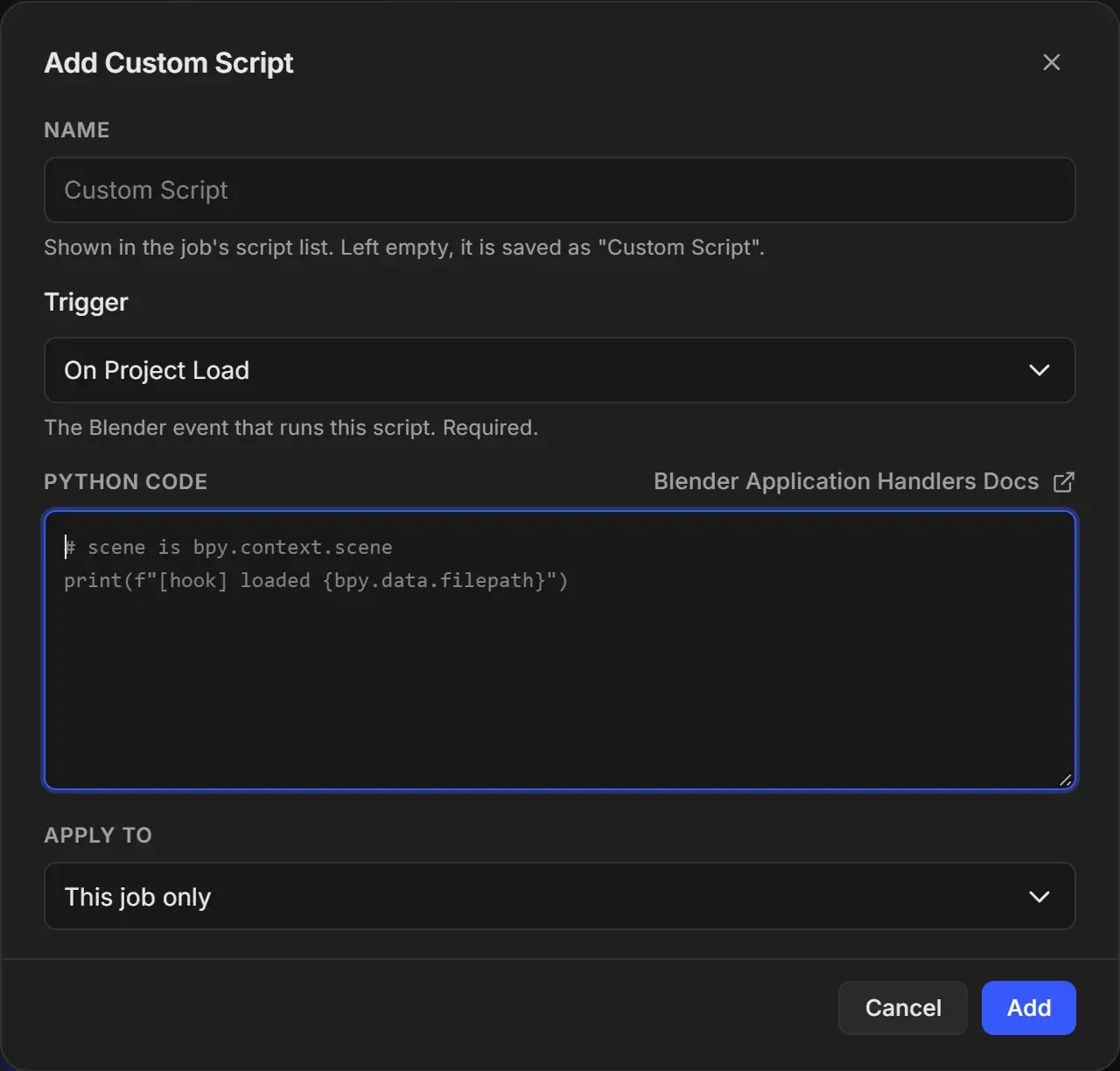
- Select a job that is not rendering, baking or finished (on those jobs the row is grayed out). In the Add Custom Script row, pick a trigger, then click Add Custom Script.
- Enter a Name. If you leave it empty, RenderGod saves it as "Custom Script".
- Check the Trigger. It is required.
- Type your code into Python Code. The variable
sceneis available. The Blender Application Handlers Docs link opens Blender's reference. - Choose Apply to, then click Add.
| Apply to | Result |
|---|---|
| This job only | The script belongs to this job. |
| All new jobs, Default On | Also saved for future jobs, switched on. |
| All new jobs, Default Off | Also saved for future jobs, switched off. |
Here is a small script for After Each Frame Renders:
Scripts you save for new jobs are listed under Settings in the Python Handlers section. You can switch them on or off there, edit them or delete them. Jobs that already exist keep their own copies.
You are responsible for your scripts
A script runs on your computer with the same access as Blender. Only add code you wrote or fully understand, and never paste scripts from a source you do not trust.
Triggers
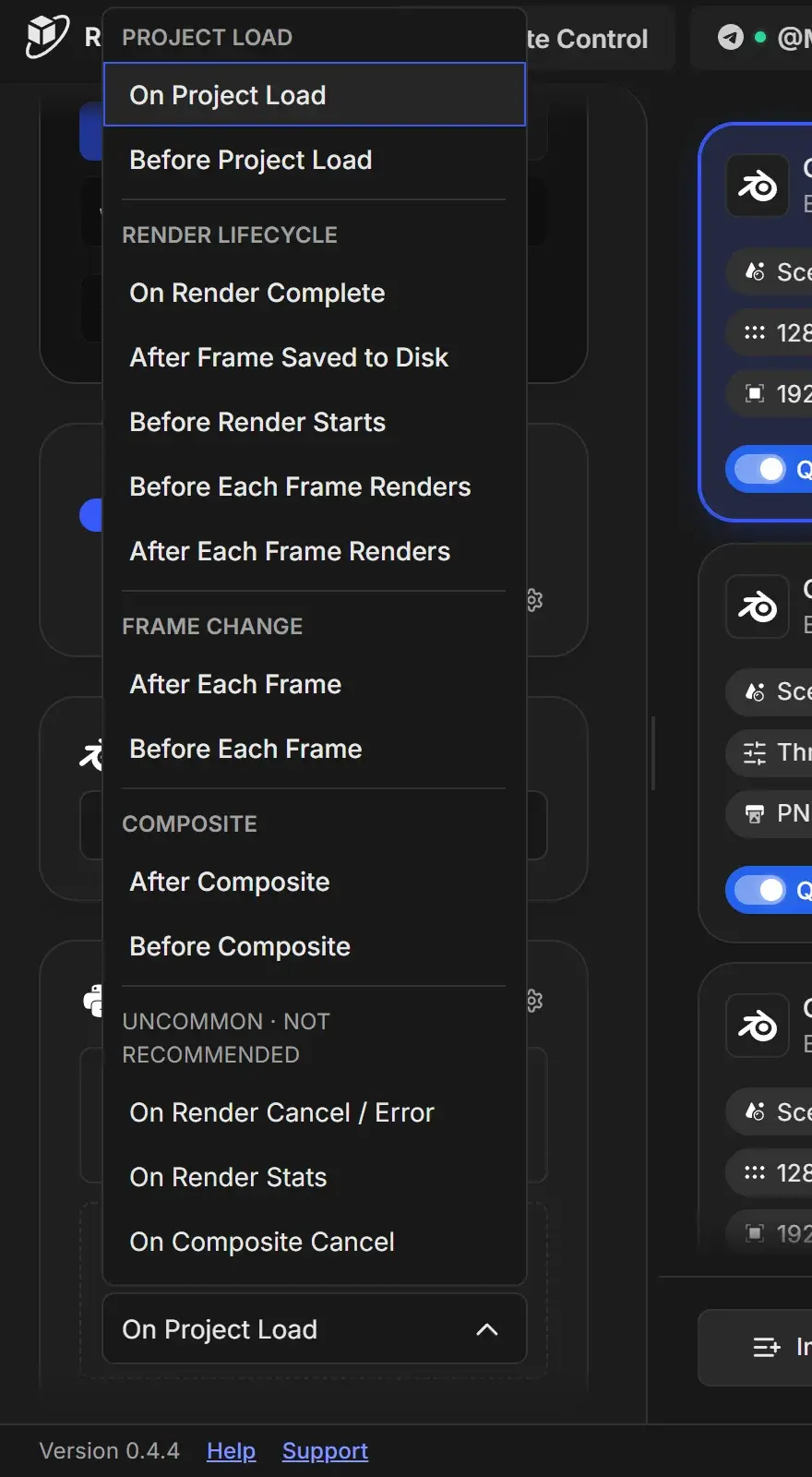
| Group | Triggers | Typical use |
|---|---|---|
| Project Load | On Project Load, Before Project Load | Set up the scene when the file opens. |
| Render Lifecycle | On Render Complete, After Frame Saved to Disk, Before Render Starts, Before Each Frame Renders, After Each Frame Renders | Logging, copying frames, a message when the render ends. |
| Frame Change | After Each Frame, Before Each Frame | Per-frame scene changes. |
| Composite | After Composite, Before Composite | Work around compositing. |
| Uncommon, not recommended | Render cancel or error, render stats, composite cancel, scene update, save, append or link, object bake, version update, translation update | Special cases only. |