Auto Create Video
Turn a finished image sequence into an MP4 or ProRes video automatically, with no separate conversion step.
Last updated By the RenderGod Team
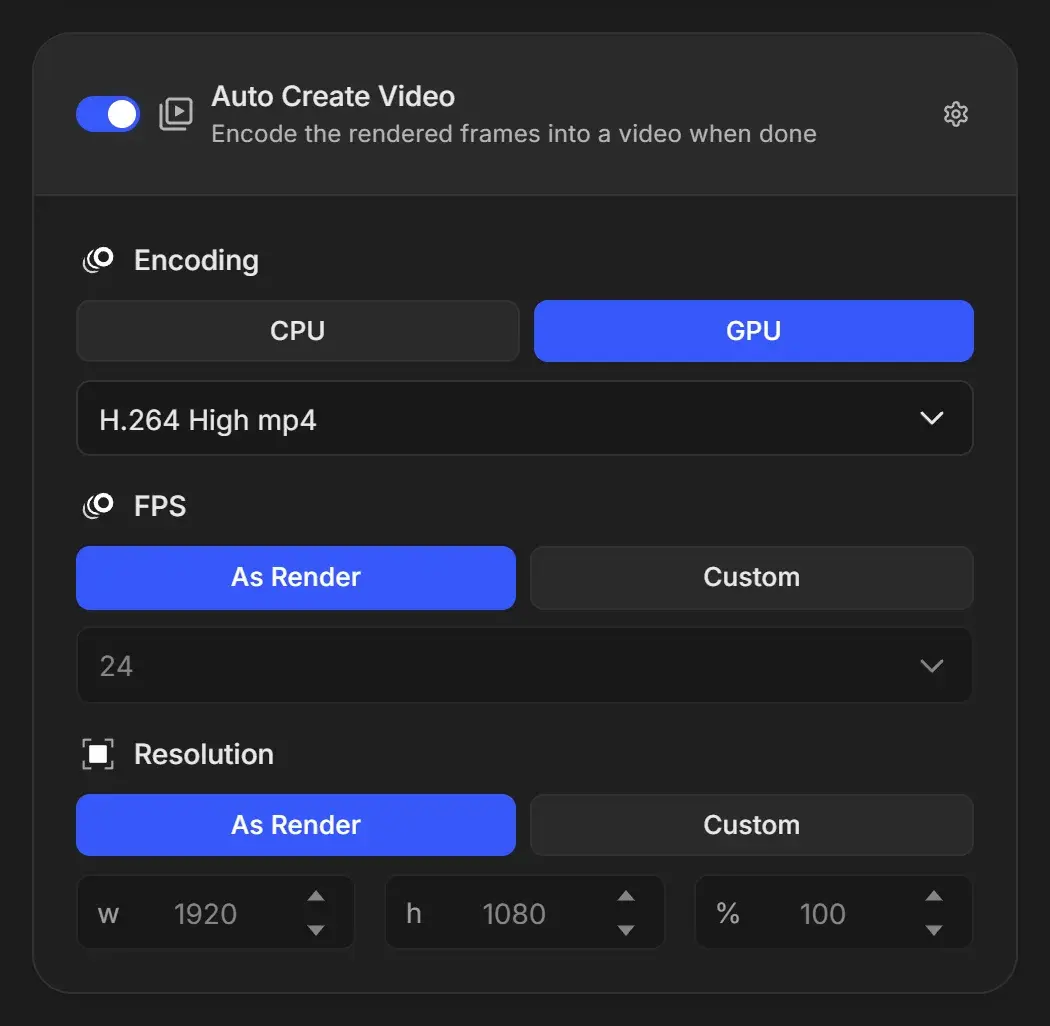
Auto Create Video encodes a job's rendered frames into a video as soon as the last frame is saved. You still render safe, resumable frames, and you get a video file at the end without importing the frames again.
Turn it on for a job
The Auto Create Video card sits in the render panel, below the output settings. It stays editable while the job renders, so you can switch it on mid-render.
- Select the job.
- Turn on Auto Create Video. Changing any setting in the card also turns it on.
- Pick the format under Encoding.
- Leave FPS and Resolution on As Render, or choose Custom.
- Click Start.
Not available for every job
Auto Create Video is unavailable when a job has more than one frame range (see Multi Frame Ranges), so gaps never end up in a video. It is also unavailable when the main output is off.
Format
Under Encoding, pick a format from the list.
| Format | Use it for |
|---|---|
| ProRes 4444 (Alpha) mov | Editing and compositing. Keeps transparency. The default for new jobs. |
| ProRes 422 HQ mov, ProRes 422 mov | High-quality editing masters without alpha. |
| H.264 Visually Lossless mp4 | Near-master quality in a widely playable file. |
| H.264 High mp4, H.264 Balanced mp4 | Client reviews and web sharing. |
| H.265 formats | Smaller files than H.264 at similar quality. |
Formats you create yourself appear in their own groups. See Video Formats.
If the scene is set to render a video, the list also offers Follow Scene, which uses the scene's own codec and quality. Include Audio appears only when the scene has an audio codec, and starts off.
Frame rate and resolution
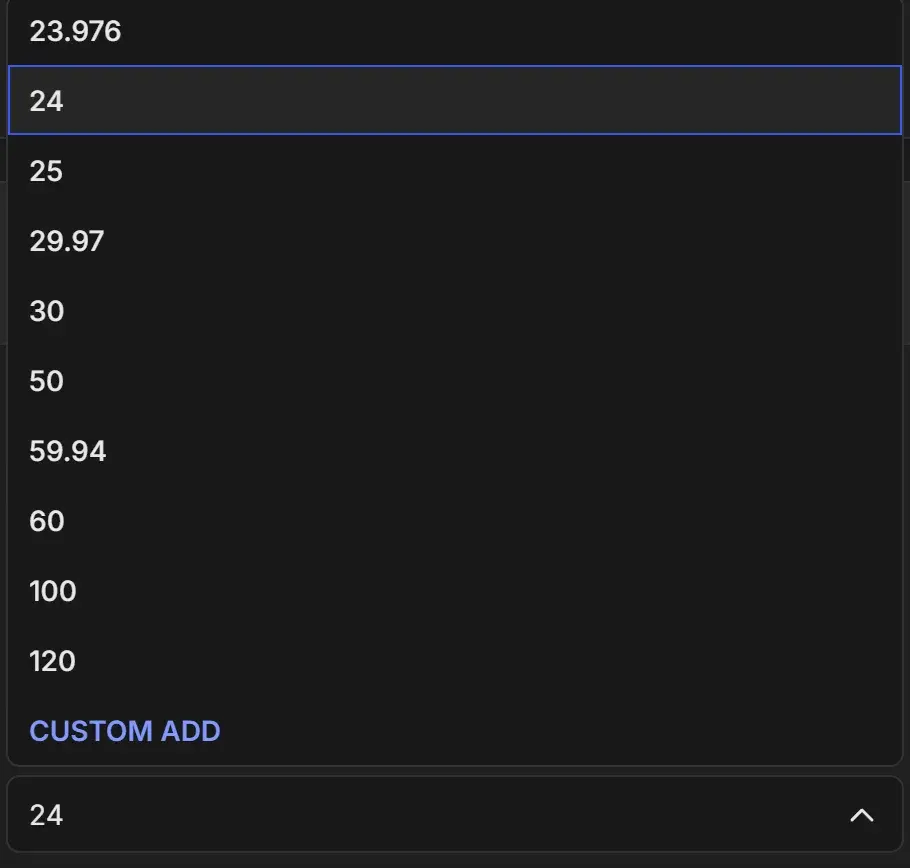
- FPS: As Render uses the scene's rate. Custom offers 23.976, 24, 25, 29.97, 30, 50, 59.94, 60, 100 and 120, or CUSTOM ADD for another value. A different rate changes playback speed and does not render extra frames.
- Resolution: As Render matches the frames. Custom takes w, h or %. The percentage is relative to the render size, so 50% of 3840x2160 gives 1920x1080.
Where the video is saved
RenderGod saves the video in the job's output folder, next to the rendered frames, as output.mp4 or output.mov, depending on the format. Click Open Export Folder on the finished job card to go there.
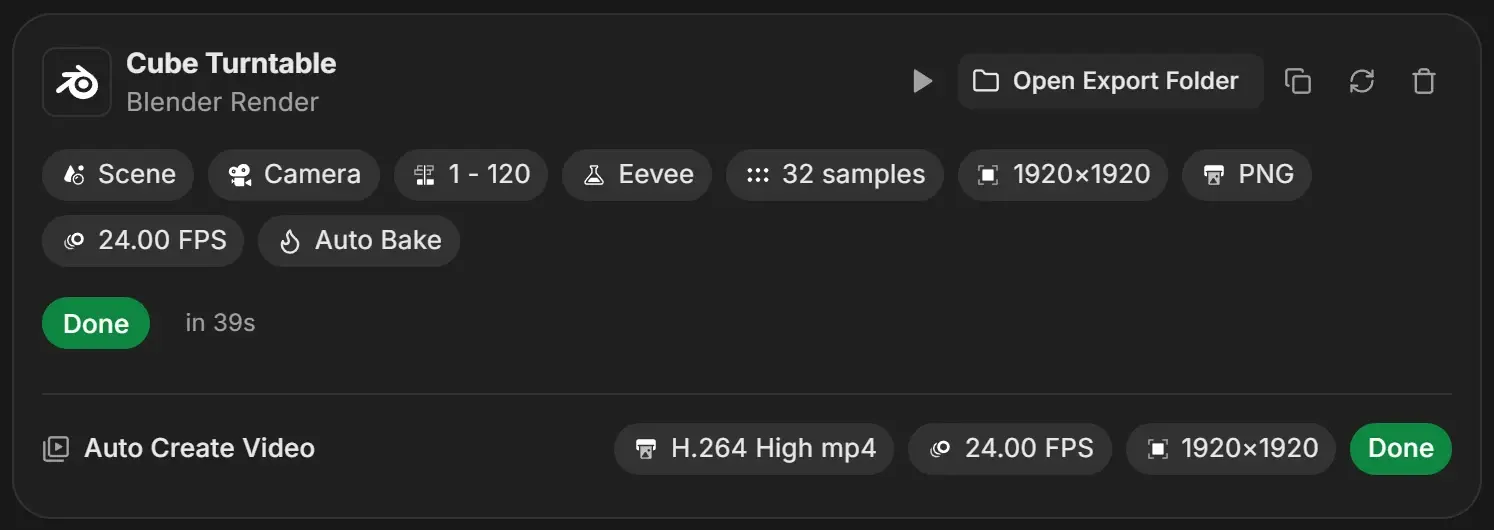
While the video encodes, the job card shows an Auto Create Video row with its own status, and a Preview: Output Video card plays the result when it is ready. See Live Preview.
Turning on Auto Create Video for a job that already finished does not re-render. A message offers Create Video Job, which adds a conversion job that uses the existing frames. See Image Sequence to Video.
Defaults for new jobs
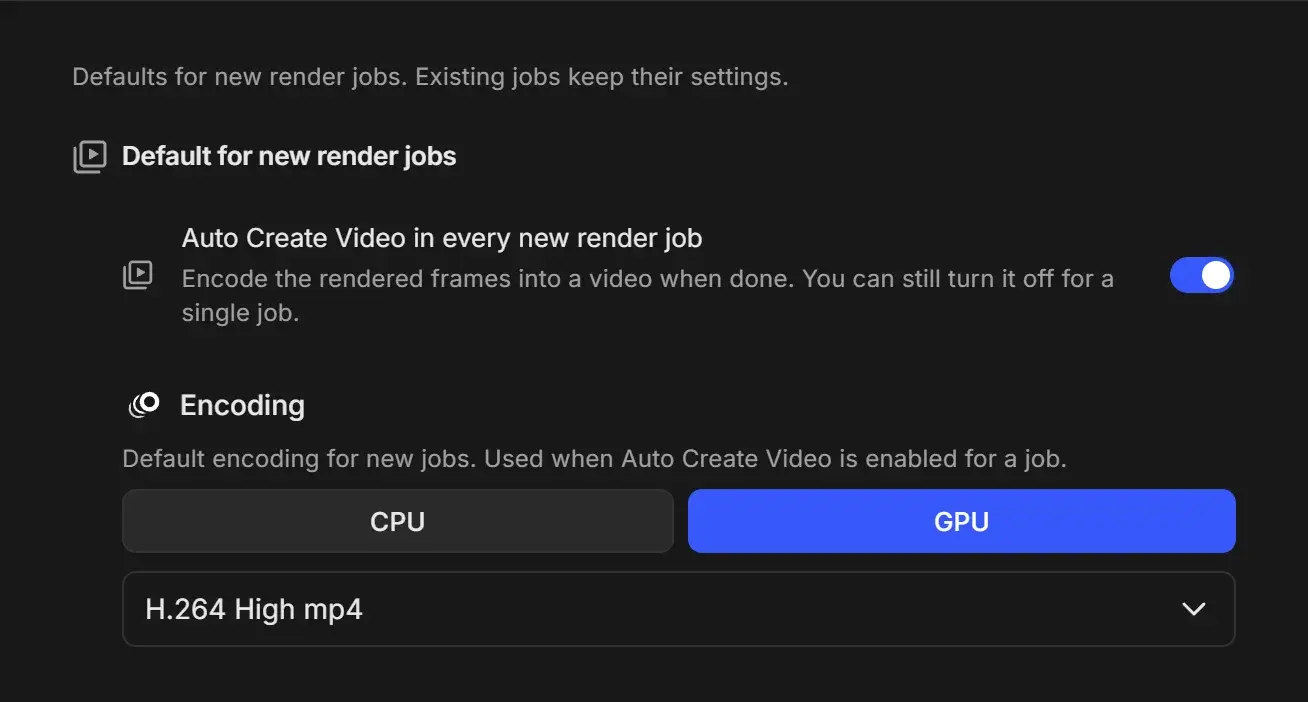
To change what new jobs start with, click on the card, or open Settings and choose Auto Create Video. Turn on the switch to make every new render job create a video, and pick the default Encoding format. Existing jobs keep their own settings.