Video to Image Sequence
Extract every frame of a video as numbered images in the format and size you choose.
Last updated By the RenderGod Team
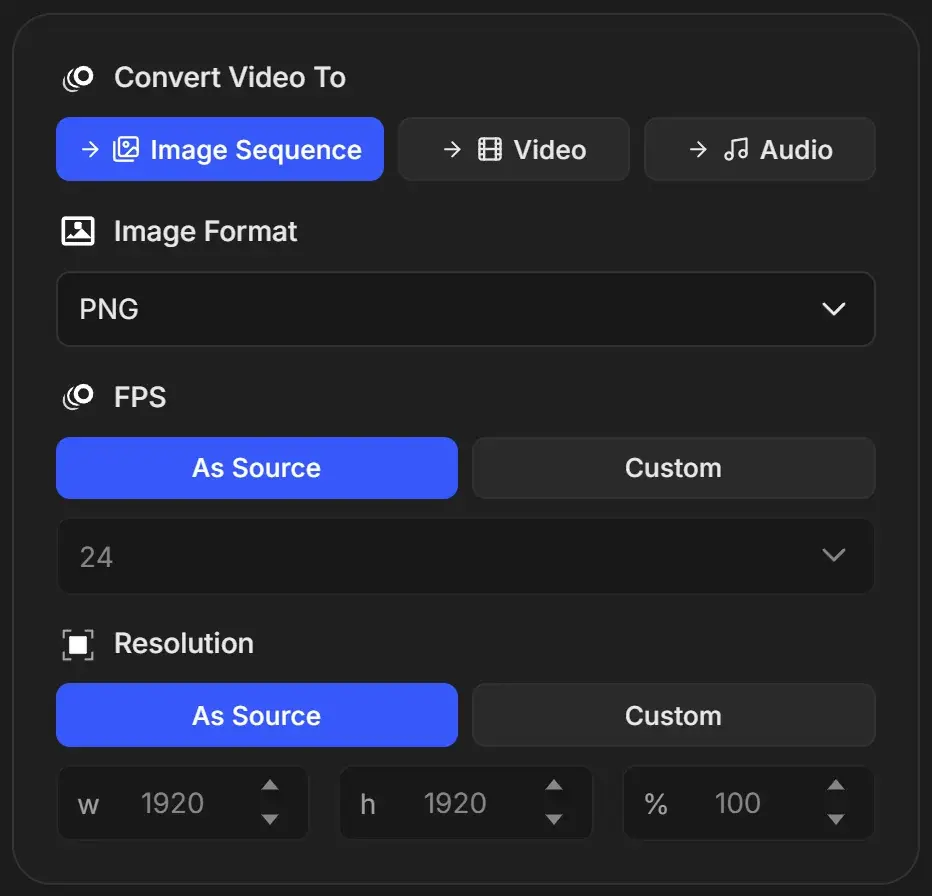
Turn a video into a folder of numbered images, for example to retouch frames, feed a compositing app or rebuild the clip at another frame rate. The conversion is a normal job in the render queue. It is included in FREE.
Convert a video
- Click Import at the bottom of the queue, choose Video / Audio and pick one or more videos. You can also drag video files onto the window.
- Click the new job card. For a video, Image Sequence is already chosen under Convert Video To.
- Pick an Image Format.
- Leave FPS and Resolution on As Source, or click Custom to change them.
- Click Start at the bottom of the queue. When the card shows Done, click Open Export Folder.
Accepted videos: .mp4, .mov, .avi, .mkv, .webm, .wmv and .flv.
Choose the settings
- Image Format: the list holds PNG, EXR and JPEG variants, such as PNG | RGBA 8-bit | Compression 6, plus any format you added. Use PNG with alpha for lossless frames, EXR for compositing and JPEG for small previews. The table in Convert Formats shows which formats keep transparency. To add your own, see Image Formats.
- FPS: As Source writes one image per video frame. Click Custom to pick another rate. RenderGod then drops or repeats frames to reach it, and the length stays the same.
- Resolution: As Source keeps the video size. With Custom, type w and h, or scale with %.
A 10-second clip at 30 FPS gives about 300 images as source and about 120 images at 12 FPS.
Slow footage down
To get slow motion, extract with As Source, then build a video from the frames with a lower FPS in Image Sequence to Video.
Where the frames are saved
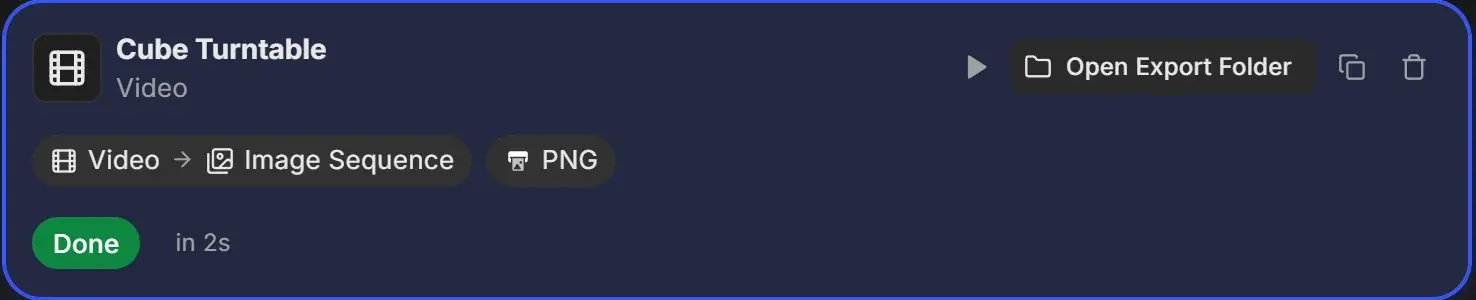
Frames are named frame_0001, frame_0002 and so on, with the extension of the chosen format. By default they go into a folder called <video name>_RenderGod next to the video. Change it in Export Folder. RenderGod creates the folder when the job starts.
Settings are locked while the job converts, and a finished job is read-only. Click on the card to duplicate the job and extract the same video in another format.
Existing files are overwritten
RenderGod replaces frames with the same name without asking. Use an empty Export Folder for each extraction.