Job Badges
Read the small labels on each job card, see what every badge shows, and choose which badges appear.
Last updated By the RenderGod Team
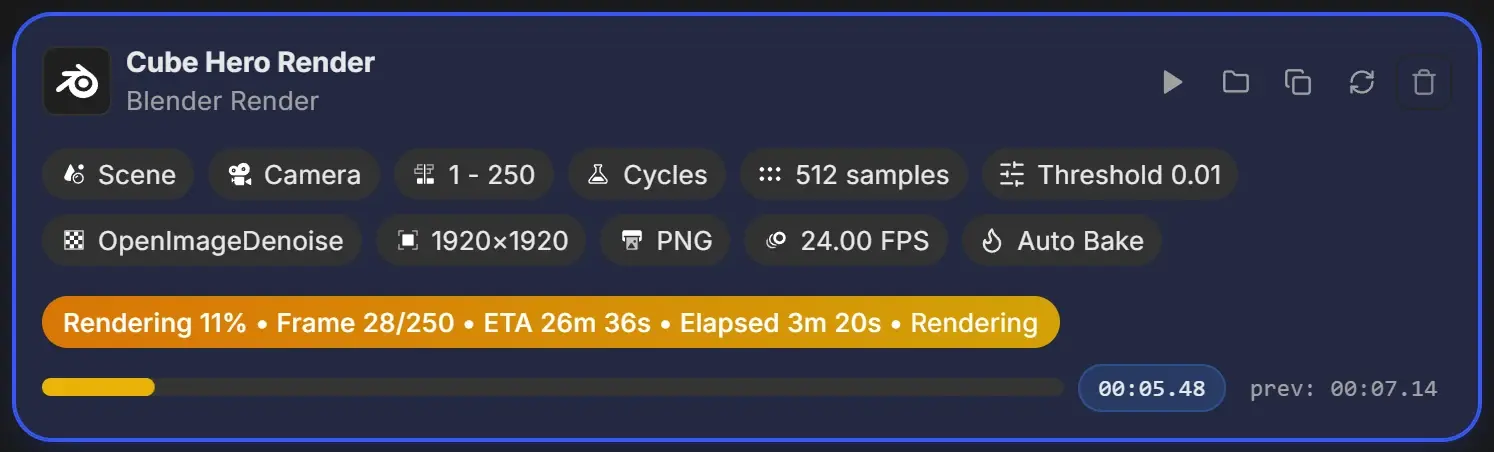
Badges are the small labels under a job's name. They sum up the job's key settings, so you can check the whole queue at a glance without opening each job. Job Badges is included in FREE and PRO.
Render job badges
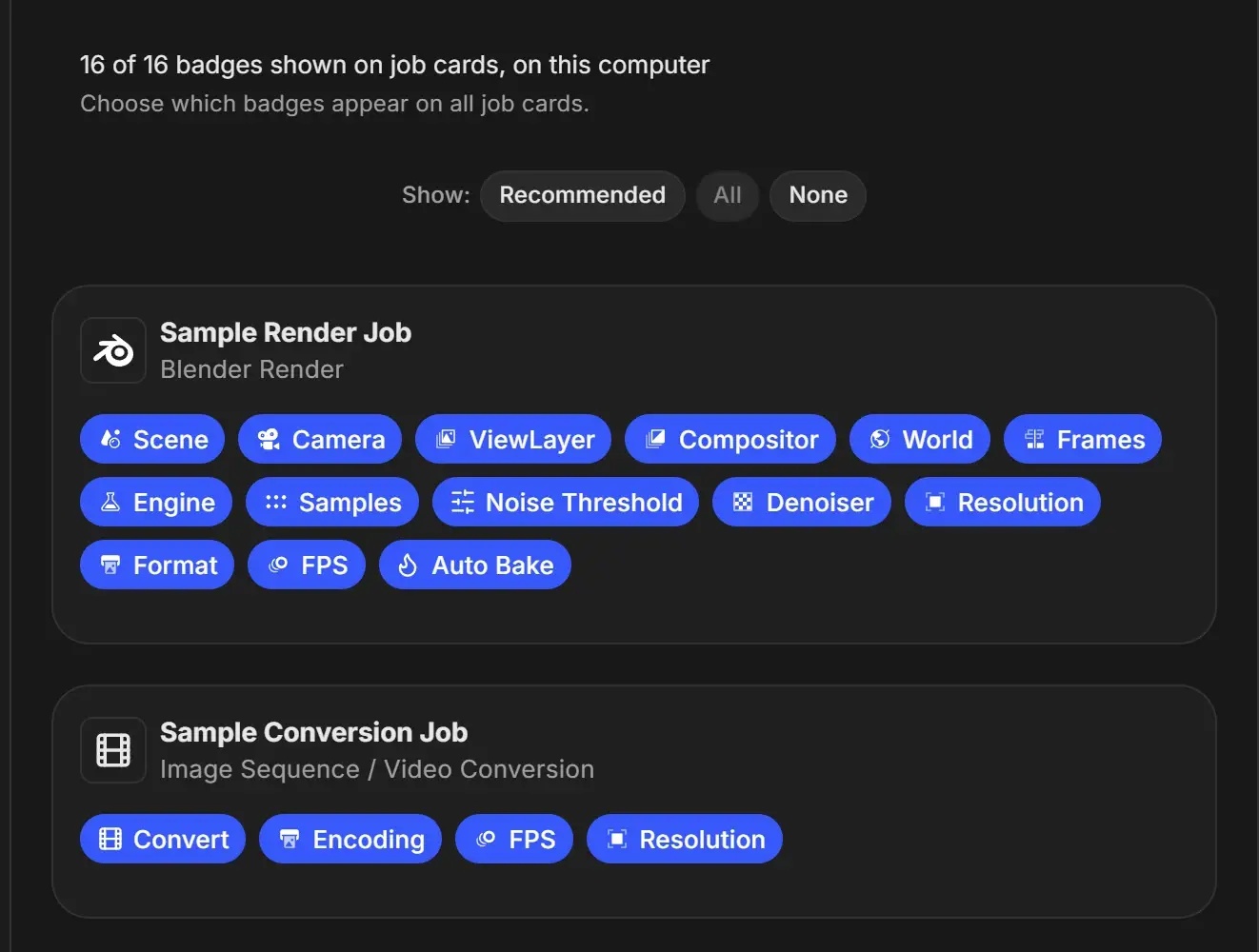
In the order they appear on a Blender Render card:
| Badge | Shows |
|---|---|
| Scene | The scene name. |
| Camera | The camera name, or Camera Binding Markers when timeline markers choose the camera. |
| ViewLayer | The view layer name, when Single View Layer is on. |
| Compositor | The compositor name, when the compositor is used. |
| World | The world chosen by World Override. |
| Frames | The frame range, such as 1 - 250. With Multi Frame Ranges it reads the number of ranges, such as 3 ranges. |
| Engine | Cycles, EEVEE or Workbench. |
| Samples | The sample count, such as 512 samples. Not shown for Workbench. |
| Noise Threshold | Such as Threshold 0.01, when the noise threshold is on. |
| Denoiser | Such as OptiX or OpenImageDenoise. Shown for Cycles only. |
| Resolution | The final size after the resolution percentage, such as 1920x1080. |
| Format | The image or video format, such as PNG or OpenEXR. |
| FPS | The frame rate, such as 24.00 FPS. |
| Auto Bake | Shown when Auto Bake Physics is on. |
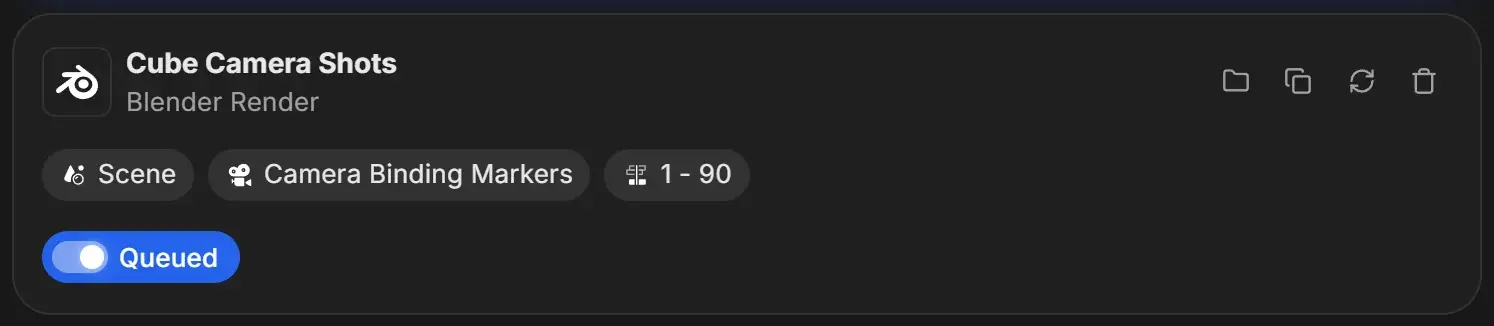
A badge appears only when the job has that setting. A job that does not use Single View Layer or World Override, for example, has no ViewLayer or World badge even when both are turned on.
No background resume
A job whose .blend file or output folder is on a network drive gets a No background resume badge. Hover it for the explanation. If the PC crashes or loses power, RenderGod does not continue that job by itself. It renders normally while RenderGod is open. See UnCrash Recovery. You cannot turn this badge off.
Conversion job badges
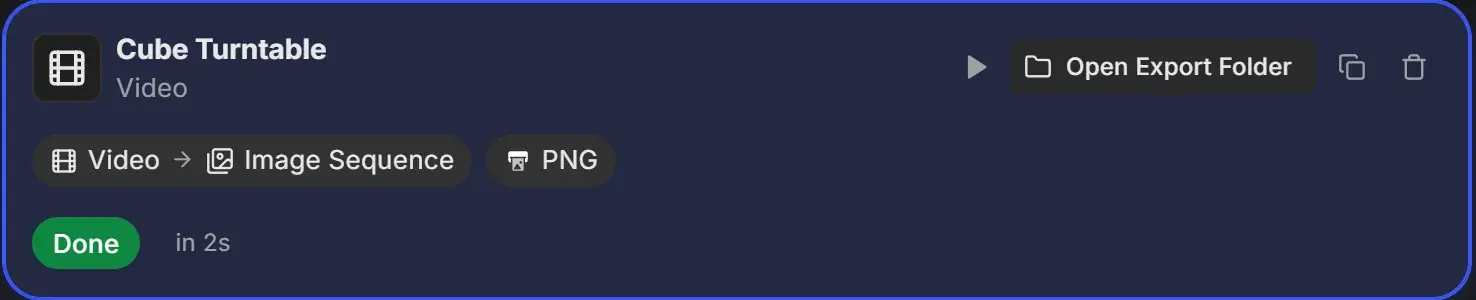
| Badge | Shows |
|---|---|
| Convert | What becomes what, such as Video to Image Sequence. |
| Encoding | The output format, such as ProRes 422 HQ mov or WAV (PCM 16-bit). |
| FPS | The output frame rate. Not shown for image format or audio conversions. |
| Resolution | The output size. Not shown for audio. |
FPS and Resolution are one setting each. Turning one on shows it on render and conversion cards alike.
Choose which badges show
- Open Settings, then Job Badges.
- Click a badge on a sample card to show it (blue) or hide it (gray).
- Or use the Show: buttons: Recommended, All or None. A button is grayed out when that set is already applied.
The heading counts the visible badges, such as "6 of 16 badges shown on job cards, on this computer". RenderGod saves the choice per computer.
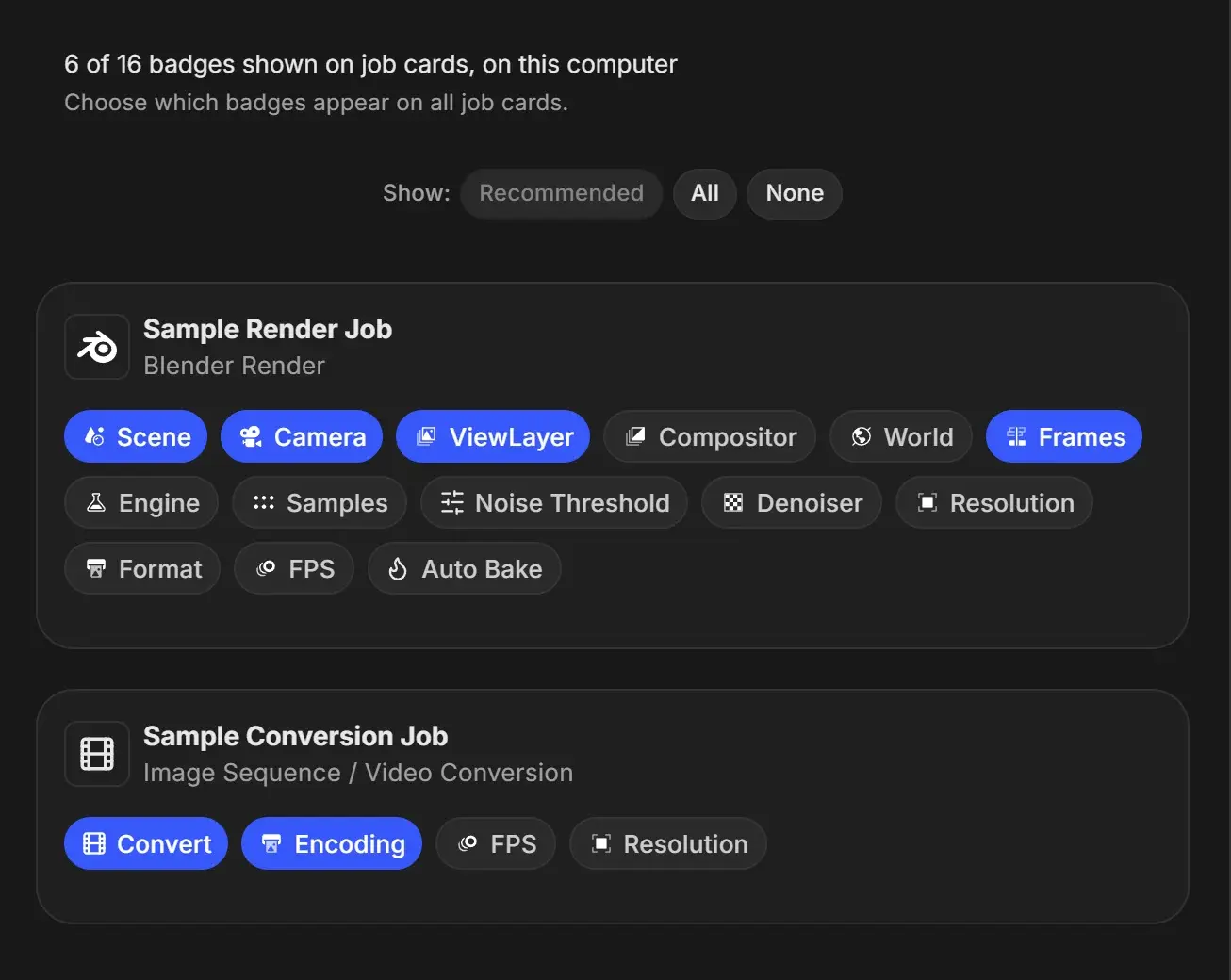
Recommended shows Scene, Camera, ViewLayer, Frames, Convert and Encoding. Badges change only what the cards show, never the render.
Auto Create Video row
When Auto Create Video is on, a row under the badges shows the video's format, frame rate and resolution. It adds its own status after the render ends. This row is not a badge and has no switch.