FAQ
Short answers to the questions artists ask most about RenderGod, the render queue, crash recovery, previews, remote access and plans, plus a glossary.
Last updated By the RenderGod Team
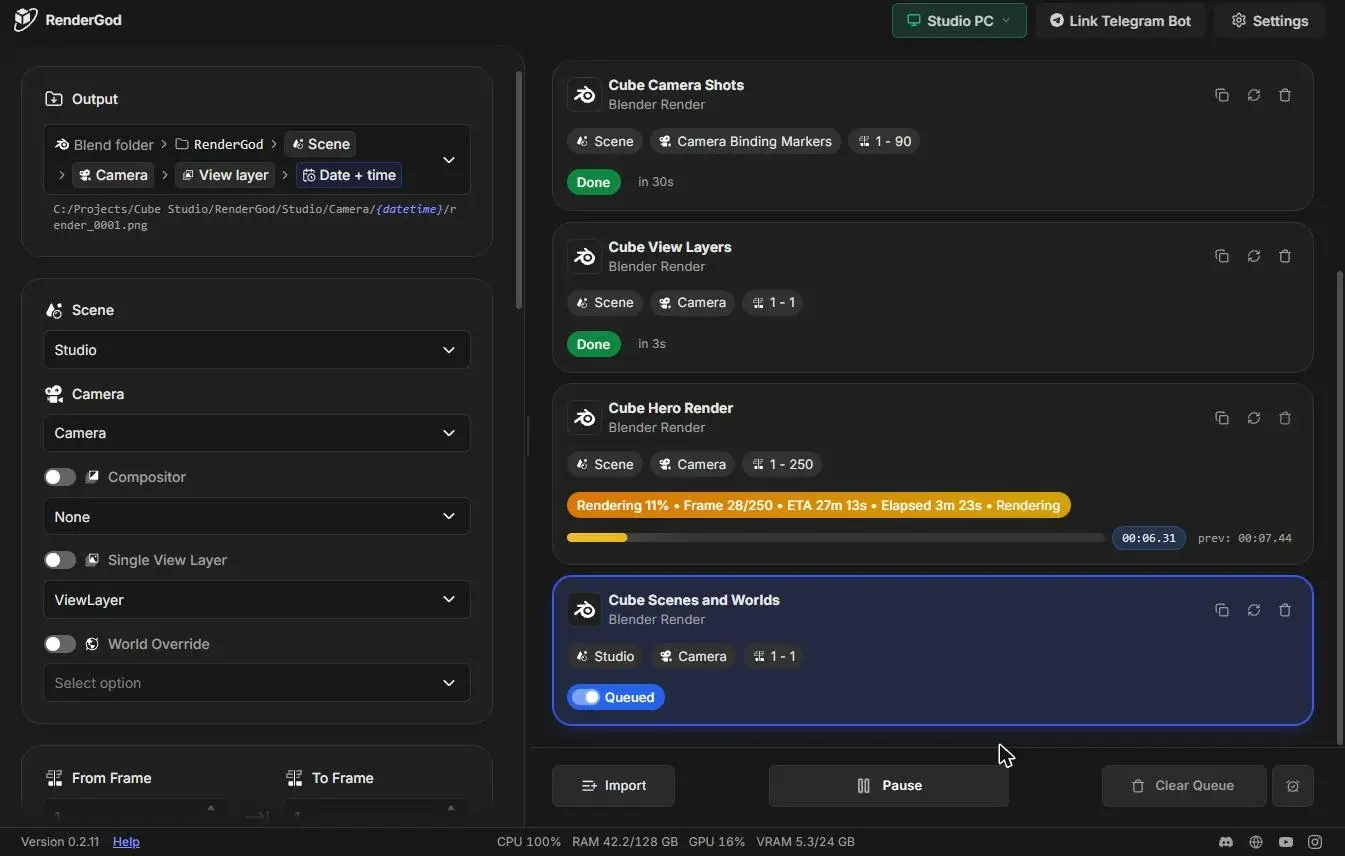
Quick answers to common questions. For error messages and fixes, see Troubleshooting.
Rendering and the queue
Not when it imports or renders. Settings you change in RenderGod, such as camera, frame range or samples, apply only to the render. Two things do save the file. Auto Bake Physics bakes the simulations and saves the file before rendering, and you can turn it off for a job. The Send to RenderGod button in Blender saves the open file before it sends it.
RenderGod reads the scene when you import the file. After saving changes in Blender, right-click the job and choose Reload from .blend.
No. Jobs render one after another from the top of the queue, so each render gets the whole computer. Drag jobs to change the order. See Managing Jobs.
Pause stops the queue and closes Blender. The rendering job shows Paused at frame with the frame number. Click Start to continue from there, or click Click to Reset to start the job over. See Render Queue.
The range is locked so the job continues from the right frame. Click Reset pause and Unlock under the frame range to edit it. The job then renders the full range again.
Rendering and finished jobs are read-only so the output matches the settings. Click Duplicate Job to get an editable copy. See Render Settings.
Yes. Queue History keeps removed jobs, and you can put them back in the queue. FREE keeps the last 5 and PRO keeps them all. Preview images are not restored. See Queue History.
By default in a RenderGod folder next to the .blend, organized by scene, camera, view layer and date. The Output card shows the path. Click Open Export Folder on a job card to go there. See Output Templates.
Frames can be resumed after a crash or pause and previewed one by one. A video file cannot. Use Auto Create Video to encode the finished frames into a video. See Auto Create Video.
Yes, unless Disable add-ons during render is on under Optimization Overrides. Render engines and handlers from add-ons need them enabled. See Optimization Overrides.
You need to be signed in to start the queue. Click Continue with Google and finish signing in in your browser.
Crash recovery and overnight renders
With crash recovery on, RenderGod restarts Blender and continues from where it stopped. A frame that keeps failing is skipped and listed under Skipped Frames. See UnCrash Recovery, or Resume a Blender Render After a Crash for the manual way.
On Windows, yes, if PC crash recovery is turned on and set up. The queue resumes after Windows starts. On macOS, the job waits as Paused until you open RenderGod and click Start. See UnCrash Recovery.
No. While the queue runs, RenderGod keeps the computer awake. Closing a laptop lid or pressing the power button still puts it to sleep.
Yes. Click Shutdown/Sleep in the queue toolbar and choose Shutdown or Sleep under When Queue Finishes (PRO). A countdown gives you time to cancel, 3 minutes by default. See Auto Shutdown / Sleep.
Yes. Click Schedule in the queue toolbar. Render Schedule can start the queue at a set time, pause it at another, and repeat weekly (PRO). See Render Schedule.
Closing the window hides RenderGod and the render continues. Quitting RenderGod stops the queue, except on Windows with PC crash recovery set up, which resumes it in the background.
Conversion and previews
Yes. Drag a video, an audio file or a folder of images onto RenderGod to create a conversion job. See Image Sequence to Video, Video to Image Sequence and Convert Formats.
H.264, H.265 and AV1 cannot store transparency. Use ProRes 4444 (Alpha) mov. See Video Formats.
It holds small copies used for fast preview playback and scrubbing. Your frames are not changed. Deleting the folder removes only those copies.
Remote access, plans and computers
No. Remote Control, the iPhone app and the Telegram Bot work over the internet from anywhere. The computer must be on with RenderGod running.
No. Files must be on the computer that renders them, so importing, opening folders and installing the add-on happen on that computer.
See FREE vs PRO for the full list, including the 7-day free trial.
RenderGod verifies this copy online. A successful check stays valid for up to 24 hours, so you can disconnect and keep rendering for a while. Remote Control, the iPhone app and Telegram always need a connection.
Yes. Export it as an .rgjob file (PRO), copy it with the project files and import it on the other computer. See Workflows.
RenderGod renders with the Blender versions installed on your computer and can keep several side by side. The Send to RenderGod add-on needs Blender 4.2 or newer. See Blender Versions.
Some updates are required before RenderGod runs again. Installing restarts RenderGod, so let the queue finish or pause it first, then click Download & Install.
Glossary
| Term | Meaning |
|---|---|
| Add-on | The Send to RenderGod Blender add-on that adds the open scene to the queue |
| Auto Create Video | Encodes the rendered frames into a video when a job finishes |
| Batch Render by... | The job menu that makes one job per scene, camera or view layer |
| Camera Binding Markers | Blender timeline markers bound to cameras, so the camera changes during the frame range |
| Compositor | Blender's compositing node tree, applied to the render when turned on |
| Conversion job | A queue job that converts media instead of rendering a .blend |
| Export folder | The folder a job writes its frames or files to |
| File Output node | A compositor node that saves extra images, such as passes, to its own folder |
| Follow Scene | Keeps the value saved in the .blend instead of overriding it |
| Frozen frame | A frame where Blender stops making progress. UnCrash restarts Blender and continues |
| Job | One item in the queue: a .blend render or a media conversion |
| Job file (.rgjob) | A file holding one or more jobs and their settings, for backup or moving to another PC |
| Multi Frame Ranges | Several frame ranges rendered in one job (PRO) |
| Optimization Overrides | Render speed options applied on top of the .blend, such as forcing the GPU |
| Output template | The folder and file name pattern that decides where renders are saved |
| Performance Monitor | The CPU, RAM, GPU and VRAM readout in the footer |
| Pre-flight Checks | Checks that run before Blender starts and fail a bad job in a second |
| Preset | A saved combination of render settings you can apply to a job |
| Python Handlers | Scripts that run at set moments of a render (PRO) |
| Skipped frame | A frame UnCrash gave up on after repeated crashes, so the render could continue |
| UnCrash | RenderGod's crash recovery. It restarts Blender after a crash or freeze and resumes |
| When Done | What happens when the queue finishes: Do Nothing, Shutdown or Sleep |