Auto Shutdown / Sleep
Shut down or sleep the computer when the last job in the queue finishes, with a countdown you can cancel.
Last updated By the RenderGod Team
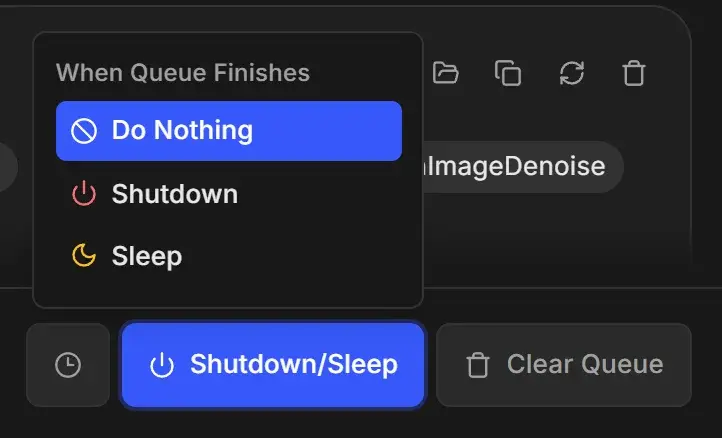
Auto Shutdown / Sleep powers the computer down after the last job in the queue, for example after an overnight batch. You always get a countdown before anything happens.
Set it up
- Click Shutdown/Sleep in the queue toolbar.
- Under When Queue Finishes, choose Do Nothing, Shutdown or Sleep.
- Click Start.
RenderGod remembers the choice until you change it back to Do Nothing.
With Shutdown or Sleep set, a card at the end of the queue reminds you.
| Action | Card | Buttons |
|---|---|---|
| Shutdown | Shutdown When Done | Switch to Sleep, Cancel Shutdown |
| Sleep | Sleep When Done | Switch to Shutdown, Cancel Sleep |
Click on the card to open the settings. Cancel Shutdown and Cancel Sleep set the choice back to Do Nothing.
When the queue finishes
- The completion sound plays, if it is on.
- A message reads "Queue completed" with the time left.
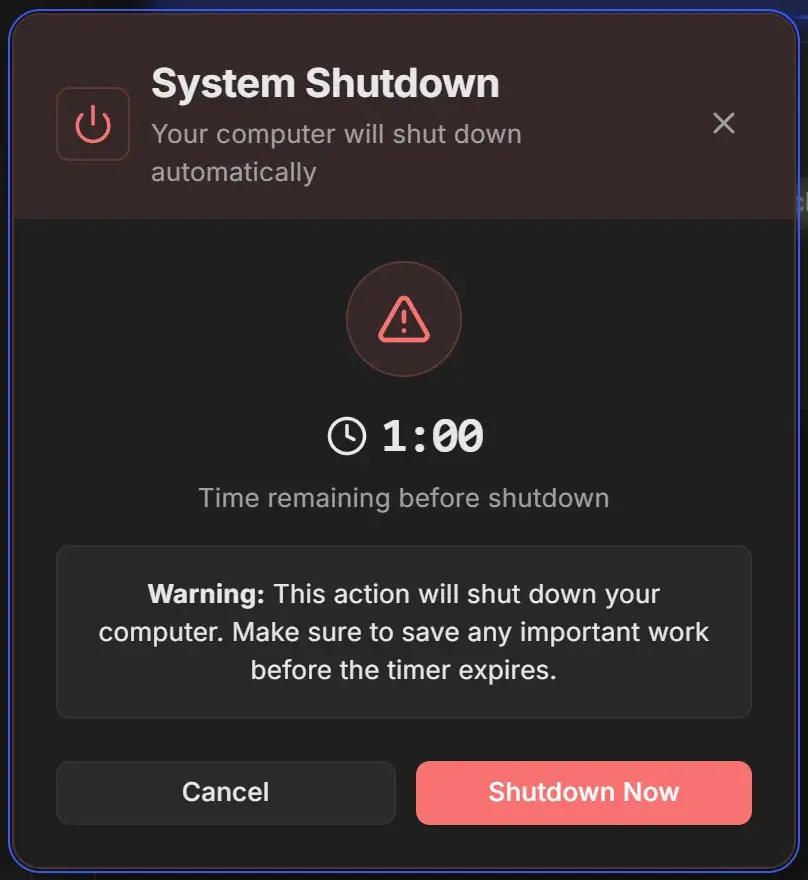
- A System Shutdown or System Sleep window counts down and reminds you to save your work.
- At zero, the computer shuts down or goes to sleep.
Click Cancel or close the window to stop this one shutdown. Your choice stays set for the next queue. Click Shutdown Now or Sleep Now to skip the wait.
Shutdown closes every program
Save open work in other apps first. A computer that has shut down cannot be reached from your phone or a browser, so choose Do Nothing or Sleep if you want to check the results remotely.
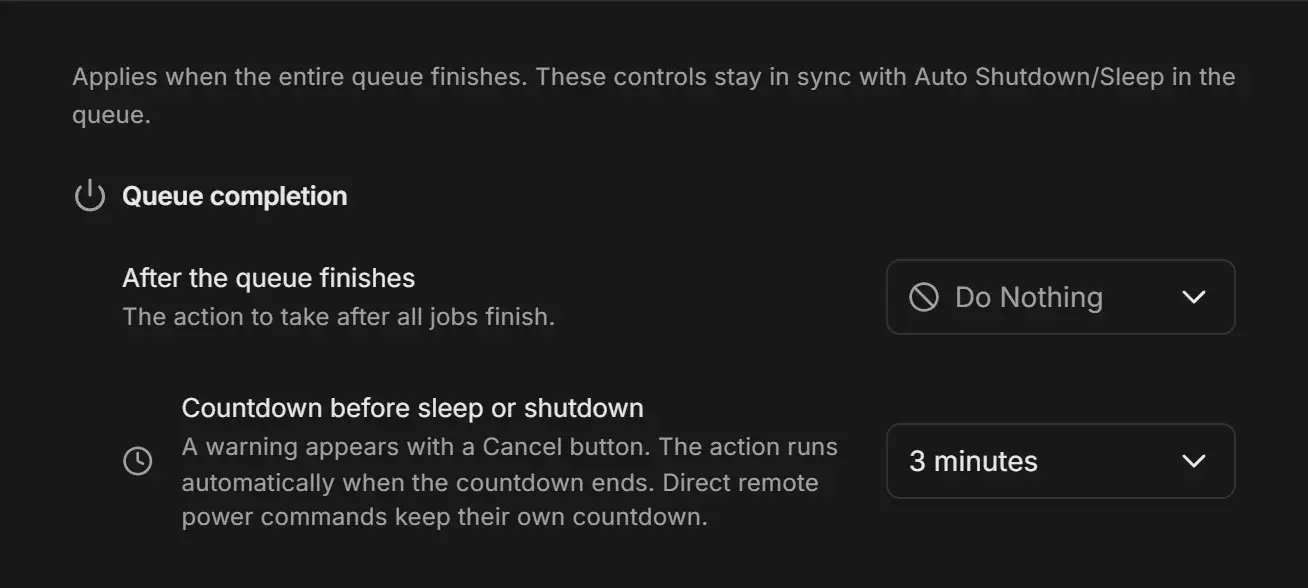
Settings
Open Settings and choose Auto Shutdown/Sleep. It holds the same choice as the toolbar menu, under After the queue finishes, plus the countdown.
- Countdown before sleep or shutdown: 30 seconds, 1 minute, 3 minutes (the default), 5 minutes or 10 minutes.
Turn the completion sound on or off in Settings under Notifications. See Notifications.
macOS permission
The first time you choose Shutdown, macOS asks whether RenderGod may control System Events. Allow it. If you refused, allow RenderGod under System Settings > Privacy & Security > Automation.