FREE vs PRO
See what the FREE, PRO and STUDIO plans include, how the 7-day trial works and how to manage your plan inside RenderGod.
Last updated By the RenderGod Team
RenderGod is free to use for batch rendering. PRO adds crash recovery, remote access, automation and more. STUDIO is PRO for teams. For prices, see rendergod.app/pricing, where they are always up to date.
Plans
| Plan | For | What you get |
|---|---|---|
| FREE | Small projects | The render queue, batch rendering of every camera, scene and view layer, live preview, conversion tools and the Blender add-on. |
| PRO | Individual artists | Everything in FREE, plus every feature marked PRO in the table below. Starts with a 7-day free trial. |
| STUDIO | Studios and teams | Everything in PRO, plus 5 seats at the price of 4, priority support and custom solutions. |
The STUDIO price is listed on the pricing page. To get STUDIO, use Contact Sales there or on the contact page, and the team sets it up with you.
The 7-day free trial
PRO starts with 7 days free, with every PRO feature available.
- You start the trial from the pricing page. You add a payment method at checkout and you are not charged during the trial.
- Each account gets one trial.
- Cancel before the 7 days end from your account page on rendergod.app and you are not charged. PRO stays active until the trial ends.
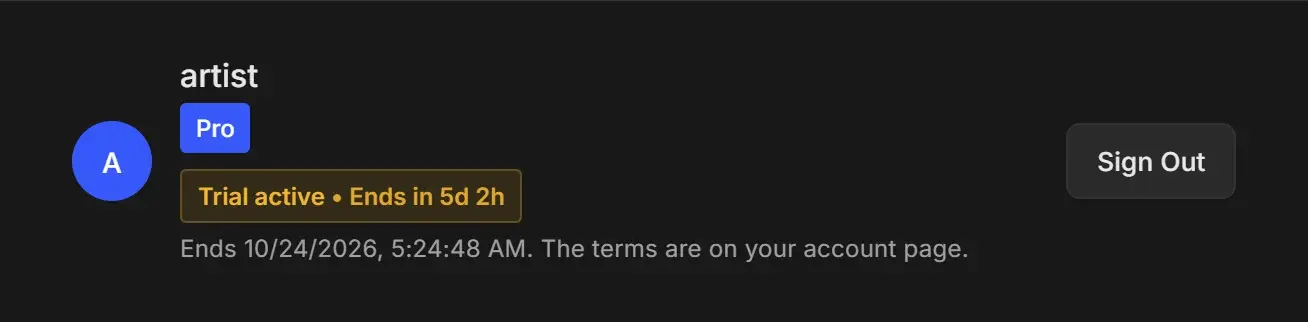
- During the trial, the header shows Trial active with the time left, and Settings > Account shows the end date.
FREE and PRO compared
| Feature | FREE | PRO |
|---|---|---|
| Render Queue | ||
| Blender Render Queue | ||
| Batch Render All Cameras, Scenes & View Layersor any combination | ||
| Multi Frame Ranges in One Job | ||
| Blender Add-onsend to queue directly from Blender | ||
| Export & Import Queue Jobs | ||
| Queue Historysupports restoring | Last 5 | Unlimited |
| Job Badges | ||
| Render Remaining Time Estimate | ||
| Render Settings & Output | ||
| Full Scene and Render Settings Control | ||
| Custom Render Presets | ||
| Output Templatesauto version, date & time, scene/camera tokens. A plain folder and Same as .blend are always included | Built-in templates | Custom templates |
| Optimization Overrides | ||
| Blender Version Managerauto-detected, control per job | ||
| Compositors, File Output Nodes, Single View Layer, World Override & Camera Binding Markersand more | ||
| UnCrash: Automatic Render Recovery | ||
| Blender Crash Recovery | ||
| Frozen Frame Recovery | ||
| PC Crash RecoveryOS-level service, works even if your PC crashed | ||
| Pre-flight Checksmissing items and failures caught before Blender starts | ||
| Live Preview | ||
| Live Previewall formats | No EXR | Including EXR |
| Playback & Scrubbing | ||
| Zoom & Pan | ||
| Multi-Previews per File Output Node / Frame Range | ||
| Previews Anywhereweb remote control, iPhone app & Telegram | ||
| Remote Control & Notifications | ||
| Remote Control from Webfull app control, live previews, works outside your local network | ||
| RenderGod for iPhonenative iOS app, push notifications, live previews | ||
| Telegram Botnotifications, commands, previews | ||
| Automation | ||
| Auto Create Videoencode the rendered frames into a video when rendering finishes | ||
| Auto Bake Physicsbake all simulations before rendering begins | ||
| Auto Shutdown / Sleepafter the queue finishes | ||
| Render Schedulestart / pause / weekly repeats | ||
| Python Handlerspre/post-render scripts | ||
| Conversion Tools | ||
| Convert Image-Sequence to Video | ||
| Convert Video to Image-Sequence | ||
| Convert Video / Audio / Image-SequenceProRes Alpha, EXR, WAV or any format | ||
| FFmpeg Hardware-Accelerated EncodingGPU-accelerated (NVIDIA, AMD, Apple) | ||
| System | ||
| Performance MonitorCPU, GPU, RAM/VRAM. Working means rendering, baking or converting | While RenderGod is working | Always |
| Notificationsqueue finished, job failed, crash recovery | ||
| Appearancetheme, UI scale | ||
| Automatic Updates | ||
Computers
Your plan covers a number of active computers on one account: FREE includes 1 and PRO includes 2. If you sign in on one more, RenderGod opens a Computer limit reached window. You can:
- Choose a computer and click Disconnect and use this computer. This moves the slot to the computer you are on.
- Click Add more computers to add extra computers to your plan on rendergod.app.
If your plan has room, the window reads Connect this computer. Click Use this computer.
Manage your plan in the app
The plan button in the header shows your current plan.
- On FREE it reads Upgrade when you point at it, and opens the pricing page.
- On PRO it reads Manage and opens Settings > Account.
Settings > Account shows your plan, the trial time left and Sign Out. A PRO feature that your plan does not include carries a small PRO badge. Clicking it opens an upgrade offer.
When a computer becomes PRO, RenderGod turns on Remote Control and the UnCrash recovery switches once, and a message lists what it turned on. If you switch one off later, RenderGod leaves it off.
Signing out
Signing out stops PRO features on that computer and disconnects any browser controlling it. Your queue, settings and rendered frames are not touched.