Automatic Updates
RenderGod downloads updates in the background and installs them when nothing is rendering, so a running queue is never interrupted.
Last updated By the RenderGod Team
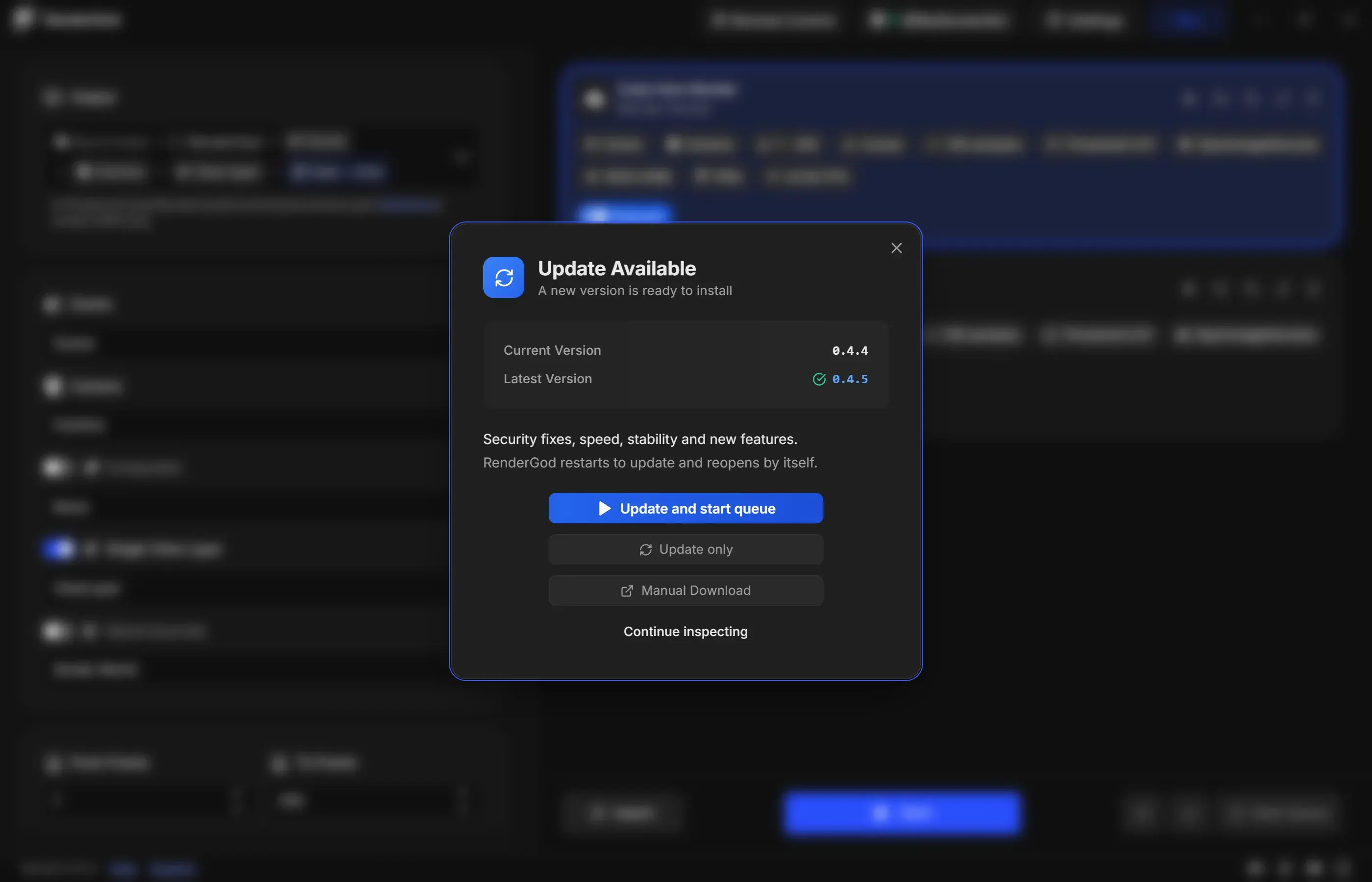
RenderGod downloads updates in the background and installs them at a safe moment. A running queue is never cut off. It finishes the jobs it already had, then RenderGod updates itself and continues with the rest. Automatic Updates is included in FREE and PRO.
When updates install
| Moment | What happens |
|---|---|
| The queue finishes | The update installs and RenderGod reopens. If jobs are still waiting, it continues the queue. |
| You press Start with an update ready | The update window opens with Update and start queue and Update only. |
| You click Update now in the update window | RenderGod updates right away if nothing is running. |
| An hour without keyboard or mouse input | The update installs while nothing is running. The queue is not started. |
| You quit RenderGod | The update installs after it closes. |
| The next launch | A ready update installs first, and a Windows notification says "Updating RenderGod". |
After an update, RenderGod shows "Updated to version" with the new number and reopens the way the window was.
While a queue is running
Some releases are required before you can start new renders. When one is waiting while a render is running, a strip under the header reads "Update required. It installs when the queue finishes." It has two buttons:
- Stop current work: ends the running render so the update can install.
- View update: opens the update window.
The plan button in the header also reads Update required until the update is installed. Click it to open the same window. Current work can finish, and new work waits for the update.

The update window
The window is titled Update Available, or Update required for a required release. It shows Current Version and Latest Version, with a check mark next to the latest version once it has finished downloading in the background.
- Update and start queue: installs the update, then starts the queue. Shown when the window opens from Start.
- Update only: installs the update without rendering.
- Update now: installs the update and reopens RenderGod. Shown when the window does not come from Start.
- Download & Install: downloads and installs the update when the background download is not ready or fails.
- Manual Download: saves the installer and opens its folder, so you can run it yourself later.
- Continue inspecting: closes the window. On a required update with nothing running, the button reads Not now.
While a render is running, the install buttons stay unavailable and the window says to update when it finishes.
Installing restarts RenderGod
A render that is still running stops when RenderGod restarts. Let the queue finish first.
Check for updates yourself
Any of these opens the update window when a new version exists, or tells you that you are up to date:
- Click Version in the footer.
- Open Settings > System Settings and click Check for Updates.
- Press Ctrl+Shift+V (Cmd+Shift+V on macOS).
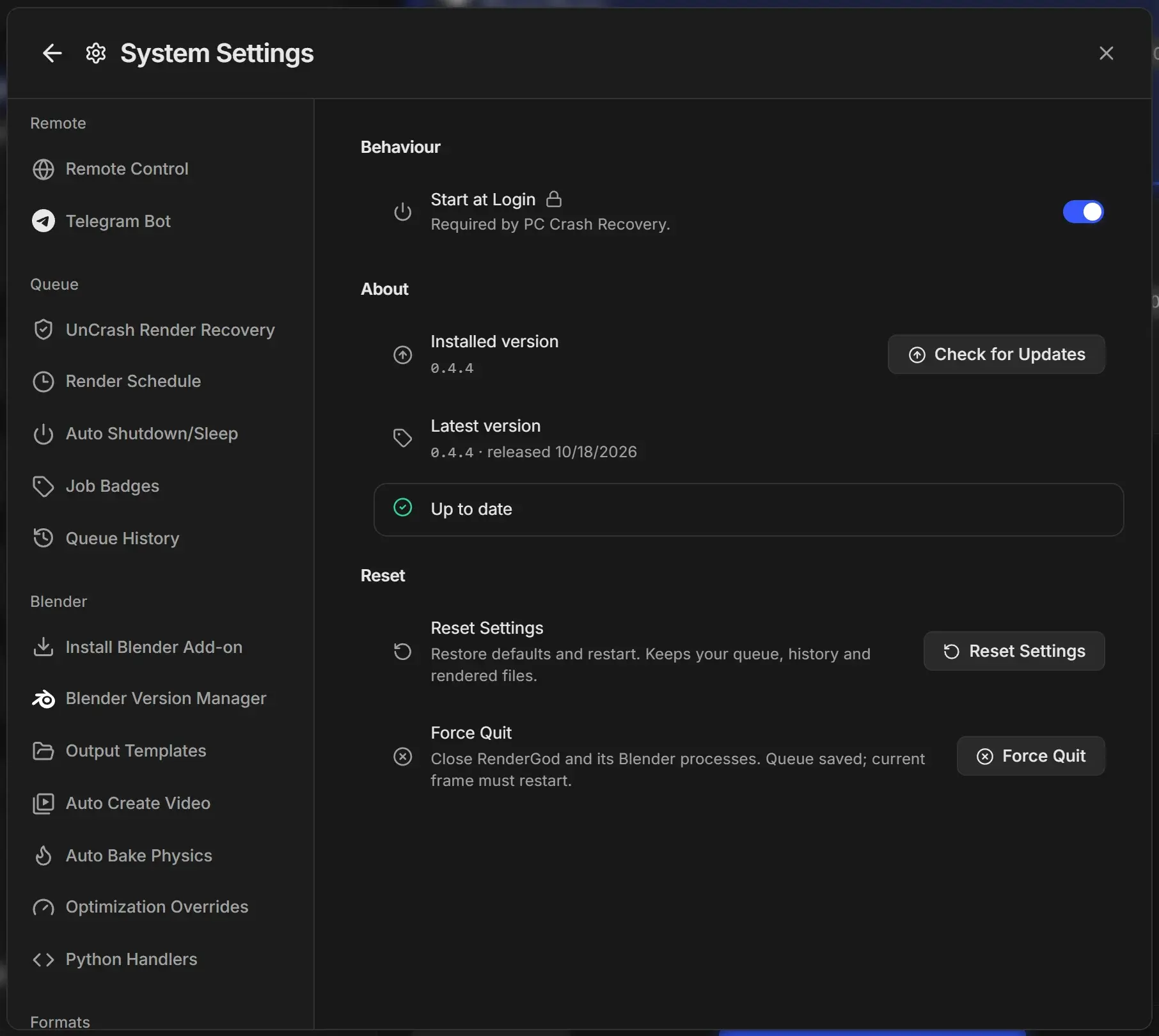
System Settings also shows the Latest version and a line that reads Up to date or Update available. If the check cannot reach the update server, the line says "Couldn't check for updates" and offers Retry.