Live Preview
Watch each frame the moment Blender saves it, scrub back, zoom in, play the sequence and pop previews out into their own window.
Last updated By the RenderGod Team
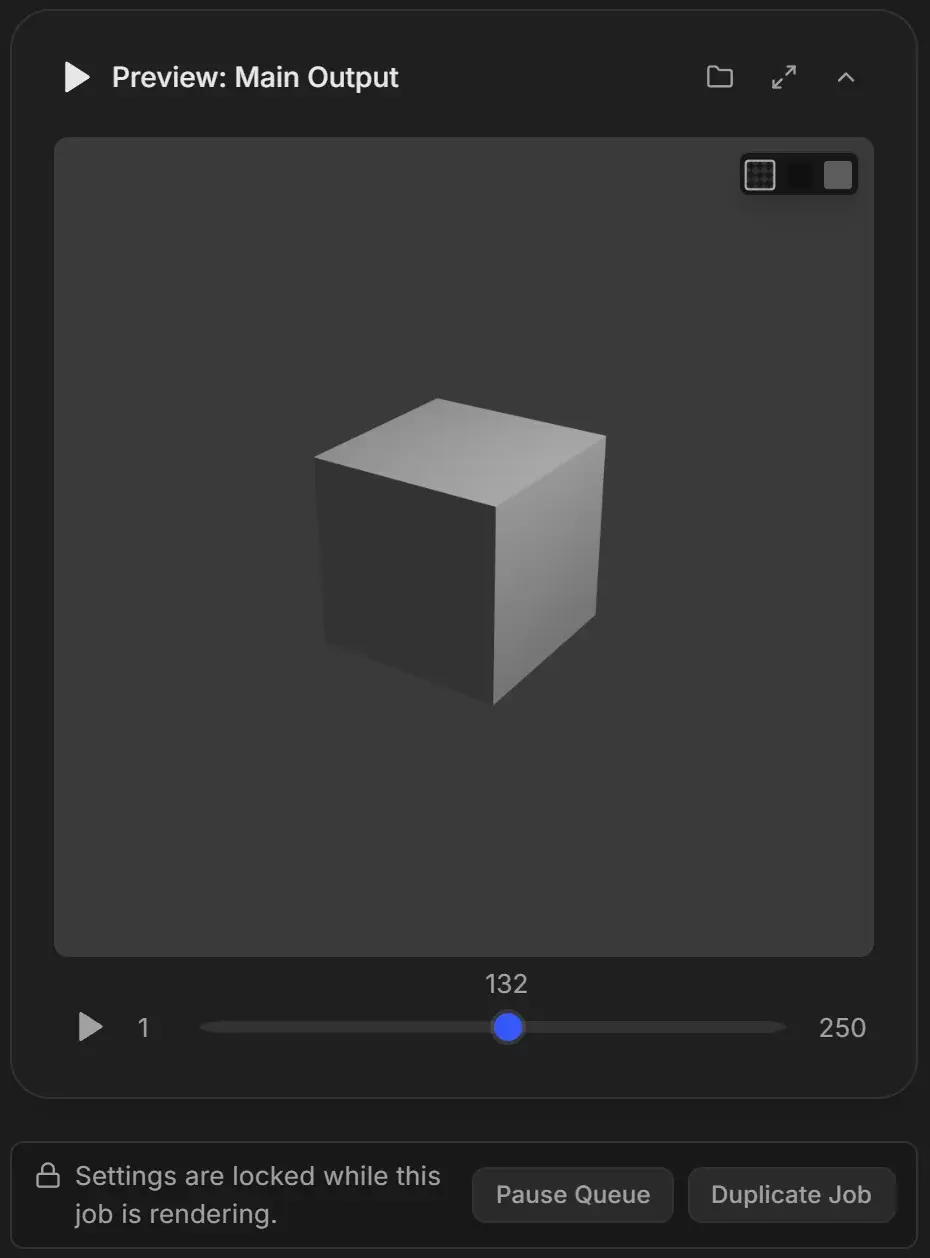
Live Preview shows every frame in RenderGod as soon as Blender saves it, so you catch a bad light, camera or material early instead of after the whole sequence. The same card plays back finished renders, output videos and conversion sources.
Watch a render live
- Start the queue.
- Click the job card of the rendering job.
- Watch the Preview: Main Output card at the top of the panel. It follows the newest frame.
While Blender opens the file the card says "Starting Render", and "Baking Physics" while a bake runs first. A job that has never rendered has no preview card yet.
Look at an earlier frame
Drag the frame slider back to any finished frame. The preview stops following the render and a blue LIVE marker appears. Click it to jump to the newest frame and follow the render again.
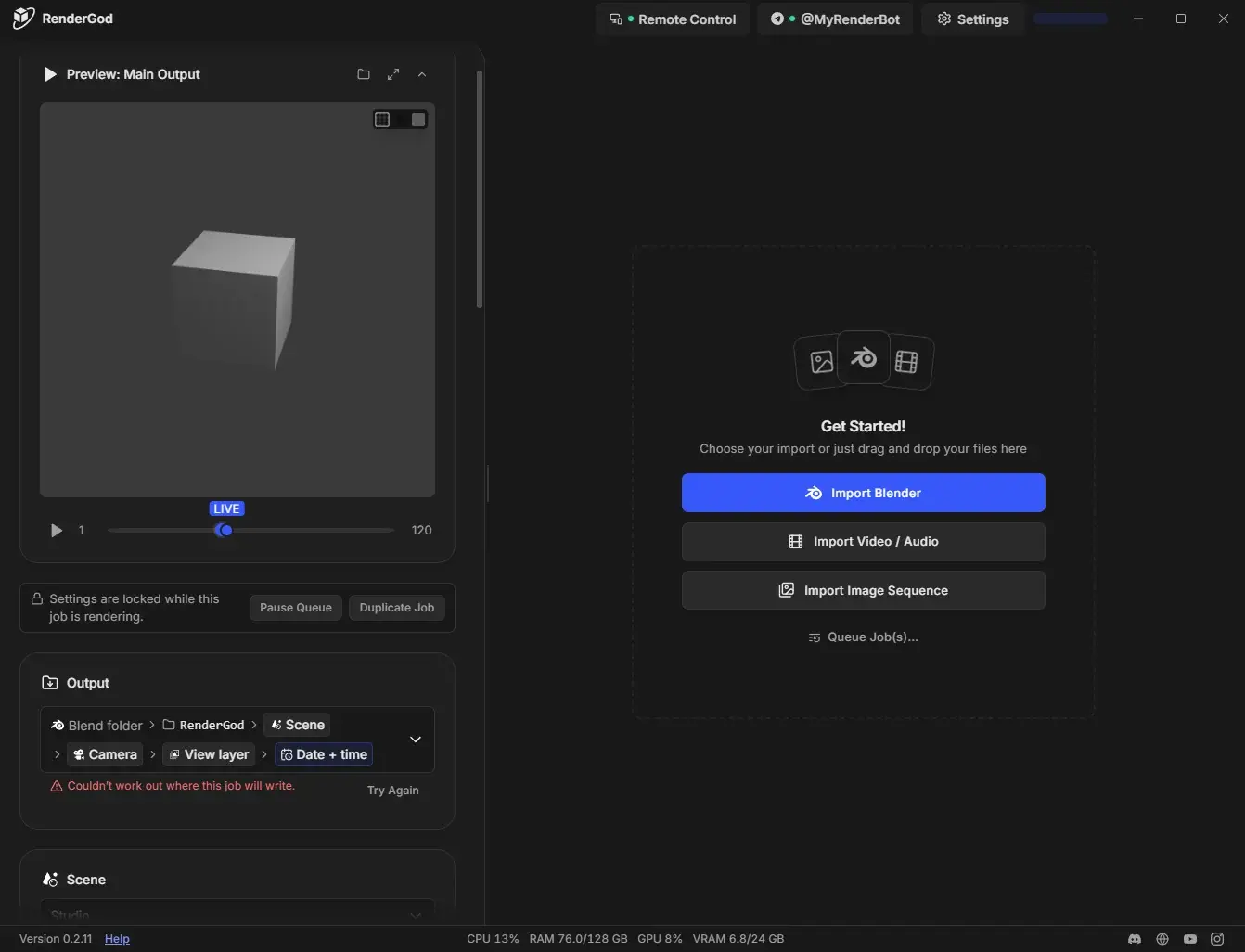
If you drag past the newest finished frame, the card says "Rendering Frame N" and names the last finished frame.
Playback and scrubbing
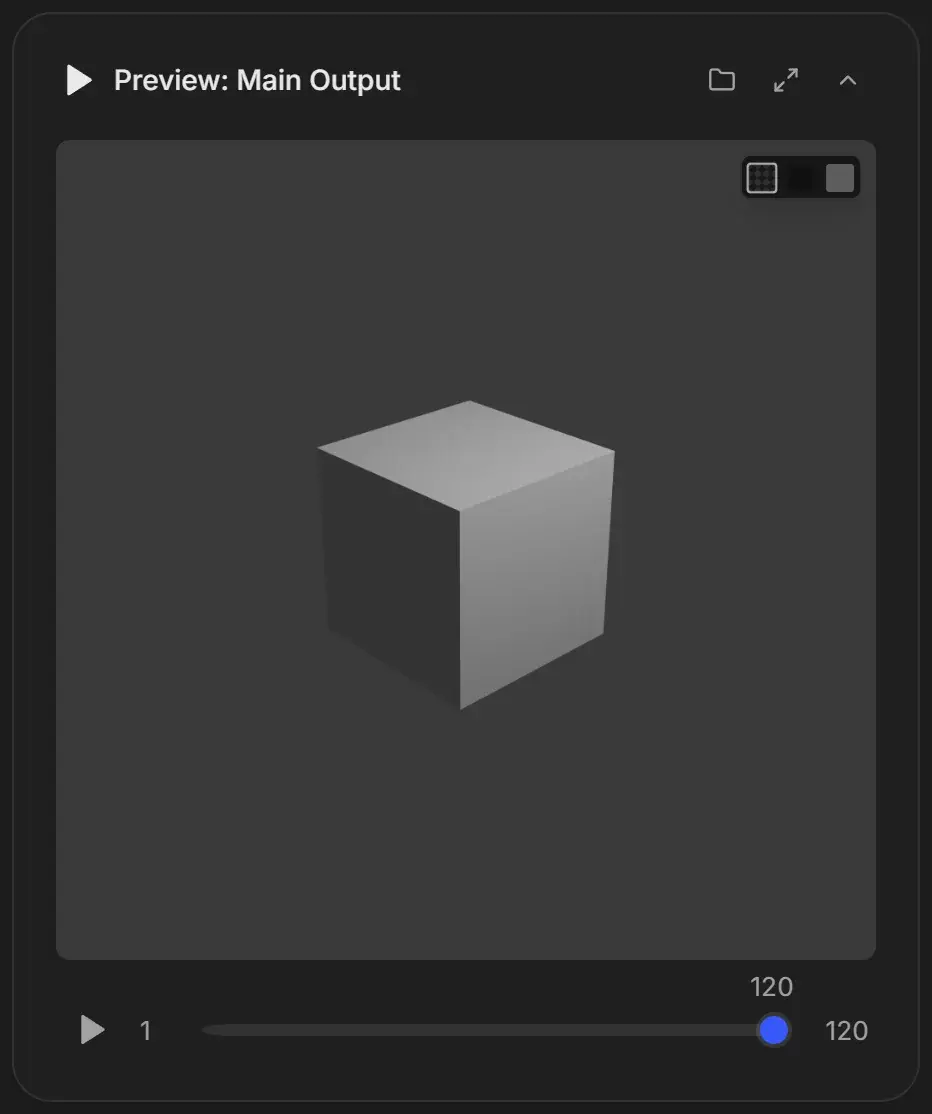
| Control | What it does |
|---|---|
| Card header | Collapses or expands the card ( button) |
| Folder button | Opens the export folder in File Explorer (Finder on macOS) |
| Opens previews in a separate window | |
| Background swatches | Checkerboard, black or white behind the image, handy for transparent renders |
| Play / Pause | Plays the frames in a loop at the job's frame rate |
| Frame slider | Scrubs to any frame. The numbers show the first and last frame. |
On a narrow card the swatches move into a "..." menu under Canvas Background. Playback pauses by itself while the RenderGod window is hidden.
Zoom and pan
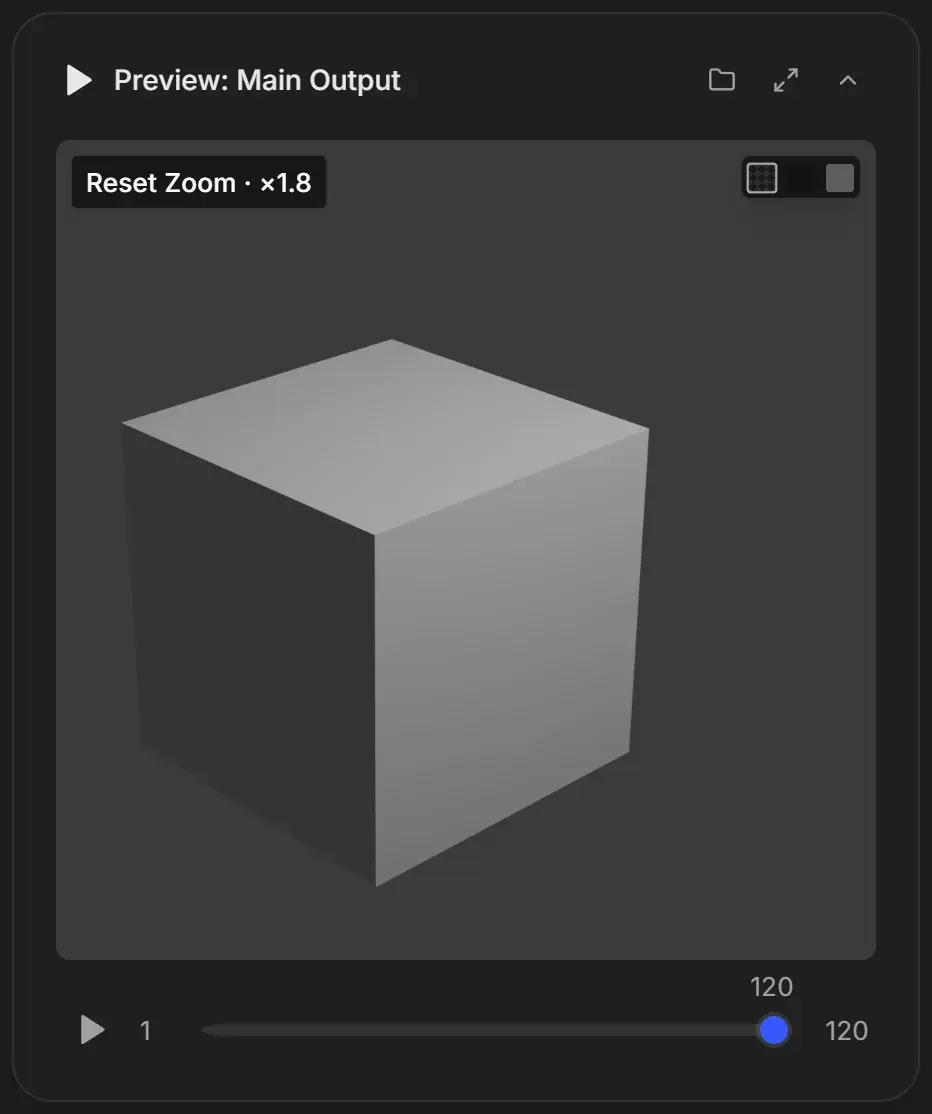
- Zoom: scroll the mouse wheel over the image, from 1x to 32x, centered on the cursor.
- Pan: drag the image.
- Reset: double-click the image, or click the Reset Zoom chip.
| Keys | Action |
|---|---|
| Space | Play or pause |
| Right / Left | Next or previous frame |
| + or = / - | Zoom in / out |
| 0 | Reset zoom and position |
Shortcuts work while the pointer is over the card and not while you type in a text field.
Preview window
Click in the card header to open a window titled "Previews - RenderGod". The Preview button on a job card opens it too. Use the window to check fine detail on a second monitor while the queue stays visible in the main window. It has the same swatches, play button, slider, zoom and shortcuts as the card, plus the job name, status and an Open Export Folder button.
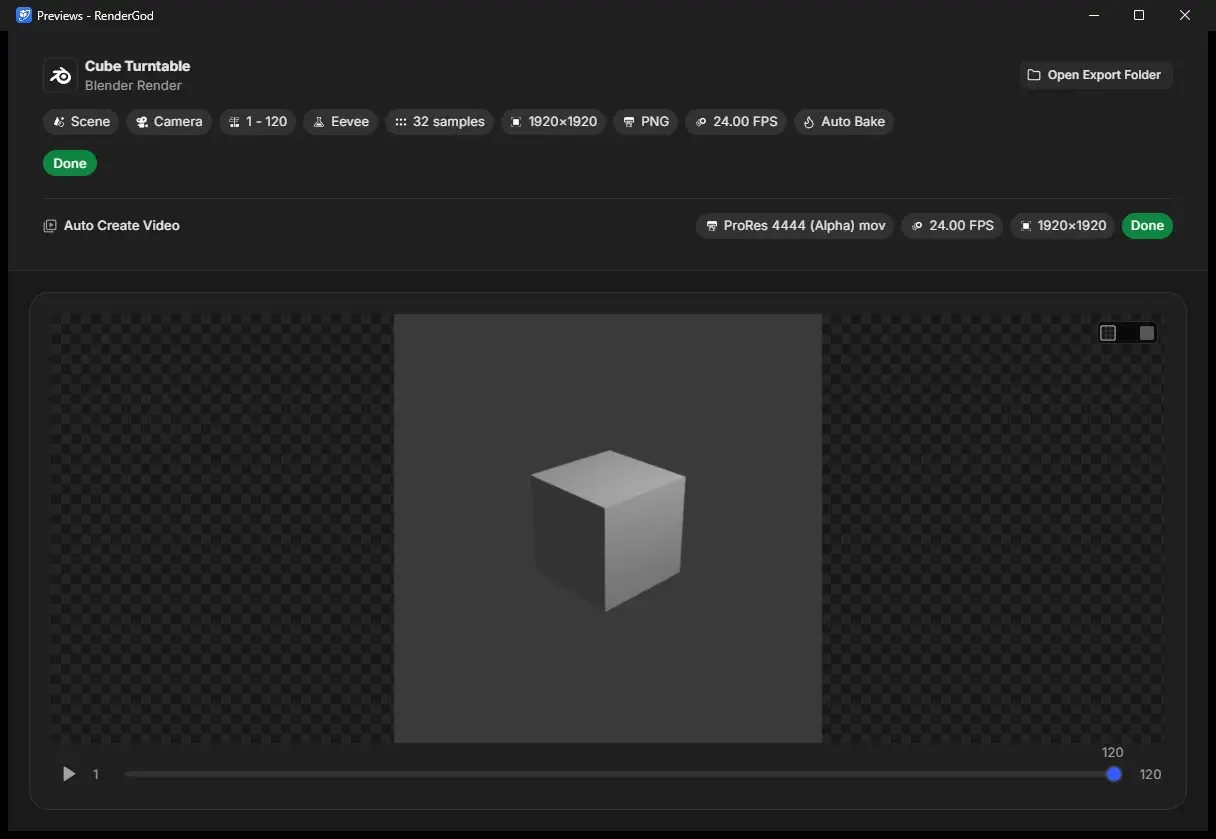
The window opens at 1200x800 and can be resized. If it is already open, RenderGod brings it to the front. It is available in the desktop app only, not in a browser.
EXR and other formats
RenderGod previews formats a browser cannot show.
| Media | Shown as |
|---|---|
| PNG, JPEG | The frame itself |
| EXR, DPX, TGA, TIFF, BMP | The frame, prepared by RenderGod |
| H.264, H.265, VP9, AV1 video | Played directly |
| ProRes, DNxHD, QuickTime Animation, uncompressed video | A small playable copy that RenderGod builds |
EXR previews are not color-managed, so a linear EXR can look darker than in Blender's viewer. The files are never changed.
On FREE, an EXR preview shows a lock tile instead of the frame. The EXR files still render normally. PRO previews EXR everywhere.
Build proxies for big frames
Large frames, such as 4K EXR, can play and scrub slowly. Click Build proxies in the card header to write a small JPEG beside each frame. When a video uses a codec that cannot play directly, the card says "Cannot play this format" and starts building a playable copy, with a timer and a Stop button. Click Build a playable preview to start it again.
Proxies live in a hidden .previews folder next to your media. Delete it any time, and leave it out when you deliver a folder.
One preview per output
| Card | Shows |
|---|---|
| Preview: Main Output | The scene's main render output |
| Preview: plus the node name | A compositor File Output node. With several slots, the slot name is added. |
| Preview: Output Video | The video made by Auto Create Video. It says "Encoding Output Video" until the file is written. |
| Preview: Source | The media of an image sequence or video conversion job |
Multi-Previews
PRO shows one card for every File Output node and for every range of a job with several frame ranges. FREE shows one preview per job, the main output, and the other outputs still render to disk.
Previews anywhere
PRO also shows live previews in the browser remote, in the iPhone app and in Telegram. In the iPhone app and in a browser, a Share button on the card sends the frame on screen to your share sheet or downloads it.
Messages you may see
| Message | What to do |
|---|---|
| "No Rendered Frames Yet" | Start the queue. If the job failed, read the error on its card. |
| "Preview Unavailable" | Open the export folder to check the file, or step to another frame. |
| "Source File Not Found" | Put the file back or reconnect its drive, then click Check Again. |
| "Cannot show these frames" | Click Build preview proxies. |