Optimization Overrides
Replace speed and memory settings saved in a .blend file for one job, so you can force the GPU, set tile size and texture limits, and skip add-ons.
Last updated By the RenderGod Team
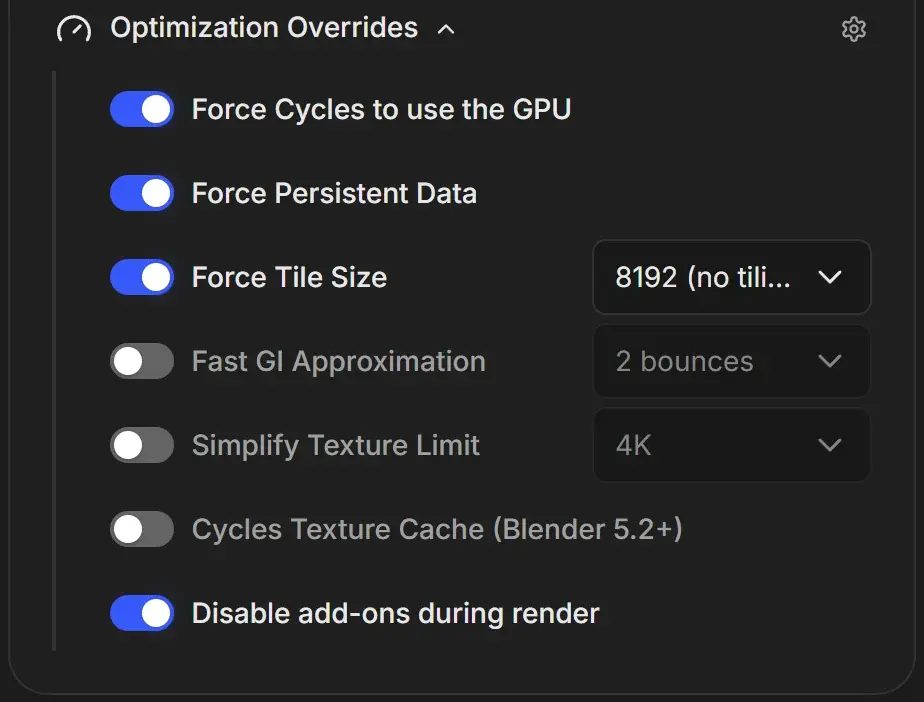
Optimization Overrides replace speed and memory settings saved in the .blend file, for one job. Use them to force Cycles onto the GPU, avoid out-of-memory errors on big scenes, or render without add-ons, all without opening Blender. This feature is FREE.
Use the overrides
- Select the job.
- Click Optimization Overrides in the render panel to expand it.
- Switch the rows you want on. A row with a dropdown stays grayed out until its switch is on.
A switch that is off leaves the scene's own setting alone. Your .blend file is never changed. The overrides apply only while the job renders.
Click next to the heading to open the defaults new jobs start with. See Defaults for new jobs.
All overrides
Every row except the last is Cycles only and is hidden for EEVEE jobs.
| Override | What it does | When to use it |
|---|---|---|
| Force Cycles to use the GPU | Renders on this computer's GPU, whatever device the scene was saved with. On by default. | Turn it off to render on the CPU, for example when the scene does not fit in GPU memory. |
| Force Persistent Data | Keeps geometry and other data in memory between frames, so later frames start faster. On by default. | Turn it off if memory runs out on long animations. |
| Force Tile Size | Sets the Cycles tile size. On by default at 8192 (no tiling). | Pick a smaller tile when the GPU runs out of memory. |
| Fast GI Approximation | After the chosen number of light bounces, ambient occlusion stands in for further bounces. Off by default at 2 bounces. | Faster interiors and heavy indirect light, with slightly less accurate lighting. |
| Simplify Texture Limit | Scales down any texture larger than the chosen size. Off by default at 4K. | Scenes with many 8K textures that do not fit in GPU memory (VRAM). |
| Cycles Texture Cache (Blender 5.2+) | Builds tiled copies of your textures and loads them on demand. Off by default. | Huge texture sets on limited VRAM, when you have spare disk space. |
| Disable add-ons during render | Starts Blender without your installed add-ons. On by default. | Turn it off only when the project needs an add-on to render. |
Force Cycles to use the GPU
RenderGod picks the Cycles GPU backend that fits your hardware. If the computer has no supported GPU, the scene's device stays unchanged. Hover the row to see a note when Blender supports a backend but no matching GPU was found.
| Hardware | Backend |
|---|---|
| NVIDIA | OptiX or CUDA |
| AMD | HIP |
| Intel | oneAPI |
| Mac | Metal |
Force Tile Size
| Option | Use it for |
|---|---|
| 8192 (no tiling) | The whole frame renders as one tile. Fastest, but uses the most GPU memory. |
| 4096, 2048 | Large frames (4K and above) on cards with moderate memory. |
| 1024, 512 | When the GPU still runs out of memory. Slower. |
Fast GI Approximation
Choose 1 bounce, 2 bounces, 3 bounces, 4 bounces, 6 bounces or 8 bounces. Fewer bounces render faster but look darker and less accurate in corners and interiors.
Simplify Texture Limit
Choose 128, 256, 512, 1K, 2K, 4K or 8K. 4K is a good balance. Go lower when memory runs out, knowing close-up textures look softer.
Texture Cache needs disk space
Cycles Texture Cache writes .tx files next to your textures, so the project folder grows. Blender versions before 5.2 ignore it.
Disable add-ons during render
With this on, Blender renders without your user add-ons. Renders start faster and add-on bugs cannot affect them. The same setting applies to the Auto Bake Physics step.
Turn it off when the project relies on an add-on at render time, such as one that generates geometry. Handlers that add-on registers then show up under Add-on Handlers in Python Handlers.
Fix a GPU out-of-memory render
Try these in order, rendering a test frame after each one:
- Set Force Tile Size to 2048, then 1024.
- Turn on Simplify Texture Limit at 4K, then 2K.
- On Blender 5.2 or later, turn on Cycles Texture Cache.
- Turn off Force Persistent Data.
- Turn off Force Cycles to use the GPU to render on the CPU.
Defaults for new jobs
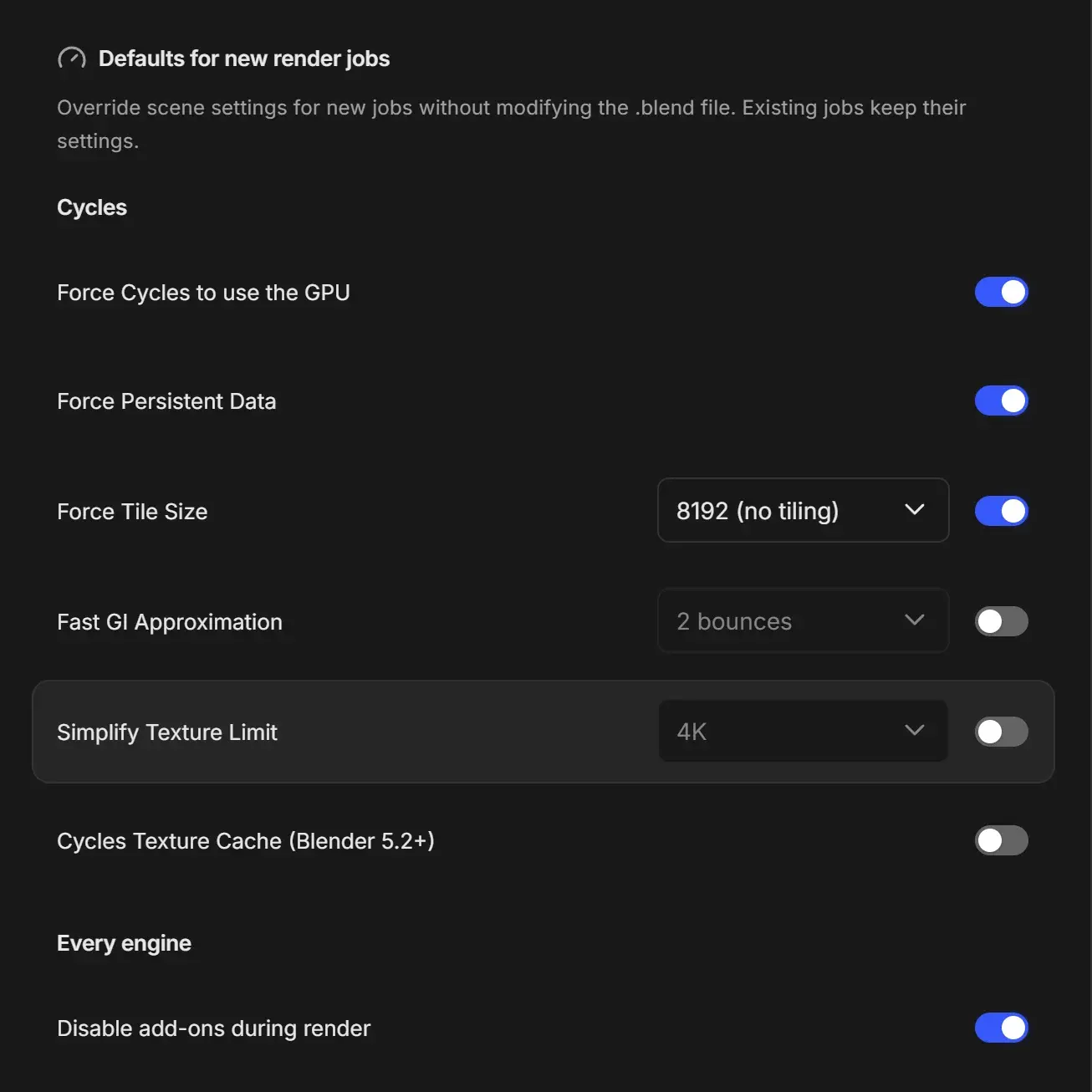
Open Settings and choose Optimization Overrides to set the values new jobs start with. Existing jobs keep their own settings, and the values on a job's own row always win over these defaults.