RenderGod for iPhone
Control your render queue from the RenderGod iPhone app and get a push notification when a render finishes or fails.
Last updated By the RenderGod Team
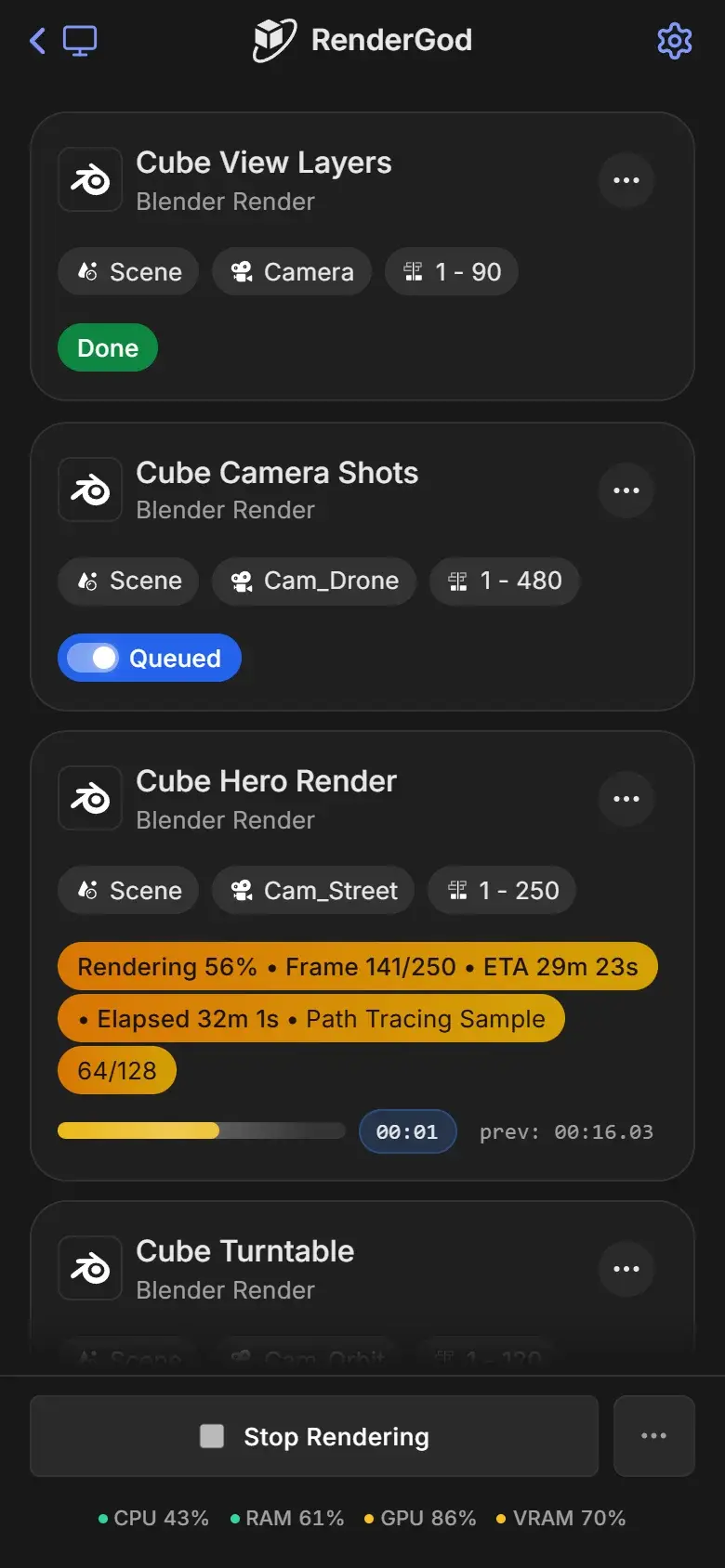
RenderGod for iPhone gives you the same controls as the browser remote, in an app made for the phone. It adds push notifications, so you know when a render finishes or fails without opening anything.
The iPhone app is currently in beta. Rendering always stays on your computer. The app shows job information and preview images and sends your commands.
Get the app
Install RenderGod for iPhone on your phone, then follow the steps below.
Sign in and pair with your computer
- On the computer that renders, open Settings, then Remote Control, and click Turn On Remote Control. See Remote Control.
- Open the app on your iPhone and tap Continue with Google. Use the same Google account as in RenderGod on the computer.
- Tap the computer you want to control.
- On the computer, approve the phone in Let a browser control this computer?. Choose Always allow to skip this next time, or Just this time.
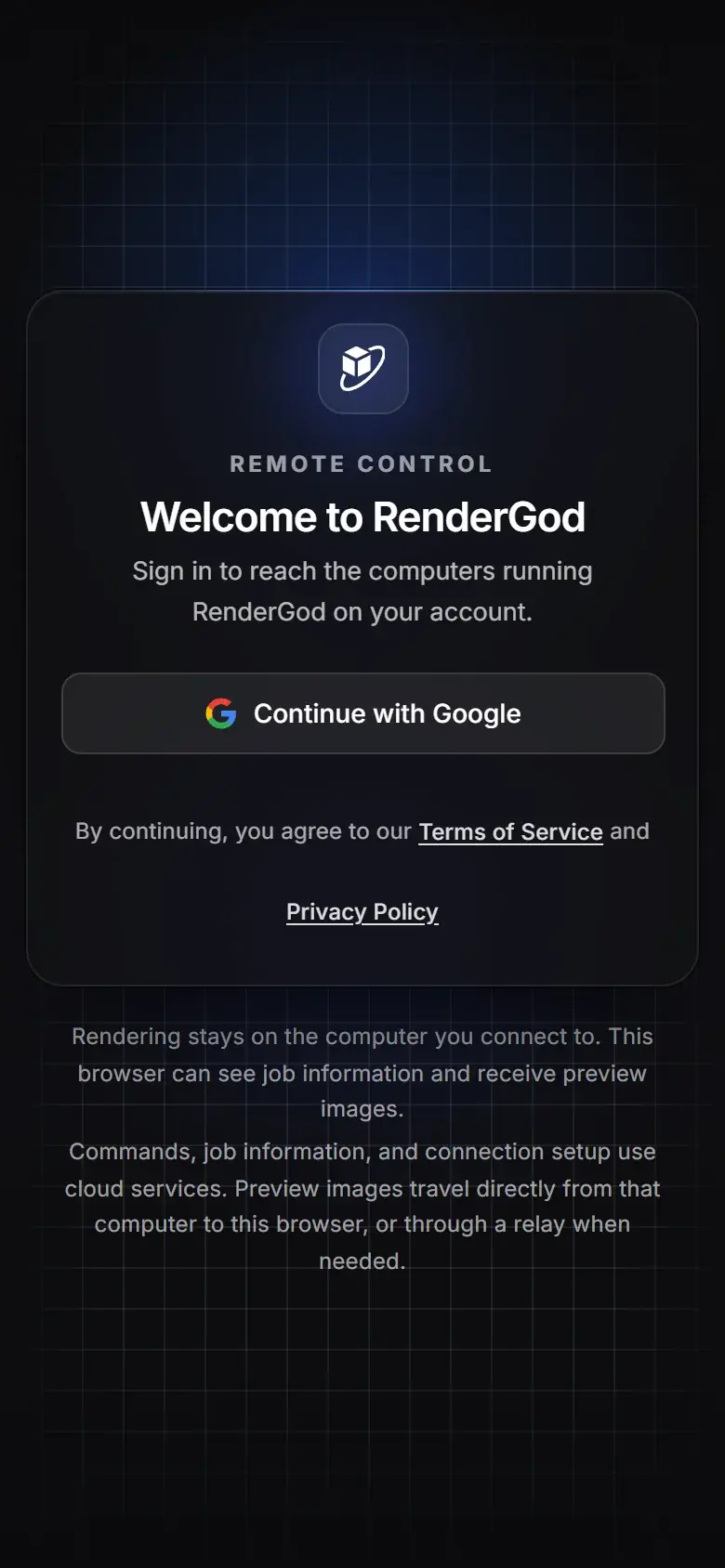
The phone is approved the same way as a browser. You can end it later from Settings, Remote Control on the computer, under the list of connected sessions.
What you can do
- Watch progress, time remaining and live previews.
- Start, pause and stop the queue, reorder jobs, skip, retry and reset them.
- Change render settings on queued jobs.
- Open a frame preview and share it or save it to your photos.
- Switch between computers with the back button at the top left.
The same limits as the browser apply. Importing files and opening folders only work at the computer. See what you cannot do from a browser.
Push notifications
The first time you sign in, a card asks "Know when a render finishes". Tap Continue and allow notifications when iPhone asks.
You get a notification when:
- A job finishes.
- A job fails.
- The whole queue finishes.
- A render is recovered after a crash.
Tap a notification to open that computer and that job.
Choose which ones you get
These choices belong to the computer. In the app, open Settings, then Alerts & sounds, and find Push to Your Phone. Turn it off to stop all phone notifications, or switch individual events on and off. The same switches are in Settings, Notifications on the computer.
If notifications stopped, open Settings, then Notifications under your iPhone's name in the app. It shows whether iPhone allows them and has a button to open the iPhone's Settings app, where you tap RenderGod, then Notifications, and turn on Allow Notifications.
The computer must be on
The computer needs to be on and running RenderGod to send notifications and to answer the app. A computer that has shut down cannot be reached.
Previews
Tap a job to see its preview. While a job renders, the screen stays awake as long as its preview is open. Use the share button on a frame to send it to another app or save it to your photos.