File Output Nodes
Render the File Output nodes in your compositor and choose the folder each node saves to, per job, without opening Blender.
Last updated By the RenderGod Team
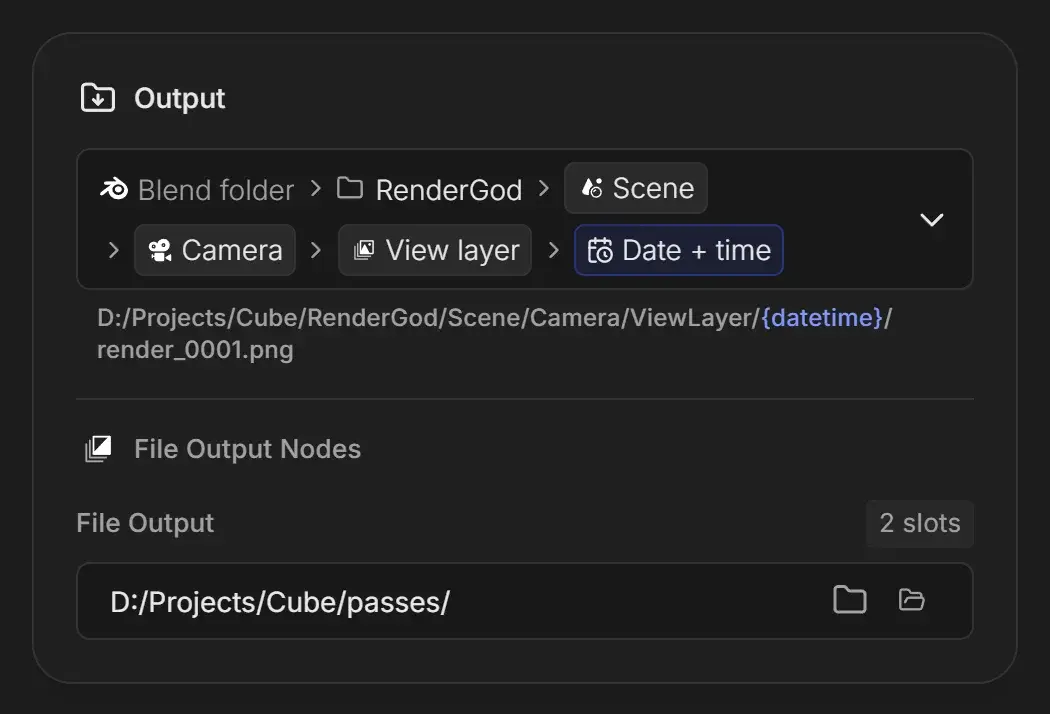
File Output nodes save extra passes next to the main render, such as depth, normals, mist or cryptomatte. RenderGod renders them with the job and lets you change the folder each node writes to, so you can send passes to another drive or a project folder without touching the .blend file.
File Output nodes are included in FREE and PRO.
When they appear
A File Output Nodes section shows on the Output card when both are true:
- The .blend file has at least one File Output node.
- Compositor is on, with the compositor that contains the nodes selected.
Nodes inside group nodes show up too, with the group name after the label.
Change where a node saves
- Select the job and turn on Compositor on the Scene card.
- On the Output card, find the node under File Output Nodes. Its badge shows how many slots it has.
- Type a folder, or use Select folder to pick one. It saves as you type.
- Use Open location to open the folder.
The folder changes only for this job's render. The node's own file name stays as it is in the .blend file. When a job writes to more than one folder, Open Export Folder on the job card asks which one to open.
You can use output template placeholders in the folder, such as {scene_name} or {datetime}, so passes follow the same structure as the main render. See Output Templates.
Save only through File Output nodes
On Blender 5.2 and later the main output can be switched off, so only File Output nodes save frames. Choose Off - File Output nodes only in the job's output settings. The Compositor switch then stays on, and the job needs at least one active File Output node, or it fails before it starts. See Render Settings.
Nodes that do not write
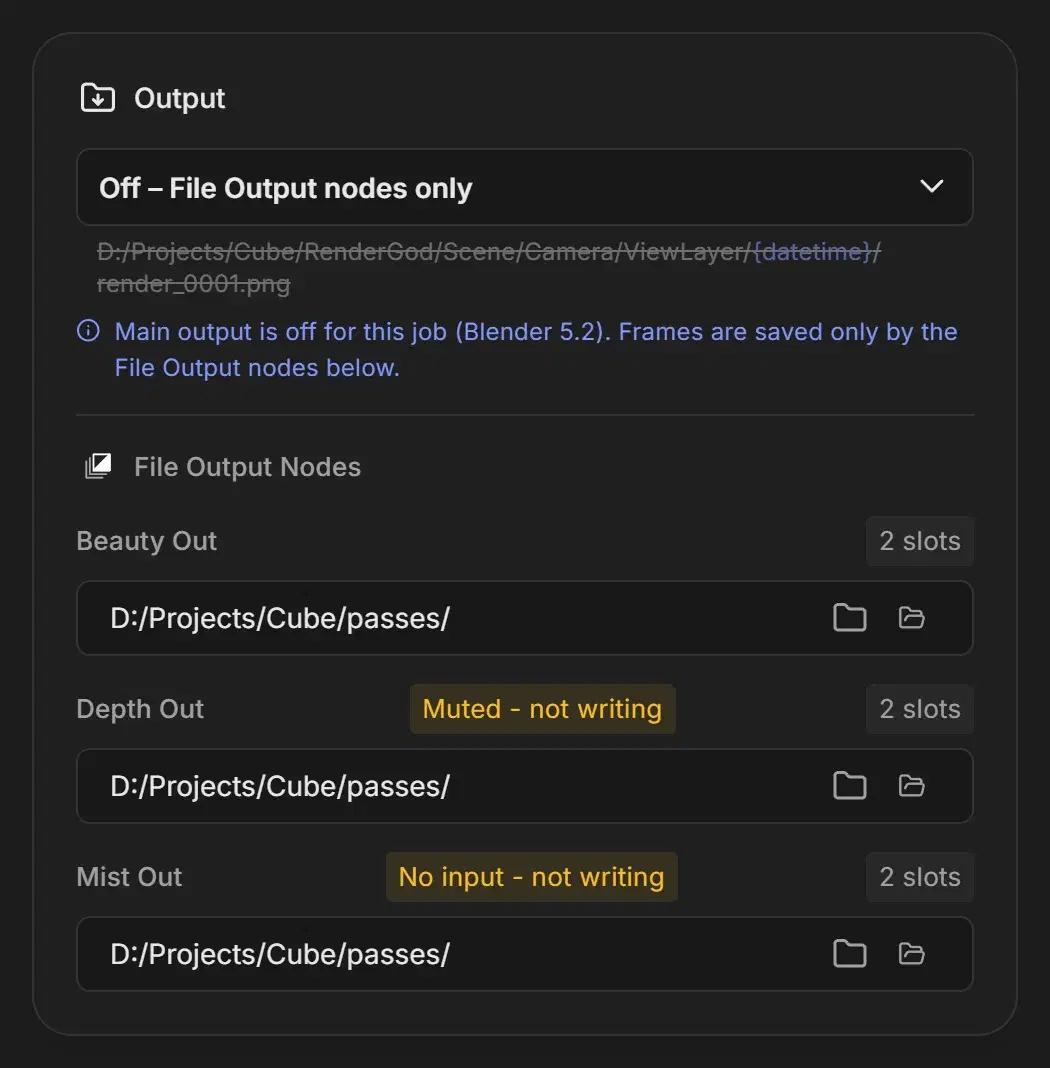
With the main output off, a node that cannot save anything is marked, so you notice before the render:
| Label | Why | Fix |
|---|---|---|
| Muted - not writing | The node is muted in Blender | Unmute it in Blender, save, then Reload from .blend |
| No input - not writing | Nothing is connected to the node | Connect a pass to it in Blender, save, then Reload from .blend |
Files without an extension
On Blender 5.2 a File Output node can be set to write files without an extension. RenderGod adds the extension and shows a warning under the output path.
Preview each pass
Each File Output node gets its own preview card while the job renders, so you can check a depth or mask pass next to the beauty pass. Multi-Previews are a PRO feature. See Live Preview.