Troubleshooting
Find the symptom you see, from failed jobs and missing Blender to empty previews, encoding errors and remote access problems, and follow the fix.
Last updated By the RenderGod Team
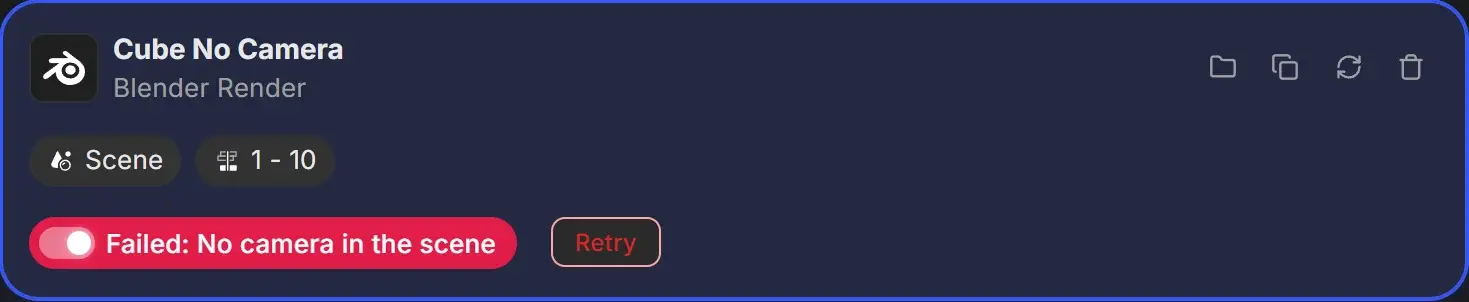
Find your symptom below. Most problems show their reason on the job card, so read it first.
Quick checks
- Read the job card. A failed job shows Failed: with a reason, or a red box with the full message.
- If you saved the
.blendafter importing it, right-click the job and choose Reload from .blend, then click Retry. - Right-click the job, choose Open File in Blender and render one frame. If Blender fails too, the problem is in the scene.
- Check that the output drive is connected and has free space.
- Update RenderGod in Settings, System Settings, Check for Updates.
A job shows Failed
Symptom: the status pill reads Failed: with a short reason, or Failed with a red message below. A failed job never stops the queue.
Fix: find the reason, fix the cause, then click Retry on the card. Retry renders the full frame range again.
| Reason on the card | Fix |
|---|---|
| No camera in the scene | Add a camera in Blender and save, or pick a scene that has one. Then Reload from .blend and Retry |
| Scene not found in the file | Reload, choose a scene in Scene, then Retry |
| No render layer enabled | Pick a view layer that exists, or turn off Single View Layer |
| Blend file is missing | Move the file back or reconnect its drive, or import it again from its new place |
| Can't open the .blend file | Open it in Blender to check it. Pick a newer Blender Version for the job, or use a backup (.blend1) or an autosave |
| Invalid frame range | Fix From Frame and To Frame. The start must be 1 or higher and not after the end |
| Render resolution too small | Fix Resolution. The percentage must be 1 to 1000 |
| Render engine not installed | Enable that engine's add-on in Blender, or choose Cycles or EEVEE |
| Can't write to the output folder | Choose a folder you can write to. On macOS, allow Blender and RenderGod access to it |
| No File Output to save to | The scene's main output is off. Turn it on in Blender, or turn on Compositor with a File Output node |
| Too many frames failed | Render one of the skipped frames in Blender to find the cause. See UnCrash Recovery |
The full message in the red box also covers a few other cases:
- Output drive not available: reconnect the drive or pick another output folder.
- NVIDIA driver too old: update the driver, or switch the job to CPU. Blender 5.2 needs driver 575 or newer for OptiX.
- Invalid samples: set Samples between 1 and 65535.
- Physics baking failed: bake in Blender to see the error, or turn off Auto Bake Physics for the job.
Why some jobs fail in a second
Before Blender starts, RenderGod checks the frame range, resolution, samples, the .blend, the output drive, the scene, the camera and the view layer. A failing check marks the job Failed without opening Blender. Fix the setting and click Retry.
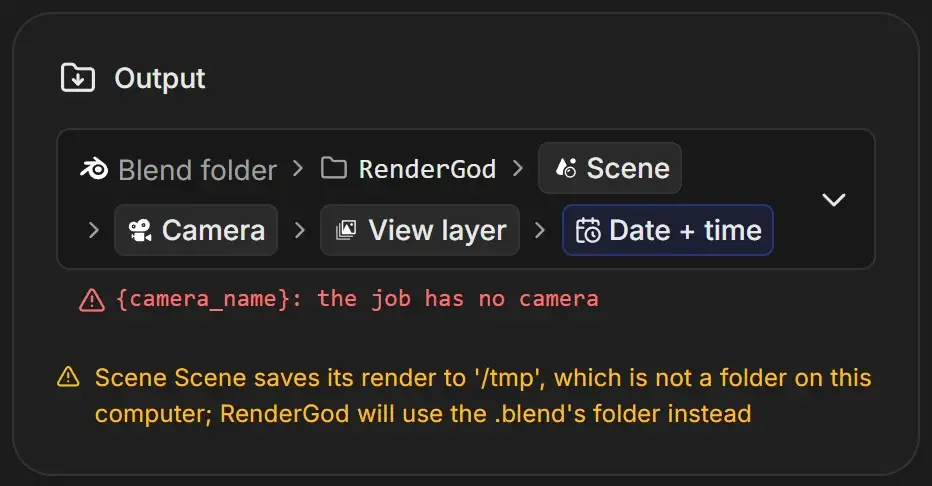
Some problems show in the Render panel before you start, such as a red "the job has no camera" line under Output. Amber warnings are information. The job still renders.
Start says Nothing to render
Symptom: a message at the bottom right says "Nothing to render".
Fix: only Queued jobs render.
- If the queue is empty, import a file.
- If every job is finished, duplicate one, or use Retry or Reset.
- If every job is skipped, turn a job's switch back on.
- If every job failed, fix one and click Retry.
Blender not found
Symptom: the Blender version window opens when you import or start, or Settings, Blender Version Manager says no installations were found.
Fix:
- Open Settings, then Blender Version Manager.
- Click Auto Scan.
- If your version is missing, click Select Manually and choose
blender.exe(on macOS, Blender.app). Use a local drive. Network paths are not accepted. - On Windows, Deep Scan searches every drive and takes longer.
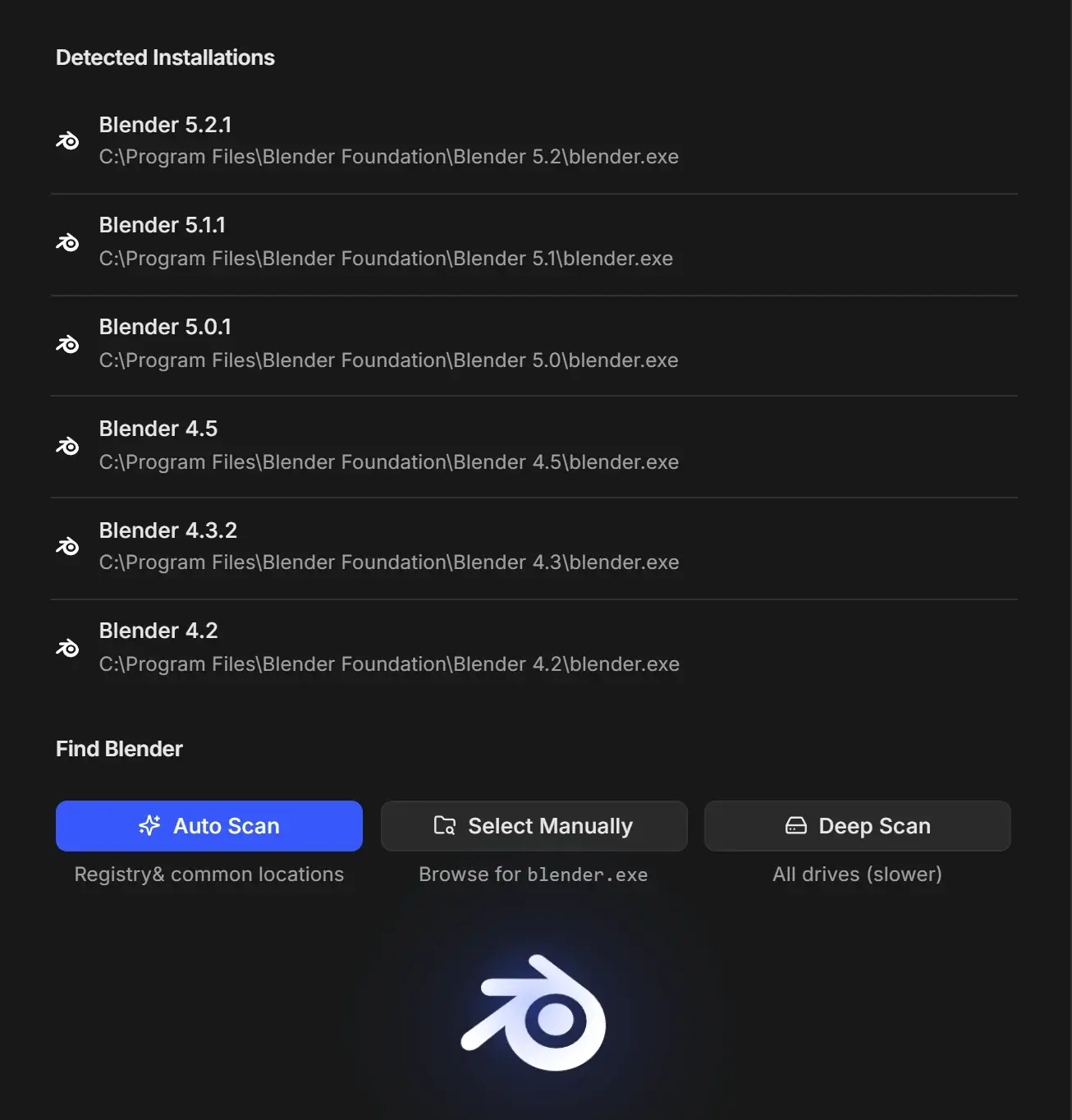
If a job needs a version you do not have, an amber line says it will render with the closest version. Install the exact version, run Auto Scan, then choose it under Blender Version. See Blender Versions.
Blender add-on problems
Symptom: there is no Send to RenderGod button, the sidebar says "RenderGod not found.", or a send fails.
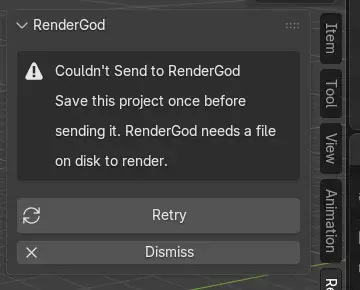
Fix:
- Restart Blender. A new add-on loads only after a restart.
- Check that Blender is 4.2 or newer, and that the add-on is installed for that version in Settings, Install Blender Add-on.
- In Blender, open Edit, Preferences, Add-ons, search for "RenderGod" and tick it.
- Press N in the 3D Viewport and open the RenderGod tab, or use the Render menu.
- For "RenderGod not found.", open RenderGod once on this computer, then click Reload RenderGod in Blender. If it still fails, set Install Folder to the folder RenderGod is installed in (on macOS, RenderGod.app).
- For "Save this project once before sending it.", save the file with File, Save As, then click Retry.
If an automatic install fails, close every Blender window and click Retry, or use Manual Download. See Blender Add-on.
Version Verification Required
Symptom: a window titled Version Verification Required says RenderGod could not verify this copy.
Fix:
- Check that the computer is online by opening a website.
- Click Retry Verification. RenderGod also retries by itself when the network returns.
- Allow RenderGod through your firewall, antivirus, proxy or VPN. On Windows, look in Windows Security, Firewall & network protection, Allow an app through firewall.
- Restart RenderGod after changing network settings.
You can close the window to look at the queue or stop work. Renders already in progress can finish, but new work waits until verification succeeds. A successful check stays valid for up to 24 hours, so short offline periods are fine.
A preview is not showing
Symptom: a preview card is empty or shows a message.
| What you see | Fix |
|---|---|
| No preview card on a job that never rendered | Click Start. The card appears when frames exist |
| No card for a File Output node | Turn on Compositor for the job |
| "Rendering Frame N" | The frame is not finished. Drag the slider back or click LIVE |
| "Preview Unavailable" | Click Open Folder and check the file. It may be locked, still being written or on a disconnected drive |
| "Cannot show these frames" | Click Build preview proxies to scrub the sequence |
| "Cannot play this format" | ProRes and DNxHD cannot play inside RenderGod, so it builds a small preview copy. Your file is unchanged |
| "Source File Not Found" | Reconnect the drive or move the file back, then click Check Again |
| Black, white or checkerboard image | Transparent renders show a checkerboard. Pick a different background swatch at the top right of the card |
| Zoomed in by accident | Press 0 or double-click the image |
On a FREE plan, EXR previews are not included. See Live Preview.
Video encoding failed
Symptom: a conversion job, or the Auto Create Video row on a render job, shows Failed. Your rendered frames are not affected.
Fix:
- Pick a built-in format such as H.264 High mp4. If that works, the problem is a custom format.
- Check free disk space on the export folder's drive.
- Close the old video if it is open in a player. A new file cannot replace it while it is open.
- Encode again by duplicating the conversion job and clicking Start.
| Cause | Fix |
|---|---|
| Odd width or height with H.264 or H.265 | Set Resolution to even numbers, such as 1920 and 1080 |
| DNxHD with a non-broadcast size or frame rate | Use ProRes, or set 1920x1080 and a standard frame rate |
| Audio extraction from a video with no sound | The video has no audio track |
.cin frames | Convert them to PNG, EXR, TIFF or DPX first |
| Transparent areas turn black | Use ProRes 4444 (Alpha) mov. H.264 and H.265 cannot store transparency |
See Video Formats.
Remote Control cannot reach my computer
Symptom: the browser says "Can't reach" a computer, a computer shows Offline or Remote control off, or previews do not load.
Fix:
- Check that the computer is on and awake, online, and running RenderGod, then click Retry.
- If the list says Remote control off, turn it on in Settings, Remote Control on that computer.
- If the browser says your sign-in expired, sign in again.
- If previews do not load, open Settings, Remote Control on the computer. When it says "Previews may not reach you away from home", click Allow it through Windows Firewall on Windows, or try another network.
See Remote Control.
Telegram bot does not answer
Symptom: commands get no reply, or notifications do not arrive.
Fix:
- Check that the computer is on, RenderGod is running and you are signed in.
- In Settings, Telegram Bot, check that it says Connected as. If it says "Couldn't reach Telegram", check the internet connection and click Check again.
- Click Send Test Message. If it says the bot has no chat with you yet, open the bot in Telegram, send
/start, and test again. - Write from the chat that owns the bot. Other chats are ignored.
- For "That is not a bot token.", copy the whole token from BotFather, including the digits before the colon.
- "Crash recovered" messages need UnCrash turned on.
See Telegram Bot.
Still stuck
Join the RenderGod community on Discord with the icon in the app footer, or email team@rendergod.app. Include the exact message on the job card and your RenderGod version, shown in the footer.