Notifications
Get desktop alerts and a sound when the queue finishes, a job fails or a crashed render recovers, and send the same alerts to your phone.
Last updated By the RenderGod Team
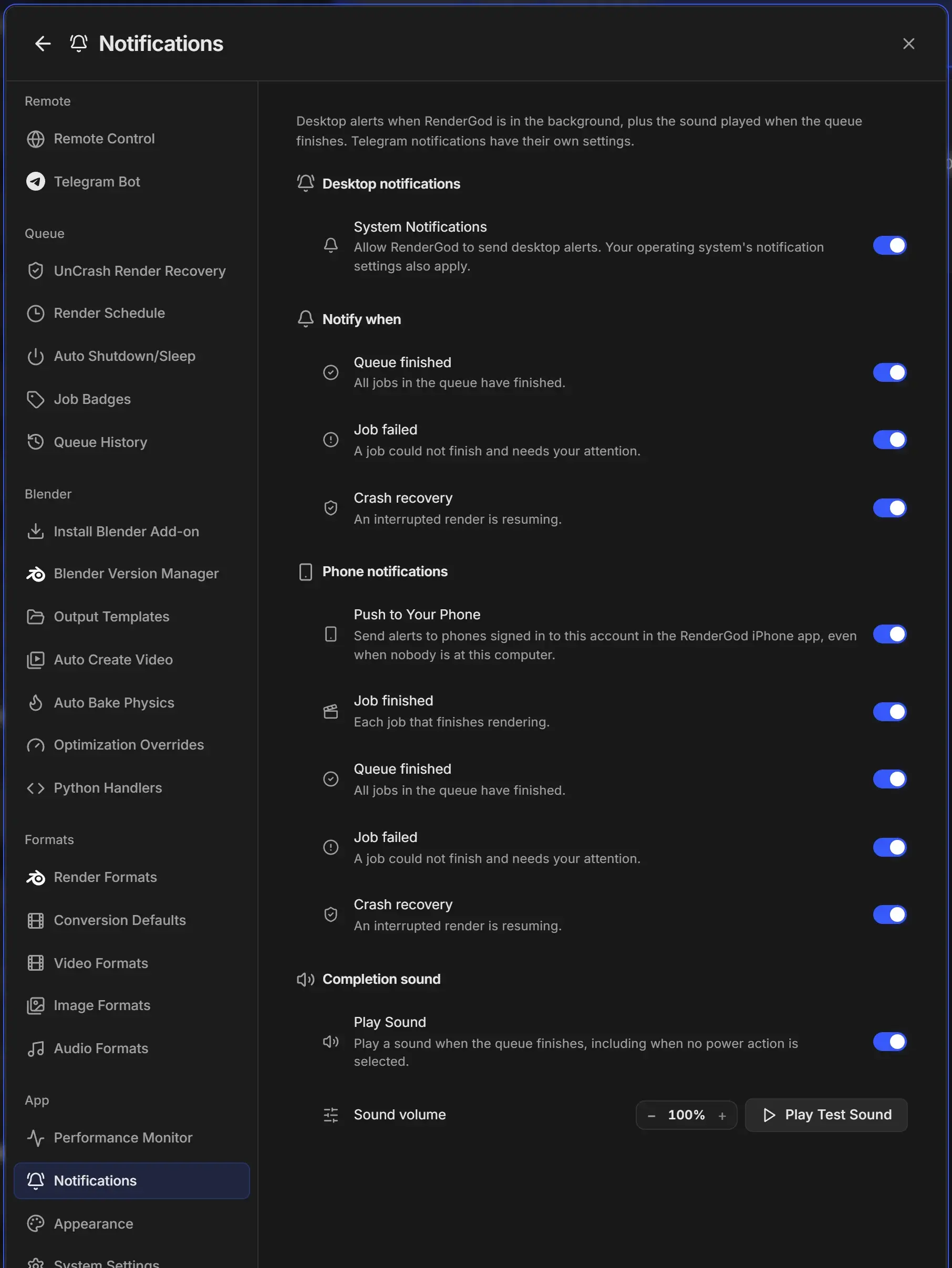
Long renders run while you do something else. RenderGod tells you when something important happens: the queue finishes, a job fails, or a crashed render recovers. Notifications are included in FREE and PRO.
When you get a notification
| Title | Message | When |
|---|---|---|
| Render complete | "Every job in the queue is done." | The last job in the queue finishes |
| Render complete | "Every job is done. This computer shuts down shortly - open RenderGod to cancel." (or "sleeps shortly") | The queue finishes with a shutdown or sleep action set |
| Render failed | The job name and the reason, with "Open RenderGod to retry it." | A job fails |
| Render recovered | The job name and the frame it is resuming from | UnCrash restarts Blender after a crash |
Desktop notifications appear only while the RenderGod window is hidden, minimized or behind another window. While the window is in front, you see the same messages inside the app instead. They appear in the Windows notification area or in macOS Notification Center.
Turn desktop alerts on or off
- Click Settings in the header and open Notifications.
- Under Desktop notifications, switch System Notifications on or off. It is on by default.
- Under Notify when, switch Queue finished, Job failed and Crash recovery one by one. They are unavailable while System Notifications is off.
Your operating system's own notification settings also apply. If nothing appears on Windows, check that notifications are allowed for RenderGod and that Focus or Do not disturb is off. On macOS, the first time RenderGod asks to send notifications, allow it, or change it later in System Settings > Notifications > RenderGod.
Completion sound
Under Completion sound, switch Play Sound on to hear a sound when the queue finishes, even when no shutdown or sleep action is set. Use the Sound volume buttons to change the level, and click Play Test Sound to hear it.
Alerts on your phone
Desktop notifications only reach the computer running RenderGod. To get alerts when you are away, use one of these, both PRO:
- RenderGod for iPhone: under Phone notifications, switch Push to Your Phone on. It sends alerts to phones signed in to your account in the iPhone app, even when nobody is at the computer. You can switch Job finished, Queue finished, Job failed and Crash recovery one by one. Job finished is for each job that finishes rendering. See RenderGod for iPhone.
- Telegram: has its own notification options in its own section. See Telegram Bot.
Settings from a browser or the iPhone app
When you open Settings from a browser or the iPhone app, this section is called Alerts & sounds and changes the computer's alerts. A separate Notifications section there shows whether that phone or browser allows push alerts.