Queue History
Find jobs you removed from the queue, restore their settings, and delete them for good.
Last updated By the RenderGod Team
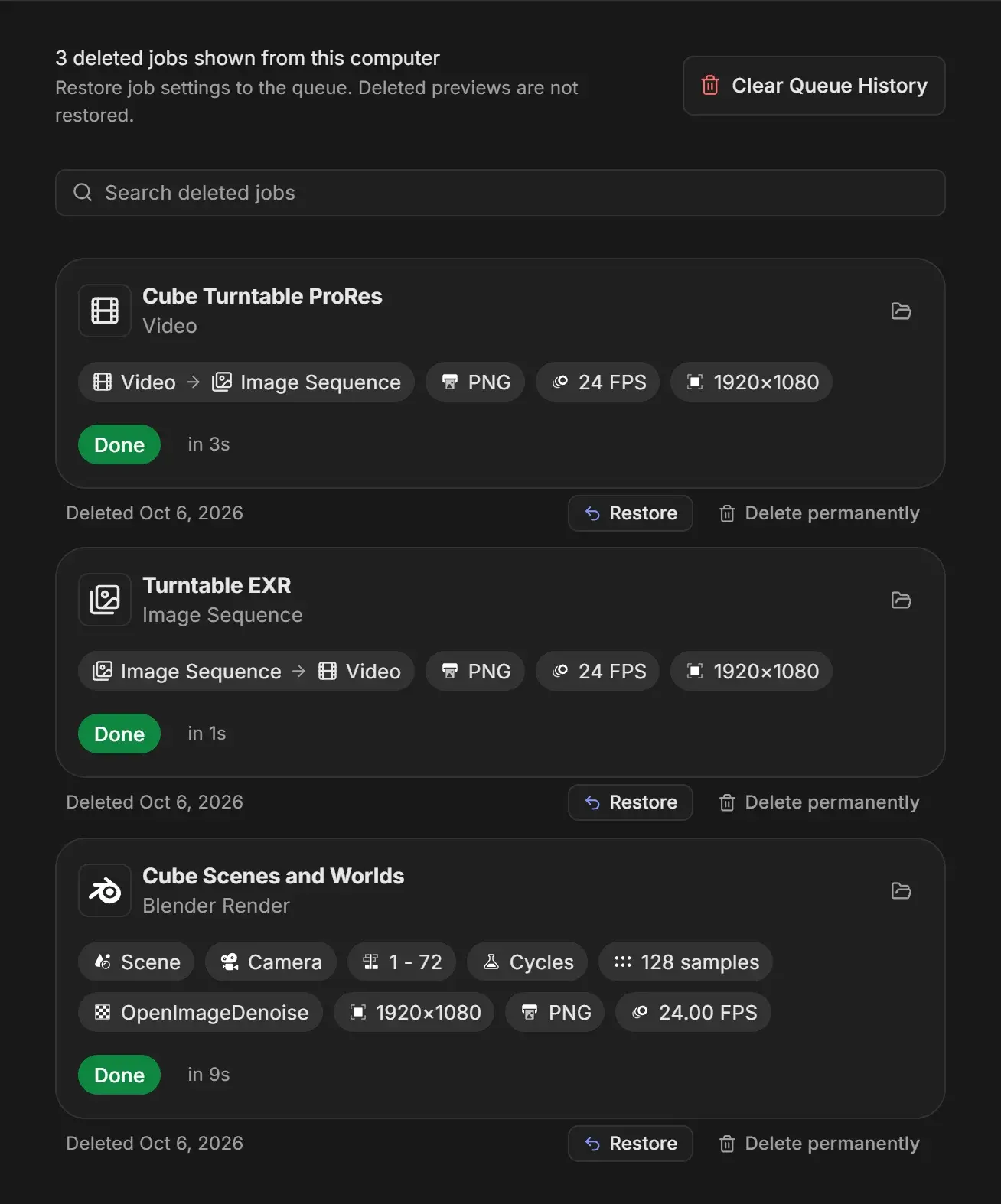
Every job you remove from the render queue is kept in Queue History with its settings. Restore a job from there when you removed it by mistake or want to render it again.
What History keeps
A job goes to History when you:
- Click on the job card or choose Remove from Queue in its right-click menu.
- Click Clear Queue. Every cleared job is kept.
- Use Batch Render by.... The original job that was split is kept.
History covers render jobs and conversion jobs, and stays on this computer until you delete entries.
| Plan | Jobs you can see and restore |
|---|---|
| FREE | The last 5 removed jobs |
| PRO | Unlimited |
On FREE, older jobs are not deleted. They show as blurred cards with an upgrade button, and they come back when your plan includes unlimited history. Deleting a visible job moves the next older one into view.
Restore a removed job
- Click Settings at the top right of the window.
- Choose Queue History. The header counts the entries, such as "12 deleted jobs kept on this computer".
- Click Restore under the job.
The job returns to the queue with its settings, and a message confirms it, for example Cube Hero Render is back in the queue.
| Item | Comes back |
|---|---|
| Scene, camera, frame range, render settings, output and overrides | Yes |
| Preview images | No. They were deleted when the job left the queue. |
| Rendered frames and videos in your output folder | They were never deleted, so they are still there. |
Each entry is a full job card as it looked when you removed it. You can still click Open Export Folder on it and, for Blender renders, Open in Blender.
Find a job
Type in Search deleted jobs. The search matches the job name, type, scene, camera, view layer, file and folder paths, engine, format and state. Click the X in the field to clear it.
Delete history
- Delete permanently: click it under a card, then click Click to Confirm within 3 seconds. That entry is gone for good.
- Clear Queue History: click it at the top, then click Click to Confirm within 3 seconds. Every entry is deleted. Press Esc to cancel.
Your rendered files are safe