Auto Bake Physics
Bake cloth, fluid, rigid body and other simulations before the first frame renders, so every frame matches Blender.
Last updated By the RenderGod Team

Auto Bake Physics bakes every physics simulation in the .blend file before the first frame renders. Simulations then play back from the baked result, so frames match what you saw in Blender, even if the render is paused, split or resumed.
This feature is FREE and is on by default for new jobs.
What it bakes
Rigid body, cloth, soft body, particle systems, dynamic paint and fluid simulations. Caches that are already baked in the file are left as they are.
Turn it on or off for a job
Select the job, then use the card in the render panel. Switch it on or off per job.
| Switch | What happens when you start the queue |
|---|---|
| On | Blender bakes all simulations, saves the .blend file, then renders. |
| Off | The render starts straight away with whatever caches the file already has. |
Leave it on for shots with cloth, rigid body or other simulations. Turn it off if you baked by hand and want to keep that cache, or if the file has no simulations.
It saves your .blend file
Auto Bake Physics saves the file with the new caches. It is the only render setting that changes your file on disk, so keep a backup if you need the file exactly as it was.
While it bakes
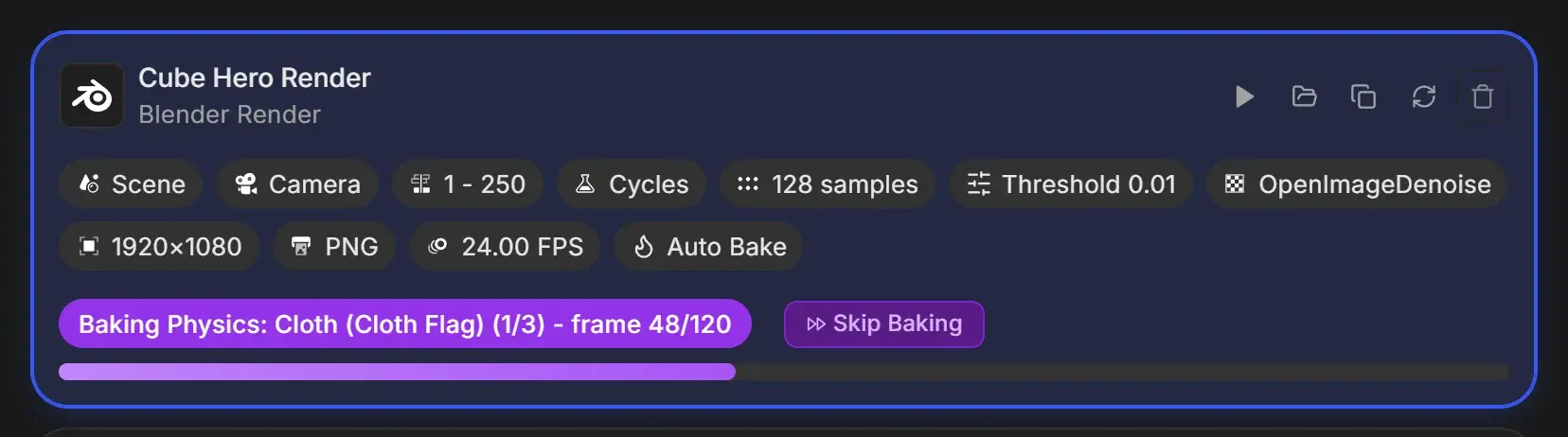
The job shows a Baking Physics status with a purple progress bar. It names the simulation being baked and how many are done, and the preview reads Baking Physics. The job's settings are locked until the bake and render finish.
Click Skip Baking on the job card to stop the bake and start rendering right away.
If Disable add-ons during render is on in Optimization Overrides, the bake also runs without add-ons.
Defaults for new jobs
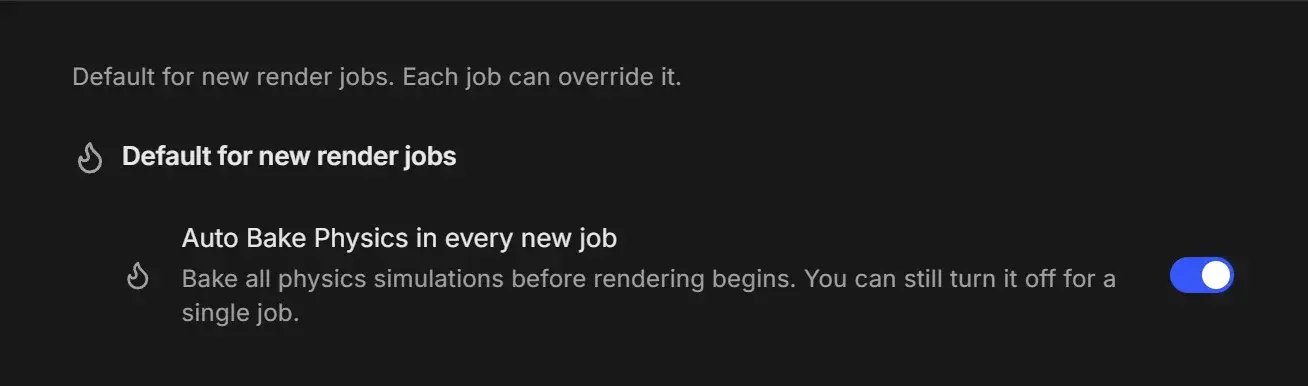
To change what new jobs start with, click on the card, or open Settings and choose Auto Bake Physics. Each job can still override it.