UnCrash Recovery
Let RenderGod restart Blender after a crash or freeze, resume after a PC restart or power loss, and catch problems before a render starts.
Last updated By the RenderGod Team
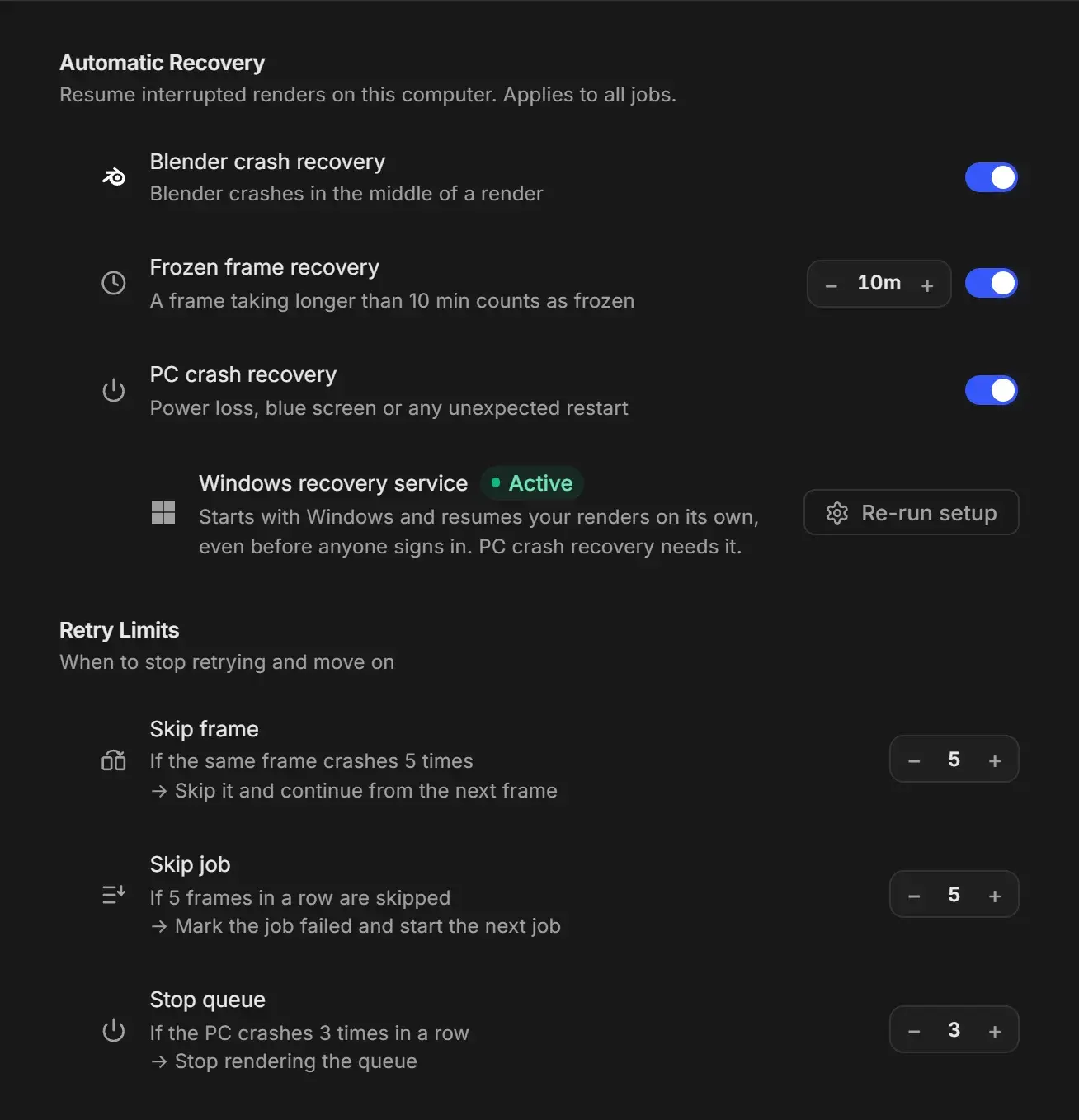
UnCrash keeps long renders going while you are away. When Blender crashes, a frame hangs, or the whole computer restarts, UnCrash picks the render back up. Pre-flight Checks, which stop a doomed job before Blender even starts, are included on FREE.
What UnCrash protects against
| Problem | What RenderGod does | Plan |
|---|---|---|
| Blender crashes mid-render | Restarts Blender and continues from the frame that failed | PRO |
| A frame hangs | Closes Blender after a timeout you choose and renders the frame again | PRO |
| The PC crashes, loses power or restarts | Resumes the queue when Windows starts, even before anyone signs in | PRO, Windows |
| A job has a mistake | Fails it in a second, before Blender starts | FREE |
All the recovery switches start off and apply to every job on this computer.
Turn on UnCrash
- Open Settings > UnCrash Render Recovery, or click Configure on the UnCrash Render Recovery card in the render panel.
- Turn on Blender crash recovery and Frozen frame recovery.
- Set the frozen frame timeout above your slowest normal frame.
- On Windows, turn on PC crash recovery and follow the one-time setup below.
Blender crash recovery
If Blender crashes or closes mid-render, RenderGod starts it again within a few seconds and continues the same job. The job stays in Rendering, and its status reads "Preparing render output" while Blender loads the scene. Frames already written are not rendered again.
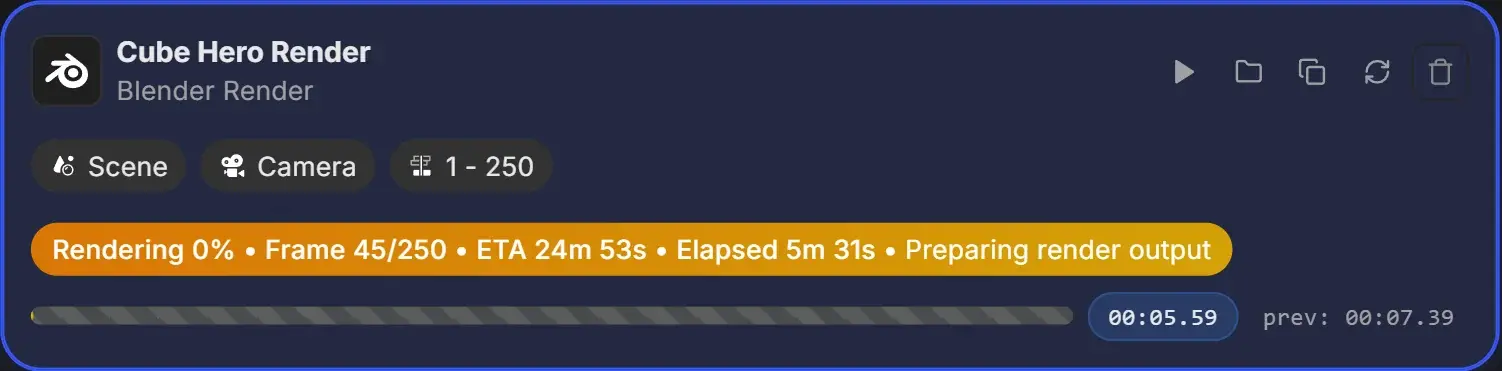
RenderGod shows a "Recovered render" toast with "Continuing from frame N", sends a "Render recovered" desktop notification when the window is not in front, and sends a Telegram message when Crash recovered is on.
Frozen frame recovery
Sometimes Blender does not crash but stops making progress. Turn on Frozen frame recovery and use the - and + buttons to set the timeout, from 5 to 60 minutes in steps of 5. Any frame slower than the timeout counts as frozen. RenderGod closes Blender and renders that frame again.
Render a few frames of your heaviest shot first and read the frame timer on the job card. Set the timeout to at least twice the slowest normal frame.
| Slowest normal frame | Suggested timeout |
|---|---|
| Under 2 minutes | 5m |
| 5 minutes | 10m to 15m |
| 15 minutes | 30m |
| 25 minutes or more | 60m |
Too short a timeout skips good frames
A frame that really needs more time than the timeout is stopped every time and ends up skipped. Raise the timeout for heavy scenes before an overnight queue.
PC crash recovery
A blue screen, a Windows update restart or a power cut can stop a render until you come back. With PC crash recovery on, RenderGod resumes the queue by itself. It runs at the operating system level, so it works even if your PC crashed and nobody has signed in. This is Windows only.
One-time setup
- Turn on PC crash recovery in Settings > UnCrash Render Recovery.
- Click Set up on the Windows recovery service row.
- Follow the Background Recovery Setup wizard. Accept the one Windows administrator prompt when it appears.
- At One Last Check: Power Loss, answer whether your PC turns itself back on after a power cut, then click Finish.
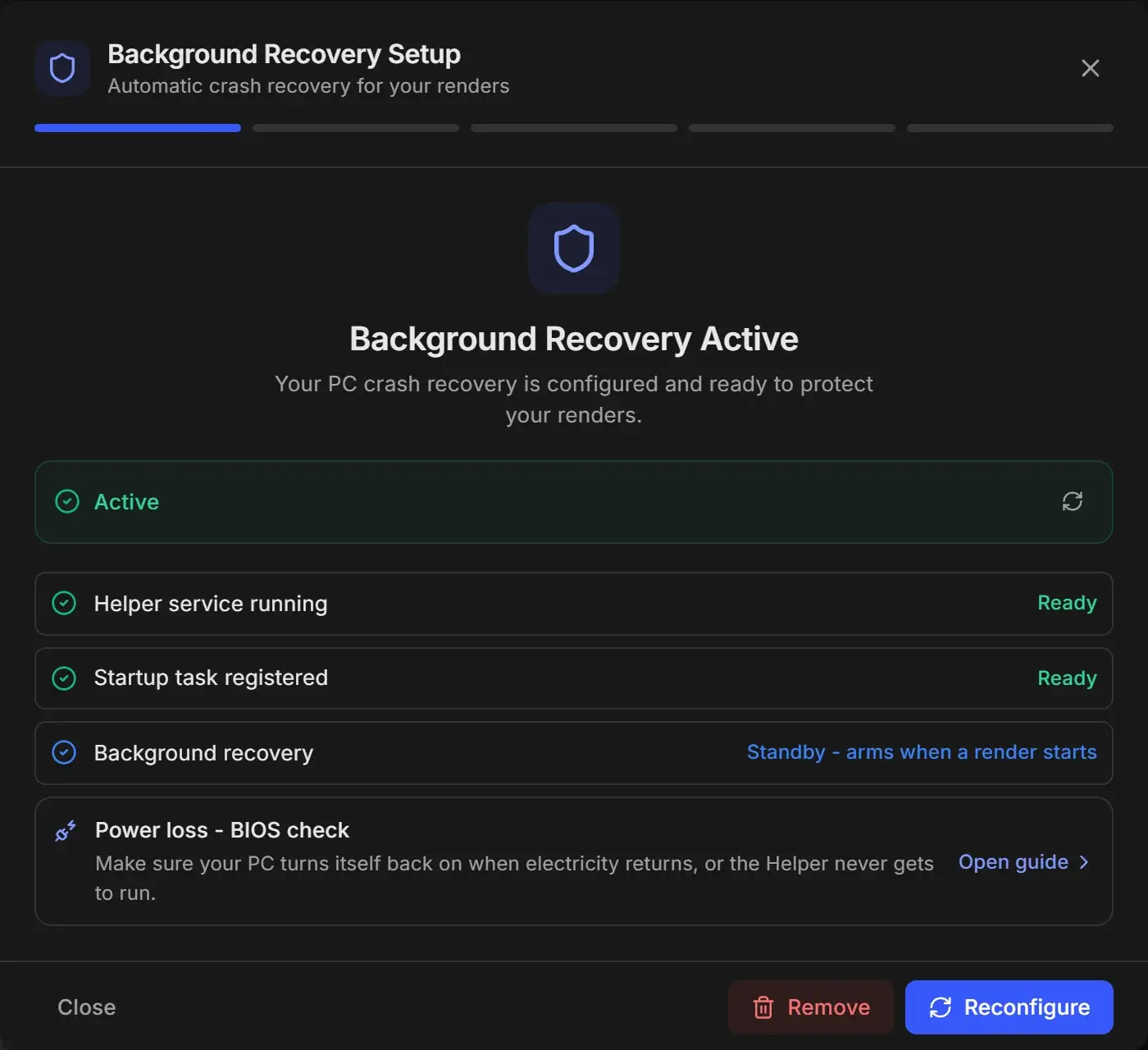
The row then shows Active, and Start at Login is turned on and locked while PC crash recovery is on. To check or repeat the setup, click Re-run setup. Turning the switch off or on again later needs no Windows prompt.
Power on after power loss
After a power cut most PCs stay off until someone presses the power button. A one-time BIOS or UEFI setting fixes that, and RenderGod cannot change it for you. Choose No / not sure - show me how in the wizard, or Open guide on the Power loss - BIOS check row.
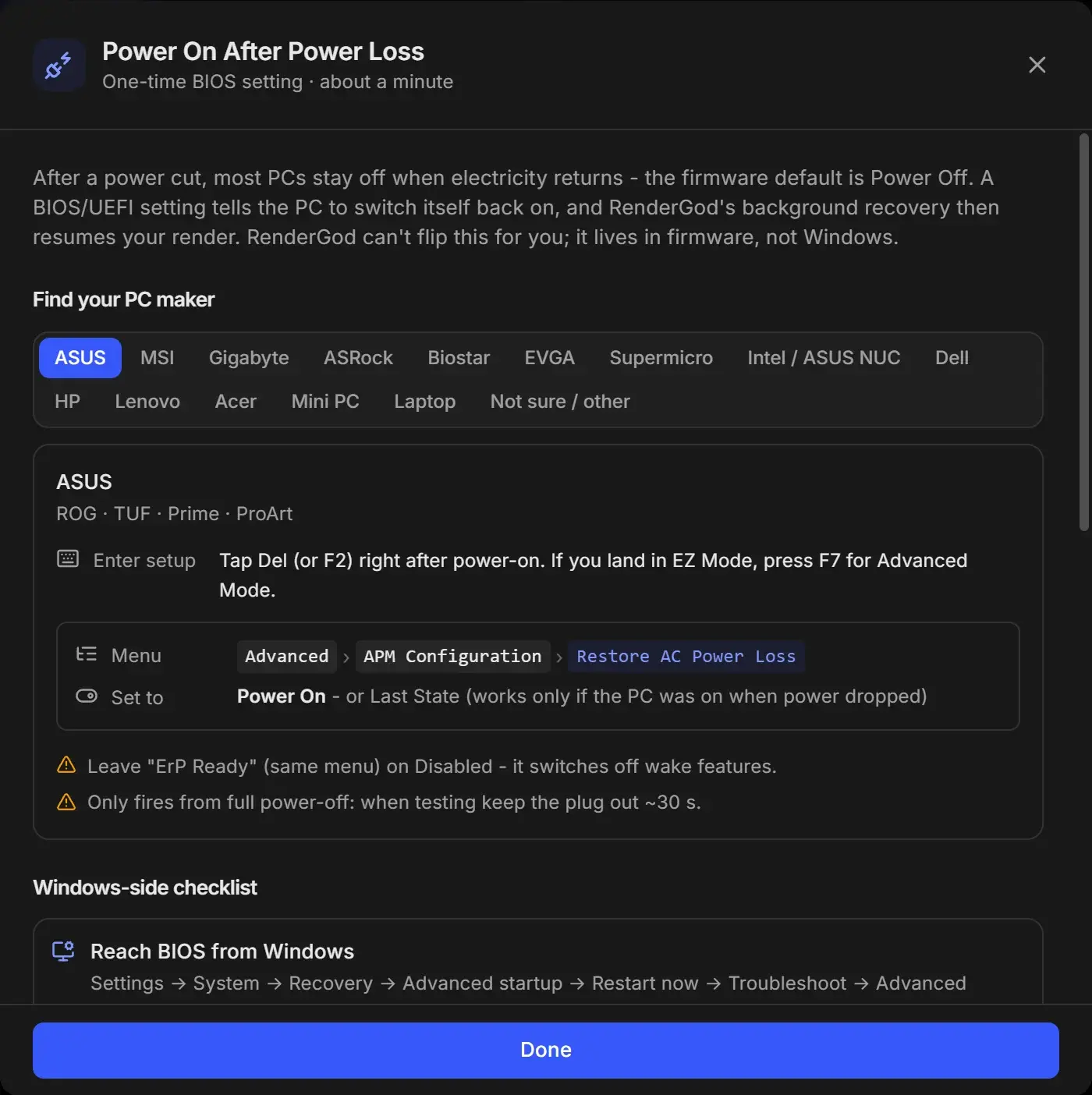
- Under Find your PC maker, pick your motherboard or PC brand.
- Follow Enter setup, go to the menu path shown and set the option to the value shown, usually Power On.
- Save and let Windows start.
Also turn Fast Startup off in Windows power options, and avoid a BIOS password or BitLocker PIN, which stop an unattended boot. Most laptops have no such option and the battery covers short outages.
What you see after a restart
Windows starts, the interrupted render continues from the frame in progress, and Telegram notifications keep arriving. When you open RenderGod, a banner says "Background recovery is rendering" and names the job and frame. RenderGod takes over when that job finishes, and you can keep editing the queue. Click Take over now to take over at once, which restarts the current frame.
A job whose .blend file or output folder is on a network drive gets a No background resume badge. It renders only while RenderGod is open.
On a Mac
There is no PC crash recovery on macOS. Closing the window only hides it, so the render keeps going. After a Mac restart, open RenderGod and press Start to continue from the paused frame.
Retry limits
UnCrash does not retry forever. These steppers in Retry Limits stop a broken scene from looping.
| Setting | Range | Default | What happens |
|---|---|---|---|
| Skip frame | 1 to 100 | 5 | After the same frame crashes this many times, RenderGod skips it and continues |
| Skip job | 1 to 20 | 5 | After this many skipped frames in a row, the job is marked failed and the next job starts |
| Stop queue (Windows) | 1 to 10 | 3 | After the PC crashes this many times in a row, the queue stops |
A frame that freezes twice is also skipped. If a job fails after too many skips, the scene itself usually has a problem, such as memory, a simulation or a driver. Fix it, click Reload and then Retry.
Skipped frames
Skipped frames are missing from the output folder and listed on the job card in a red Skipped Frames (N) box. To render them later:
- Fix what made them fail, or raise the frozen frame timeout.
- Right-click the job and choose Duplicate.
- In the copy, set the frame range to the skipped frames.
- Check the output folder, then press Start.
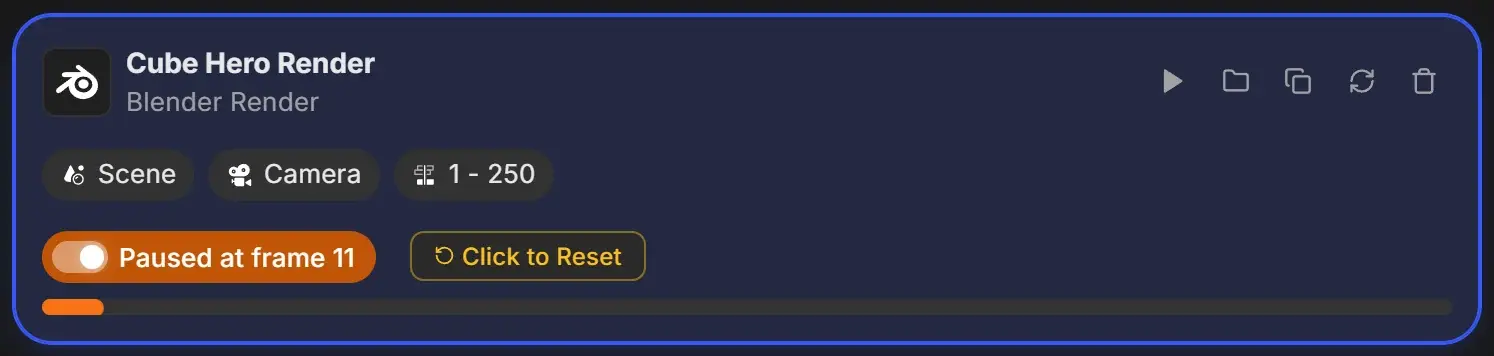
For a Failed job, click Retry. It renders the whole range again, so duplicating and rendering only the missing frames is faster. For a paused job, click Click to Reset.
Pre-flight Checks
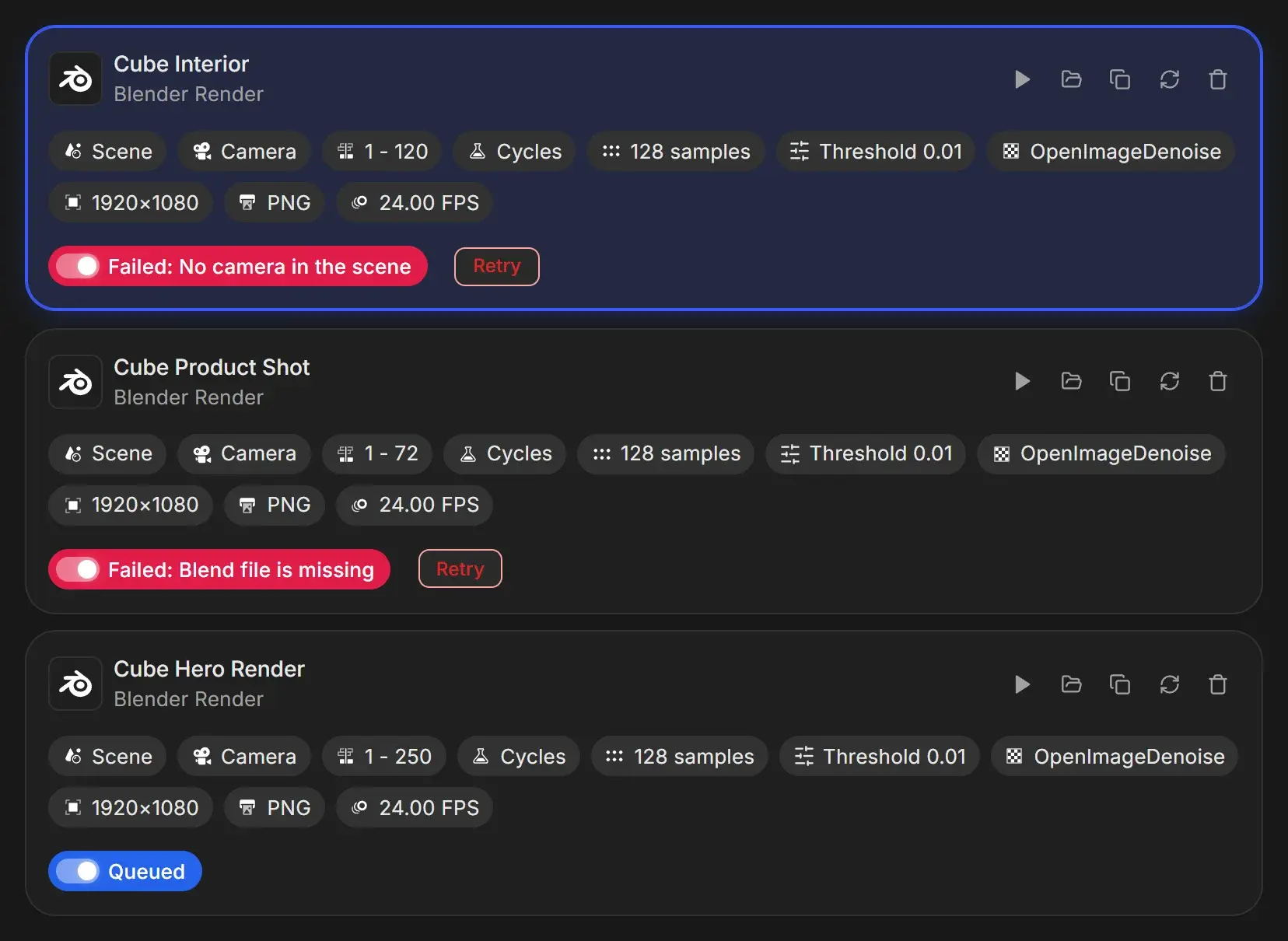
Before each job starts, RenderGod checks it. A mistake fails in a second instead of after Blender loads a heavy scene. The job turns Failed with a short reason, the queue moves on to the next job, and you fix the setting and click Retry.
| Check | Fix |
|---|---|
| Frame range is valid | Set To Frame equal to or after From Frame |
| Resolution and samples are in range | Set real values for w, h, % and Samples |
| The .blend file exists and opens | Put the file back, or import it again |
| The output drive is connected (Windows) | Reconnect the drive or pick another folder |
| The scene and camera exist | Click Reload and choose a scene, or add a camera |
| The Single View Layer exists | Pick an existing view layer |
| Something can save the main output | Choose a normal output, or add an active File Output node |
Some problems also show as warnings in the render panel when you select the job, before you click Start. Amber warnings are information and the job still renders. Red ones need a fix.
Without UnCrash
With recovery off, a crash stops the job. If RenderGod closed or the PC went down mid-render, the job shows Paused at frame N and the queue stays stopped. Press Start to continue from that frame.