Blender Version Manager
See which Blender versions RenderGod found, add more, and choose which one renders each job.
Last updated By the RenderGod Team
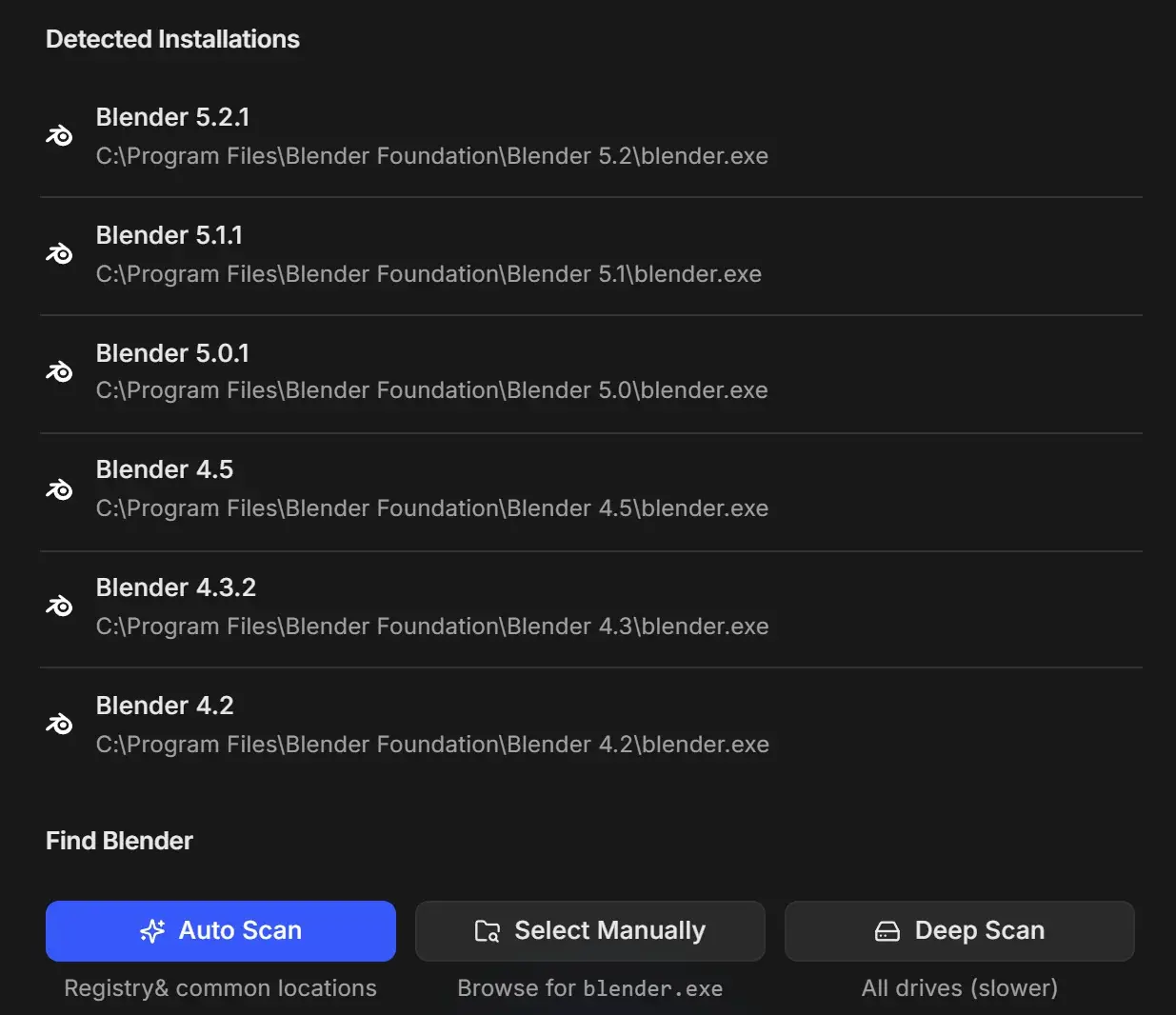
RenderGod renders with the Blender versions installed on your computer. It finds them by itself, reads which version saved each .blend file, and picks the matching one for the job. You can change the version per job at any time. This feature is FREE.
Find your Blender installations
RenderGod runs a quick scan the first time you import a .blend file. If it finds no Blender, or you press Start with no version set up, the Blender Version Manager opens so you can point it at one.
To scan again, open Settings and choose Blender Version Manager. Detected Installations lists every installation found, newest first, with its install path.
| Button | What it does | When to use it |
|---|---|---|
| Auto Scan | Checks the usual places Blender gets installed. | First choice, and after you install a new Blender. |
| Select Manually | Opens a file picker so you choose blender.exe (on macOS, Blender.app). | A portable copy, a build in a custom folder, or anything a scan missed. |
| Deep Scan | Searches every drive. Slower, and you can stop it with the red button. Windows only. | Auto Scan missed a copy and you do not know where it is. |
Blender must be on a local drive. Network paths are not accepted. If a scan fails, nothing is removed from the list. Click Try again or use Select Manually.
Blender still not found?
See Blender not found for the full list of symptoms and fixes.
Choose the version for a job
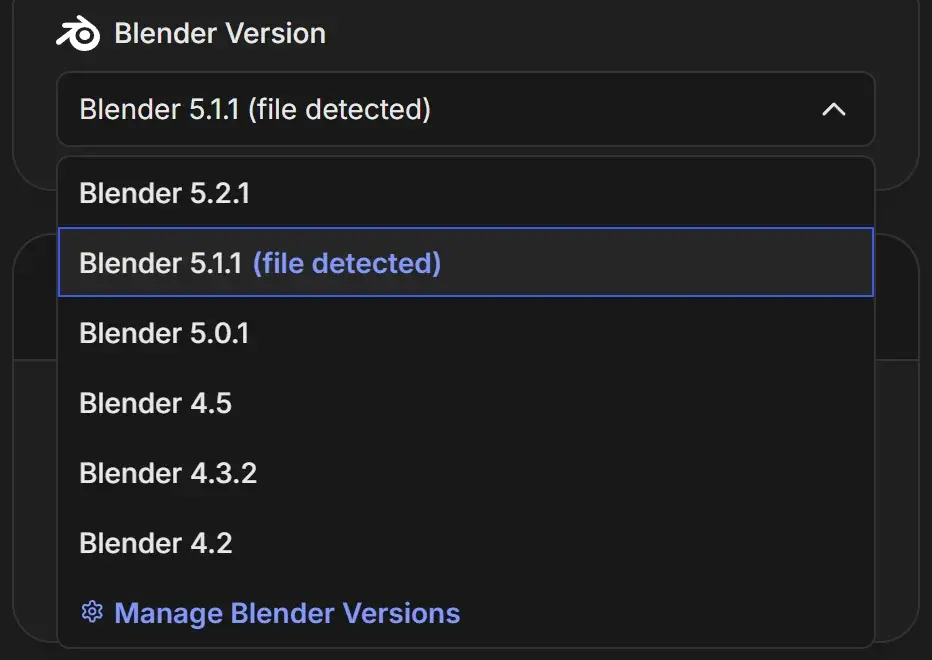
- Select the job.
- Open Blender Version in the render panel.
- Pick an installation, then click Start.
The version marked (file detected) is the one the .blend file was saved with. Manage Blender Versions opens the Blender Version Manager.
Each job keeps its own version, so one queue can render a file in Blender 4.5 and the next in 5.2. The card only appears once at least one installation is registered.
How RenderGod picks a version
For a new job, RenderGod chooses in this order:
- An installation with exactly the version the file was saved with.
- One from the same release line, for example 4.3.2 for a file saved in 4.3.
- The newest installed version.
If the file's version is not in your list, RenderGod tries to find and register it. The card shows Registering Blender 4.3..., then Blender 4.3 registered. If it cannot find it, the card says the job will use the closest installed version. Click Dismiss, or install that Blender and run Auto Scan.
Version mismatch warning
When a job renders with a different version than the file was saved with, a warning appears under the dropdown. For example: "Saved with Blender 4.3, will render with 4.5 (4.3 is not installed) - the picture can differ". Install the original version, or check the first frames carefully.
Work with several versions
- Install each version in its own folder, as the Blender installer does by default. On macOS, keep separately named apps such as
Blender 4.5.appandBlender 5.2.appin Applications. - Older files render best with the version they were made in. Some options, such as Cycles Texture Cache, need Blender 5.2 or later.
- To compare versions, duplicate a job, give the copy another version and compare the frames.
- The Blender add-on is installed once per Blender version. See Blender Add-on.
Test on a duplicate first
Opening a file in a newer Blender and saving it can make it hard to open in older versions. Try a new version on a duplicate of the job.
A job file imported from another computer that needs a version you do not have shows "Needs Blender" with the version number. Install that Blender, then run Auto Scan.