Blender Add-on
Install the Send to RenderGod add-on in Blender, send the open scene to the queue in one click, and keep the add-on up to date.
Last updated By the RenderGod Team
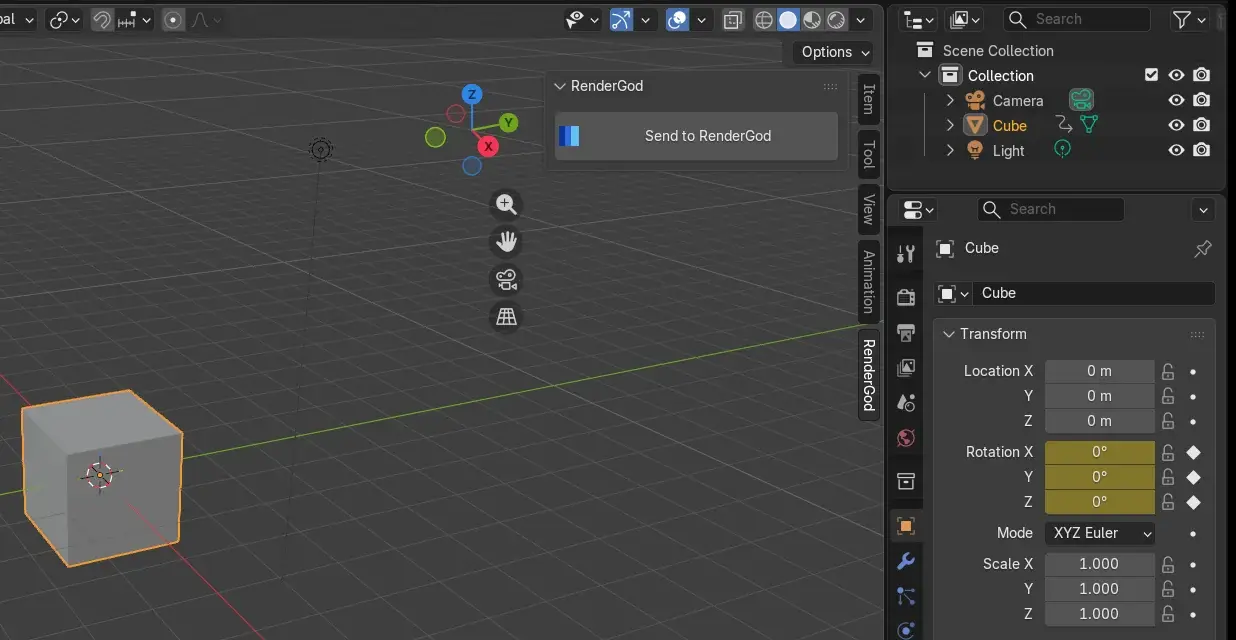
The Blender add-on adds a Send to RenderGod button inside Blender. One click saves the open .blend file and adds it to the RenderGod queue as a new job, so you do not have to switch apps and import the file by hand. The add-on is FREE.
You need Blender 4.2 or newer, and RenderGod installed and opened at least once on the same computer. It works the same on Windows and on macOS (closed beta).
Install the add-on
- Open Settings and choose Install Blender Add-on. You can also choose Install Add-on from the Import menu, or click Install Add-on on the reminder shown when the queue is empty.
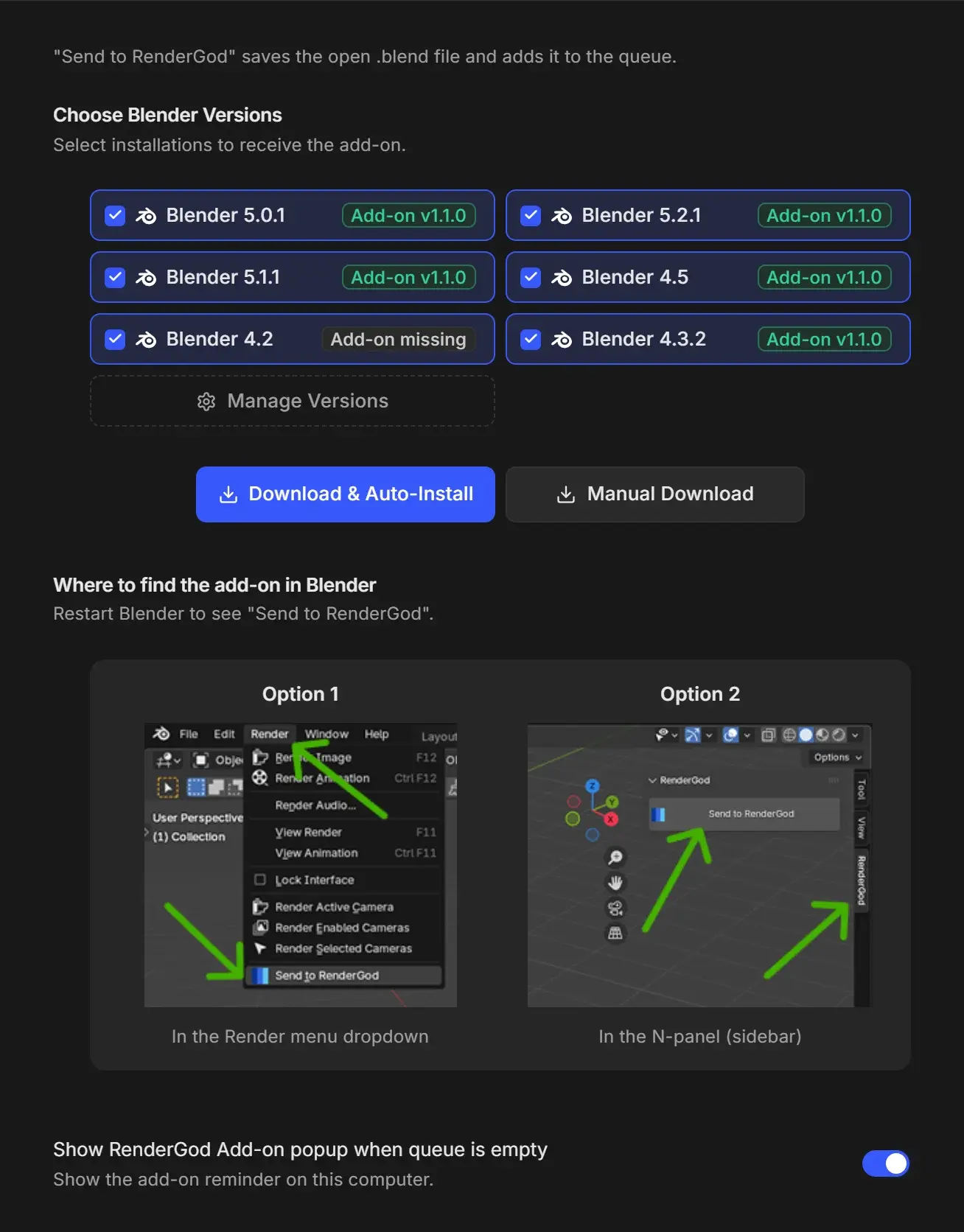
- Under Choose Blender Versions, keep the versions that should get the add-on selected. All are selected at first. Click a version to deselect it.
- Click Download & Auto-Install. RenderGod installs and enables the add-on in each selected version.
- When Add-on Installed Successfully! appears, save your work in Blender, then click Restart Blender (Required).
- Click Confirm Restart Blender (Click Again). Blender closes and opens again with the add-on active.
Restart closes every Blender
Restart Blender closes all Blender windows on the computer, including ones RenderGod did not start. Save first. If Blender is open during the install, use this button instead of quitting Blender yourself.
If a version fails, the Couldn't install the add-on panel lists the reason. Close Blender and click Retry.
Install it by hand
If a Blender is not in your list, or you prefer to install it yourself:
- In Install Blender Add-on, click Manual Download and save
rendergod_shell_addon.py. - In Blender, open Edit > Preferences > Add-ons.
- Open the drop-down at the top right of the list and choose Install from Disk, then select the saved file.
- Make sure RenderGod is ticked.
Send a scene to RenderGod
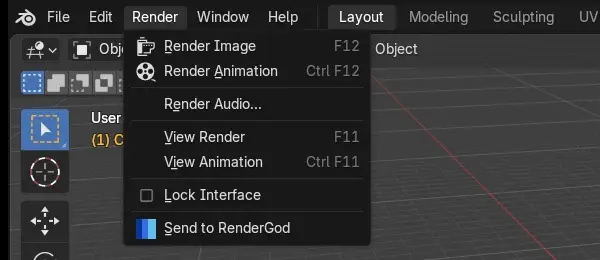
- Click Send to RenderGod in one of two places:
- The 3D Viewport sidebar: press N, then open the RenderGod tab.
- The Render menu, where it is the last item.
- RenderGod comes to the front, or starts if it was closed.
- The file appears at the bottom of the queue, with the settings saved in the file.
You do not need to save first, because the button saves the file for you. A file that was never saved must be saved once with File > Save As. Sending the same file again adds another job and does not update the old one. To refresh a job after editing the file, see Managing Jobs.
Read the result in the sidebar
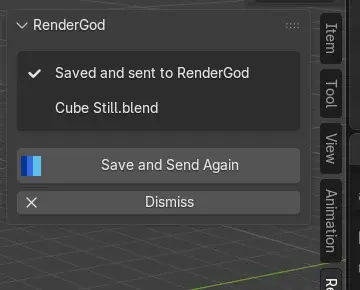
The panel keeps the result of the last send until you send again or click Dismiss.
| Panel shows | Meaning | Buttons |
|---|---|---|
| Send to RenderGod | Ready to send. | None |
| Saved and sent to RenderGod | The file was saved and added to the queue. | Save and Send Again, Dismiss |
| Couldn't Send to RenderGod | Nothing was added. The reason is shown. | Retry, Dismiss |
Worlds are kept on save
While the add-on is on, every save marks all worlds in the file with a fake user. Blender then keeps worlds no scene uses, so they stay available for World Override.
Update or reinstall
Open Install Blender Add-on. Each Blender version shows a badge:
| Badge | What to do |
|---|---|
| Add-on v... (green) | Nothing. It matches this RenderGod. |
| Add-on outdated (v...) | Install again to update. |
| Add-on (version unknown) | Install again to be sure. |
| Add-on missing | Install it, for example on a Blender you added recently. |
To update, select the versions, click Download & Auto-Install, then restart Blender. After you install a new Blender, run Auto Scan in Blender Versions so it shows up here.
To remove the add-on, open Edit > Preferences > Add-ons in Blender, search for "RenderGod", expand it and click Uninstall. Turn off Show RenderGod Add-on popup when queue is empty in Install Blender Add-on to stop the reminder.
Add-on troubleshooting
The button does not appear
- Restart Blender. A new add-on only loads after a restart.
- Check that your Blender version is 4.2 or newer.
- Look at that version's badge in Install Blender Add-on. If it says Add-on missing, install again.
- In Edit > Preferences > Add-ons, search for "RenderGod" and make sure it is ticked.
The sidebar says "RenderGod not found."
- Open RenderGod once on this computer.
- In Blender, click Reload RenderGod.
- If it still fails, choose RenderGod's folder in the Install Folder field (on macOS choose RenderGod.app), then click Reload RenderGod.
Couldn't Send to RenderGod
| Reason shown | Fix |
|---|---|
| Save this project once before sending it. | Use File > Save As, then click Retry. |
| Couldn't export this scene's data. | On Windows, open Window > Toggle System Console to read the reason, fix the scene, then Retry. |
| Couldn't find RenderGod on this computer. | Follow the "RenderGod not found" steps above. |
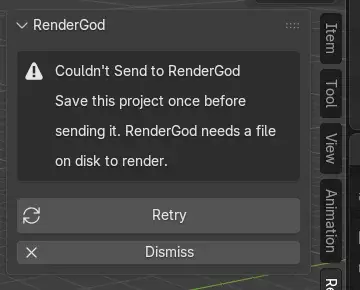
If the send worked but no job appeared, check the bottom of the queue and give RenderGod a moment to start. See also Troubleshooting.