Managing Jobs
Use the right-click menu to reorder, skip, duplicate, reload, retry, reset and remove jobs in the render queue.
Last updated By the RenderGod Team
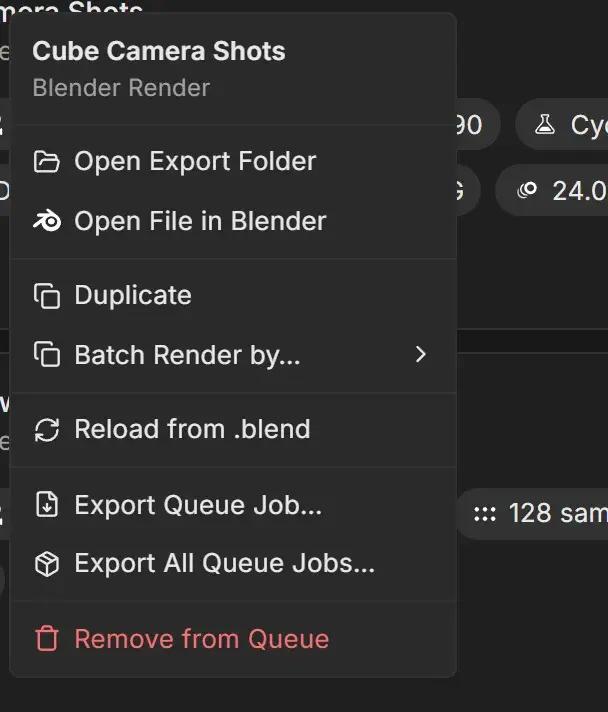
Right-click any job card to reach most actions. This page covers each one, plus the buttons and switches that sit on the card itself.
The right-click menu
| Item | What it does |
|---|---|
| Open Export Folder | Opens the job's output folder. |
| Open File in Blender | Opens the .blend in the Blender version the job uses (render jobs only). |
| Duplicate | Adds a copy of the job at the end of the queue. |
| Batch Render by... | Creates one job per scene, camera or view layer (render jobs only). See Batch Render. |
| Reload from .blend | Reads the .blend file again (render jobs only). |
| Export Queue Job... | Saves this job as a .rgjob file (PRO). See Export & Import Jobs. |
| Export All Queue Jobs... | Saves every job in the queue in one .rgjob file (PRO). |
| Remove from Queue | Removes the job right away. |
Reorder jobs
RenderGod renders the first queued job from the top, so moving a card up moves it forward in line.
- Press on an empty area of the card and move the mouse a little. The card lifts.
- Drop it where you want it. The other cards slide to make room.
On a touch screen, press and hold the card before dragging. With the keyboard, press Tab to the card's drag handle, Space to lift it, the arrow keys to move it, then Space to drop or Esc to cancel.
You can reorder while the queue runs. The new order applies from the next job. RenderGod passes over done, failed and skipped jobs wherever they are.
Skip jobs
Click the small switch inside a job's status label to skip it. The label reads Skipped and the card turns gray. The job keeps its place and all its settings. Click the switch again to return it to Queued.
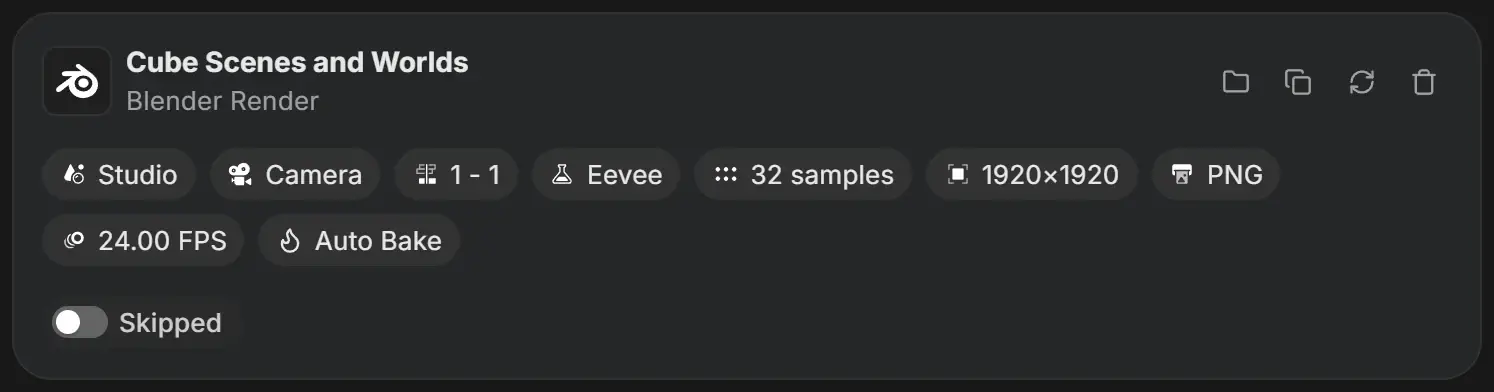
The switch is on Queued, Paused, Failed and Skipped jobs. It is not on jobs that are rendering, baking or done.
Duplicate jobs
Click on the card, or right-click and choose Duplicate. The copy is added at the end of the queue as Queued and is selected. Progress and errors are cleared, and the original stays as it is. If your output template uses a date or version folder, the copy renders into a new folder.
A Done job cannot be edited. To render it again with other settings, duplicate it. While a job is rendering or finished, the lock message at the top of the render panel also has a Duplicate Job button.
Video, image sequence and audio jobs have a plain Duplicate only. To make one job for every camera, scene or view layer, see Batch Render.
Reload .blend settings
RenderGod reads a .blend file when you import it. If you change and save the file in Blender afterwards, reload the job so RenderGod reads the latest scenes, cameras and settings.
- Right-click the card and choose Open File in Blender, then edit and save the file.
- Click on the card, or right-click and choose Reload from .blend.
- Wait for "Job data reloaded".
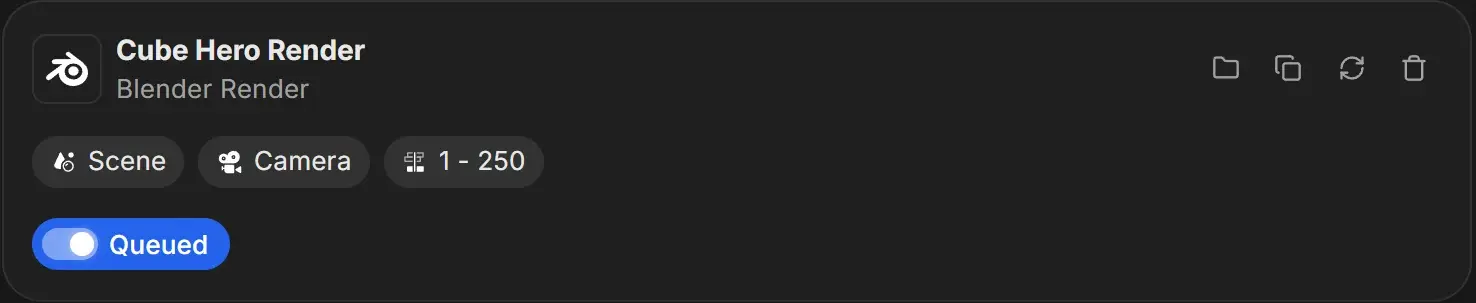
If the file was saved after the import while the job is rendering, the status shows "Blender file changed - reload settings".
Reload before you render
Retry and reset
Retry a failed job
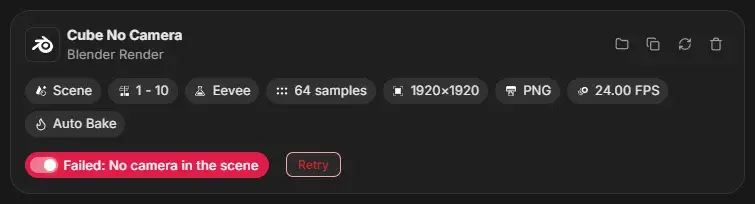
- Read the reason on the card and fix it in the job settings or the .blend. Reload the job if you changed the file.
- Click Retry next to the status.
- The job returns to Queued and renders again from its first frame. Click Start if the queue is not running.
If you do not want to fix it now, turn its switch off to skip it.
Reset a paused job
A job that shows Paused at frame N continues from that frame on Start. To render it from the beginning, click Click to Reset next to the status.
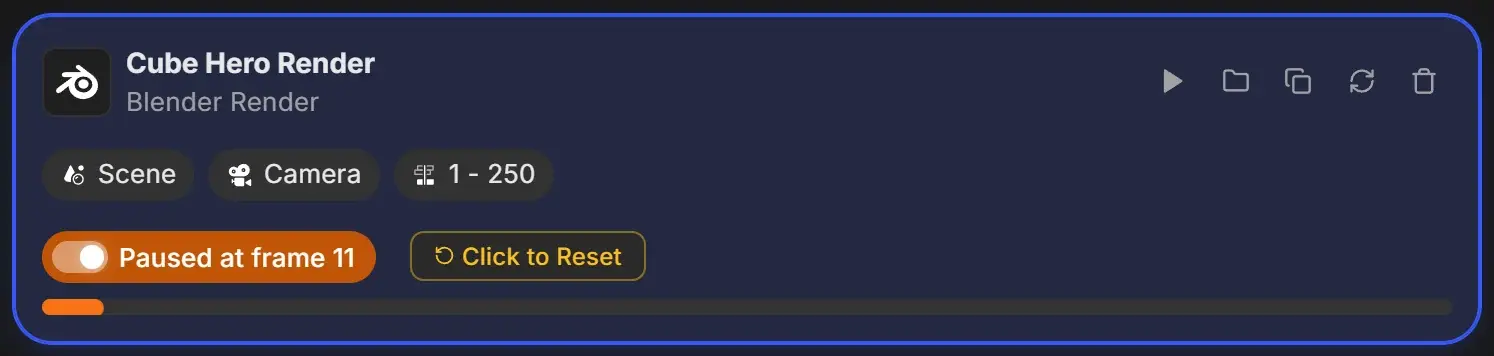
While a job is paused, its frame range is locked. The frame range card says "Currently paused at frame 11." with Reset pause and Unlock. Click it to clear the pause and edit the range.
Remove and Clear
Removed jobs keep their settings in Queue History, so you can bring them back.
- Click on the card. It turns red and reads Click to Confirm.
- Click it again within 3 seconds. Wait or press Esc to cancel.
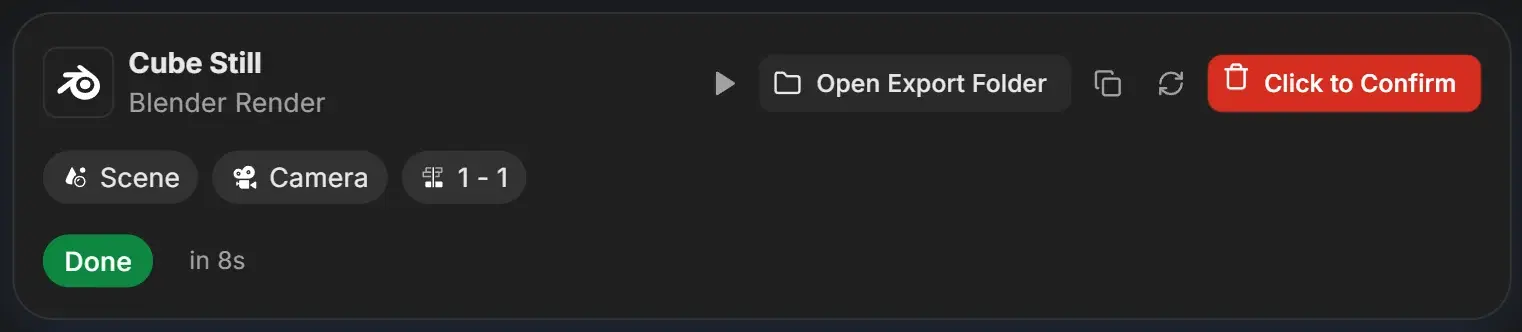
Remove from Queue in the right-click menu removes the job at once, without the second click. A job that is rendering cannot be removed until you stop the queue.
To empty the queue, click Clear Queue in the toolbar, then click Click to Confirm within 3 seconds. A job that is rendering stays.
Removing deletes the preview images RenderGod made for the job. Your rendered frames, videos and source files are never touched.
Export and import job files
Save jobs as .rgjob files to back them up or move them to another computer. See Export & Import Jobs.