Single View Layer
Render one view layer of a .blend file per job, so each layer renders and saves on its own.
Last updated By the RenderGod Team
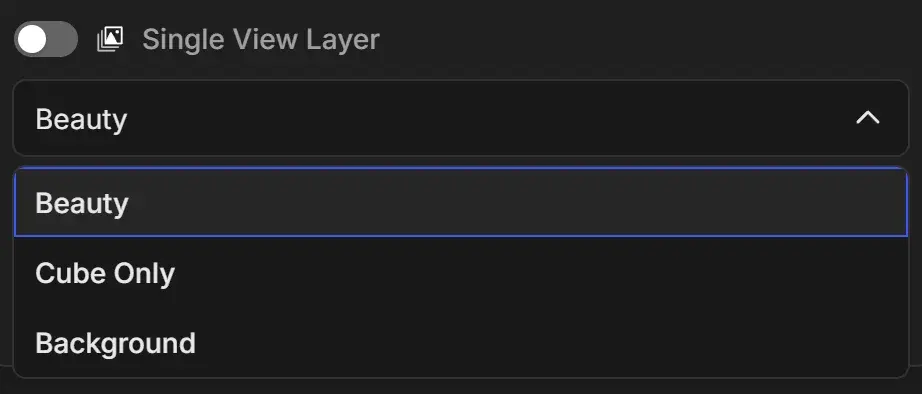
Single View Layer renders one view layer instead of all of them. Use it to split a file with several layers, such as a beauty layer and a shadow catcher, into separate jobs that each render and save on their own. RenderGod does not change the .blend file.
Single View Layer is included in FREE and PRO.
Pick a layer
- Select the job.
- On the Scene card, open the dropdown under Single View Layer and choose a layer.
- The Single View Layer switch turns on by itself, and a notification confirms it.
| Switch | What renders |
|---|---|
| Off | Every view layer that is enabled in the file. A layer you switched off in Blender stays off. |
| On | Only the chosen layer. |
The job card then shows a ViewLayer badge with the layer name. With the Organized and Versioned output templates, the frames go into a View layer folder named after it.
Render every layer as its own job
Right-click the job and choose Batch Render by..., then View Layer. RenderGod adds one job per layer, each with Single View Layer on. Each job can then use its own engine, samples and format. See Batch Render.
With the compositor
The compositor keeps working with the chosen layer, so your node effects still apply.
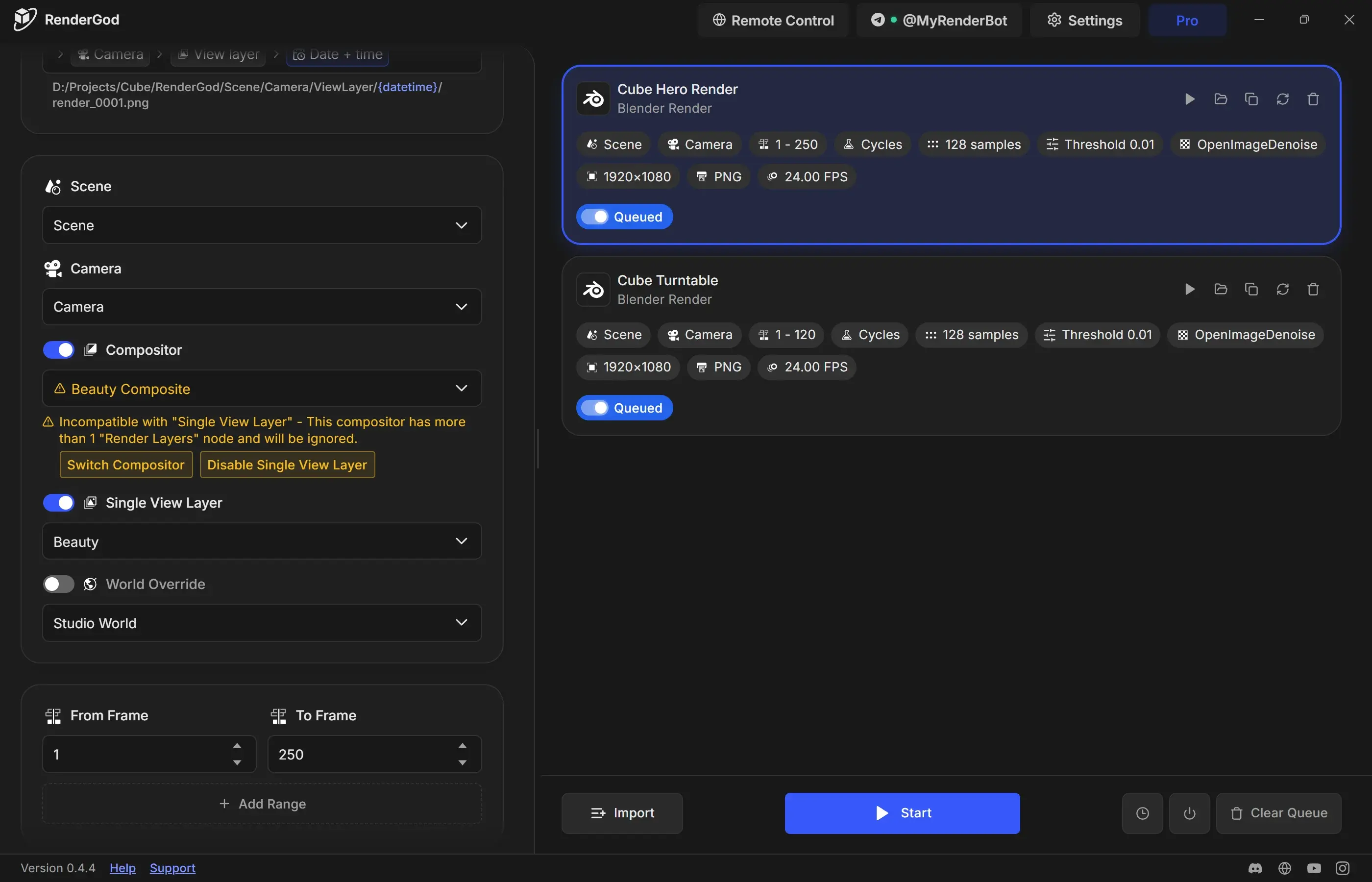
RenderGod marks a compositor that reads more than one view layer with a warning triangle and does not use it while Single View Layer is on. You have two choices:
- Switch Compositor: pick a compositor that works with one layer.
- Disable Single View Layer: render all layers through the compositor you have.
File Output nodes in a compositor that has no layer input of its own do not write while Single View Layer is on. See File Output Nodes.