Render Schedule
Start the queue at a set time, stop rendering at another, and repeat on the weekdays you choose.
Last updated By the RenderGod Team
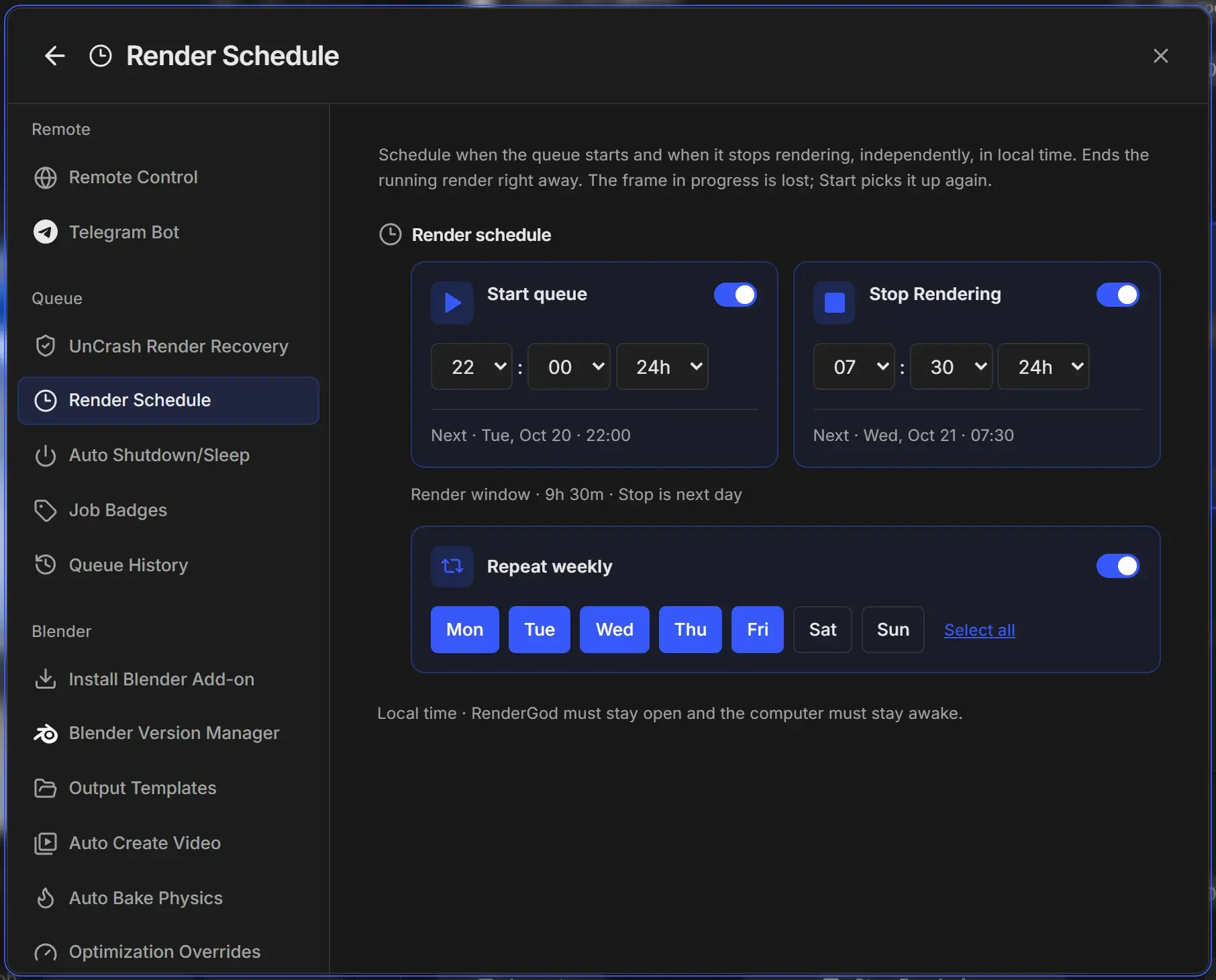
Render Schedule starts the queue for you at a time you choose, and can stop it again later. Use it to render overnight, or only during hours when the computer is free.
Open Render Schedule
Use any of these:
- Click Schedule in the queue toolbar.
- In a narrow window or on a touch screen, open More queue actions and choose Render Schedule.
- Open Settings, then Render Schedule under Queue.
You need to be signed in to switch a part of the schedule on. You can switch a part off without signing in.
Set up a schedule
Everything saves as soon as you change it, and times are in your computer's local time.
- Turn on Start queue and set the time with the hour, minute and AM, PM or 24h dropdowns.
- To stop at a set time too, turn on Stop Rendering and set its time.
- To repeat, turn on Repeat weekly and click the weekdays, Mon to Sun. Select all picks every day. At least one day stays selected.
The two parts are independent. You can schedule only a start, or only a stop for a queue you start by hand. Repeat weekly can be switched on once Start queue or Stop Rendering is on.
When both parts are on, the panel shows the length of the render window, such as 8h 00m. If the stop time is at or before the start time, it adds "Stop is next day", so a schedule from 10:00 PM to 6:00 AM runs overnight.
Without Repeat weekly, each part runs once and then turns itself off.
Activate and stop the schedule
A schedule is active as soon as Start queue or Stop Rendering is on. A Render Schedule Active card then appears in the queue, reading "Next start", "Next pause" and either the repeat days or "Runs once".
- Click on the card to open the schedule settings.
- Click Cancel Schedule to turn off both parts. Your times and days are kept for next time.
You can also switch each part off in the settings. Starting or stopping the queue by hand does not cancel the schedule.
What happens at the scheduled time
| Time | Queue state | Result |
|---|---|---|
| Start | Not running, with queued jobs | The queue starts. |
| Start | Not running, no queued jobs | Nothing starts. The settings show "Last scheduled start: No queued jobs to process". |
| Start | Already running | Nothing changes. |
| Stop | Running | Rendering stops. The frame in progress is lost and the job shows Paused at frame N. |
| Stop | Not running | Nothing happens. |
After a stop, click Start or wait for the next scheduled start. The job continues from the frame it stopped on. See Render Queue.
RenderGod must be running
Saved but not active