Settings
Find every section of the RenderGod Settings window and the page that explains it, plus system settings and your account.
Last updated By the RenderGod Team
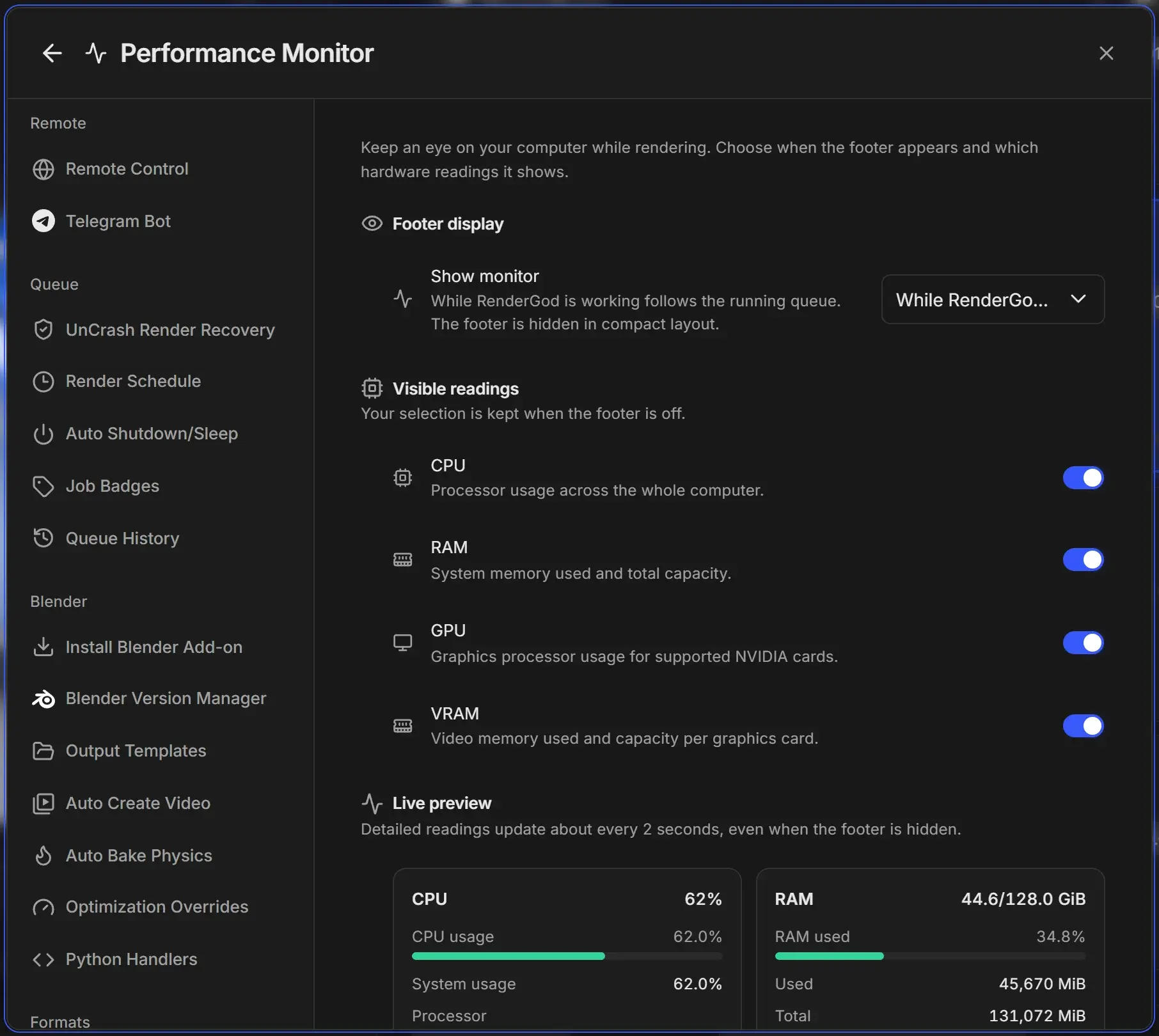
Settings holds the defaults for new jobs, your Blender installations, remote access, notifications and how the app looks. Click Settings at the top right of the window to open it. On macOS you can also press Cmd+,.
In a wide window, the section list stays on the left so you can jump between sections. In a narrow window, Settings opens on the list. Use the back arrow to return to it.
There is no Save or Apply button. Every switch and dropdown takes effect as soon as you change it. Settings that set defaults for new jobs apply only to jobs you add from now on. Jobs already in the queue keep their own values.
All sections
| Group | Section | What it controls |
|---|---|---|
| Remote | Remote Control | Lets a browser on another device see and control this computer. See Remote Control. |
| Remote | Telegram Bot | Links your Telegram bot and chooses its messages. See Telegram Bot. |
| Queue | UnCrash Render Recovery | Recovery from Blender crashes, frozen frames and PC restarts. See UnCrash Recovery. |
| Queue | Render Schedule | Starts or pauses the queue at set times. See Render Schedule. |
| Queue | Auto Shutdown/Sleep | Shuts down or sleeps the computer when the queue finishes. See Auto Shutdown / Sleep. |
| Queue | Job Badges | Which badges show on job cards. See Job Badges. |
| Queue | Queue History | Restores removed jobs. See Queue History. |
| Blender | Install Blender Add-on | Installs the "Send to RenderGod" add-on. See Blender Add-on. |
| Blender | Blender Version Manager | Finds, adds and lists Blender installations. See Blender Version Manager. |
| Blender | Output Templates | Where new jobs save frames and how files are named. See Output Templates. |
| Blender | Auto Create Video | Whether new jobs encode a video when they finish. See Auto Create Video. |
| Blender | Auto Bake Physics | Whether new jobs bake simulations first. See Auto Bake Physics. |
| Blender | Optimization Overrides | GPU, tiling, Fast GI and texture defaults for new jobs. See Optimization Overrides. |
| Blender | Python Handlers | Scripts and their defaults for new jobs. See Python Handlers. |
| Formats | Render Formats | Image formats for Blender renders. See Render formats. |
| Formats | Conversion Defaults | Starting format and frame rate for conversion jobs. See Conversion Defaults. |
| Formats | Video Formats | Video formats for conversions and Auto Create Video. See Video Formats. |
| Formats | Image Formats | Image formats for frame extraction and image conversions. See Image Formats. |
| Formats | Audio Formats | Audio formats for extraction and audio conversion. See Audio Formats. |
| App | Performance Monitor | When the footer readout shows. See Performance Monitor. |
| App | Notifications | Desktop alerts, phone alerts and the completion sound. See Notifications. |
| App | Appearance | Theme, color palette, font and UI scale. See Appearance. |
| App | System Settings | Start at login, version, reset and force quit. See System settings below. |
| App | Account | Sign in, plan and sign out. See Account below. |
Several buttons open a section directly. The Telegram and Remote Control buttons in the header open their sections, and Configure on a job's UnCrash card opens UnCrash Render Recovery.
System settings
Open Settings > System Settings.
- Start at Login: opens RenderGod when you sign in to your computer. On Windows with PC crash recovery turned on, this switch is locked on because recovery needs it.
- Installed version and Check for Updates: look for a new version. Latest version shows the newest release, and a line below says Up to date or Update available. See Automatic Updates.
- Reset Settings: after you confirm, every setting on this computer goes back to its default and RenderGod restarts. This covers Blender installations, output templates, format presets, Telegram setup, recovery limits and appearance. Your queue, history and rendered frames are kept.
- Force Quit: closes RenderGod and any Blender it started, right away. The queue is saved. The job continues from the last finished frame, and the frame that was rendering is lost.
Force Quit loses the current frame
Use Stop Rendering in the queue instead when you can. It also ends the frame in progress, but it keeps RenderGod open.
Account
Open Settings > Account. It shows the signed-in account, your plan and, during a trial, the time left and the end date. Click Sign In when you are signed out, or Sign Out to leave. See FREE vs PRO for plans and the trial.
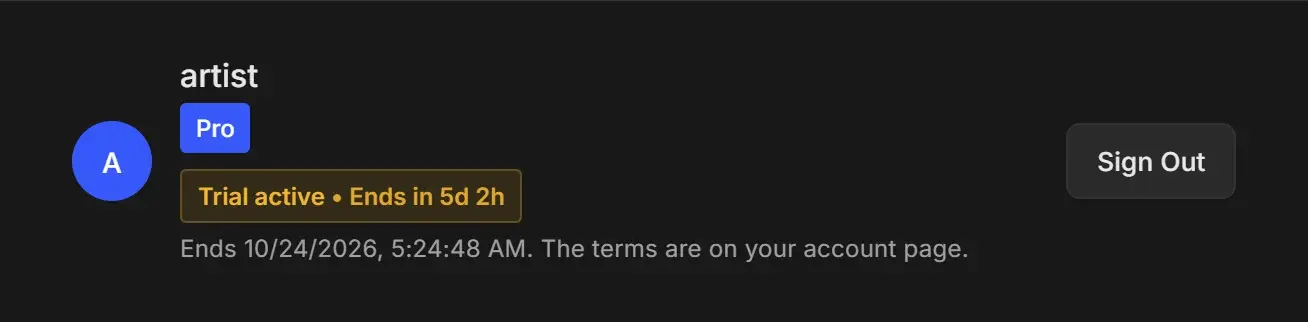
Signing out asks you to confirm. It stops PRO features on this computer and disconnects any browser controlling it. Your queue, settings and rendered frames are not touched.
Where your files are
RenderGod saves your settings and queue on this computer. Your renders go to the output folder of each job. Click Open Export Folder on a job card to open it.