Export & Import Jobs
Save render jobs as .rgjob files to back them up, share them or move them to another computer, then import them with every setting in place.
Last updated By the RenderGod Team
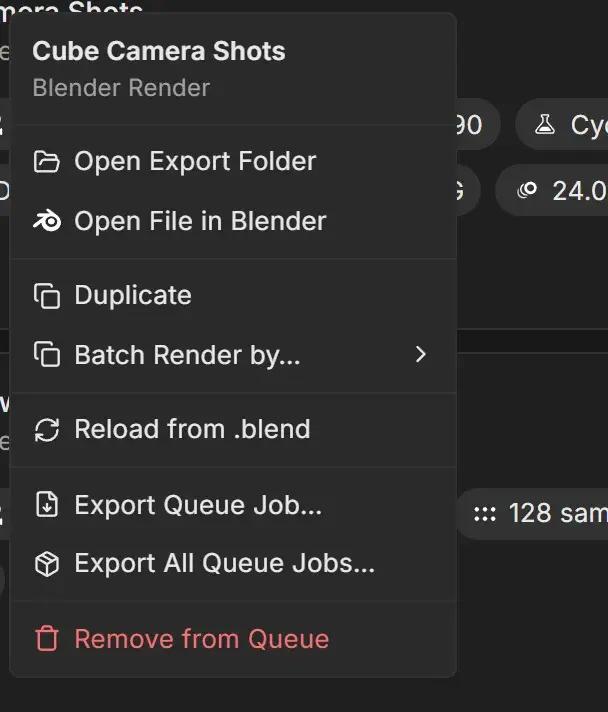
A .rgjob file stores the settings of one or more queue jobs. Export a carefully set up render to keep a copy, hand it to a colleague or move it to another computer, then import the file to get the same jobs back.
Export jobs
- Right-click a job card.
- Choose Export Queue Job... for that job, or Export All Queue Jobs... for the whole queue.
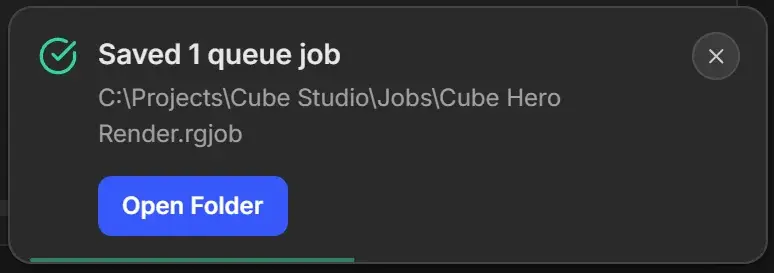
- Pick a folder and a name, then save.
A message confirms the save, with an Open Folder button that shows the file.
What the file holds
| Saved in the file | Not saved |
|---|---|
| Path to the .blend or media file | The .blend itself and your rendered frames |
| Scene, camera, view layer and frame range | Progress, status and render time |
| Render settings and overrides | Where Blender is installed on your computer |
| Output template | Your app settings |
| Auto Create Video settings | |
| Python scripts attached to the job |
Copy your project files to the other computer too, because the file points to them but does not contain them.
Import jobs
Use any of these:
- Click Import, then Queue Job(s)....
- Click Queue Job(s)... on the empty queue, or right-click the empty queue.
- Drop the .rgjob file on the RenderGod window.
If every file is found and nothing needs a decision, RenderGod adds the jobs at once, shows a message with the count, and selects the first one.
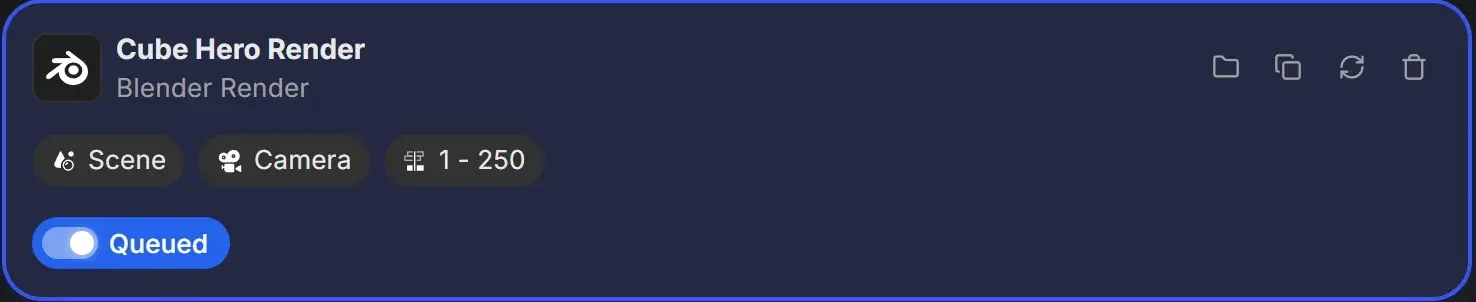
Imported jobs start fresh, with no progress. A job with several frame ranges has Auto Create Video turned off.
Review Import
If a job needs a decision, Review Import opens first. Each job has its own row.
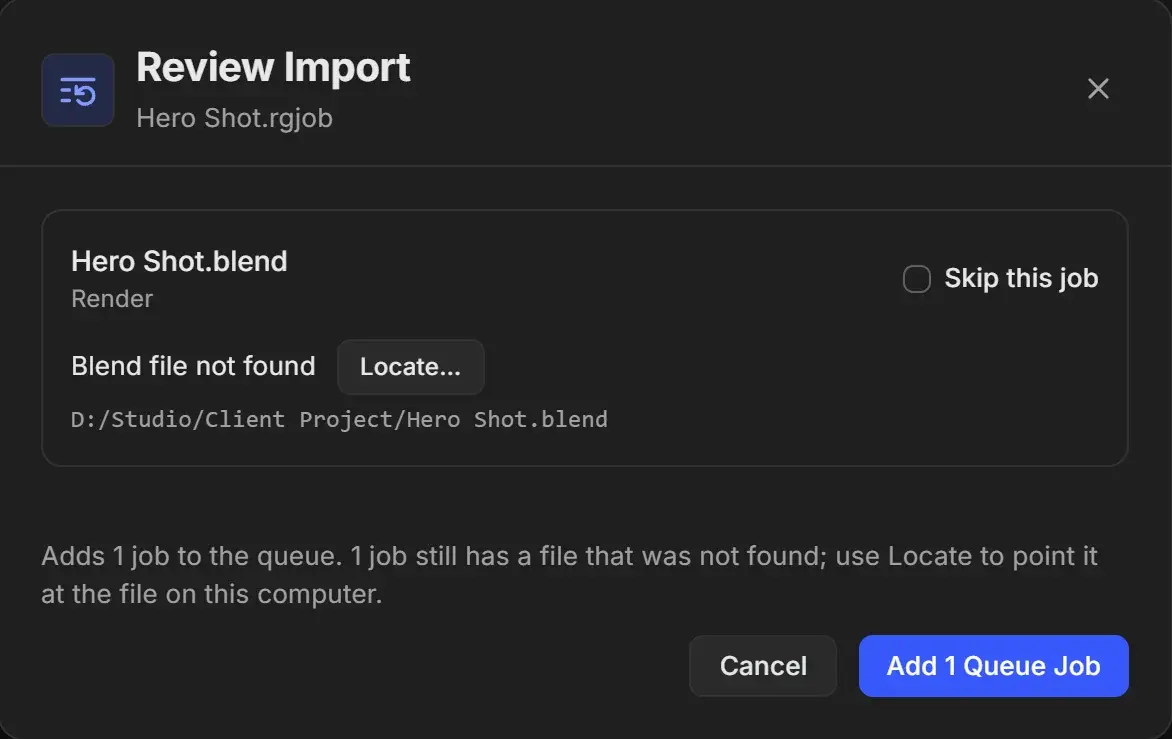
| You see | What to do |
|---|---|
| Skip this job | Tick it to leave that job out. |
| Blend file not found, Import folder not found or Audio file not found | Click Locate... and pick the file on this computer. If other jobs used the same path, click Apply to all. |
| A Blender version that is not installed | The job can still be added. Install that version in Blender Version Manager. |
| A setting shown as "was ... now ..." | RenderGod changed the value to fit this computer. Check it after the import. |
| An output template that is not on this computer | RenderGod uses the default template instead. |
| Enable this script | Scripts arrive turned off. Click View source to read one, and enable it only if you trust where the file came from. |
Scripts run with your permissions
Click the button at the bottom, such as Add 1 Queue Job, to import, or click Cancel.
Match Settings
If a job names a scene, camera, view layer, world, compositor or output template that the .blend on this computer does not have, Match Settings opens next. For each one, pick a replacement from the list, then click Apply. Keep defaults leaves RenderGod's default choice for those settings.
If a file cannot be read
RenderGod shows "Couldn't read that job file" with the reason.
| Reason | Fix |
|---|---|
| The file is larger than 5 MB | Export fewer jobs per file. |
| The file holds more than 200 jobs | Split the jobs into several files. |
| The file holds no jobs | Export again from the original computer. |
| It is not a RenderGod job file | Pick a .rgjob file exported from RenderGod. |
| The file comes from a newer RenderGod | Update RenderGod on this computer. See Automatic Updates. |