Appearance
Switch between light and dark, pick a color palette and font, and make the whole RenderGod interface larger or smaller.
Last updated By the RenderGod Team
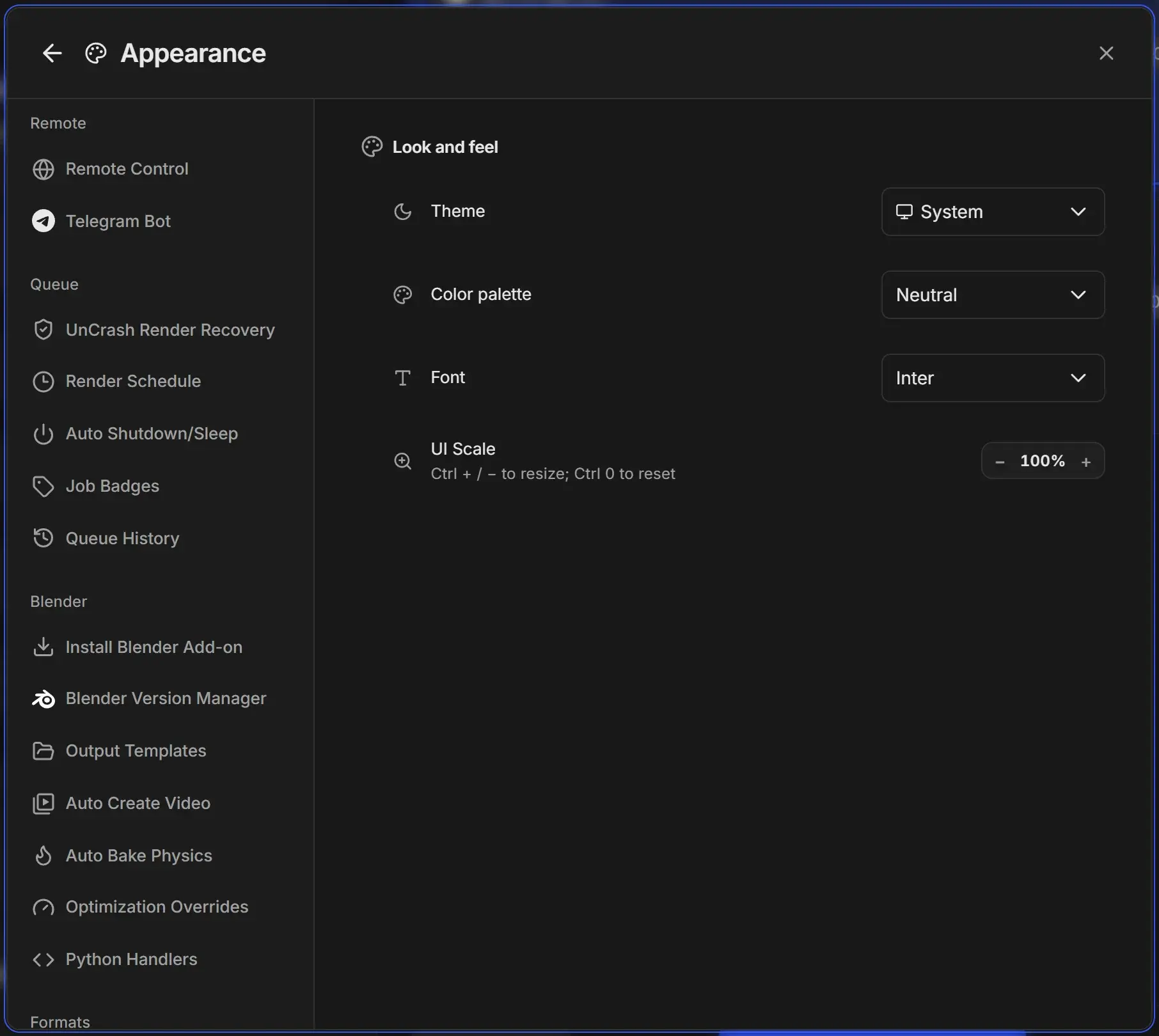
Appearance changes how RenderGod looks to match your desktop and your screen size. It is included in FREE and PRO. Open Settings and choose Appearance. Changes apply right away.
| Setting | Options | Default |
|---|---|---|
| Theme | Light, Dark, System | System |
| Color palette | Neutral, Blender, Classic, Slate | Neutral |
| Font | Inter, System | Inter |
| UI Scale | 75%, 90%, 100%, 110%, 125%, 150% | 100% |
Theme
System follows the light or dark mode of your operating system. Light and Dark stay fixed. Press F6 anywhere outside a text field to switch between light and dark. This also leaves System mode.
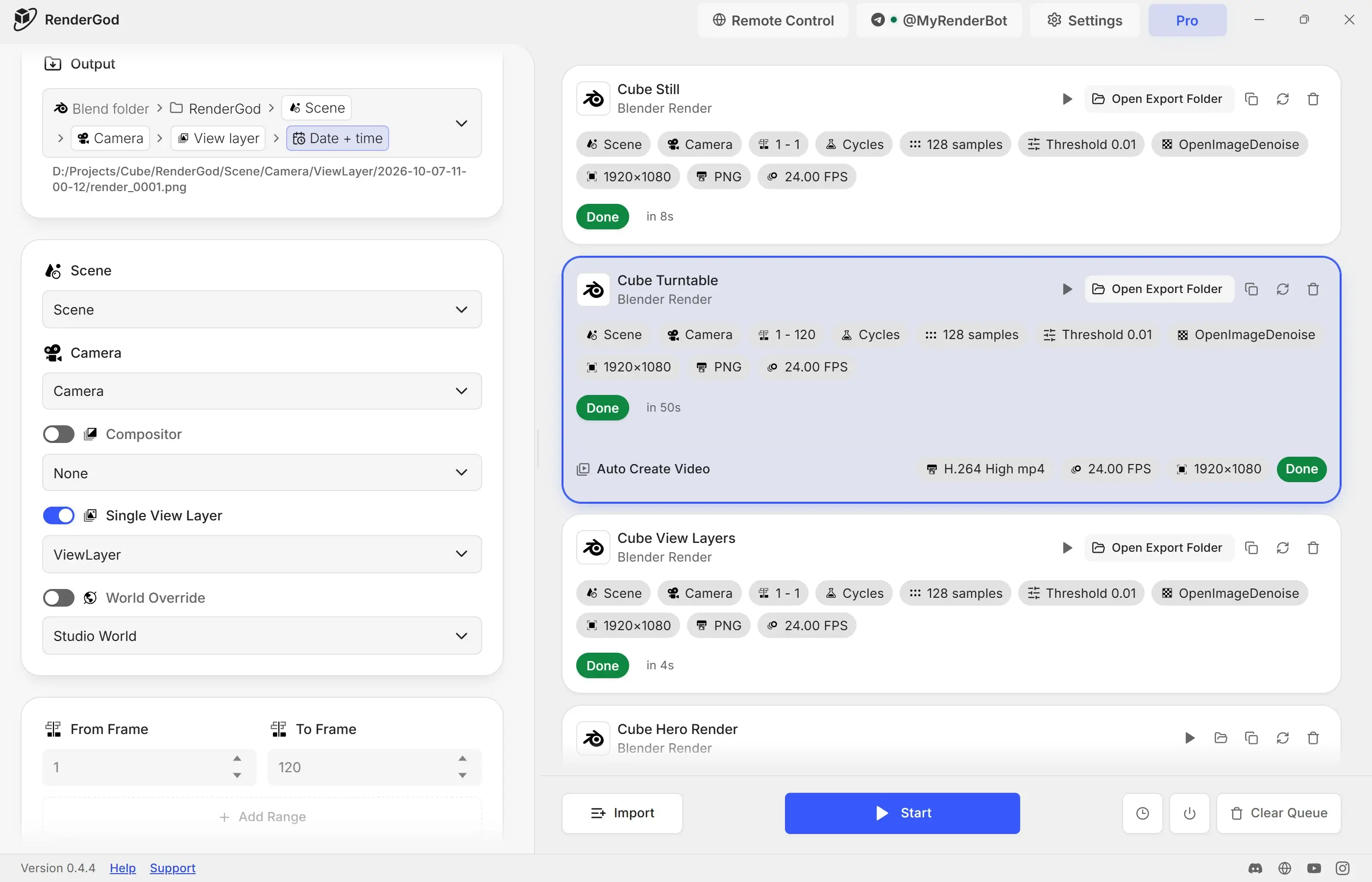
The separate preview window is always dark, so you judge frames against the same background.
Color palette
Each palette works in both the light and the dark theme.
Neutral
Gray chrome, white cards and one blue accent.
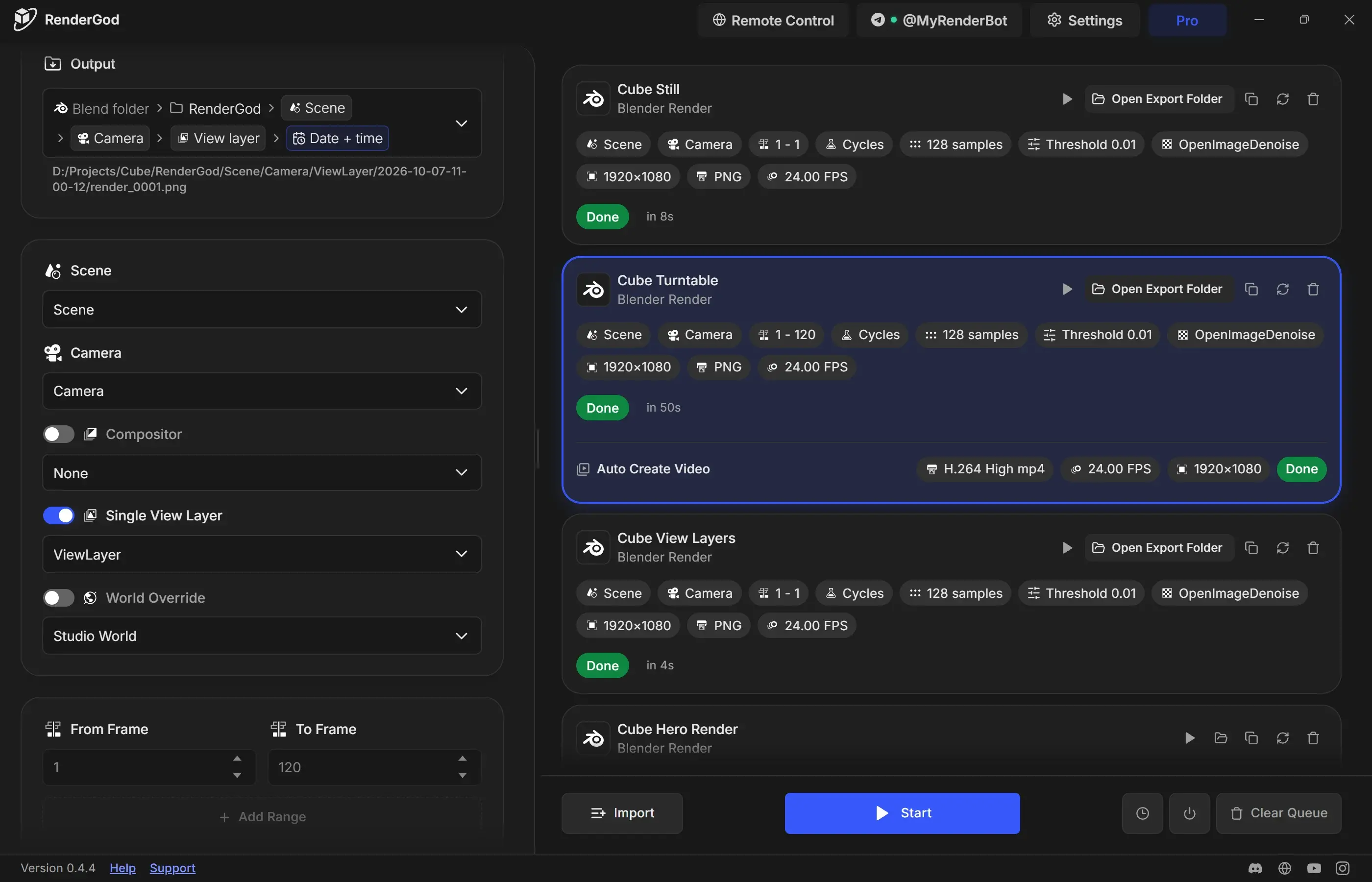
Blender
Blender's grays and its selection blue, so it looks at home next to Blender.
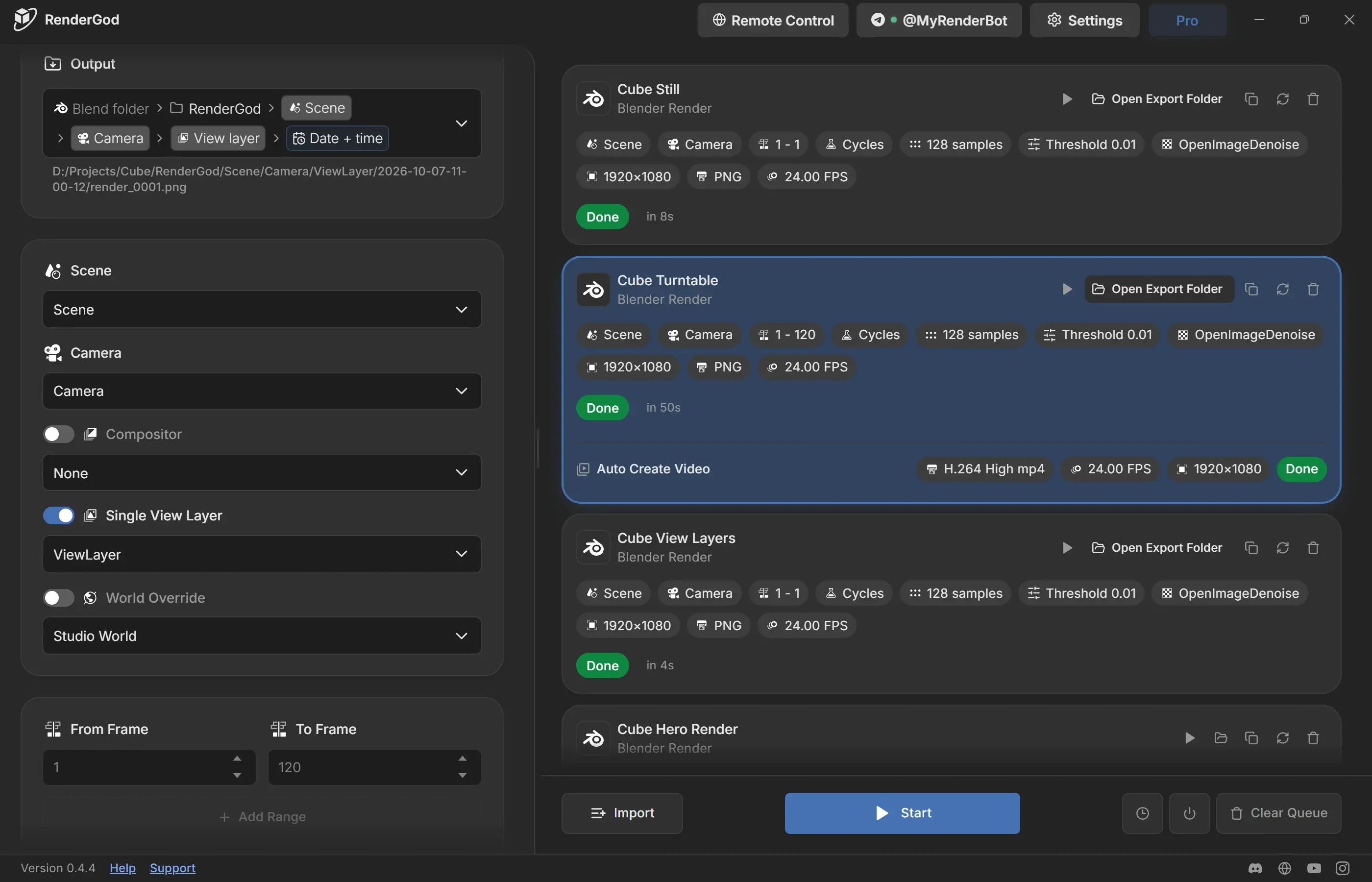
Classic
The original RenderGod colors.
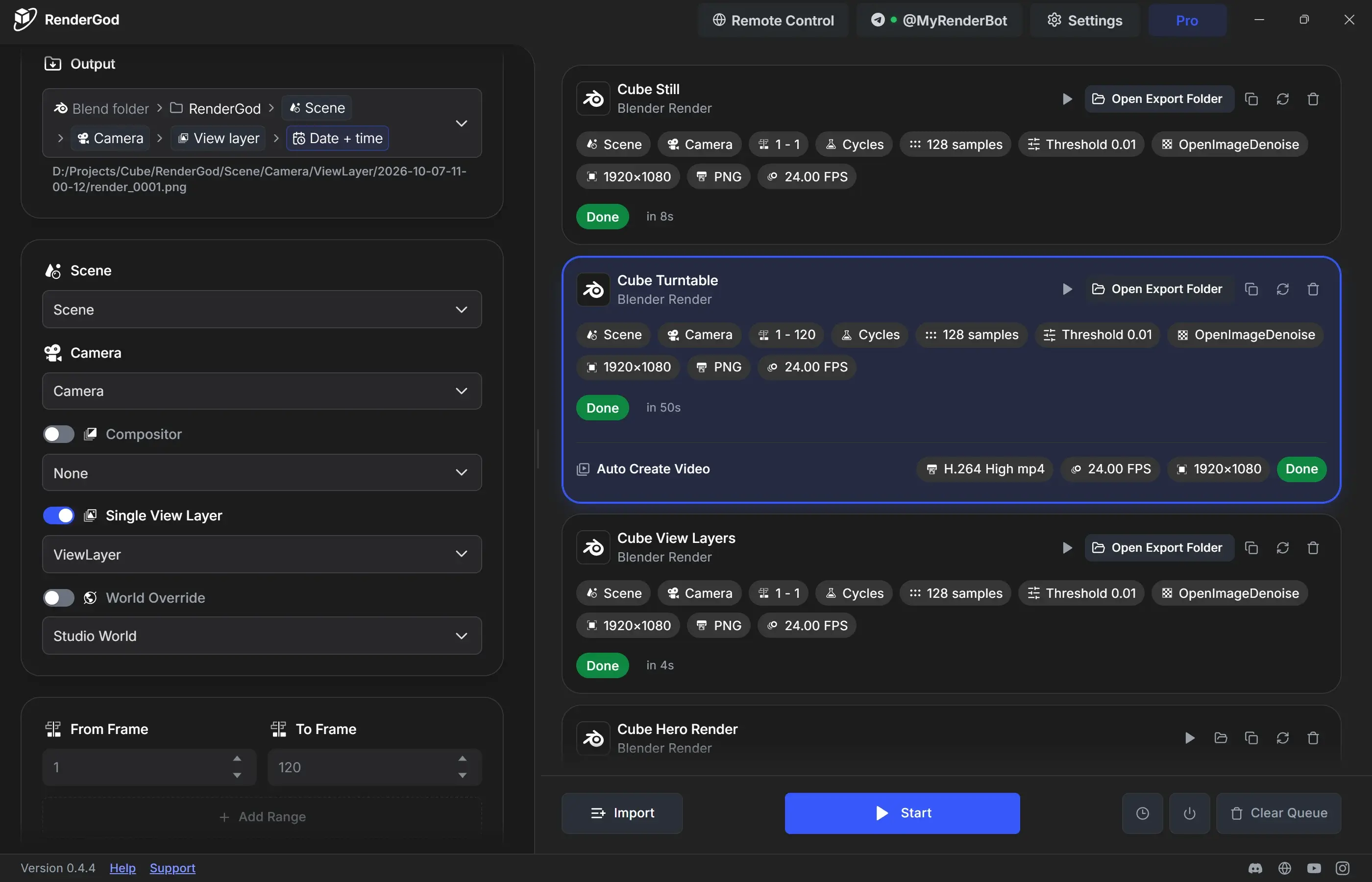
Slate
A cool blue-gray.
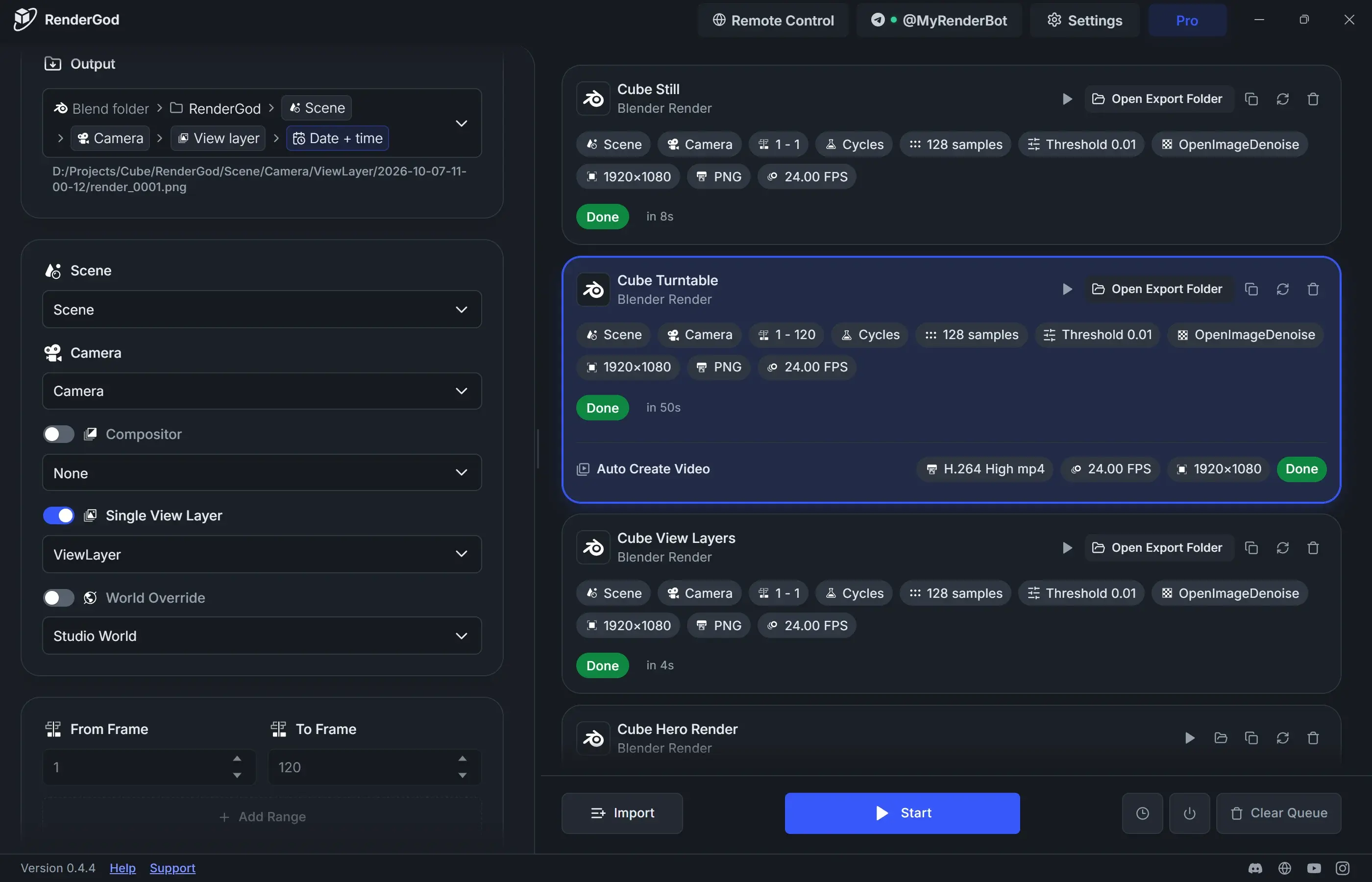
Font
- Inter: the RenderGod font, which looks the same on every computer.
- System: your operating system's interface font, such as Segoe UI on Windows or San Francisco on macOS.
UI Scale
Make all text and controls larger or smaller, for example on a high-resolution monitor or a small laptop screen.
- In Appearance, use the - and + buttons next to UI Scale.
- Anywhere in the app, press Ctrl++ or Ctrl+-. On macOS, use Cmd instead of Ctrl.
- Press Ctrl+0 to go back to 100%.
In a browser or on your phone
When you control RenderGod from a browser, Theme, Color palette and Font apply to that browser only, and there is no UI Scale. Use the browser's own zoom instead.
Reduced motion, reduced transparency and higher contrast follow your operating system settings.