Time Remaining Estimate
Read render progress, the time remaining, elapsed time and the frame timers on each job card while a render runs.
Last updated By the RenderGod Team
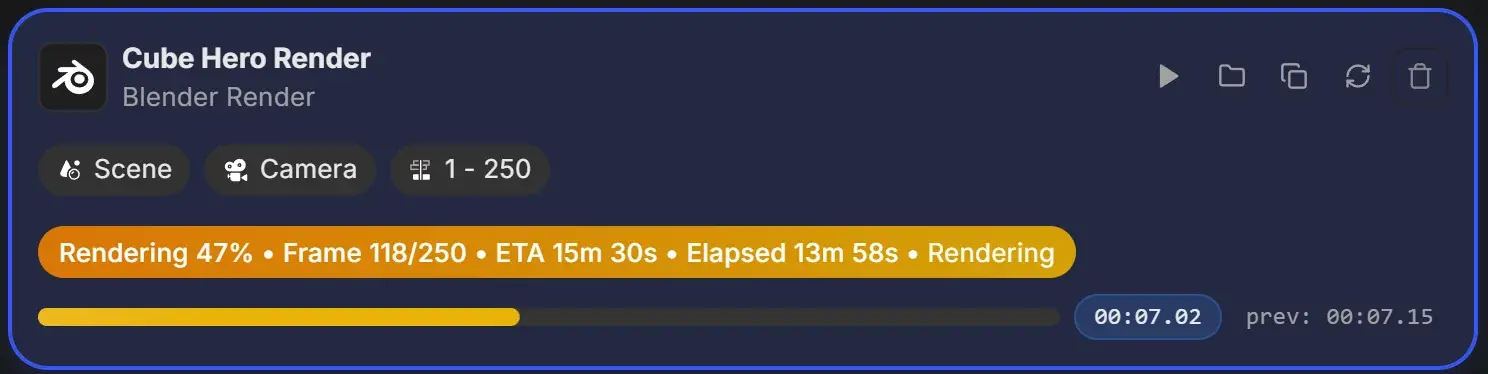
While a job renders, its card shows how far it has come and how long it has left. Use it to decide whether a render will finish before you leave, or to plan the next job. The Render Remaining Time Estimate is included in FREE and PRO, and always on.
The status line
The amber status line is made of parts separated by dots.
| Part | Example | Meaning |
|---|---|---|
| Percentage | Rendering 49% | How much of the frame range is done. |
| Frame | Frame 123/250 | The frame being rendered and the total. |
| ETA | ETA 15m 4s | The estimated time until the job finishes. Hover it to see its full name. |
| Elapsed | Elapsed 14m 27s | Time spent rendering this job so far, not counting pauses. |
| Blender status | Path Tracing Sample 12/128 | What Blender says it is doing right now. |
Times show as seconds, minutes and seconds, or hours, minutes and seconds.
When the ETA appears
The ETA appears once two frames have finished, so from the third frame on.
A + after the time, as in ETA 12m 30s+, means the current frame is taking longer than the frames before it. The job may finish later than shown.
The frame timer
Under the status line, next to the progress bar:
- The blue chip: counts up the time of the frame being rendered, as minutes, seconds and hundredths.
- prev:: how long the previous frame took. It is hidden on the first frame.
Compare the two to spot a frame that is slower than usual.
The progress bar
The bar moves smoothly within each frame, so it does not jump only when a frame finishes. Its color tells you the kind of job.
| Color | Job |
|---|---|
| Yellow | Blender render |
| Purple | Physics baking |
| Orange | Paused job, frozen at the paused point |
| Green | Image sequence to video |
| Blue | Video to image sequence |
Several frame ranges
With Multi Frame Ranges, progress and time remaining count only the frames you asked for. Gaps between ranges are not counted.
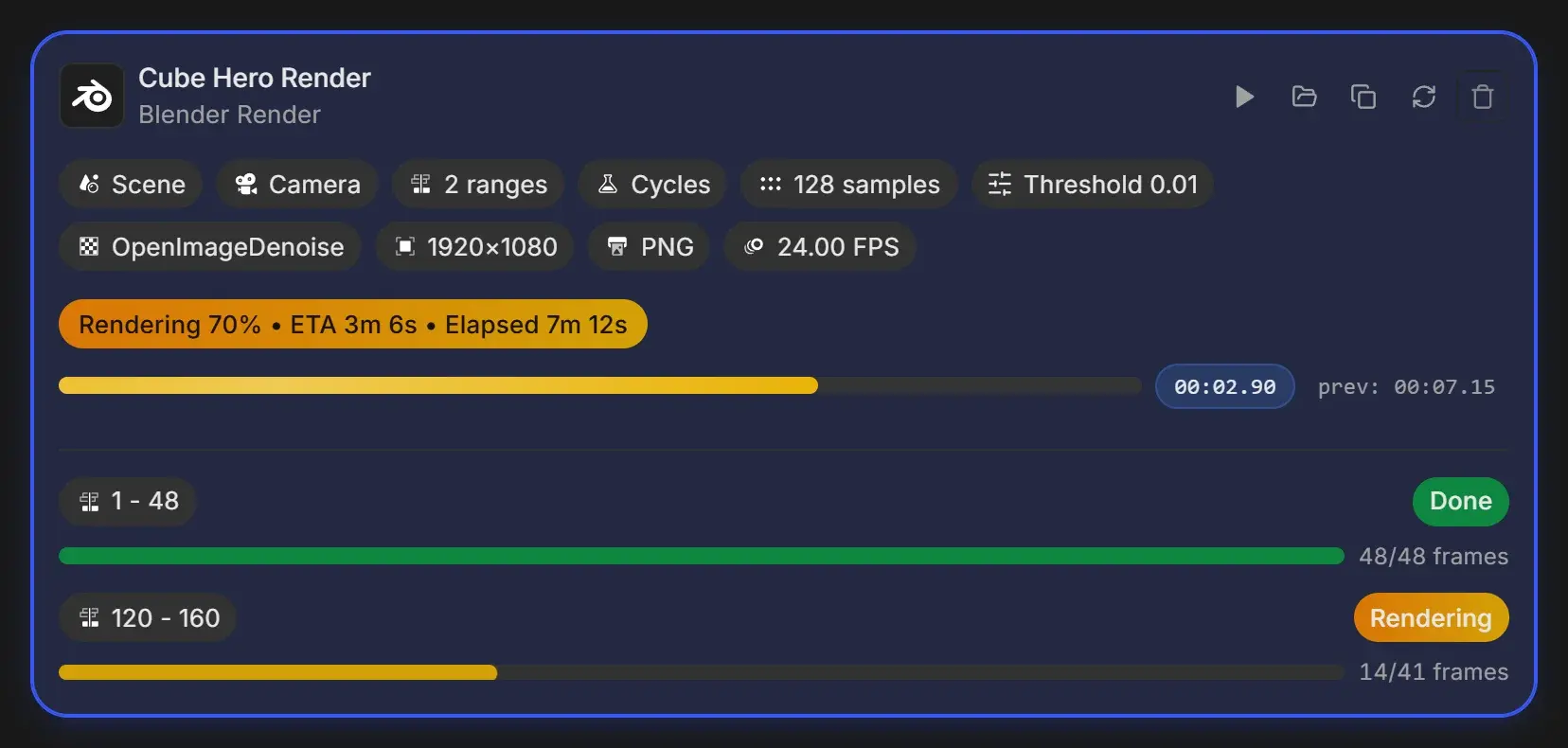
For example, ranges 1-2 and 10-11 make four frames. When frame 10 starts, two of the four are done, so the job reads 50%.
After the job finishes
The status changes to Done, with the total render time beside it, such as in 50s. The total adds up every session of the job and leaves out pauses.
Conversion jobs show a percentage and a frame count, such as Creating video... 40%, but no ETA.
Progress outside the window
- The RenderGod taskbar button (Windows) or Dock icon (macOS) shows the progress of the current job.
- The Telegram bot reports it with
/statusand, if you turn it on, in hourly updates. See Telegram Bot. - Remote Control and RenderGod for iPhone show progress and time remaining too. See Remote Control.