Performance Monitor
See CPU, RAM, GPU and VRAM usage in the footer while you render, and choose when and what the readout shows.
Last updated By the RenderGod Team

The Performance Monitor is a readout in the middle of the footer. It shows how hard your computer is working while a render runs, so you can spot a full memory or an idle GPU early. Hover a value for details, such as the GPU name.
When the monitor shows
| Plan | When the monitor shows |
|---|---|
| FREE | While RenderGod is working: rendering, baking or converting |
| PRO | Always |
Without PRO, readings are measured only while RenderGod is working. The footer setting only decides where they show.
Choose when it shows
- Click Settings and open Performance Monitor.
- Under Footer display, open Show monitor.
- Pick Always, While RenderGod is working or Off.
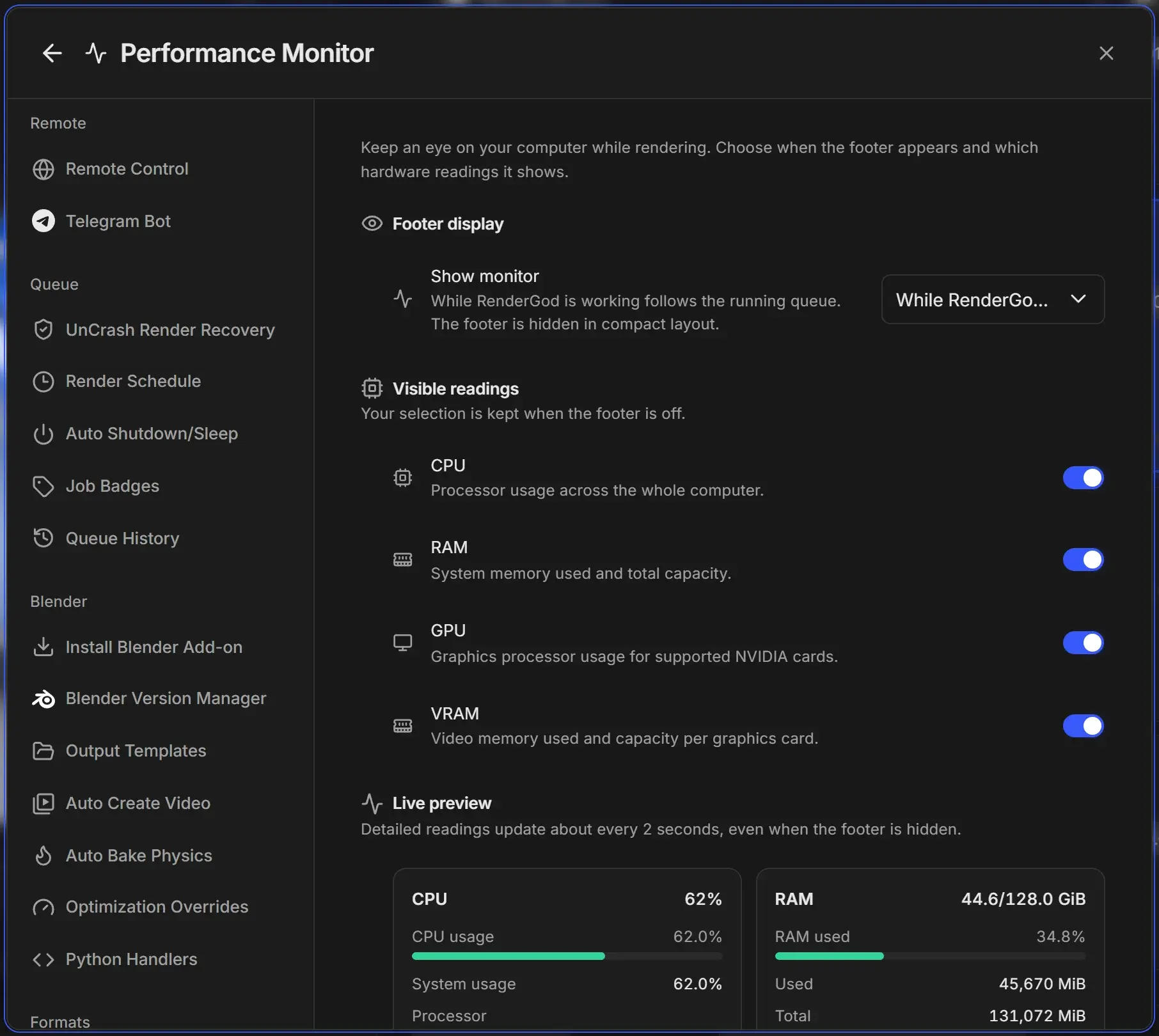
- Always: the readout stays in the footer. PRO only. On FREE the choice is kept, and a notice says readings appear only while RenderGod is working.
- While RenderGod is working: follows the running queue. This is the default.
- Off: hides the readout. Turning it off is free on every plan.
The footer is hidden in a narrow window.
Choose what it shows
Under Visible readings, switch each reading on or off. RenderGod keeps your selection while the footer is off.
- CPU: processor usage across the whole computer.
- RAM: system memory used and total capacity.
- GPU: graphics processor usage.
- VRAM: video memory used and capacity per graphics card.
Below the switches, Live preview shows detailed readings that update about every 2 seconds, even when the footer is hidden.
Whole computer, NVIDIA GPUs
Readings cover the whole computer, not just Blender. GPU and VRAM readings need a supported NVIDIA card, and AMD, Intel and Apple GPU readings are not available. CPU and RAM show on every computer.