Telegram Bot
Create your own Telegram bot to get render notifications and previews, and to check, start, stop or skip renders from your phone.
Last updated By the RenderGod Team
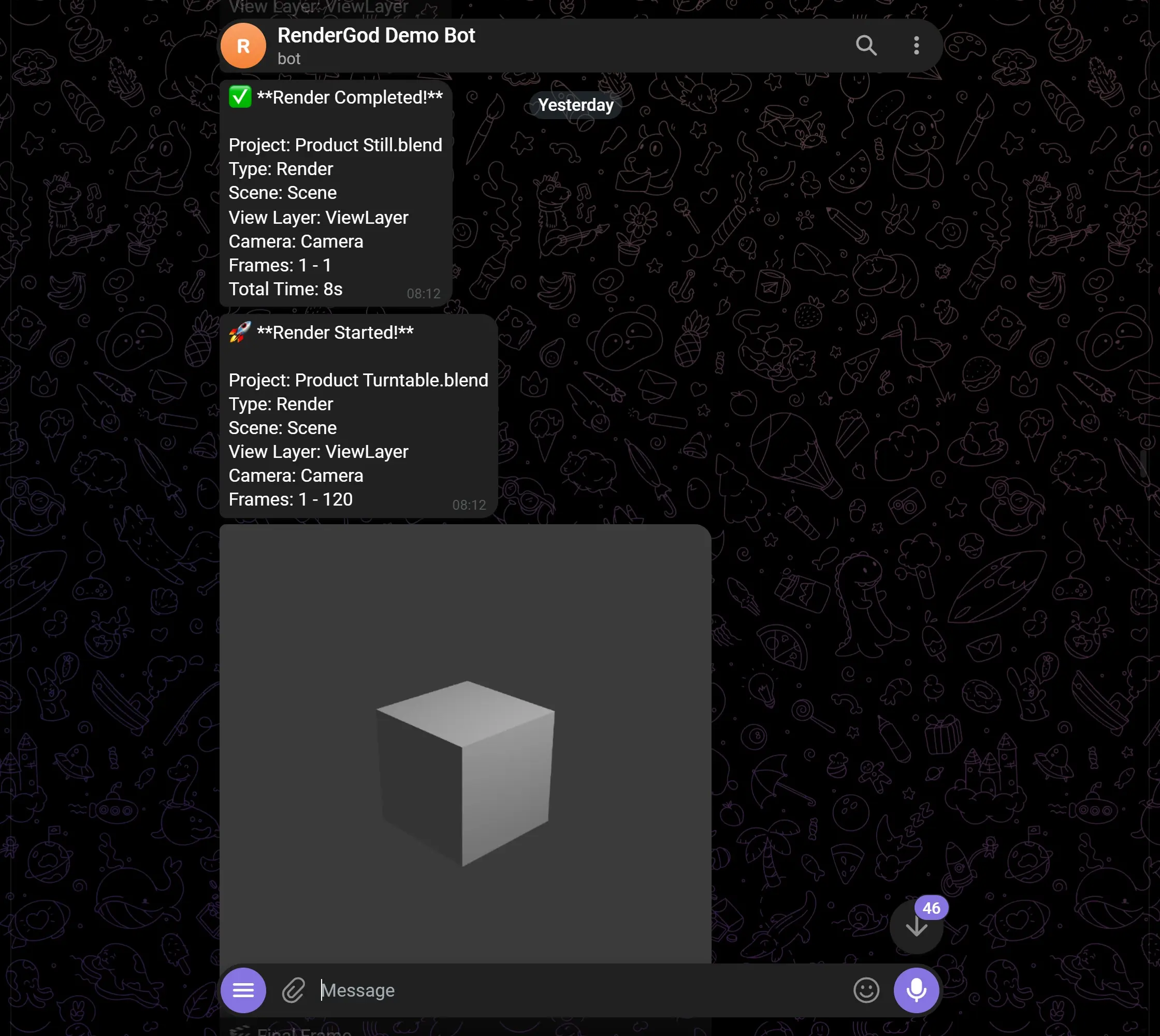
RenderGod can message you on Telegram through a private bot that you create. From the same chat you can check progress, get the latest frame or a short preview video, and start, stop or skip the queue while you are away.
The bot runs through RenderGod on your computer, so the computer must be on, RenderGod running and signed in. Rendering never leaves your computer. Telegram only receives the messages, frames and small preview videos that you ask for.
Create and connect your bot
You create the bot once with BotFather, Telegram's official bot for making bots. It takes about a minute and is free. You need the Telegram app on your phone or computer.
Open the setup dialog
In RenderGod, open Settings, then Telegram Bot, and click Link Telegram Account. Keep it open next to Telegram. You can also click the Telegram button in the header.
Create the bot in Telegram
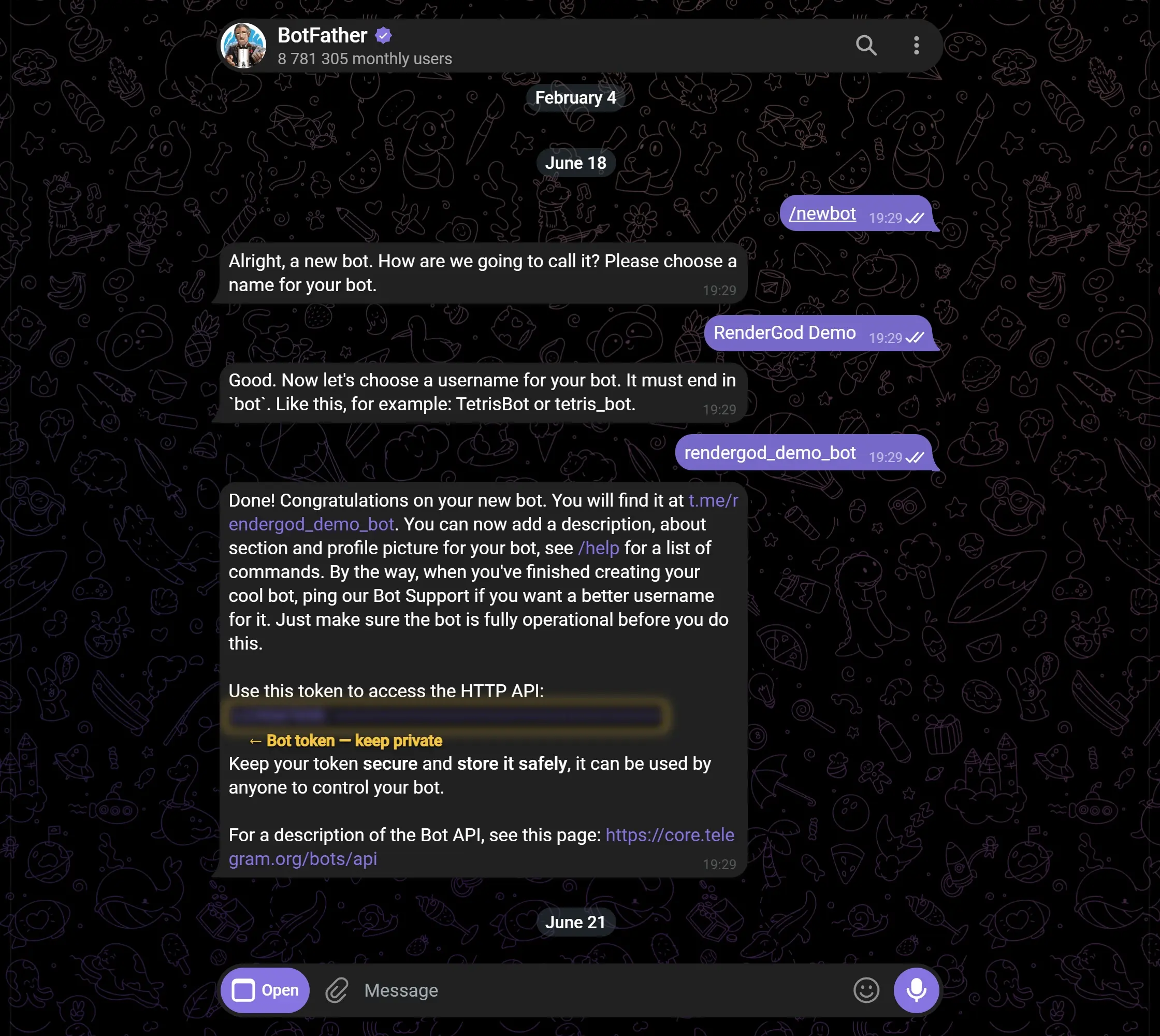
Click Open @BotFather, or search for @BotFather in Telegram and check the blue verified mark. Send /newbot, then send a name (for example My Render Bot), then a username that ends in bot (for example MyRenderBot). If the username is taken, add a number.
Paste the token
BotFather replies with a token. Paste it into Bot token in the dialog, or click Paste, then click Connect bot.
Send /start to your bot
Click Open next to your bot's name, then press Start in Telegram (or send /start). The dialog shows "Waiting for your /start" and moves on by itself. The bot replies "Connected to RenderGod."
Try a command
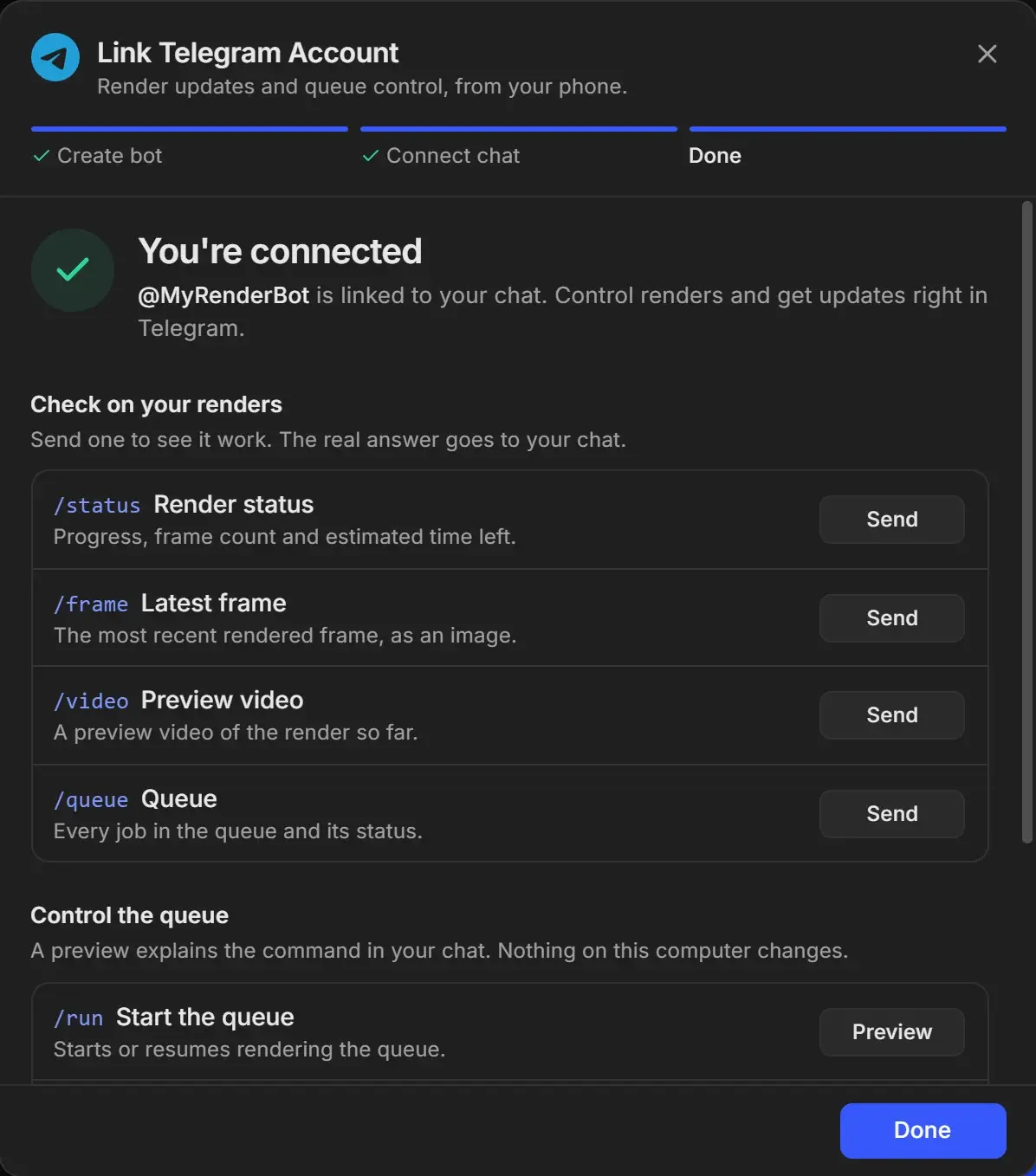
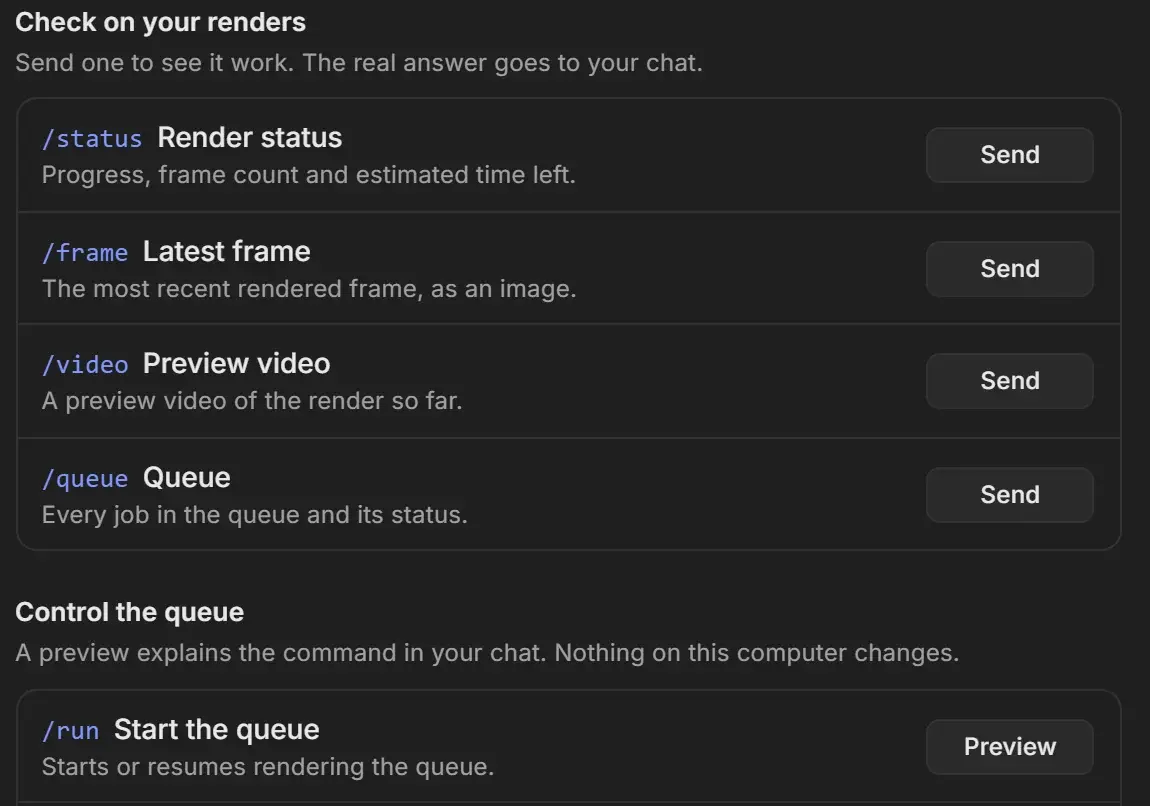
On You're connected, click Send next to /status, /frame, /video or /queue to see the real reply in your chat. Click Done.
Keep the token private
Anyone with the bot token can control your bot. Do not post it in chats or screenshots. If it leaks, send /revoke to BotFather, then connect again with the new token.
First chat wins
The first chat that sends /start becomes the owner. After that the bot answers only that chat. Create a separate bot for each rendering computer.
Link a group or use a chat ID
To send notifications to a group, or if /start does not link, expand Enter a chat ID instead on Connect your chat. Type the Chat ID (digits only, with a leading minus for a group), click Send test message, then confirm that it arrived.
Commands
Type / in the chat, or tap the menu button, to see the list. The bot answers only the chat that owns it.
| Command | What it does |
|---|---|
/status | Progress of the job that is rendering: current frame, elapsed time and time remaining |
/queue | Every job in the queue with its status |
/frame | Sends the most recent rendered frame |
/video | Sends a short preview video of the render so far (needs at least 2 frames) |
/run | Starts or resumes the queue |
/stop | Stops the current render and the queue |
/skip | Skips the job that is rendering |
/power | Shows Sleep, ShutDown and Stop Queue buttons |
/commands | Lists the commands |
/start | Links the bot, or shows this chat's ID |
Power commands act on the computer
Sleep and ShutDown start a countdown on the computer. Press Abort in the chat, or cancel on the computer, before it ends. Shutdown stops any render in progress.
Notifications
Choose what the bot sends in Settings, Telegram Bot, under Notify when. Changes apply right away to every job on this computer.
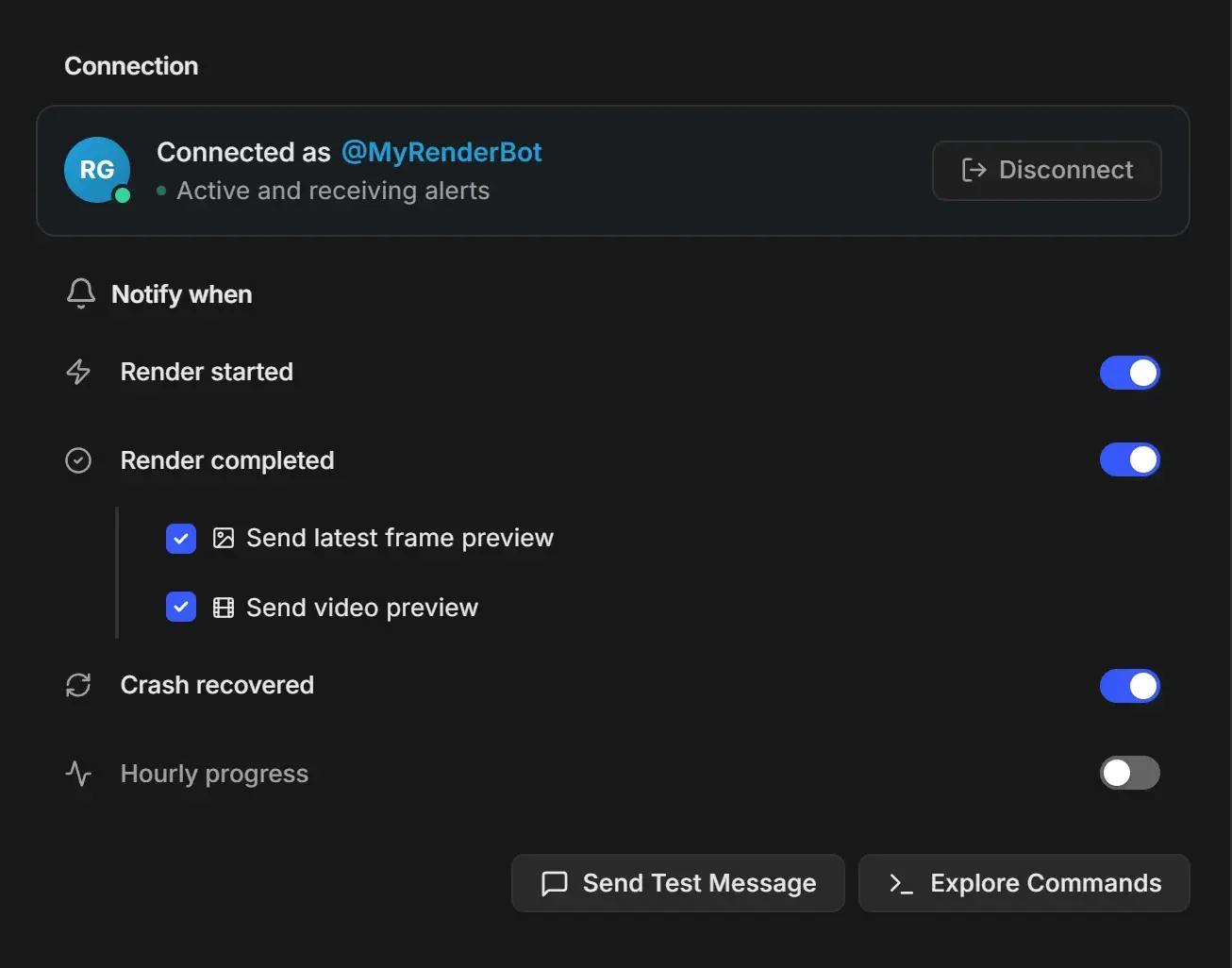
| Setting | Default | What you get |
|---|---|---|
| Render started | On | A message when a job starts, with project, scene, camera and frames |
| Render completed | On | A message when a job finishes, with total time |
| Send latest frame preview | On | The final frame, with Render completed |
| Send video preview | On | A short low-quality video, with Render completed |
| Crash recovered | On | A message when UnCrash recovers a render |
| Hourly progress | Off | The same update as /status, once an hour per rendering job |
The two preview options appear only while Render completed is on. Click Send Test Message to check that notifications arrive.
Previews
Frames and videos arrive automatically when a render finishes, or on demand with /frame and /video.
- EXR, DPX and other formats Telegram cannot show are converted to PNG.
- Frames over 20 MB arrive compressed with two buttons: Download Original sends the full file, Skip leaves it.
- The preview video is about 3 seconds long and low quality, for a quick look. For a full-quality video, use Auto Create Video. See Auto Create Video.
- Previews are sent only for Blender render jobs.
Disconnect
Click Disconnect under Settings, Telegram Bot. This unlinks your chat but keeps the bot, and the next /start links that chat again. To show or hide the Telegram button in the header, use Show Telegram in the top bar.