Remote Control
Watch and control your render queue from a phone, tablet or another computer in a browser, from anywhere, while the render stays on your PC.
Last updated By the RenderGod Team
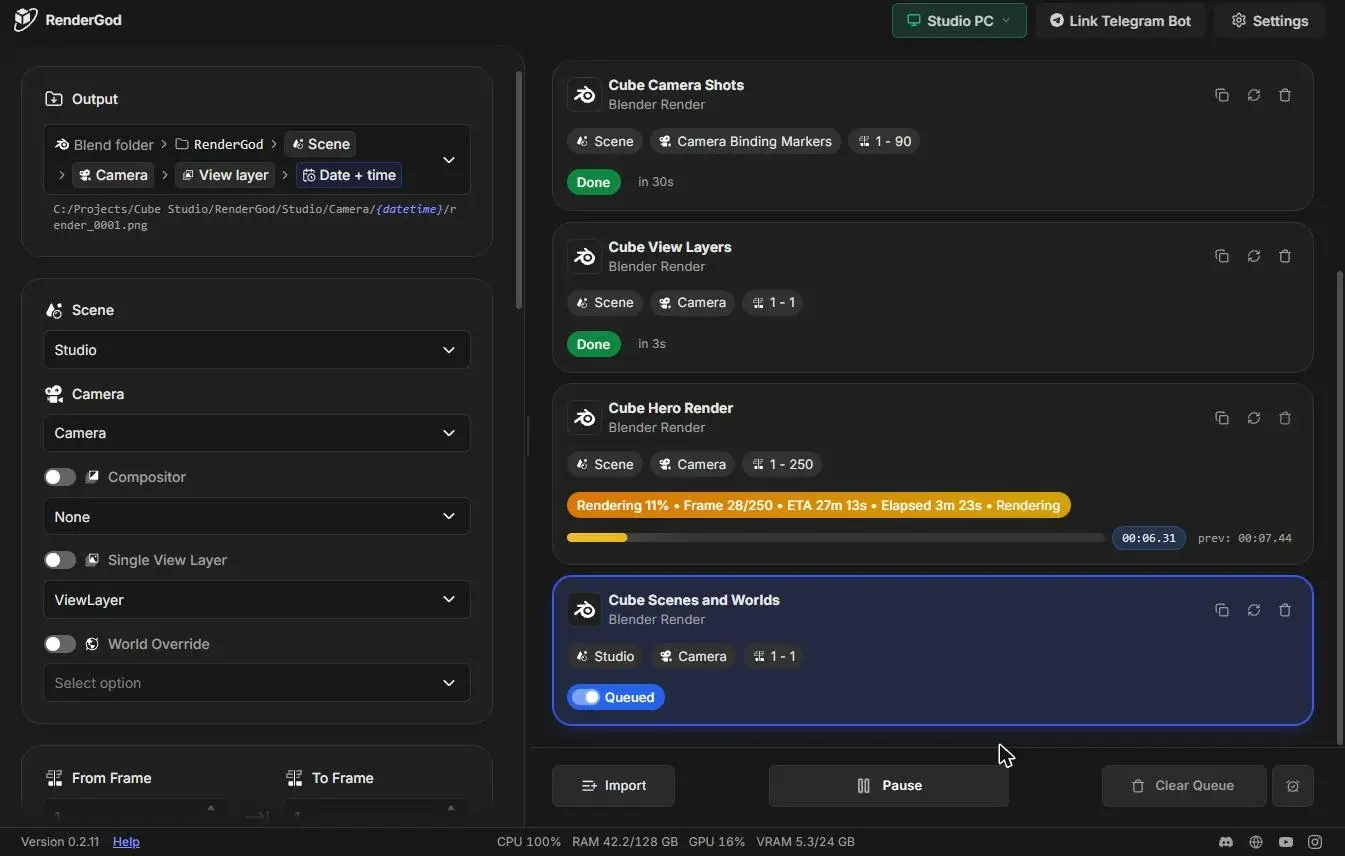
Remote Control opens the full RenderGod window in a browser on any device. You see the same render settings, queue, job cards, progress and previews as on the computer, and the render keeps running on that computer.
What you can do
- Watch progress, time remaining and live previews.
- Start, pause and stop the queue. Reorder, skip, retry and reset jobs.
- Change render settings on queued jobs.
- Choose a When Done action, including Shutdown and Sleep.
- Switch between several computers on your account.
You install nothing on the other device. For a native app with push notifications, see RenderGod for iPhone.
Turn it on
Remote Control is off by default. Turn it on once, on the computer that renders.
- Sign in to RenderGod on that computer.
- Open Settings, then Remote Control, or click the Remote Control button in the header.
- Click Turn On Remote Control.
- Optional: click the name under This computer and type a clear one, such as "Studio PC". Browsers show this name in their list.
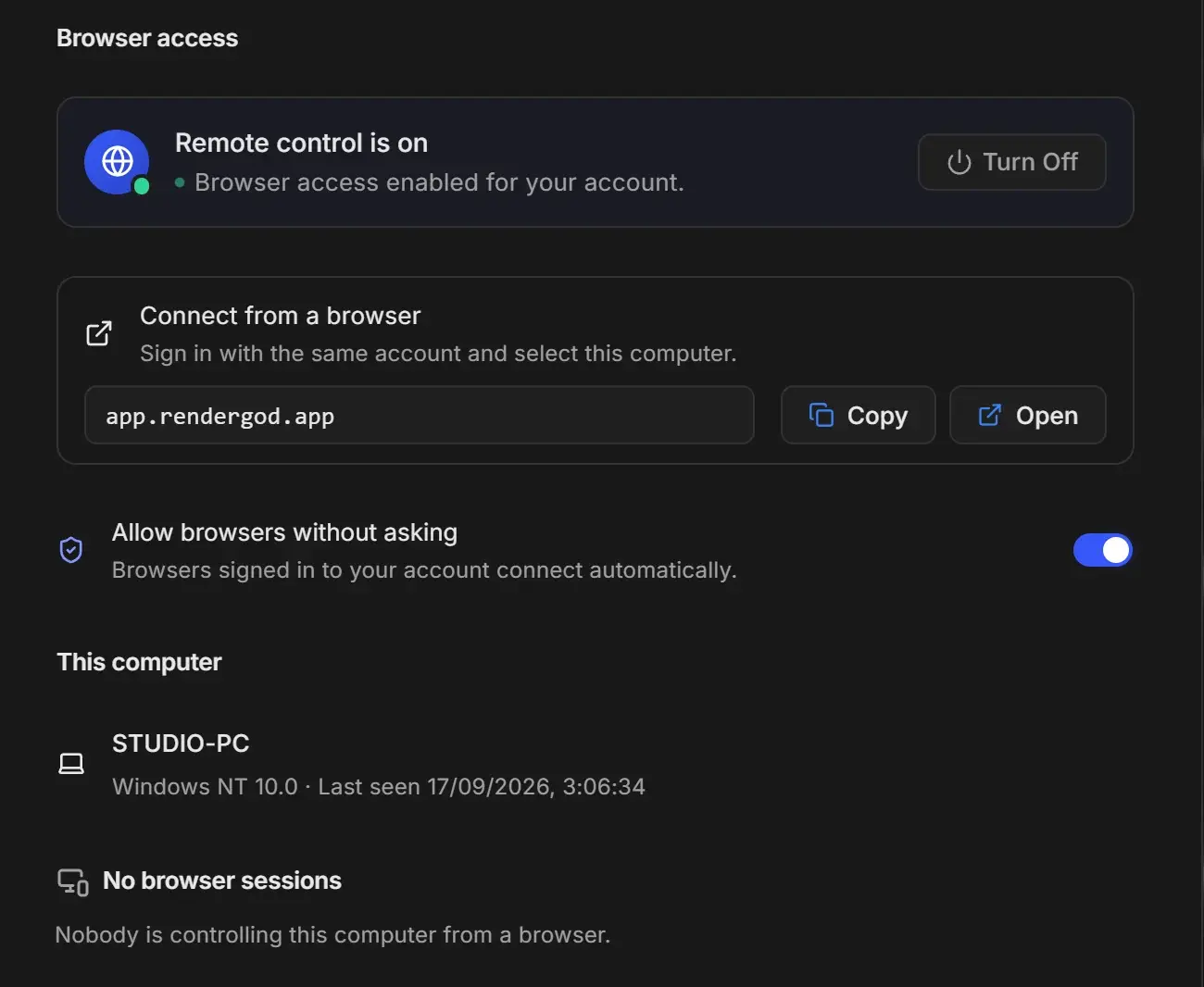
The same panel shows the address to open on your other device, app.rendergod.app. Click Copy or Open, or scan the QR code with your phone.
Click Turn Off at any time. Every connected browser is disconnected at once.
Connect from a browser
- On the other device, go to app.rendergod.app.
- Click Continue with Google and sign in with the same Google account you use in RenderGod.
- Under Your computers, pick the computer you want to control.
- If the computer asks first, approve the browser on the computer (see the next section).
The list refreshes by itself. If a computer is missing, open RenderGod on it and sign in with the same account.
| State | Meaning | What to do |
|---|---|---|
| Online | RenderGod is running with Remote Control on | Open it |
| Remote control off | RenderGod is running but Remote Control is off | Turn it on in Settings on that computer |
| Not responding since a time | The computer stopped answering | Check that it is awake and online, then retry |
| Offline with a last seen time | The computer or RenderGod is off | Turn the computer on and start RenderGod |
If the browser shows "Can't reach" a computer, check that it is on and awake, online and running RenderGod, then click Retry.
A computer that is off cannot answer
Remote Control cannot wake a computer. If you want to check results from your phone later, set When Done to Do Nothing or Sleep, not Shutdown.
Approve a browser
By default, a new browser must be approved on the computer. The browser shows "Waiting for approval", and the computer shows Let a browser control this computer?
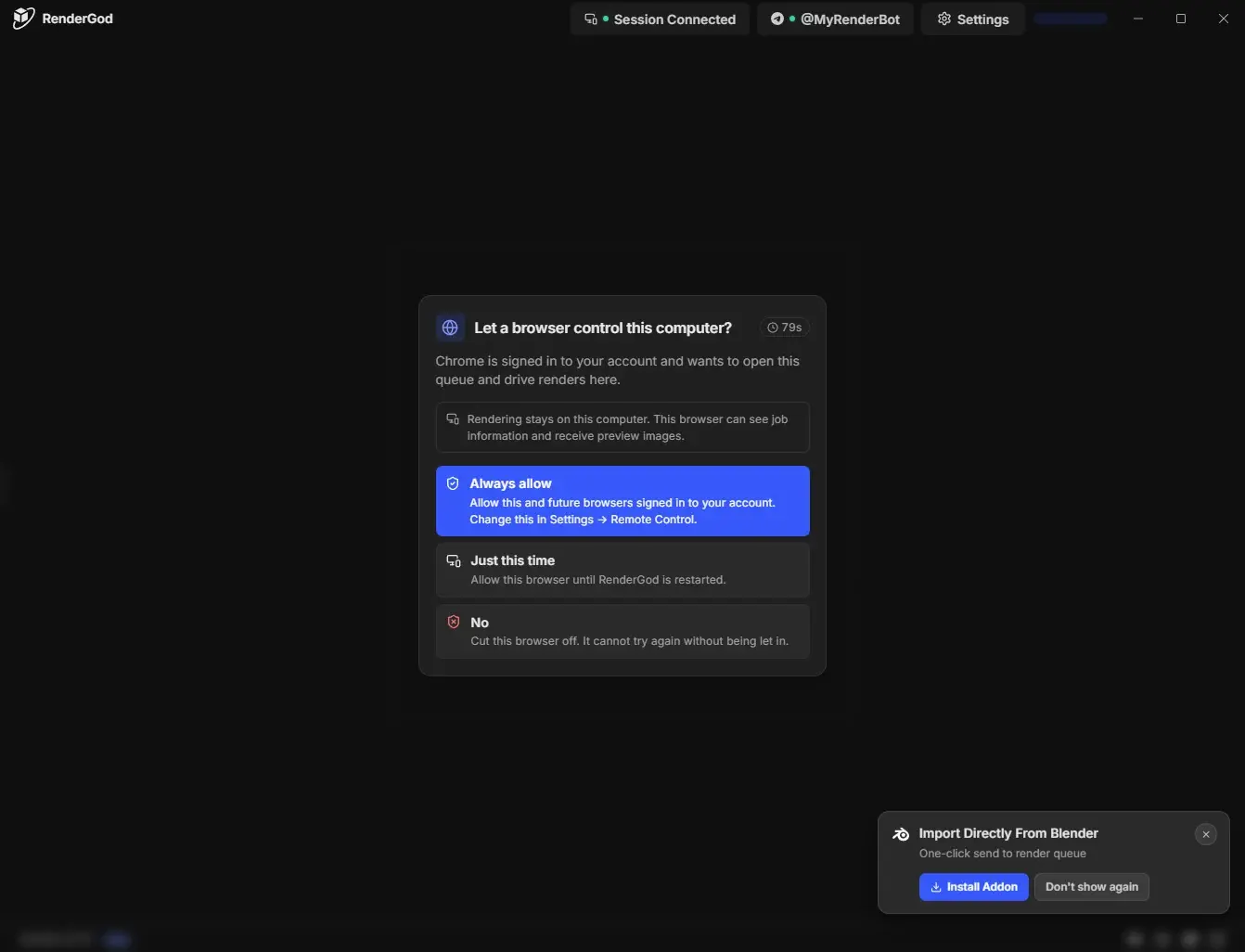
| Choice | What it does |
|---|---|
| Always allow | Allows this and future browsers signed in to your account. Turns on Allow browsers without asking. |
| Just this time | Allows this browser until RenderGod restarts. |
| No | Cuts this browser off. It cannot try again without being let in. |
If nobody answers within the countdown, the browser is refused. Before you leave the computer, either approve your phone or turn on Allow browsers without asking in Settings, Remote Control.
Actions that need approval at the computer
Some actions from a browser run only after someone at the computer clicks Approve:
- Clearing the queue and deleting history.
- Restarting or force-closing Blender and video encoders.
- Changing or disconnecting the Telegram bot.
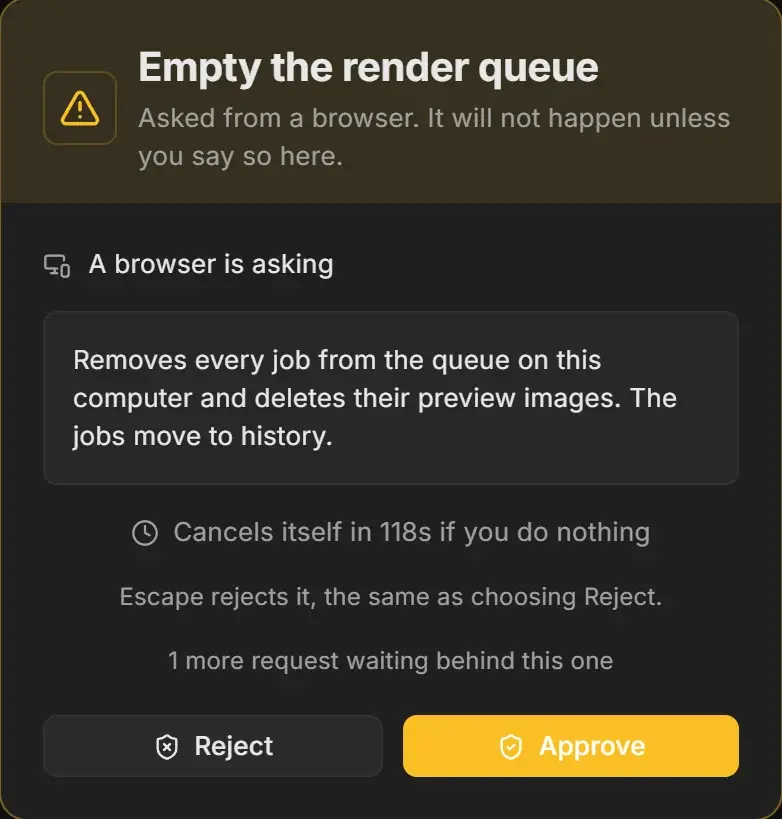
The request expires after 2 minutes. Shutdown and Sleep do not ask. They start the usual countdown on the computer, which anyone there can cancel.
Use it on a phone
On a phone the window becomes one column. Job cards stack, and Pause sits on its own row under Import, Clear Queue and the When Done button.
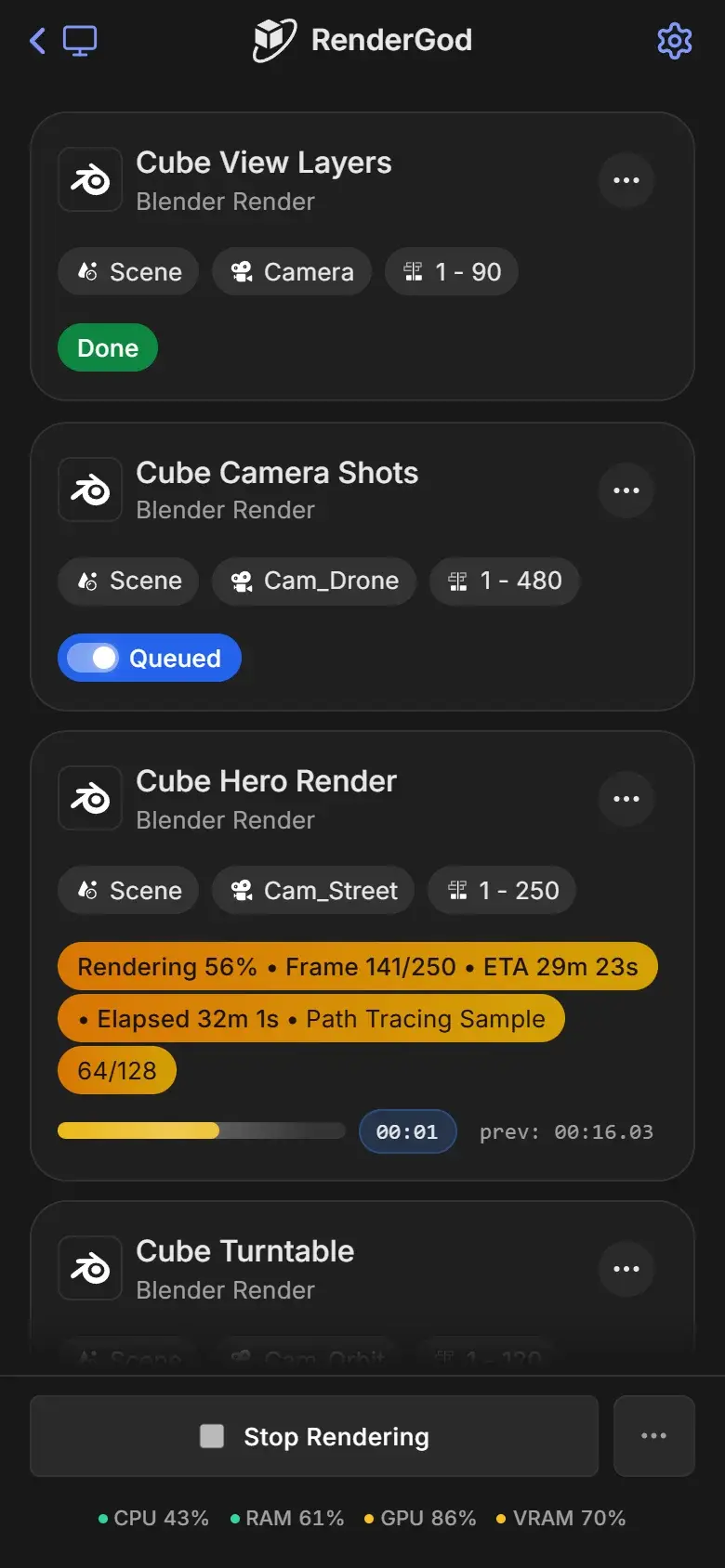
Click the computer name in the header to open its menu:
- Switch Computer returns to the list.
- Sign Out of This Browser signs out only this browser. The computer stays signed in.
What you cannot do from a browser
These need the computer itself, so they are hidden or disabled in the browser, each with a short explanation.
| Feature | Do this instead |
|---|---|
| Import, drag and drop | Import on the computer, or send the scene from Blender there |
| Open folders in Explorer or Finder | Open the folder at the computer |
| Install the Blender add-on | Install it from RenderGod on the computer |
| Reset Settings, Force Quit, Start at Login, sign in or out of the computer | Change them at the computer |
| Full-size frames and finished-video playback | The browser shows preview images. View full frames at the computer |
Manage connected browsers
Open Settings, then Remote Control on the computer. The list shows each connected browser with its connect time and last activity.
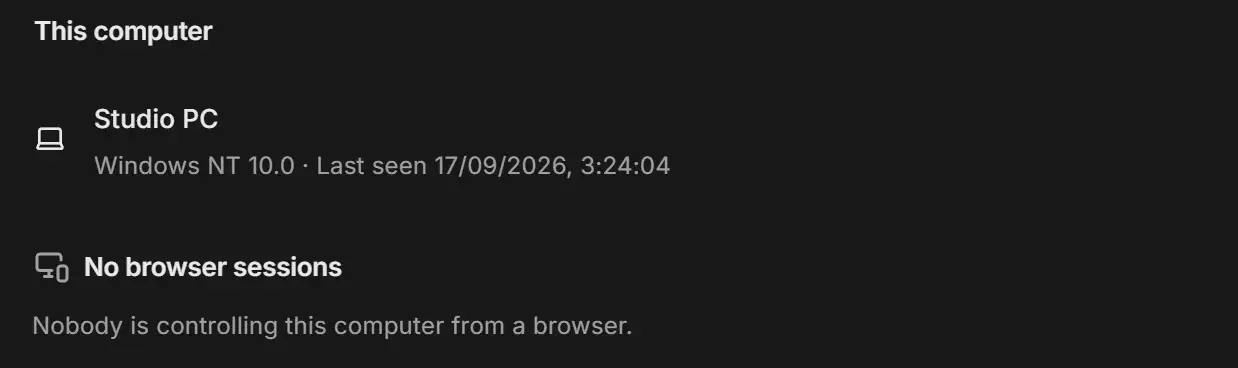
- End session disconnects one browser.
- Turn Off disconnects all of them.
- Turning off Allow browsers without asking disconnects browsers that were already let in, and each one must be approved again.
If someone else may have access
Click Turn Off first, then secure your Google account before you turn Remote Control back on.
Previews away from home
When Remote Control is on, RenderGod checks that previews can reach browsers on other networks, such as a phone on mobile data. If they may not, Settings, Remote Control shows "Previews may not reach you away from home". On Windows, click Allow it through Windows Firewall and accept the Windows prompt. Controls and job information keep working either way.