Create a Video Automatically When a Render Finishes
Turn on Auto Create Video so RenderGod encodes your rendered frames into an MP4 or ProRes video as soon as the render ends, with your choice of FPS and size.
Auto Create Video encodes a job's rendered image sequence into a video file as soon as the last frame is done. You render safe, resumable frames and still get a ready-to-share MP4 or ProRes movie without a separate conversion step.
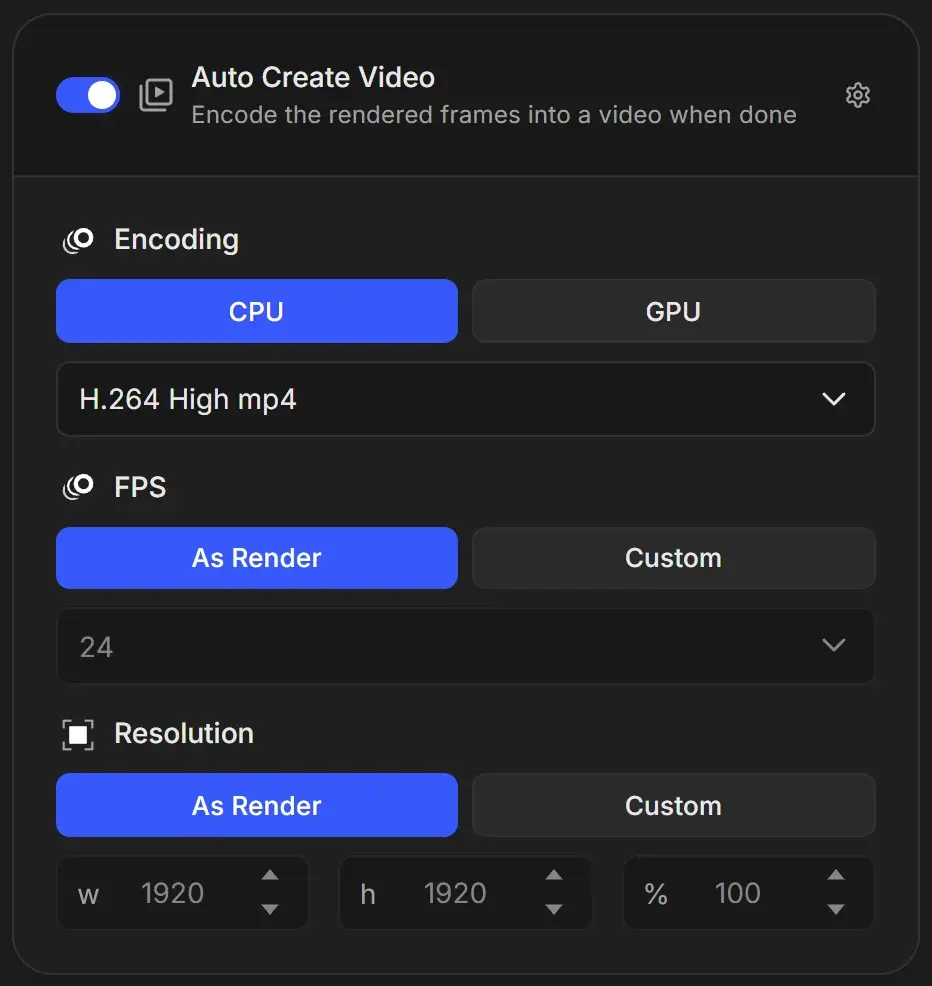
Turn on Auto Create Video
- Select the job.
- Turn on Auto Create Video. Changing any setting in the card also turns it on.
- Choose the encoder and format under Encoding.
- Leave FPS and Resolution on As Render, or set custom values.
This card stays editable while the job renders, so you can turn it on or change the format mid-render. The gear icon opens Auto Create Video settings, where you choose whether new jobs start with it on (it starts off) and which format they use.
Choose the encoding
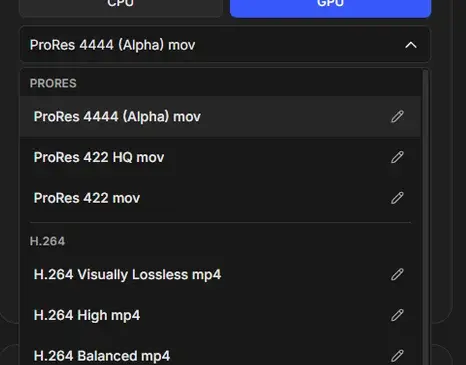
CPU or GPU
| Option | Behaviour |
|---|---|
| CPU | Slower. Usually holds detail better at low bitrates. |
| GPU | Much faster. Quality is close to CPU at normal bitrates and can fall behind at low ones. Falls back to CPU if no hardware encoder is available. |
New jobs start with GPU. On Windows, GPU encoding uses your graphics card's hardware encoder. On macOS it uses the Mac's built-in hardware encoder (VideoToolbox). See GPU and CPU encoding.
Video format
| Format | Use it for |
|---|---|
| ProRes 4444 (Alpha) mov | Editing and compositing, keeps transparency. The default for new jobs. |
| ProRes 422 HQ mov, ProRes 422 mov | High-quality editing masters without alpha |
| H.264 Visually Lossless mp4 | Near-master quality in a widely playable file |
| H.264 High mp4, H.264 Balanced mp4 | Client reviews and web sharing |
| H.264 16Mbps (Social Media) mp4 | Uploads to social platforms |
| H.265 Visually Lossless mp4, H.265 High mp4, H.265 Balanced mp4 | Smaller files than H.264 at similar quality |
Other formats you create, such as AV1, VP9 or DNxHD, appear in their own groups. Formats that can only encode on the CPU show (CPU only) when GPU is selected. At the bottom of the list:
- + Add Custom Format creates a new format. See Create a custom encoding format.
- Format Manager edits and deletes formats. See Manage encoding formats.
- Setup Defaults opens Conversion Defaults settings.
Each format has a pencil icon to edit it directly. For the differences between codecs, see Video encoding formats explained.
Follow the scene's video settings
If the .blend scene is set to render a video (FFmpeg output), the list also offers Follow Scene at the top. It encodes with the scene's codec, container and quality, shown in a line such as "Scene encoding: H264 · MPEG4 · High Quality · AAC 192k".
Include Audio
Include Audio appears only when the scene's video settings include an audio codec. Turn it on to add the scene's sound to the video. It starts off.
Set the frame rate
| Option | Result |
|---|---|
| As Render | Uses the scene's frame rate |
| Custom | Choose from 23.976, 24, 25, 29.97, 30, 50, 59.94, 60, 100 or 120 |
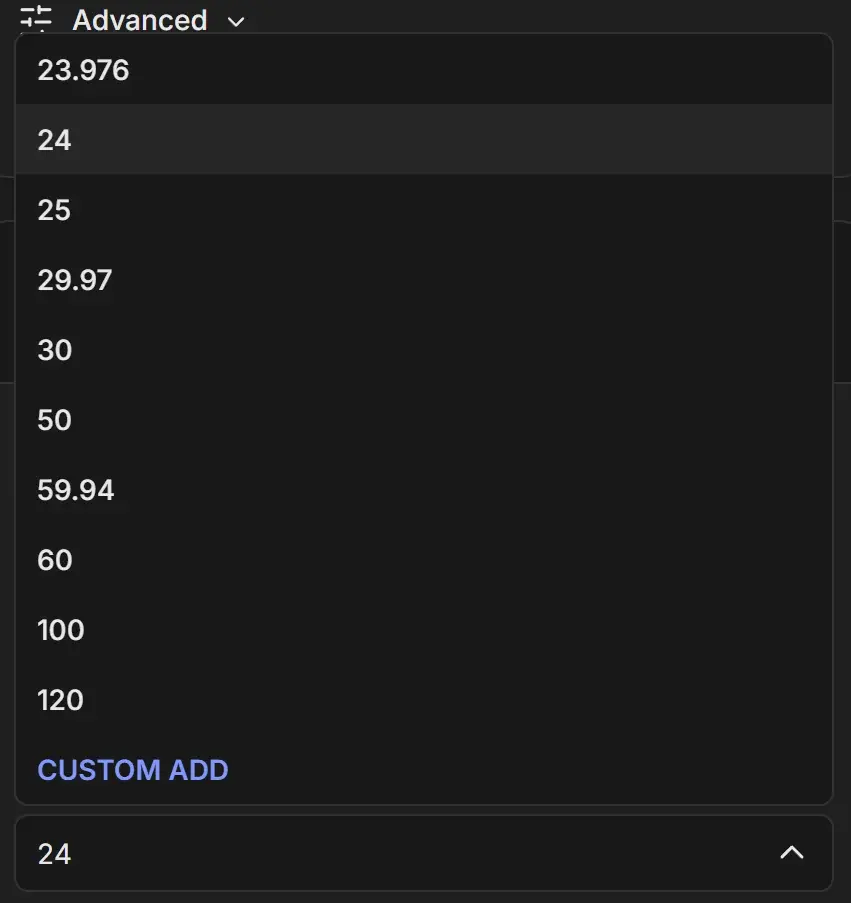
Choose CUSTOM ADD at the bottom of the list to type another value, such as 12 or 48, in the Add Custom FPS dialog. Custom values stay in the list until you close RenderGod. See Frame rate and custom FPS.
Changing the frame rate does not render extra frames. It changes playback speed: 120 frames at 24 FPS play for 5 seconds, at 60 FPS for 2 seconds.
Set the video resolution
| Option | Result |
|---|---|
| As Render | Same size as the rendered frames |
| Custom | Set w, h or %. The percentage is relative to the render size, so 50% of a 3840 x 2160 render gives a 1920 x 1080 video. |
After the render
When the last frame is saved, RenderGod encodes the frames into the video. A Preview: Output Video card appears at the top of the panel while it encodes and plays the result when it is ready. See Preview the output video.
Make a video from a job that already finished
Turning on Auto Create Video on a finished job does not re-render. Instead, a notification offers Create Video Job, which adds a conversion job to the queue using the existing frames.