Render a Turntable and Get an MP4 Automatically
Render a Blender turntable animation as safe PNG frames and let RenderGod encode an MP4 or ProRes video the moment the last frame is done. No extra export step.
Render a turntable and get an MP4 automatically: RenderGod renders the animation as an image sequence, then encodes the frames into a video when the job finishes. Rendering frames instead of a video file means a crash or pause never ruins the whole movie, and you still end up with a file you can send to a client.
This example uses C:\Projects\Cube Studio\Cube Turntable.blend, a 120 frame animation.
Render the turntable to video
Add the file to the queue
In Blender, click Send to RenderGod in the sidebar or the Render menu, or drag the .blend onto the RenderGod window. See Send the current scene to RenderGod.
Check the frame range and camera
Select the job. Make sure From Frame and To Frame cover one full rotation (for example 1 to 120) and Camera is your turntable camera.
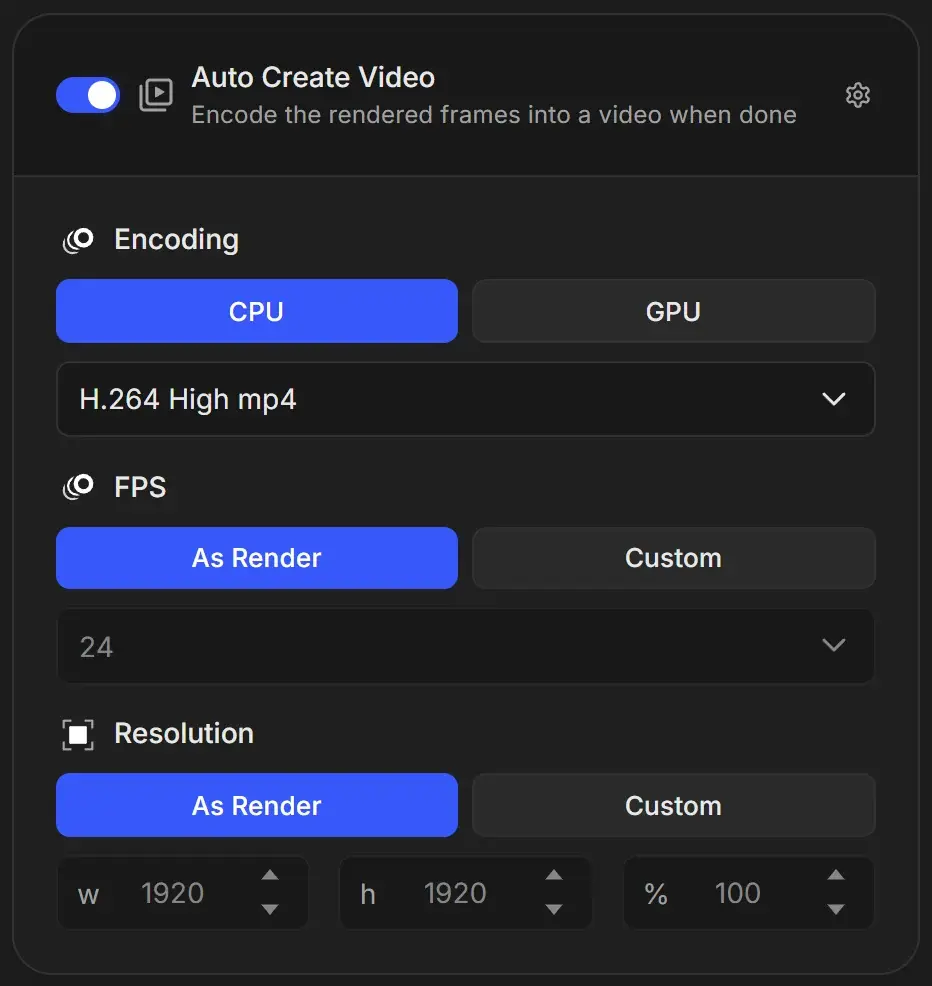
Pick the video format
Under Encoding, choose CPU or GPU, then a format:
| Format | Use it for |
|---|---|
| H.264 High mp4 | Client previews, web and social posts |
| H.264 16Mbps (Social Media) mp4 | Uploading straight to social platforms |
| ProRes 422 HQ mov | Taking the turntable into an editor |
| ProRes 4444 (Alpha) mov | A turntable with a transparent background |
Leave FPS and Resolution on As Render to match the scene. See Video encoding formats explained.
Start the queue
Click Start. The job renders the frames first. When the last frame is done, the video is encoded and the job card shows Auto Create Video with its own Done pill.
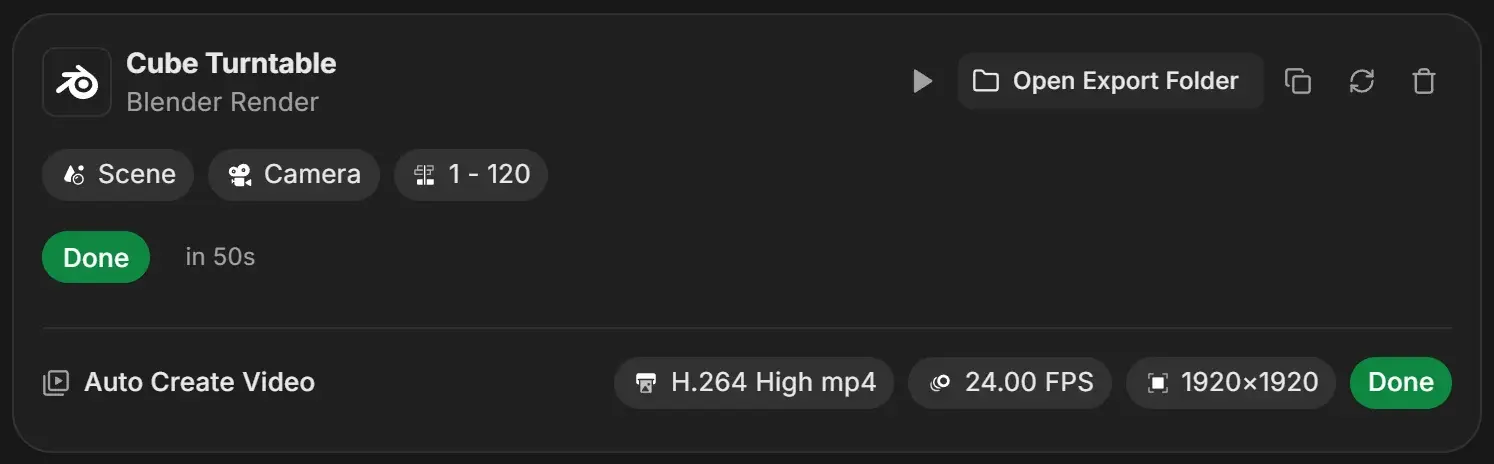
Watch and share the video
Select the job. The Preview: Output Video card plays the finished video. Click Open Export Folder on the job card to find the files. See Preview the output video.
Tips for turntables
Keep the background transparent
Turn on Film Transparent under Advanced in the Render Settings card, and pick ProRes 4444 (Alpha) mov. H.264 and H.265 videos cannot store transparency. See Advanced Cycles settings.
Loop the turntable cleanly
Make sure the last frame is not a copy of the first one (for example, rotate 360 degrees over frames 1 to 121 and render 1 to 120). Otherwise the video stutters when it loops.
Your scene is set to render a video
If the .blend output is set to an FFmpeg video, RenderGod still renders an image sequence and offers Follow Scene in the encoding list, which uses the scene's own video settings.
Add a video to a job that already finished
Turning on Auto Create Video on a finished job offers Create Video Job, which adds a conversion job that encodes the existing frames. See Turn an image sequence into a video.
Make every new job create a video
Set the default in Settings > Auto Create Video. See Auto Create Video settings.