GPU and CPU Video Encoding in RenderGod
Choose GPU encoding for speed or CPU encoding for the best detail at low bitrates. See which NVIDIA, AMD, DirectX 12 and Apple encoders RenderGod uses.
Every video encode in RenderGod runs on either the CPU or the GPU. GPU encoding uses the video encoder chip on your graphics card or Mac and is much faster. CPU encoding is slower but usually keeps more detail when the bitrate is low.
The CPU and GPU buttons sit above the format list wherever you pick a video format: in image sequence and video conversions, in Auto Create Video and in Conversion Defaults.
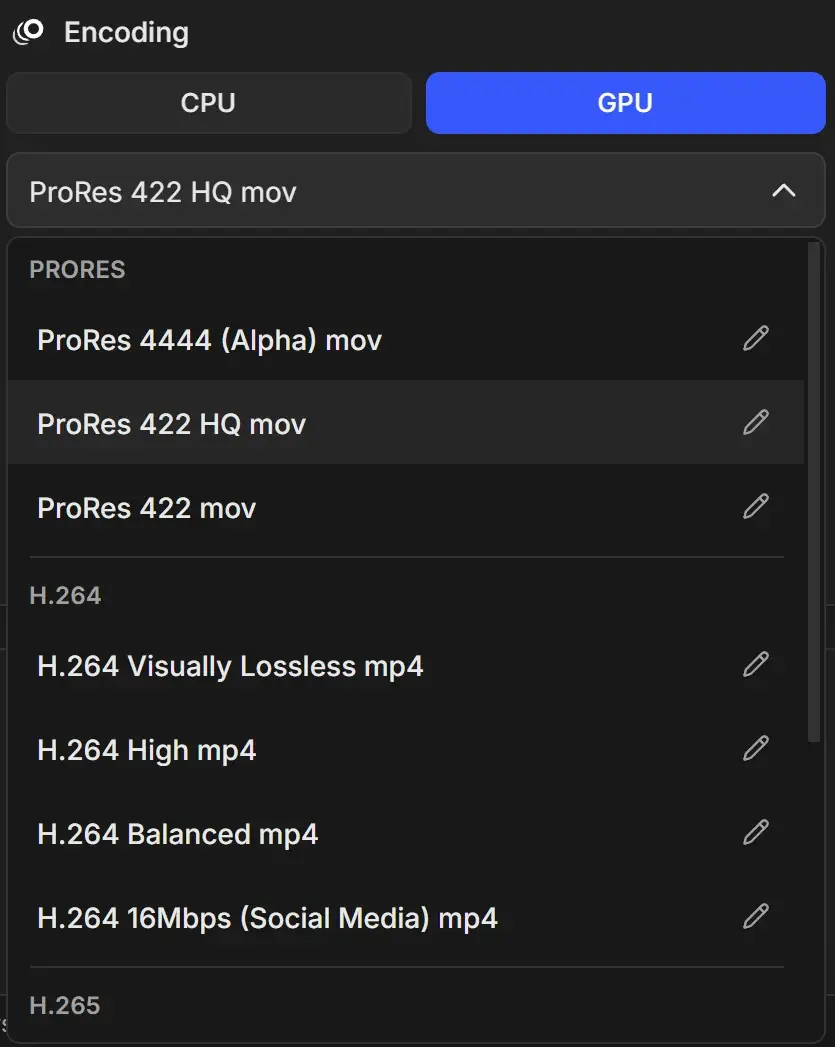
Which one to choose
| Option | What it does | When to use it |
|---|---|---|
| CPU | "Slower. Usually holds detail better at low bitrates." | Small files where every bit counts, archives, 10-bit output on a Mac |
| GPU | "Much faster. Quality is close to CPU at normal bitrates and can fall behind at low ones." | Previews, reviews, long sequences, high-quality levels where the difference is invisible |
New jobs start with GPU. The choice is saved on each job, and the default is set in Conversion Defaults.
Which codecs use the GPU
| Codec | GPU encoders RenderGod tries, in order |
|---|---|
| H.264 | NVIDIA NVENC, AMD AMF, DirectX 12 video encoding, then CPU |
| H.265 | NVIDIA NVENC, AMD AMF, then CPU |
| AV1 | NVIDIA NVENC (GeForce RTX 40 series or newer), AMD AMF, DirectX 12 video encoding, then CPU |
| ProRes | Vulkan, then CPU |
| VP9, DNxHD, Animation, PNG Lossless, Uncompressed | CPU only |
RenderGod checks which hardware encoders work when it starts. With GPU selected, formats that can only encode on the CPU show (CPU only) in the format list.
What happens without a hardware encoder
GPU stays selectable even when the computer has no supported encoder. The job then encodes on the CPU without a warning, so it still finishes, only more slowly.
If a hardware encoder fails while turning an image sequence into a video, RenderGod tries the next encoder in the list and finally the CPU. For video-to-video conversions it does not retry: if the job fails, switch it to CPU and start it again.
Troubleshooting slow or failed GPU encodes
- Update your graphics driver. Hardware encoders depend on it.
- AV1 hardware encoding needs a recent graphics card. Older cards fall back to the CPU, which is much slower for AV1.
- Some GPUs limit how many encodes can run at once. Close other apps that record or stream.
- If the result looks blocky at low bitrates, raise the quality level or switch to CPU.