Convert Images, Video and Audio in RenderGod
Convert image sequences, videos and audio files in the same queue as your Blender renders. See which file types RenderGod accepts and how conversion jobs work.
RenderGod can convert images, video and audio as well as render Blender files. Conversions are ordinary jobs in the render queue, so you can line up a video encode behind an overnight render and let both run unattended.
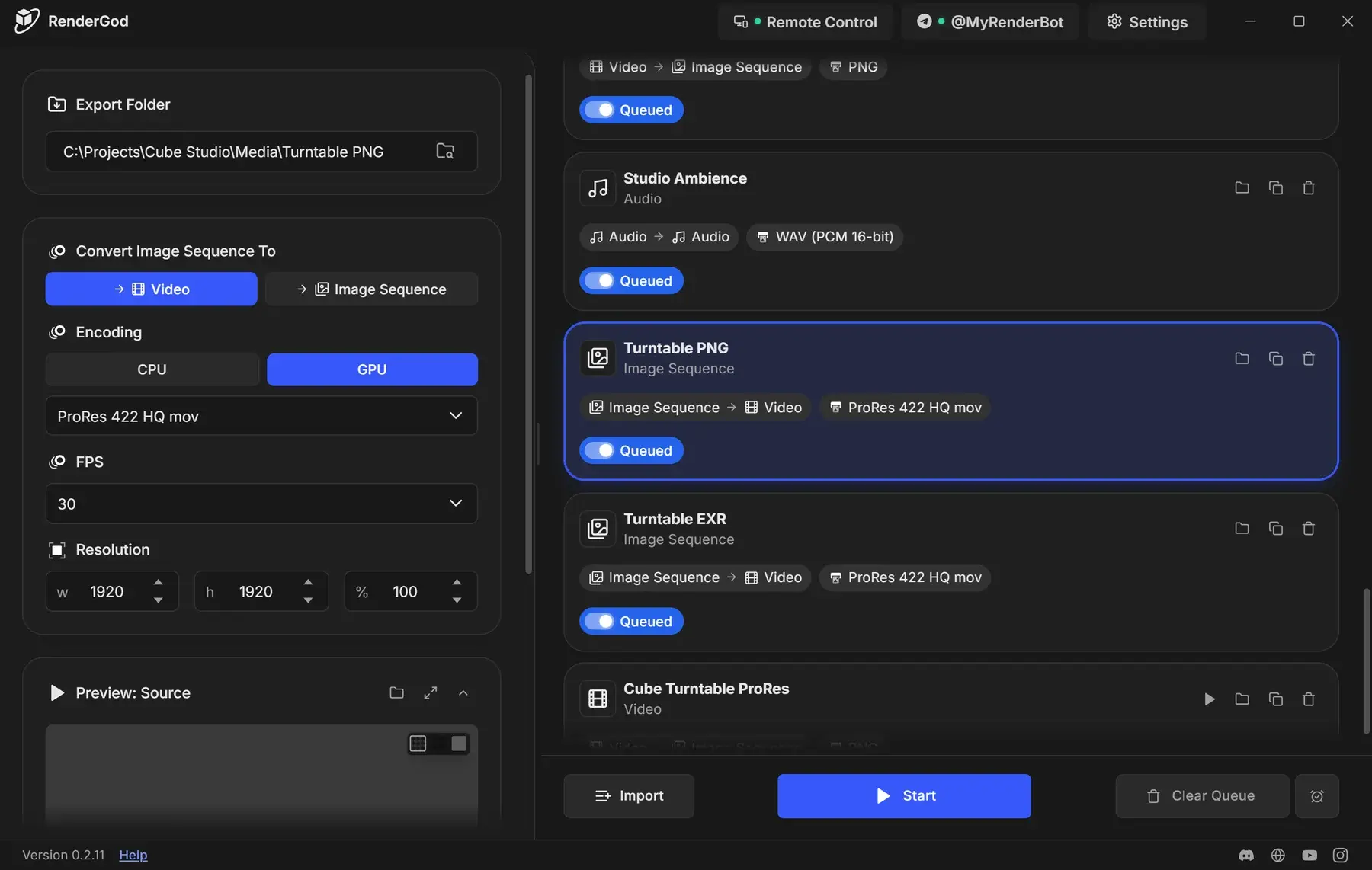
What you can convert
| Start with | Convert to | Guide |
|---|---|---|
| Image sequence | A video file | Turn an image sequence into a video |
| Image sequence | An image sequence in another format | Convert an image sequence to another format |
| Video | An image sequence | Extract an image sequence from a video |
| Video | A video in another format | Convert a video to another format |
| Video | An audio file | Extract audio from a video |
| Audio | An audio file in another format | Convert audio files |
How a conversion works
Import the media
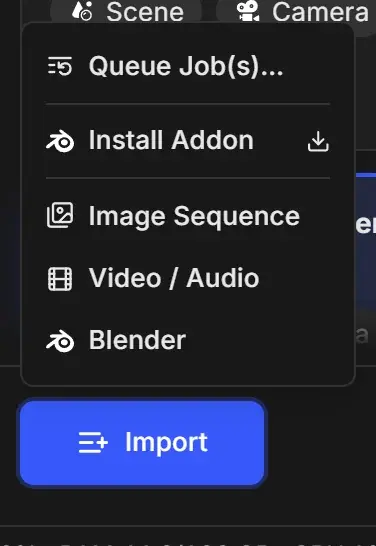
Click Import at the bottom of the queue and choose Image Sequence (pick a folder) or Video / Audio (pick one or more files). You can also drag files or folders onto the window. On an empty queue, use the Import Video / Audio and Import Image Sequence buttons.
Select the job card
A job card appears in the queue. Click it. The settings panel for that job opens next to the queue. There is no separate conversion tab: the panel matches the kind of media you imported.
Choose what to convert to
Pick the target with the Convert Image Sequence To or Convert Video To buttons, then set the format, frame rate and size.
Start the queue
Click Start. Progress shows on the job card. When the job is done, click Open Export Folder on the card.
Settings save as you change them. There is no Save button.
Accepted input file types
| Media | Extensions | What RenderGod creates |
|---|---|---|
| Video | .mp4, .mov, .avi, .mkv, .webm, .wmv, .flv | A video job, opened in Image Sequence mode |
| Audio | .mp3, .wav, .flac, .m4a, .ogg, .opus, .aac, .wma | An audio job |
| Image sequence frames | .png, .jpg, .jpeg, .exr, .tiff, .tga, .bmp, .hdr, .dpx | An image sequence job for the folder that holds the frames |
| Folder | Any folder of numbered frames | An image sequence job |
Extensions are not case sensitive. Other files, such as .webp, .gif, .mxf, .m4v or .ts, are refused with "Unsupported file type".
.tif file is refused, but a folder of .tif frames imports fine with Import > Image Sequence.How RenderGod reads an image sequence
RenderGod looks for numbered file names such as 0001.png, shot_0001.png or NewLevelSequence.0001.jpeg, and starts from the lowest number it finds. Keep one sequence per folder: if a folder holds several sequences, only the first one alphabetically is used. Avoid gaps in the numbering.
Where files are saved
| Conversion | Default export folder | File names |
|---|---|---|
| Image sequence to video | The image folder itself | output.mov, output.mp4 and so on |
| Image sequence to image sequence | The image folder itself | frame_0001.png, frame_0002.png... |
| Video to image sequence | <video name>_RenderGod next to the video | frame_0001.png... |
| Video to video | <video name>_RenderGod next to the video | The source name with the new extension |
| Video or audio to audio | <file name>_RenderGod next to the file | The source name with the new extension |
Change the folder in Export Folder by typing a path or clicking the folder button. The folder is created when the job starts.
Change a running or finished conversion
While a job converts, its settings are locked. A finished job is read-only.

- Pause Queue stops the queue so you can edit. The conversion restarts from the beginning when you start again.
- Duplicate Job creates an editable copy, so you can convert the same media with other settings. See Duplicate a render job.