Extract an Image Sequence From a Video
Split a video into PNG, EXR or JPEG frames with RenderGod. Keep the source frame rate and size or set your own, then find the numbered frames on disk.
Extract an image sequence from a video when you need individual frames, for example to use footage as a background plate in Blender, to paint over frames or to pull stills.
Extract the frames
Import the video
Click Import > Video / Audio and pick the video, or drag it onto the window. Supported files are .mp4, .mov, .avi, .mkv, .webm, .wmv and .flv.
Select the job
Click the job card. The panel opens with Image Sequence selected under Convert Video To, and Image Format set to PNG.
Choose the format, frame rate and size
Pick an Image Format. Leave FPS and Resolution on As Source, or click Custom.
Start
Click Start. Frames are written to Export Folder, which starts as a <video name>_RenderGod folder next to the video.
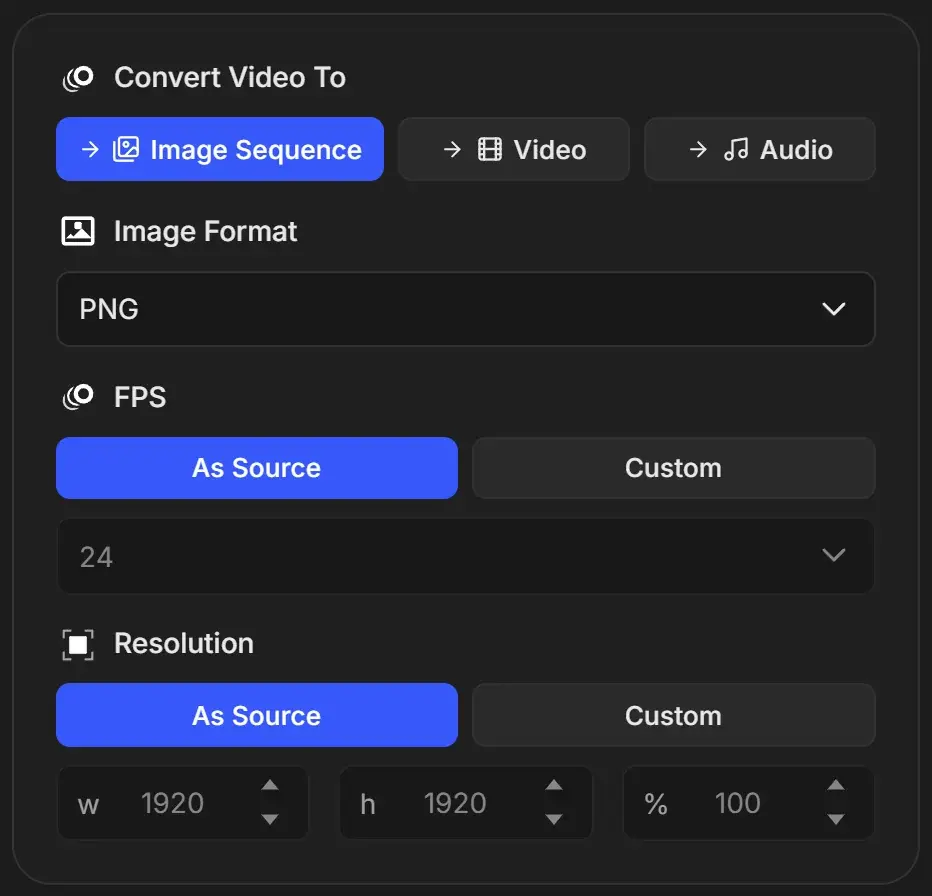
Settings
| Setting | Options | What it does |
|---|---|---|
| Image Format | PNG + Alpha, PNG, EXR Lossless (ZIP), EXR Fast (DWAA), EXR Uncompressed, JPEG Baseline, JPEG Progressive, JPEG Fastest | File type of each frame |
| FPS | As Source or Custom | As Source extracts at the video's own frame rate |
| Resolution | As Source or Custom (w, h, %) | As Source keeps the video size |
Extract fewer or more frames
With FPS on Custom, RenderGod drops or repeats frames to hit the rate you choose. A 10-second 30 FPS clip gives about 300 frames as source, 120 frames at 12 FPS and 600 frames at 60 FPS. To get every original frame once, keep As Source. See Frame rate and custom FPS.
Change the frame size
Click Custom next to Resolution, or type in w or h (this switches to Custom). % scales from the source size, so 50% of a 3840 x 2160 video gives 1920 x 1080 frames.
Which image format to pick
| Goal | Format |
|---|---|
| Lossless frames for editing or painting | PNG |
| Frames from a video that has an alpha channel, such as ProRes 4444 | PNG + Alpha |
| Frames for an EXR compositing workflow | Any EXR option (they produce the same 32-bit float file, without alpha) |
| Small frames for reference or review | JPEG Baseline |
Most videos have no alpha, so PNG + Alpha gives fully opaque frames. EXR frames from a normal 8-bit video hold the same image as PNG, not extra dynamic range.
Output
- Frames are named
frame_0001.png,frame_0002.pngand so on. - Existing frames with the same names in the export folder are replaced.
- If the video's frame rate or size cannot be read, RenderGod assumes 30 FPS and 1920 x 1080. Check the values before you start.