Turn an Image Sequence Into a Video
Encode a folder of PNG, EXR, JPEG or TIFF frames into a ProRes, H.264 or H.265 video with RenderGod. Set the codec, frame rate and output size in a few clicks.
Turn an image sequence into a video when you have rendered frames and need one playable file for editing, review or upload. RenderGod encodes the frames in the queue, alongside your renders.
Encode the frames
Import the sequence
Click Import > Image Sequence and pick the folder with the frames, or drag the folder (or any frame in it) onto the window.
Select the job
Click the new job card. Under Convert Image Sequence To, Video is already selected.
Pick the encoding
Choose CPU or GPU, then a format from the list below them.
Set FPS and resolution
Choose the frame rate and, if needed, a new size.
Check the export folder and start
The video is saved as output.mov (or .mp4, .mkv, .webm, depending on the format) in Export Folder, which starts as the frames folder. Click Start.
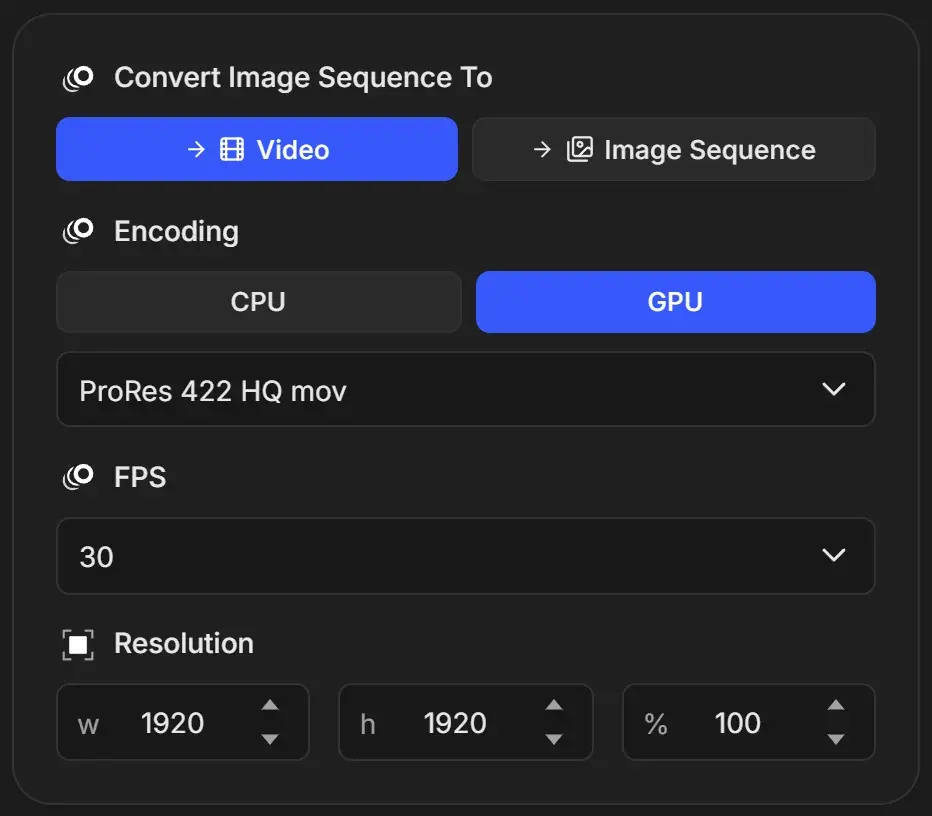
Settings
| Setting | What it does | Default |
|---|---|---|
| Export Folder | Where output.<extension> is written | The frames folder |
| Encoding (CPU / GPU) | Software or hardware encoding. See GPU and CPU encoding. | GPU |
| Format | Codec, container and quality, such as ProRes 422 HQ mov or H.264 High mp4 | ProRes 422 HQ mov |
| FPS | Playback speed of the video | 30 |
| Resolution (w, h, %) | Output size in pixels, or a percentage of the frame size | Size of the first frame |
Defaults come from Conversion Defaults.
Frame rate sets the playback speed
Every frame becomes one video frame. The FPS value only changes how fast they play: 120 frames last 5 seconds at 24 FPS and 2 seconds at 60 FPS. Pick the rate your animation was made for. See Frame rate and custom FPS.
Resize the video
Type a width in w and a height in h, or a percentage in % (applied when you press Enter or leave the field). Width and height are not linked, so change both to keep the aspect ratio.
Choose a format for the job
| You need | Choose |
|---|---|
| A master for editing in Premiere, DaVinci Resolve or Final Cut | ProRes 422 HQ mov |
| Transparency kept for compositing | ProRes 4444 (Alpha) mov |
| A file clients can play anywhere | H.264 High mp4 |
| An upload to social platforms | H.264 16Mbps (Social Media) mp4 |
| Smaller files at similar quality | H.265 High mp4 |
The full comparison, including alpha support, is in Video encoding formats explained.
Good to know
- The video has no sound. Add audio in your editor.
- An existing
outputfile with the same extension in the export folder is replaced. Move or rename it first if you want to keep it. - EXR frames are encoded as stored, with no color management or tone mapping. Linear EXR renders can look darker or flatter than in Blender. For the best result, convert frames that were saved with the view transform applied, such as PNG, or grade the video afterwards.
- If GPU encoding fails, RenderGod tries the next available encoder and finally the CPU.