Convert a Video to Another Format
Re-encode a video to ProRes, H.264 or H.265 with RenderGod. Change the codec, frame rate and resolution, and choose CPU or GPU encoding for speed or detail.
Convert a video to another format when a file is too large to share, will not open in your editor, or needs a different frame rate or size. For example, turn a ProRes master into an H.264 MP4 for a client, or an H.264 phone clip into ProRes for smooth editing.
Convert the video
Import the video
Click Import > Video / Audio and pick one or more videos, or drag them onto the window. Click the job card.
Switch to Video
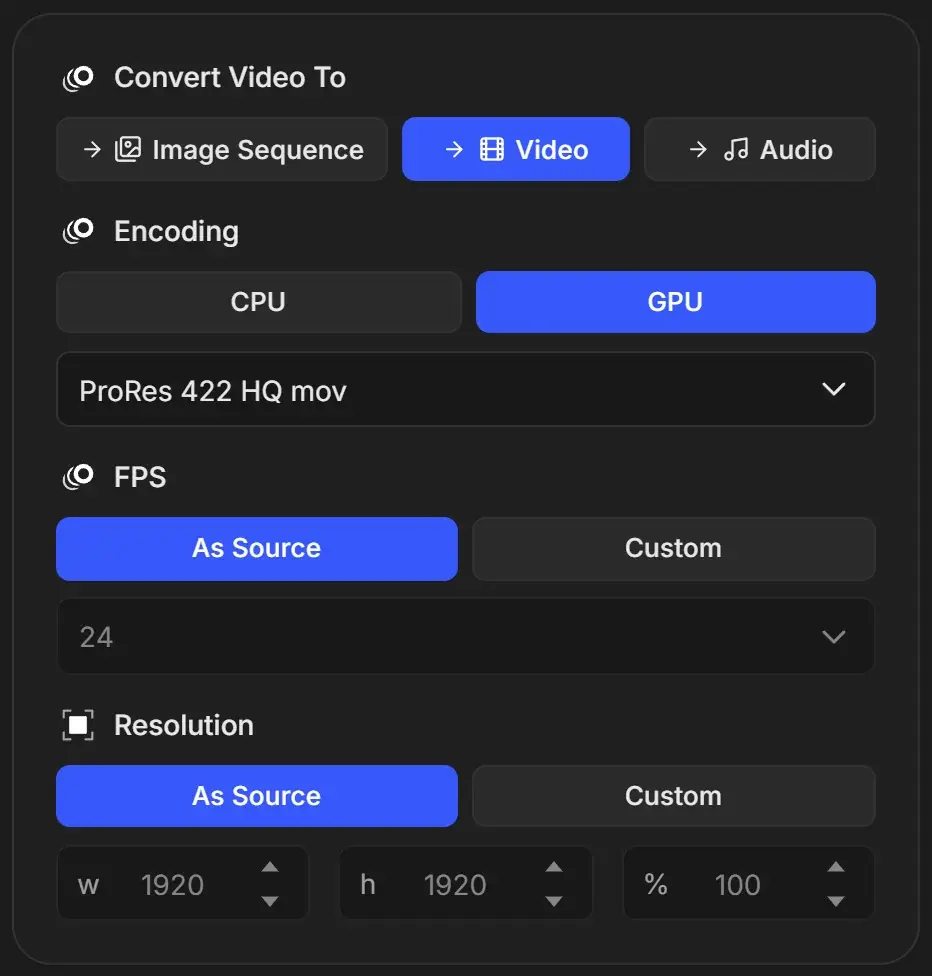
Under Convert Video To, click Video.
Choose the encoding
Pick CPU or GPU and a format, such as H.264 High mp4.
Set frame rate and size, then start
Leave FPS and Resolution on As Source, or click Custom. Click Start.
Settings
| Setting | What it does | Default |
|---|---|---|
| Export Folder | Where the new file is saved | <video name>_RenderGod next to the video |
| Encoding (CPU / GPU) | Software or hardware encoder | From Conversion Defaults |
| Format | Codec, container and quality | Last format used on this job, or the default |
| FPS | As Source keeps the frame rate. Custom drops or repeats frames to reach a new rate. | As Source |
| Resolution | As Source keeps the size. Custom sets w, h or %. | As Source |
The new file keeps the source name with the new extension: Cube Turntable.mov becomes Cube Turntable.mp4.
_RenderGod folder or pick another one.Common conversions
| From | To | Format |
|---|---|---|
| ProRes or DNxHD master | Review copy for a client | H.264 High mp4 |
| Any video | Upload to social platforms | H.264 16Mbps (Social Media) mp4 |
| Phone or camera H.264/H.265 clip | Smooth editing on a timeline | ProRes 422 mov or ProRes 422 HQ mov |
| Large H.264 archive | Smaller file at similar quality | H.265 High mp4 |
See Video encoding formats explained for what each format is good at.
Tips
- Use an even width and height for H.264 and H.265, such as 1920 x 1080.
- Changing FPS here keeps the duration and changes how many frames there are. To slow down or speed up footage, extract an image sequence and encode it at a new frame rate.
- If a GPU encode fails for a video conversion, switch the job to CPU and start it again.
- Only one video format change runs per job. To get several formats, duplicate the job and pick a different format on each copy.