Duplicate a Render Job in the Queue
Copy a RenderGod render job to try other settings, or create one job for every scene, camera or view layer in a .blend file with Duplicate for Every.
Duplicate a render job to render the same file again with different settings, or split one .blend into a job for every scene, camera or view layer.
Make a plain copy
Use any of these:
- Click the Duplicate button on the card. For Blender renders it opens a small menu; choose Duplicate.
- Right-click the card and choose Duplicate.
- On a job that is rendering or finished, click Duplicate Job in the lock banner at the top of the settings panel.
The copy is added at the end of the queue as Queued and is selected. Progress, errors and pause state are cleared, and it renders into a new output folder, so it does not overwrite the original's frames. The original job stays as it is.
Duplicating is the way to render a finished job again: a Done job cannot be edited, but its copy can.
Duplicate for every scene, camera or view layer
For Blender renders, right-click the card and point to Duplicate for Every…, or open the card's Duplicate menu.
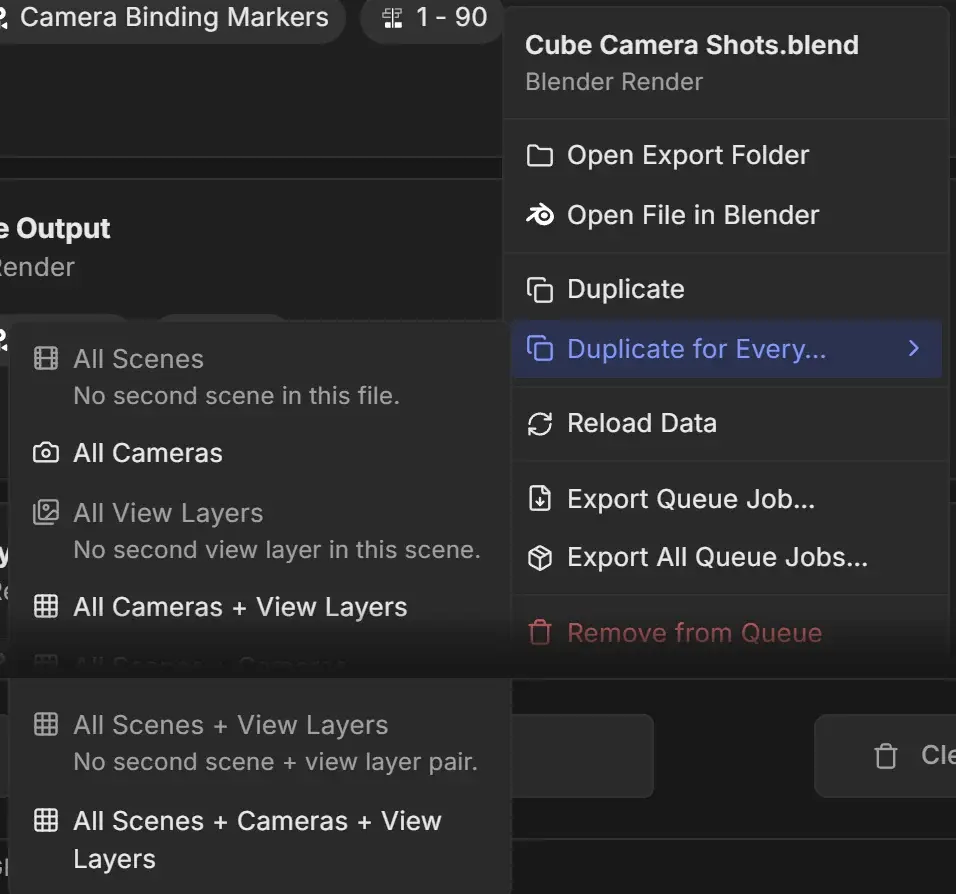
| Option | Creates | Not available when |
|---|---|---|
| All Scenes | One job per scene in the file | The file has one scene |
| All Cameras | One job per camera in the job's scene | The scene has one camera |
| All View Layers | One job per view layer in the scene | The scene has one view layer |
| All Cameras + View Layers | One job per camera and view layer pair | There is only one pair |
| All Scenes + Cameras | One job per scene and camera pair | There is only one pair |
| All Scenes + View Layers | One job per scene and view layer pair | There is only one pair |
| All Scenes + Cameras + View Layers | One job per combination in the file | There is only one combination |
An option that does not apply shows the reason under its name, for example "No second scene in this file."
What to expect:
- The new jobs are added and the first one is selected.
- The original job is removed from the queue. Its settings are kept in History.
- Options with view layers turn on Single View Layer for each new job. See Render a single view layer.
- Options with scenes use each scene's own frame range, frame rate, resolution and active camera.