The RenderGod Render Queue Explained
Understand how the RenderGod render queue works, where it sits in the window, the order jobs render in and what the toolbar buttons do.
The render queue is the list of jobs RenderGod works through, from the top down. A job is one .blend render or one media conversion. You fill the queue, press Start, and RenderGod renders each queued job in turn.
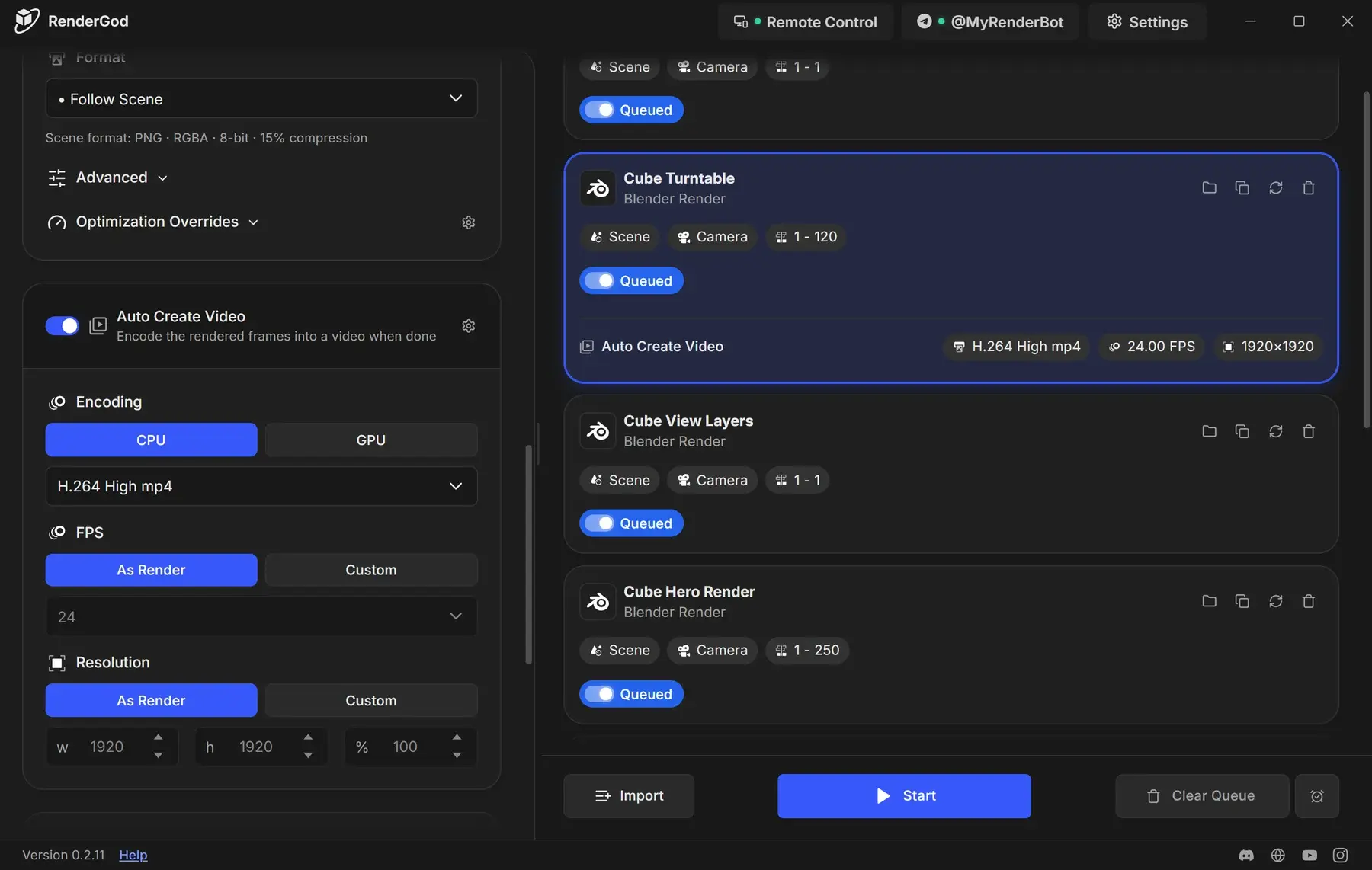
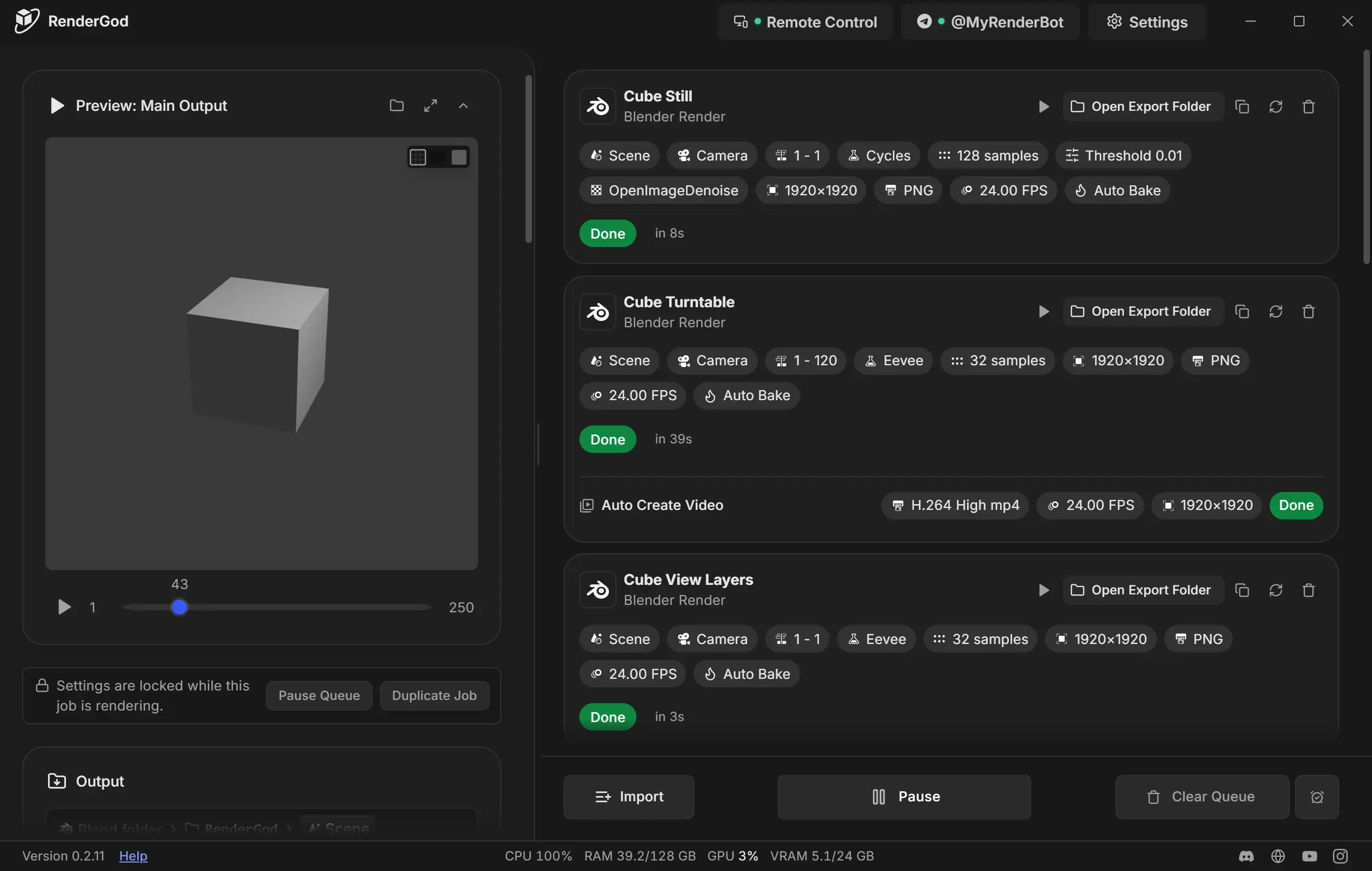
Where the queue is
- In a wide window the queue sits on the right and the settings of the selected job on the left.
- In a narrow window the queue fills the window. Click a job to open its settings full width, then use Back to queue or swipe right to return.
- The queue is saved automatically and is still there the next time you open RenderGod.
Add jobs
When the queue is empty it shows Get Started! with Import Blender, Import Video / Audio, Import Image Sequence and a Queue Job(s)… link. You can also drag files onto the window. See Import .blend files and Drag and drop files.
New jobs are added to the bottom of the queue.
The toolbar
The toolbar at the bottom appears once the queue has at least one job.
| Button | What it does | Learn more |
|---|---|---|
| Import | Adds .blend files, video, audio, image sequences or .rgjob job files, and installs the Blender add-on | Supported file types |
| Start / Pause | Starts the queue, or stops it and pauses the running job | Start, pause and stop the queue |
| Clear Queue | Removes every job except one that is rendering | Remove jobs and clear the queue |
| When Done (alarm clock icon) | Shuts down or sleeps the computer when the queue finishes, and turns the completion sound on or off | When done actions |
Render order
- RenderGod renders the first queued job from the top, then the next one down.
- Drag cards to change the order. See Reorder jobs.
- Jobs that are Done, Failed or Skipped are passed over. Only queued and paused jobs render.
- If a job fails, the queue moves on to the next job.
Select a job
Click any empty area of a card, or move to it with Tab and press Enter or Space. The settings panel switches to that job. You can select one job at a time.
Right-click a card for more actions, such as Open File in Blender and Export Queue Job…. See Reading a job card.