Render Queue
Reading a Job Card in the Render Queue
Learn what every part of a RenderGod job card means, from badges and status to progress, notices, the action buttons and the right-click menu.
Each job in the render queue is shown as a job card. The card tells you what the job renders, where it stands, and gives you the actions you need for it.
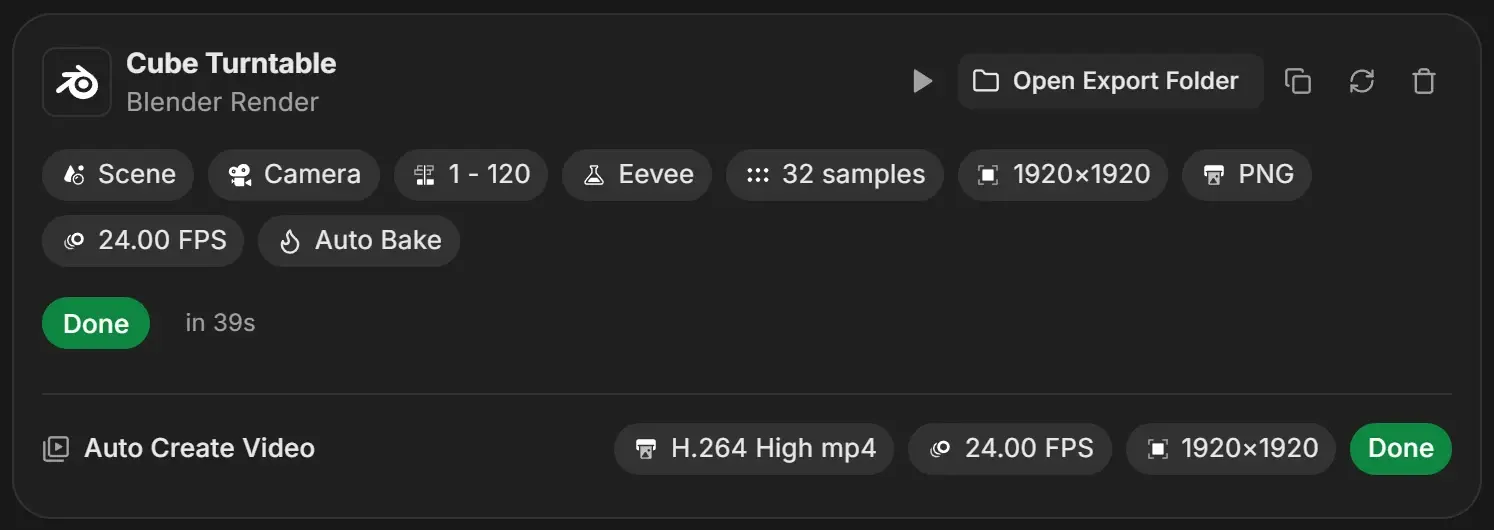
Parts of a card
| Part | What it shows |
|---|---|
| Icon | Blender logo for renders, film strip for video, images for image sequences, music note for audio |
| Title | The job name. For renders it is the .blend name without the extension. Hover to see the full name. |
| Subtitle | Blender Render, Video, Image Sequence or Audio |
| Badges | Scene, camera, frame range and other settings. See Job badges. |
| Status | A coloured label such as Queued or Rendering. See Job statuses. |
| Progress | Progress bar, frame timer and time remaining while rendering. See Progress and ETA. |
| Auto Create Video row | The video that is made when the render ends, and its own status. See Create a video automatically. |
Action buttons
The buttons at the top right show their name when you hover over them.
| Button | What it does | Available for |
|---|---|---|
| Preview (play icon) | Opens the previews window for the job | Jobs that have rendered frames, and finished conversions |
| Open Export Folder | Opens the output folder in Explorer or Finder. Stays labelled on finished jobs. | All jobs |
| Duplicate | Copies the job. For renders it opens a menu with Duplicate for Every… options. | All jobs |
| Reload | Reads the .blend file again | Blender renders |
| Remove | Removes the job after a second click on Click to Confirm | All jobs |
When the queue is narrow, the buttons collapse into one More actions menu with the same items.
Buttons next to the status
| Button | Appears when | What it does |
|---|---|---|
| Switch inside the status | Queued, paused, failed or skipped | Skips the job or includes it again. See Skip a job. |
| Retry | Failed | Queues the job to render again. See Retry and reset. |
| Click to Reset | Paused | Sends the job back to its first frame |
| Skip Baking | Baking physics | Stops the bake and starts rendering |
Notices on a card
| Notice | Meaning |
|---|---|
| Blue box "Scene uses FFmpeg output - rendering as image sequence, auto-video enabled." | The scene is set to render a video. RenderGod renders frames and builds the video from them afterwards. |
| Red box "Uncrash Feature & Telegram Bot preview video feature - not supported at FFMPEG Format." | The scene renders straight to video, which crash recovery and phone previews cannot use. Change to PNG switches the job to PNG frames; Ignore greys the box out until the job reloads. |
| "Blender file changed - reload settings" in the rendering status | The .blend was saved after import. See Reload settings. |
| Skipped Frames box with frame numbers | Those frames failed twice and were skipped. See Skipped frames. |
| Red box with an error text | Details of a problem RenderGod could not put into a short label. See Render error messages. |
Right-click menu
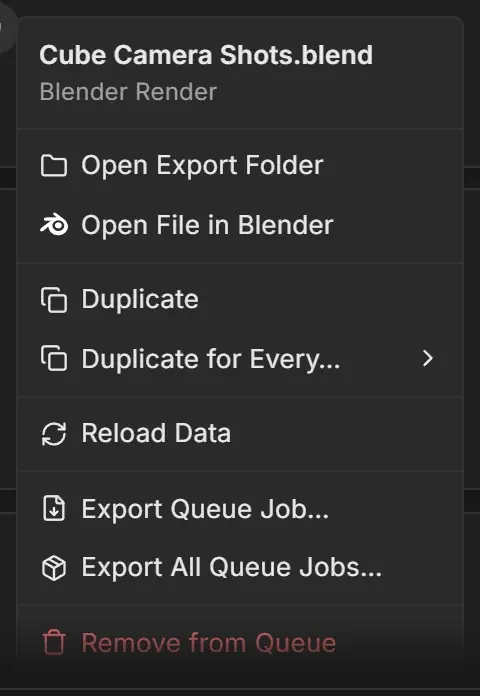
| Item | What it does |
|---|---|
| Open Export Folder | Opens the output folder |
| Open File in Blender | Opens the .blend in the Blender version the job uses (renders only) |
| Duplicate | Adds a copy of the job at the end of the queue |
| Duplicate for Every… | Creates one job per scene, camera or view layer (renders only). See Duplicate a render job. |
| Reload Data | Reads the .blend file again (renders only) |
| Export Queue Job… | Saves this job as a .rgjob file |
| Export All Queue Jobs… | Saves every job in the queue in one .rgjob file |
| Remove from Queue | Removes the job at once, without a confirm step |