Open Render Previews in a Separate Window
Pop RenderGod previews out into their own resizable window to inspect frames on a second monitor at a larger size while you keep working with the render queue.
Open previews in a separate window when the preview card in the settings panel is too small, for example to check fine detail on a second monitor while you keep the queue and settings visible in the main window.
Open the preview window
- Select a job that shows a preview card.
- Click the pop-out button in the card header, between the folder button and the collapse button. Its tooltip reads "Open in full window".
A window titled "Previews - RenderGod" opens. It shows the job name, type and badges, its status, the Auto Create Video row, an Open Export Folder button, and a large preview with the same background swatches, play button and frame slider as the card. If the window is already open, RenderGod brings it to the front instead of opening another one.
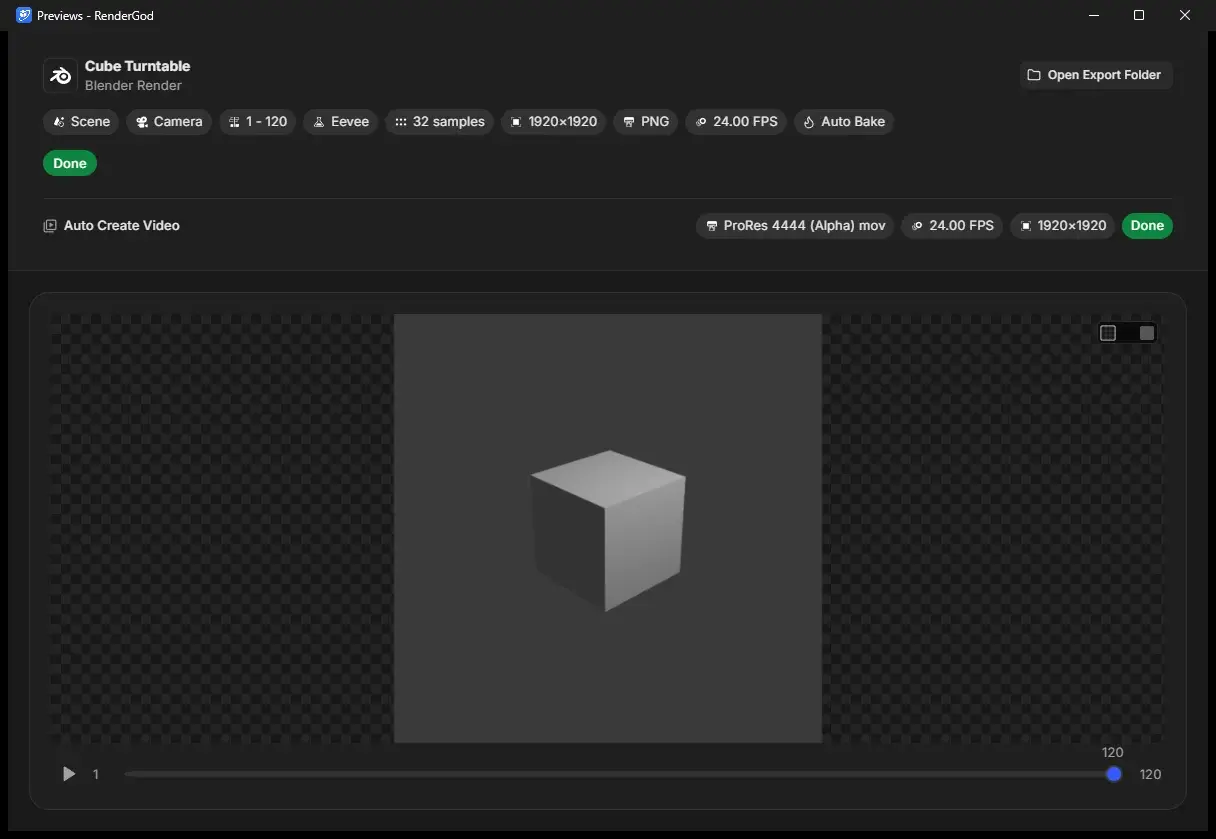
Use the window
- The window opens at 1200 x 800 pixels. Resize it or move it to another monitor. Its smallest size is 700 x 550.
- Zoom, pan, scrubbing, playback and keyboard shortcuts work the same as on the card. See Zoom, pan, scrub and play previews.
- Close it like any other window. The preview card in the main window stays where it was.
Availability
The separate preview window is available in the desktop app on Windows and macOS. It is not available when you control RenderGod from a browser. See What you cannot do from a browser.
If the window cannot open, RenderGod shows a message starting with "Failed to open window". Restart RenderGod and try again.