Zoom, Pan, Scrub and Play Render Previews
Control RenderGod previews with mouse and keyboard. Zoom up to 32x, pan, scrub, play the sequence and switch the background to check transparency.
Every preview card in RenderGod lets you inspect frames closely: zoom into noise or edges, scrub through the sequence and play it back. The same controls work for render previews, output videos and the source preview of conversion jobs.
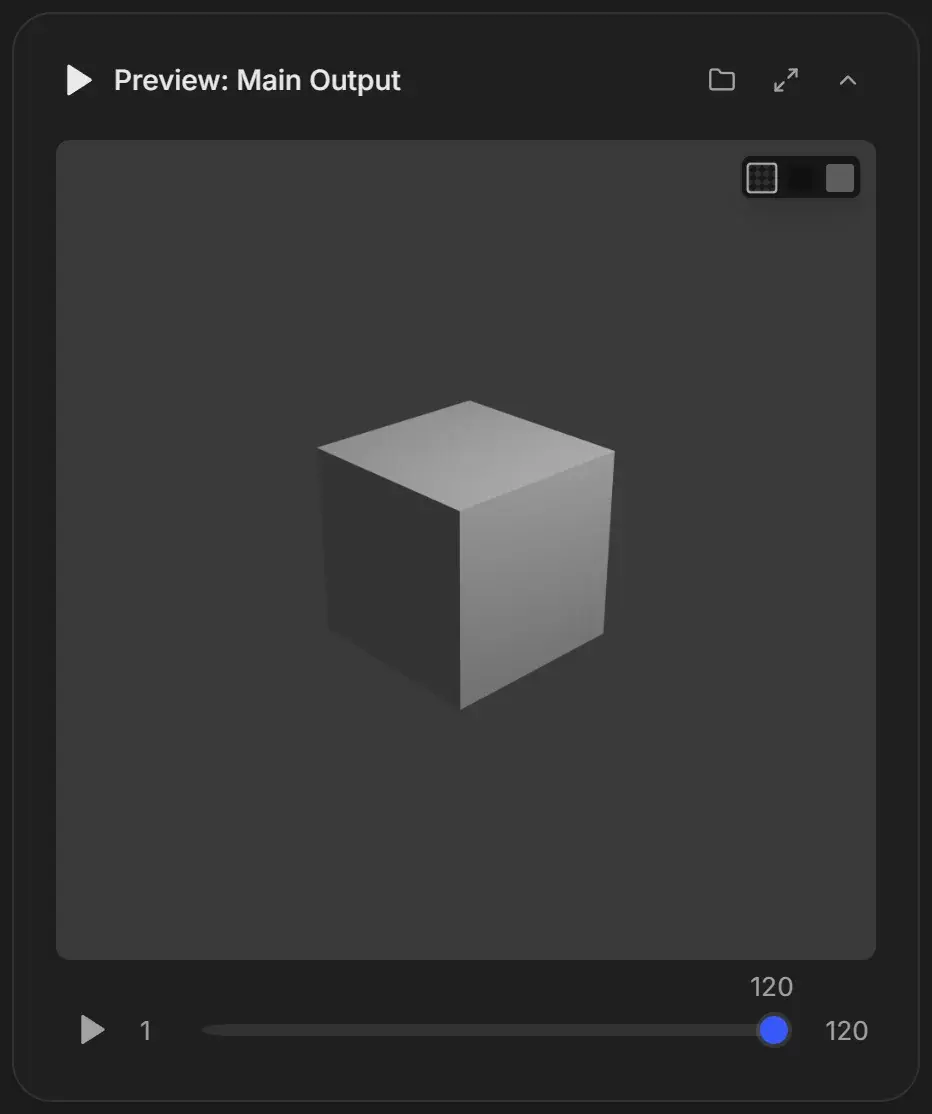
Card controls
| Control | What it does |
|---|---|
| Header or collapse button | Collapses or expands the card |
| Folder button (Open Folder) | Opens the export folder in File Explorer (Finder on macOS) |
| Pop-out button | Opens previews in a separate window. See Open previews in a separate window. |
| Background swatches | Checkerboard, black or white behind the image. Use them to check transparent renders. |
| Play / Pause | Plays the frames in a loop at the job's frame rate |
| Frame slider | Scrubs to any frame. The numbers show the first and last frame. |
| LIVE marker | Appears during a render when you are not on the newest frame. Click it to jump there. |
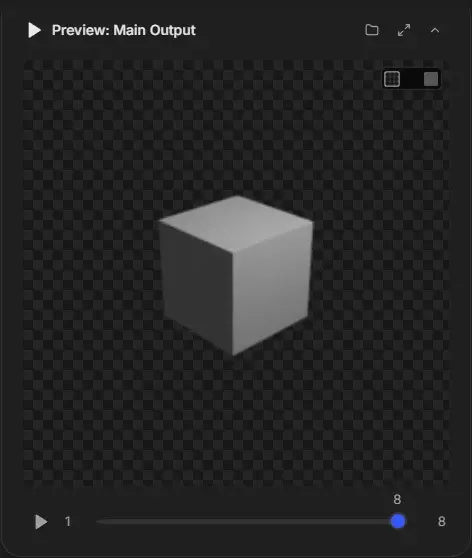
On a narrow card, the background swatches move into a "..." menu under Canvas Background.
Zoom and pan
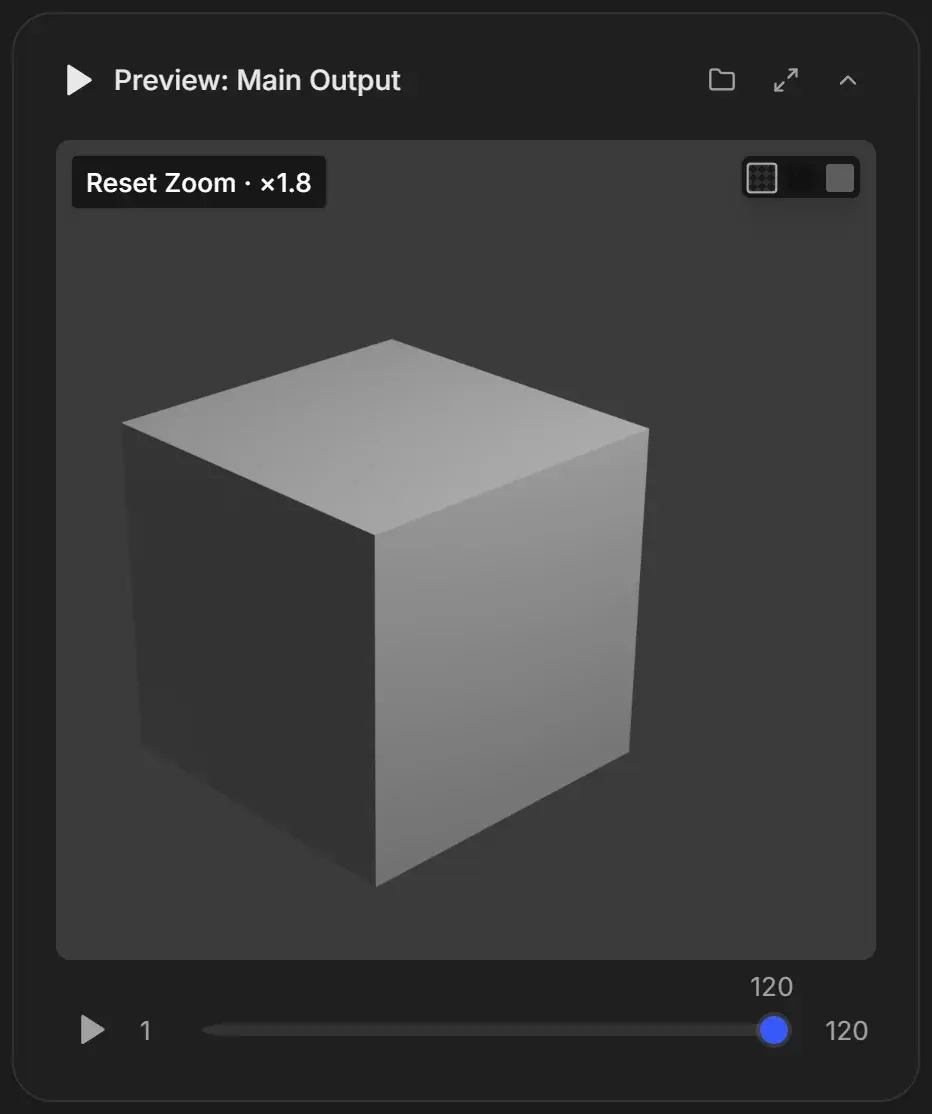
- Zoom: scroll the mouse wheel over the image. Zoom goes from 1x to 32x and centers on the cursor.
- Pan: drag the image.
- Reset: double-click the image, or click the Reset Zoom chip, which also shows the current zoom factor.
Keyboard shortcuts
Shortcuts work when the pointer is over the card or focus is inside it, and not while you type in a text field.
| Keys | Action |
|---|---|
| Space | Play or pause |
| Right / Left | Next or previous frame (stops playback) |
| + or = | Zoom in |
| - | Zoom out |
| 0 | Reset zoom and position |
Playback quality
While you play or scrub, RenderGod shows small preview copies of the frames so playback stays smooth. When you stop on a frame, the full-resolution frame replaces it. Playback pauses automatically when the RenderGod window is hidden.