What You Cannot Do From a Browser
See which RenderGod features are not available with remote control in a browser, such as importing files or installing the Blender add-on, and why.
Remote control from a browser covers almost everything in RenderGod, but a few features only work at the rendering computer itself. In the browser, these controls are hidden or disabled, and each one explains why where it would normally be.
Not available in the browser
| Feature | Why | Do this instead |
|---|---|---|
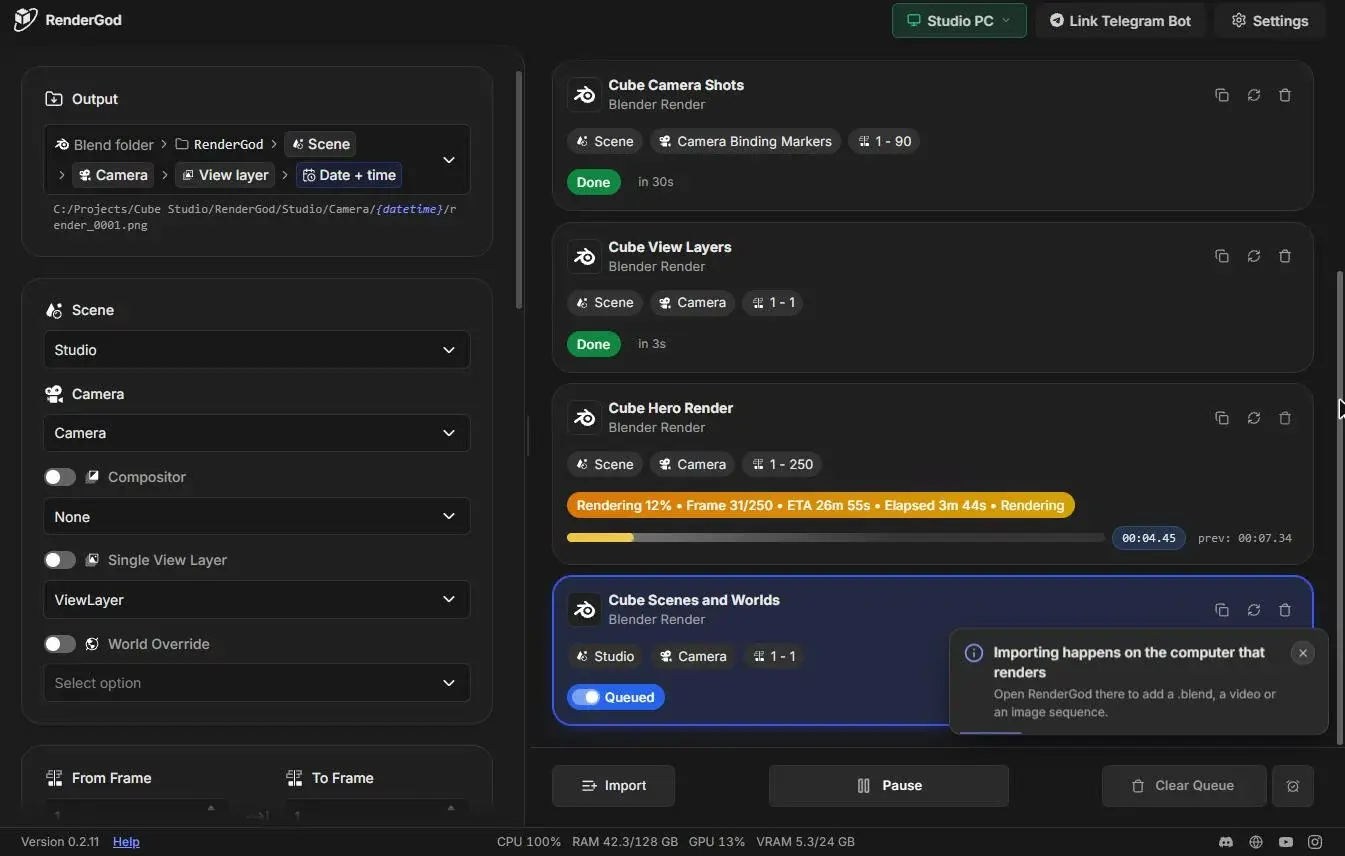
| Importing files, drag and drop, Queue Job(s) | Files must be on the computer that renders them. Clicking Import shows "Importing happens on the computer that renders". | Import on the computer, or send the scene from Blender there |
| Opening folders in Explorer or Finder | It would open a window on the remote computer, not in front of you. | Open the folder at the computer |
| Signing RenderGod in or out on the computer | Remote control depends on the computer being signed in. | Use Sign Out of This Browser to sign out only the browser. See Manage connected browsers. |
| Installing the Blender add-on | It writes into Blender and needs Blender restarted at the computer. Add-on status still shows. | Install the add-on from RenderGod on the rendering computer |
| Reset Settings, Force Quit, Start at Login | They act on the machine itself, and quitting would end the remote session with no way back. | Change them at the computer |
| UI Scale | The browser has its own zoom. | Use the browser's zoom (text size) |
| Window buttons, the separate previews window, updates | A browser has no app window, and reloads instead of updating. | Update RenderGod on the computer |
| Full-resolution frames and finished-video playback | Too large to stream to a browser. | The browser shows preview images; view full frames at the computer |
| Building preview proxies | It would encode and write files on the remote computer. | Build them at the computer |
| Background recovery setup and other steps that need a Windows administrator prompt | The prompt appears on the computer and must be accepted there. | Set up the background service at the computer |
When you click Import in the browser, a message explains where importing happens instead:
Allowed, but approved at the computer
Clearing the queue, deleting history, restarting or force-closing Blender and video encoders, and changing the Telegram connection all work from a browser, but only after someone at the computer clicks Approve.
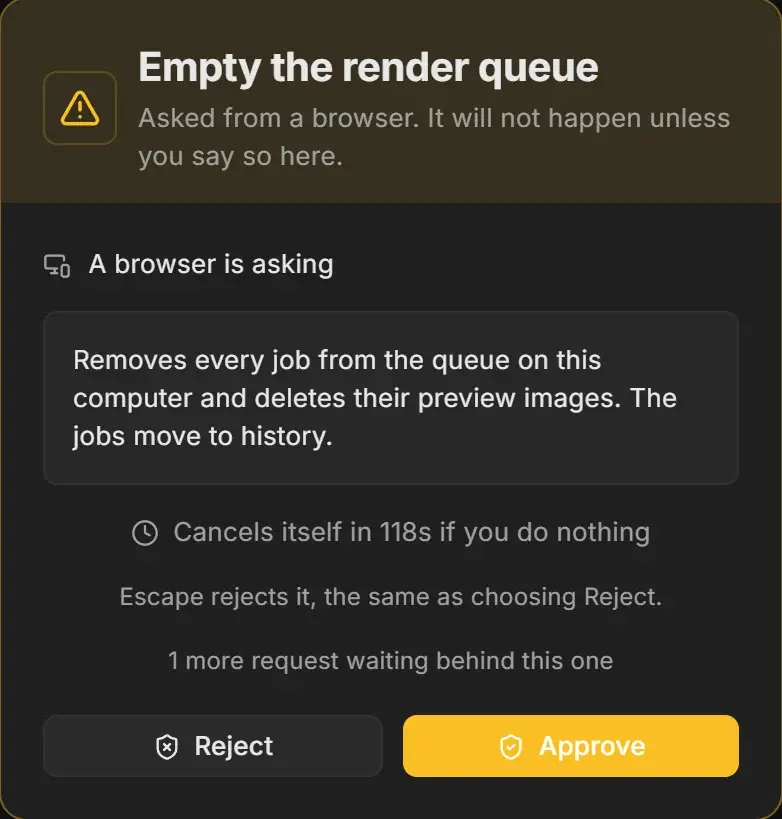
See Actions that need approval on the computer.
When the computer is offline
If you open a computer that is off or has RenderGod closed, the browser is read-only: "Read-only - your computer is offline." Every action is refused with "Nothing was changed. Turn the PC on to control it from here."
Remote control cannot wake or turn on a computer. For renders that must survive a crash or power cut, set up PC crash recovery on Windows.