Control Your Renders From a Browser
Use RenderGod remote control to watch and manage your render queue from a phone, tablet or another computer's browser while rendering stays on your PC.
Remote control lets you open RenderGod in a web browser on your phone, tablet or another computer and control your renders from there. You see the same interface as on the desktop: the queue, job cards, progress, previews and render settings. Rendering always stays on your own computer.
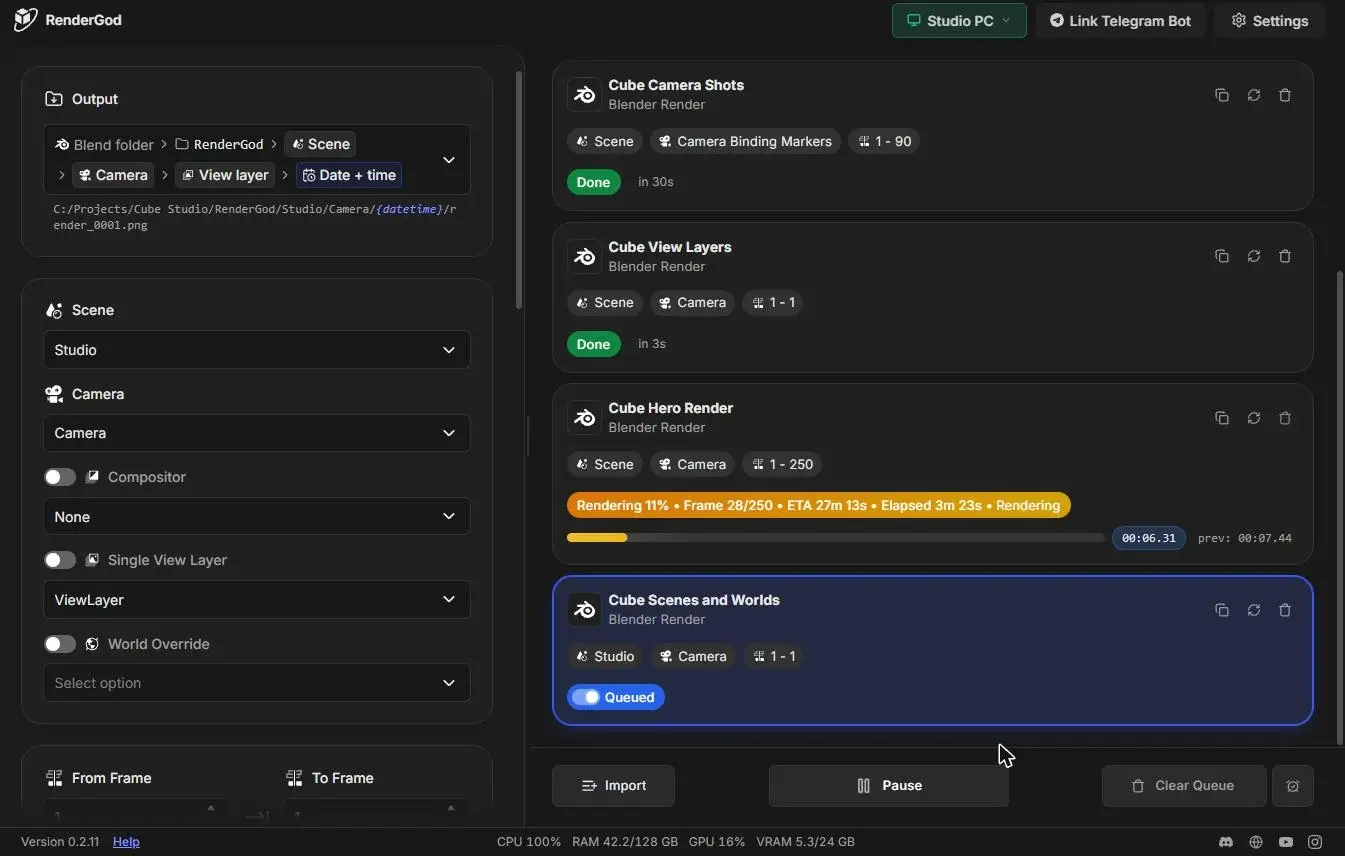
What you can do from a browser
- Watch progress, time remaining and live preview images.
- Start, pause and stop the queue, reorder, skip and retry jobs.
- Change render settings for queued jobs.
- Use the When Done actions, including shutdown and sleep.
- Switch between several computers signed in to your account.
Some things only make sense at the computer itself, such as importing files. See What you cannot do from a browser.
How it works
- Remote control is off by default. You turn it on in RenderGod on the rendering computer.
- On another device you open app.rendergod.app, sign in with Continue with Google using the same account, and pick the computer. See Connect from another device.
- The first time a browser connects, you approve it on the computer, unless you allowed browsers without asking.
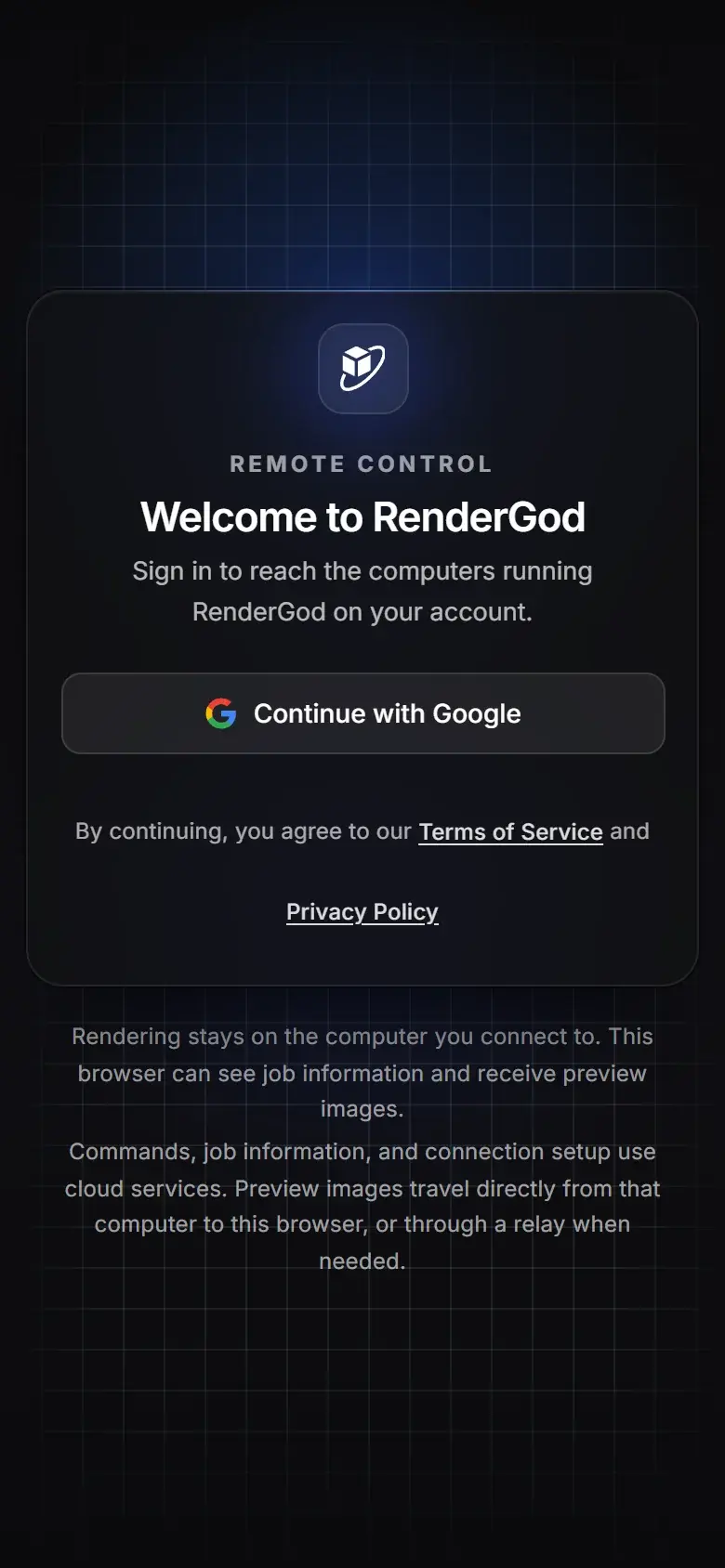
"Rendering stays on the computer you connect to. This browser can see job information and receive preview images." Commands, job information and connection setup go through RenderGod's online services. Preview images travel directly from the computer to the browser, or through a relay when a direct path is not possible.
Requirements
- The rendering computer is on, awake and online.
- RenderGod is running on it and signed in.
- Remote control is turned on in Settings > Remote Control.
- The browser is signed in with the same account as the computer.
If the computer is off or RenderGod is closed, you can still open it in the browser to read its last synced state, but nothing can be changed until it is back.
Safety built in
- Only browsers signed in to your account can see your computers.
- New browsers need your approval on the computer unless you choose otherwise.
- Actions that delete data or close programs, such as clearing the queue or force-closing Blender, must be approved at the computer. See Actions that need approval on the computer.
- Turn Off in settings disconnects every browser at once. See Manage connected browsers.
On a phone
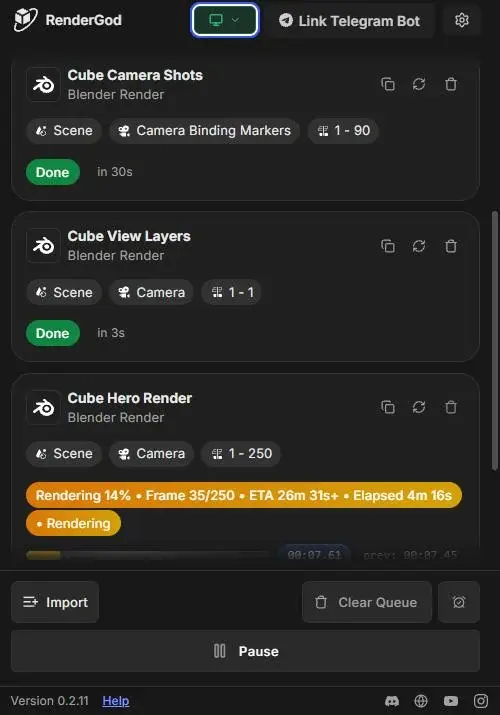
On a phone the layout switches to one column: the header keeps the computer icon chip, Link Telegram Bot and the settings gear, job cards stack, and Pause gets its own row under Import, Clear Queue and When Done. See Monitor a long render from your phone.
Remote control or Telegram?
Remote control gives you the full interface. The Telegram bot is lighter: notifications and quick commands in a chat. You can use both.