Remote Control Settings in RenderGod
Turn remote control on or off, copy the browser address, allow browsers without asking, rename this computer and end browser sessions from RenderGod Settings.
Remote control settings decide whether a web browser on another device can view and control the renders on this computer. Remote control is off by default. Rendering always stays on this computer; connected browsers see job information and preview images.
Open it from Settings > Remote Control, or click the Remote Control indicator in the header.
Before you start
You must be signed in. When you are signed out the section shows "Remote control is unavailable" and asks you to sign in from Account.
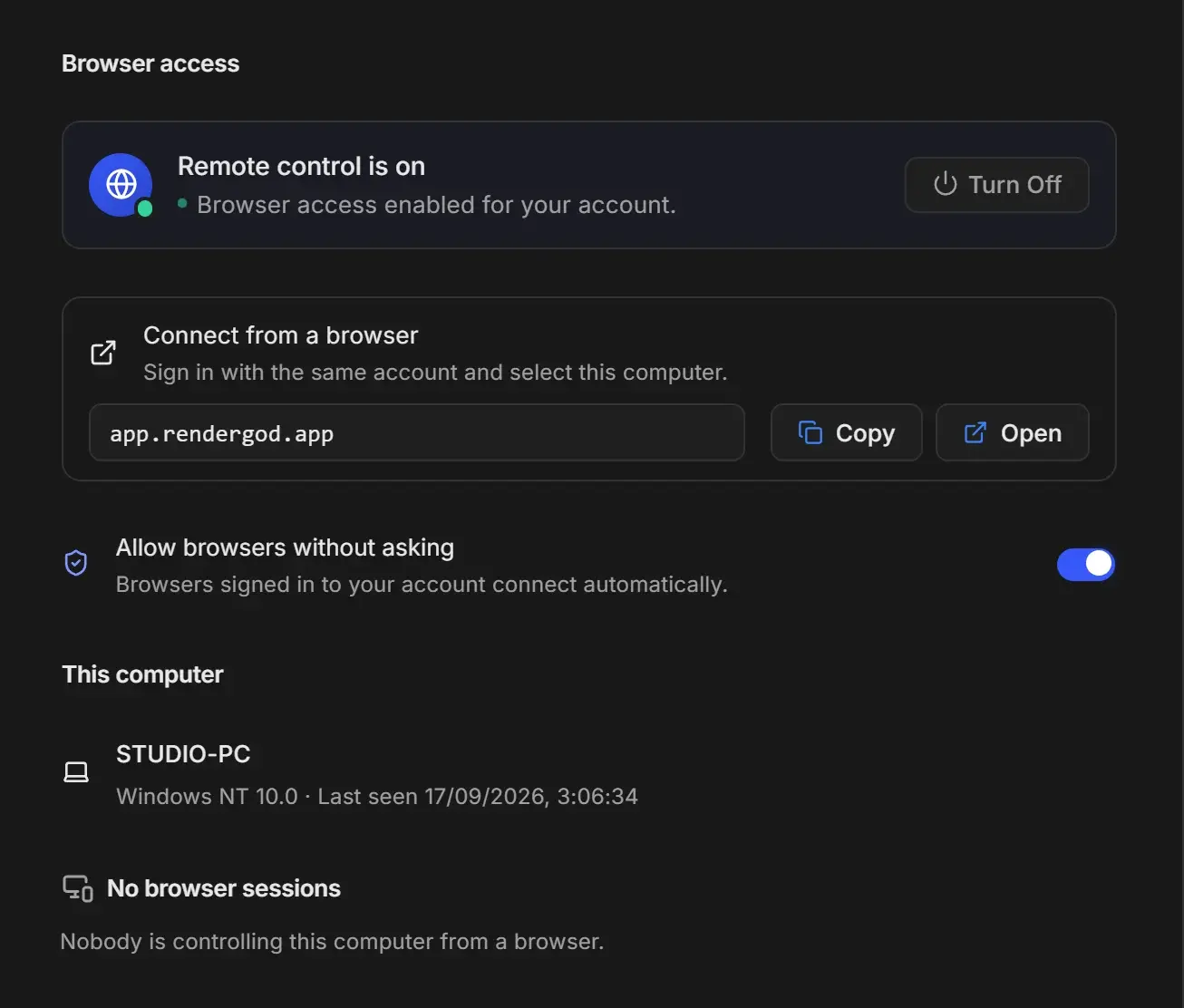
Browser access
| Element | What it does |
|---|---|
| Turn On Remote Control | Shown while remote control is off. Makes this computer reachable from browsers signed in to your account. |
| Turn Off | Shown while it is on. Stops every browser at once: the connection closes and this computer refuses commands. |
| Connect from a browser | The address to open on the other device, app.rendergod.app. Copy copies it, Open opens it in your default browser. Sign in there with the same account and pick this computer. |
| Allow browsers without asking | Appears when remote control is on. Off (default): "New browsers require approval on this computer." On: "Browsers signed in to your account connect automatically." Switching back to asking disconnects browsers that were already let in. |
With Allow browsers without asking off, a new browser triggers the Let a browser control this computer? prompt on this computer. See Approve or deny browser access.
Firewall warning
If RenderGod finds that previews may not reach you from other networks, a warning titled "Previews may not reach you away from home" appears. When Windows Firewall is the cause, click Allow it through Windows Firewall and accept the Windows administrator prompt. Other messages point to router or network limits that RenderGod cannot change; previews still work on the same network.
This computer
Shows the name browsers see when they pick a computer, with the operating system and when it was last seen.
To rename it, click the name, type a new one (up to 64 characters) and press Enter or click the check mark. Press Esc to cancel.
Browser sessions
The heading shows how many browser sessions are open, or "No browser sessions". Each connected browser is listed with its browser, approximate location, when it connected and when it was last active. The list refreshes every 15 seconds while the section is open.
- End session marks that browser session as ended.
- To cut off every browser immediately, click Turn Off.
More in Manage connected browsers.
On macOS
The section is the same. The Windows Firewall button only appears on Windows.