RenderGod Settings Overview and Sections
Find every RenderGod setting in one place. Learn how to open Settings, what each section controls and how changes save instantly without an Apply button.
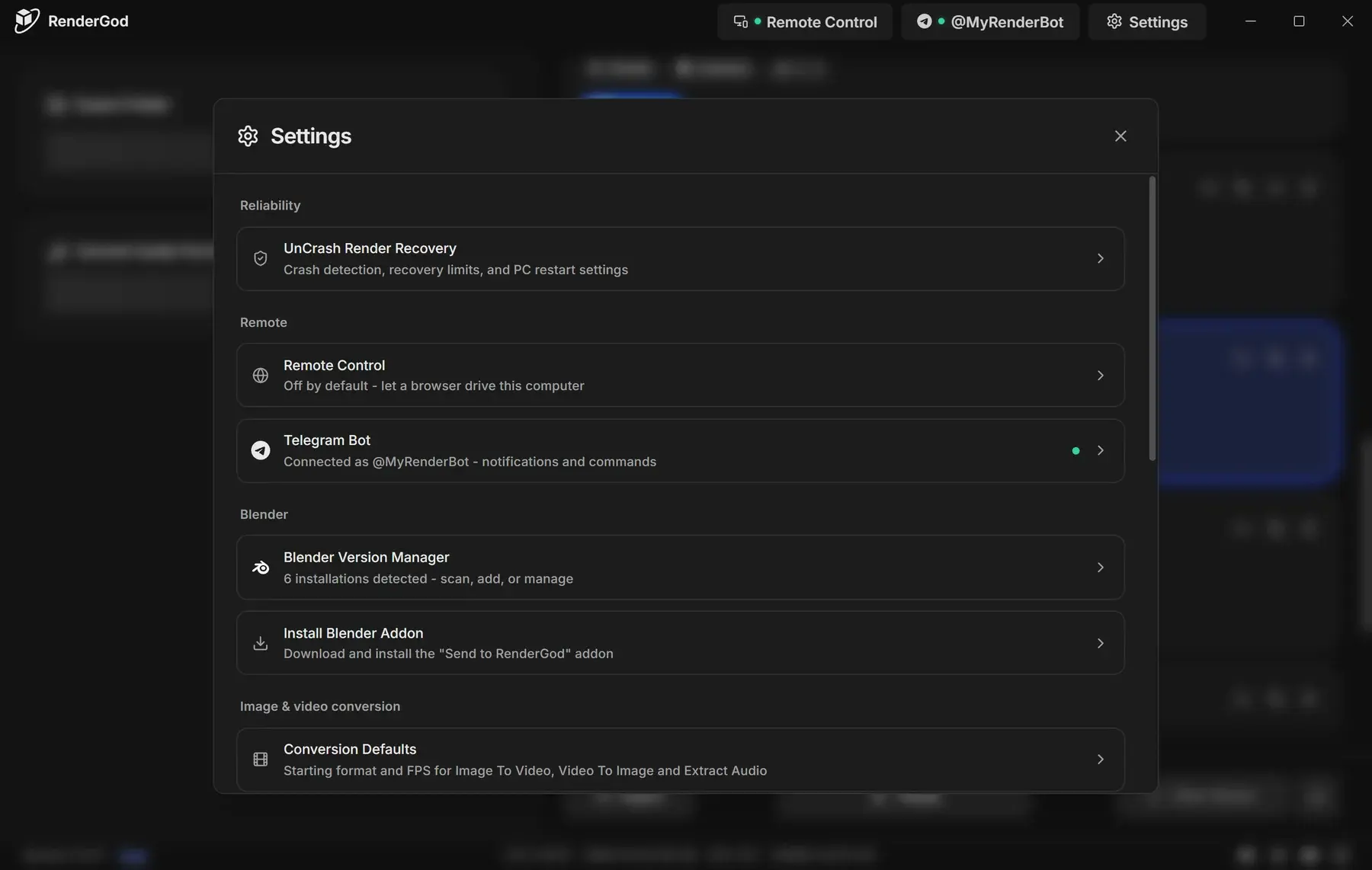
RenderGod settings control crash recovery, remote access, Blender installations, the defaults new jobs start with, and how the app looks and behaves. This page shows how to open Settings and where each option lives.
Open Settings
Click Settings (the gear button) at the top right of the RenderGod window.
Several places in the app open a specific section directly:
| Where you click | Opens |
|---|---|
| The Telegram button in the header | Telegram Bot |
| The Remote Control indicator in the header | Remote Control |
| Configure on the UnCrash Render Recovery card of the render settings panel | UnCrash Render Recovery |
| The gear icon on the Optimization Overrides, Auto Create Video or Auto Bake Physics rows of a job | The matching default settings section |
| Manage Blender Versions in a job's Blender version dropdown | Blender Version Manager |
| ⚙ Setup Defaults in an encoding format dropdown | Conversion Defaults |
| ⚙ Setup Defaults in an output template dropdown | Output Templates |
| Install Addon on the empty queue reminder | Install Blender Addon |
Find your way around
Settings opens on a list of every section with a one-line description. Click a section to open it. In a wide window a navigation column stays on the left so you can jump between sections; the back arrow returns to the list and the X (or a click outside the dialog) closes Settings. In a narrow window the navigation column is hidden: use the back arrow or swipe right.
Next time you open Settings it starts on the list again.
All settings sections
| Group | Section | What it controls |
|---|---|---|
| Reliability | UnCrash Render Recovery | Recovery from Blender crashes, frozen frames and PC restarts, and retry limits |
| Remote | Remote Control | Let a browser on another device view and control this computer |
| Remote | Telegram Bot | Link your Telegram bot and choose which messages it sends |
| Blender | Blender Version Manager | Find, add and list Blender installations |
| Blender | Install Blender Addon | Install the "Send to RenderGod" add-on into your Blender versions |
| Image & video conversion | Conversion Defaults | Starting format and FPS for new conversion jobs |
| Render defaults | Output Templates | Where new render jobs save frames and how files are named |
| Render defaults | Auto Create Video | Whether new render jobs encode a video when they finish |
| Render defaults | Auto Bake Physics | Whether new render jobs bake simulations first |
| Render defaults | Optimization Overrides | GPU, tile size, Fast GI, texture and add-on defaults for new jobs |
| App | Badge Display | Which badges appear on job cards |
| App | History | Restore or permanently delete removed jobs |
| App | System Settings | Theme, notifications, start at login, updates, reset and force quit |
| App | Account | Sign in and sign out |
How settings are saved
- There is no Save or Apply button. Every switch, dropdown and stepper takes effect as soon as you change it.
- The Render defaults and Conversion Defaults sections only affect jobs you add from now on. Jobs already in the queue keep their own settings, which you change in the render settings panel.
- Settings belong to this computer. To start over, use Reset Settings in System Settings.