Install Blender Addon Settings in RenderGod
Install or update the Send to RenderGod add-on in one or more Blender versions, check each version's add-on status and control the empty queue reminder.
The Install Blender Addon section installs the "Send to RenderGod" add-on into the Blender versions on this computer. "Send to RenderGod" saves the open .blend file and adds it to the queue. This page lists every control; the step by step guide is Install the Blender add-on.
Open it from Settings > Install Blender Addon, or click Install Addon on the reminder shown when the queue is empty.
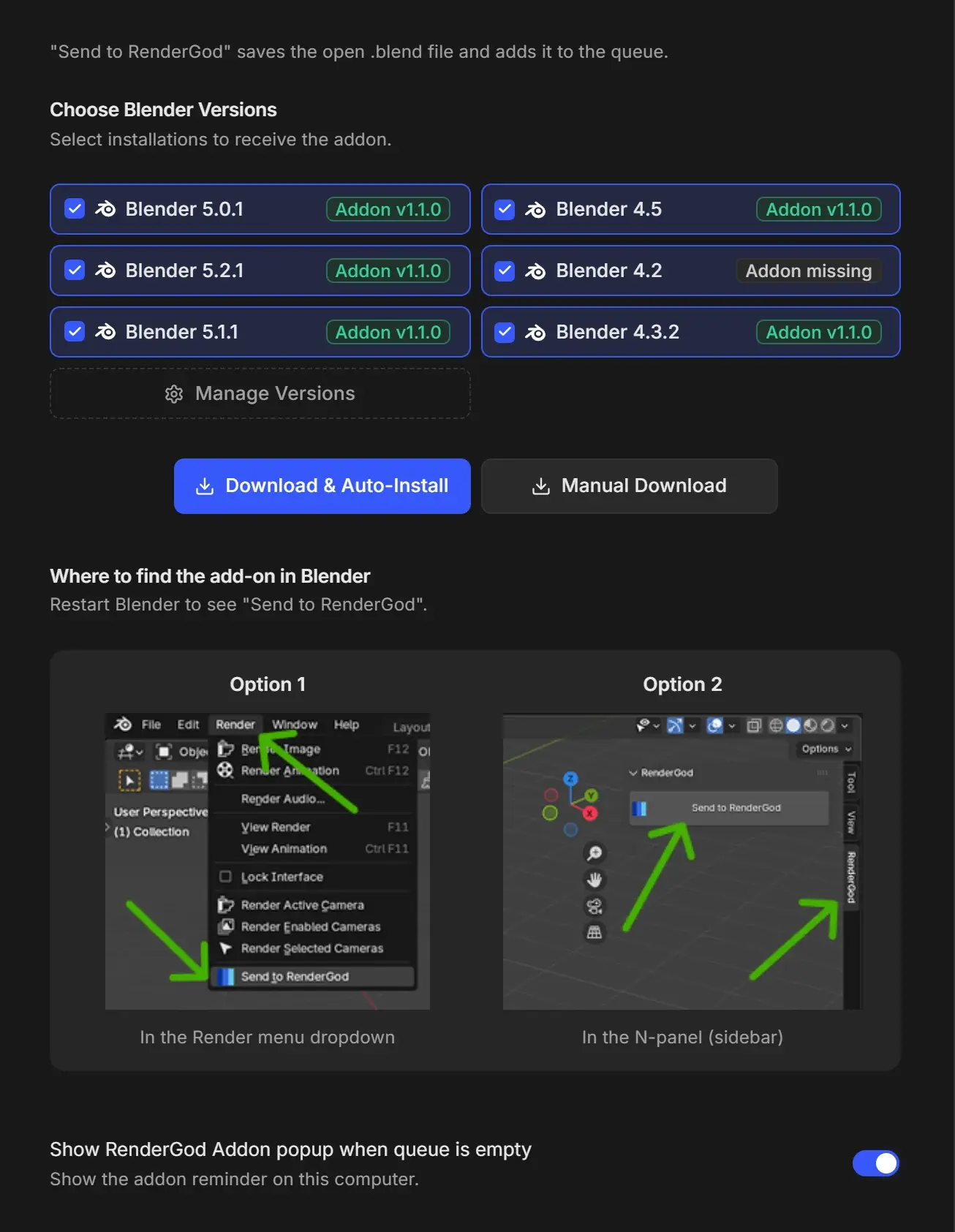
Choose Blender Versions
"Select installations to receive the addon." Every installation from the Blender Version Manager appears as a chip, and all are selected when the section opens. Click a chip to include or exclude it. The dashed Manage Versions chip opens the Blender Version Manager.
Each chip shows the add-on status for that Blender version. Hover it to see the add-on folder.
| Status | Meaning |
|---|---|
| Addon missing | The add-on is not installed in this version. |
| Addon v1.1.0 (green) | Installed and up to date with the add-on bundled in this RenderGod. |
| Addon outdated (v…) (amber) | An older add-on is installed. Install again to update. |
| Addon (version unknown) (amber) | RenderGod could not read the installed version. Install again to be sure. |
If no Blender is known yet you see "No Blender versions detected" with Configure Blender Versions.
Install buttons
| Button | What it does |
|---|---|
| Download & Auto-Install | Installs and enables the add-on in every selected version. Disabled when nothing is selected. Each chip shows progress, then a green check or a red X. |
| Manual Download | Saves the add-on as a single Python file (rendergod_shell_addon.py) so you can install it yourself from Blender's Add-ons preferences. |
After a successful install a green "Addon Installed Successfully!" panel appears with Restart Blender (Required).
If some versions fail, the panel "Couldn't install the add-on" lists the reason. Versions marked as installed succeeded. Close Blender, then click Retry.
Where to find the add-on in Blender
Restart Blender after installing to see Send to RenderGod. Two example pictures show the button in the Render menu (Option 1) and in the RenderGod tab of the 3D Viewport sidebar (Option 2). See Send the current scene to RenderGod.
Show RenderGod Addon popup when queue is empty
| Setting | Default | What it does |
|---|---|---|
| Show RenderGod Addon popup when queue is empty | On | Shows the add-on reminder on this computer when the queue is empty. Turn it off once the add-on is installed. |
This switch is not affected by Reset Settings.
On macOS
The section works the same way. The add-on is installed into each Blender version's user add-ons folder in your Library.